
Monitor Akamai Cloud with Site24x7
Monitor your Akamai Cloud infrastructure with Site24x7 to achieve comprehensive visibility into the health, availability, and performance of your Akamai cloud resources.
By continuously tracking vital metrics such as CPU and memory usage, disk I/O, and network latency, you can detect performance degradation and potential bottlenecks before they escalate.
This technical oversight enables you to optimize resource allocation, automate scaling, and enforce service-level agreements, ensuring minimal downtime and improved reliability in a cost-effective Akamai environment.
Getting started
Add an Akamai Cloud monitor
Monitor your Akamai Cloud resources with Site24x7 to ensure optimal performance, identify bottlenecks, and gain actionable insights into overall health. Add an Akamai Cloud monitor to begin tracking and managing your cloud environment effectively.
Supported Akamai Cloud services
Site24x7 supports out-of-the-box monitoring for various Akamai Cloud services. Newly supported services are automatically discovered and added based on your selected discovery interval.
Permissions required
To allow Site24x7 to access your Akamai Cloud environment, you'll need to:
- Generate a Personal Access Token (PAT) with Read Only permissions in your Akamai Cloud account.
- Ensure the personal access token has the required Read Only access scopes for the resources you want to monitor.
- Use the personal access token in the Site24x7 console to authenticate with your cloud account and begin monitoring.
Authentication and resource discovery
Token-based authentication
Site24x7 uses a personal access token to authenticate with your Akamai Cloud account. Your credentials are securely stored and encrypted for your protection.
Discovery interval
The Discovery Interval defines how frequently Site24x7 checks for newly added or removed services in your Akamai Cloud account. Available options include:
- 15 minutes
- 30 minutes
- 1 hour
Select a frequency that aligns with the rate of change in your infrastructure.
Dashboards
Once you successfully establish your Akamai Cloud monitor, you will be directed to the Service View page, where you will find all of your Akamai Cloud resources available in the Site24x7 user console.
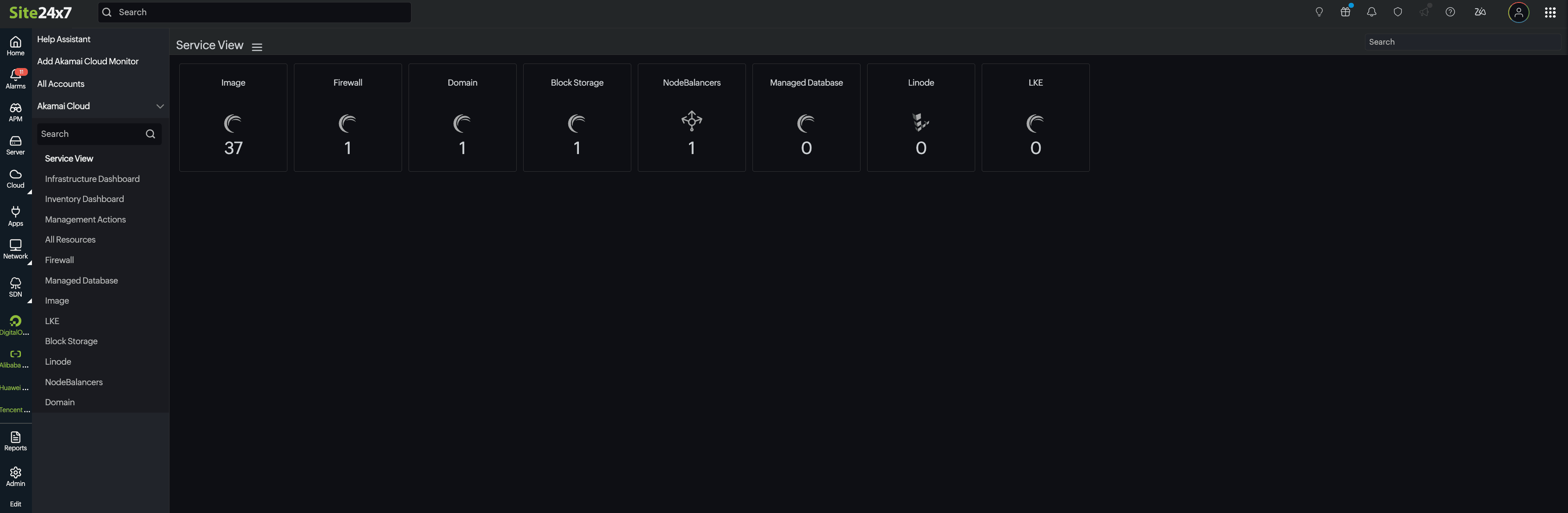
In addition to this Service View dashboard, three additional dashboards are available to provide deeper visibility into your environment:
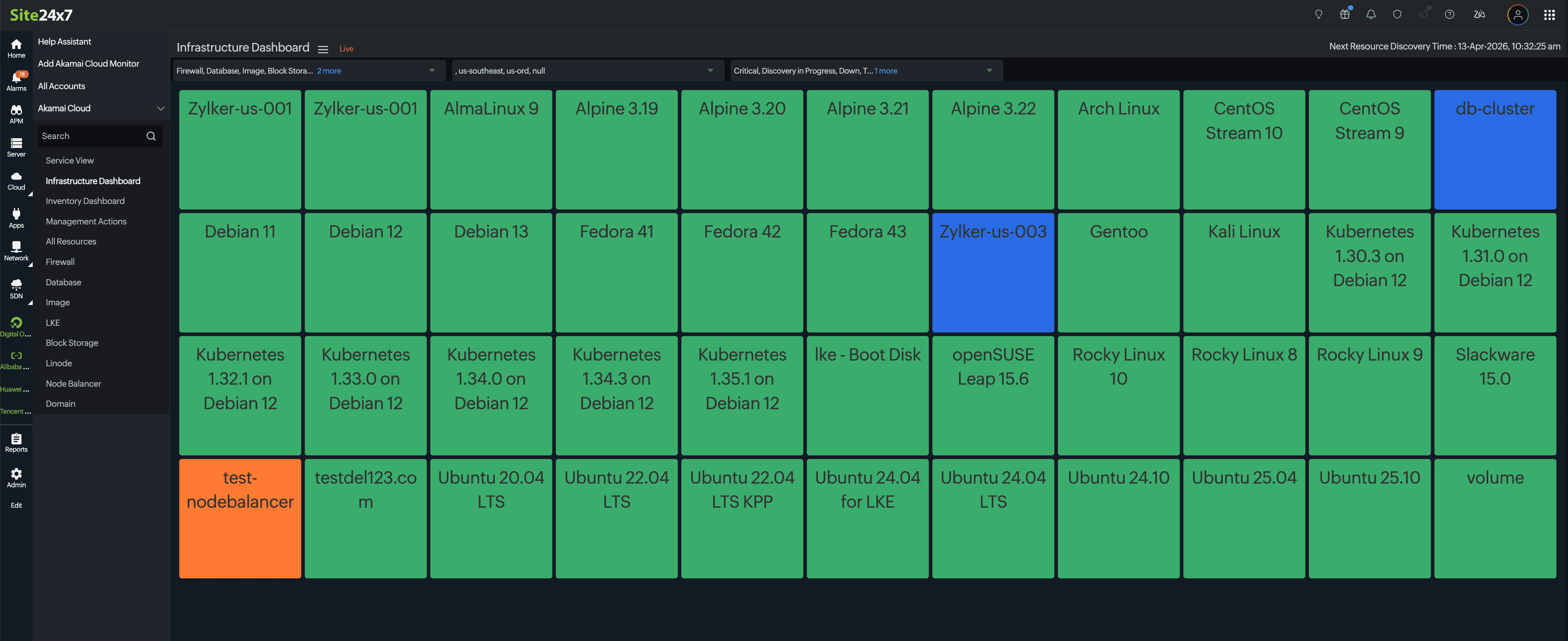
- Infrastructure Dashboard provides a NOC view of all your cloud resources grouped based on cloud resource types.
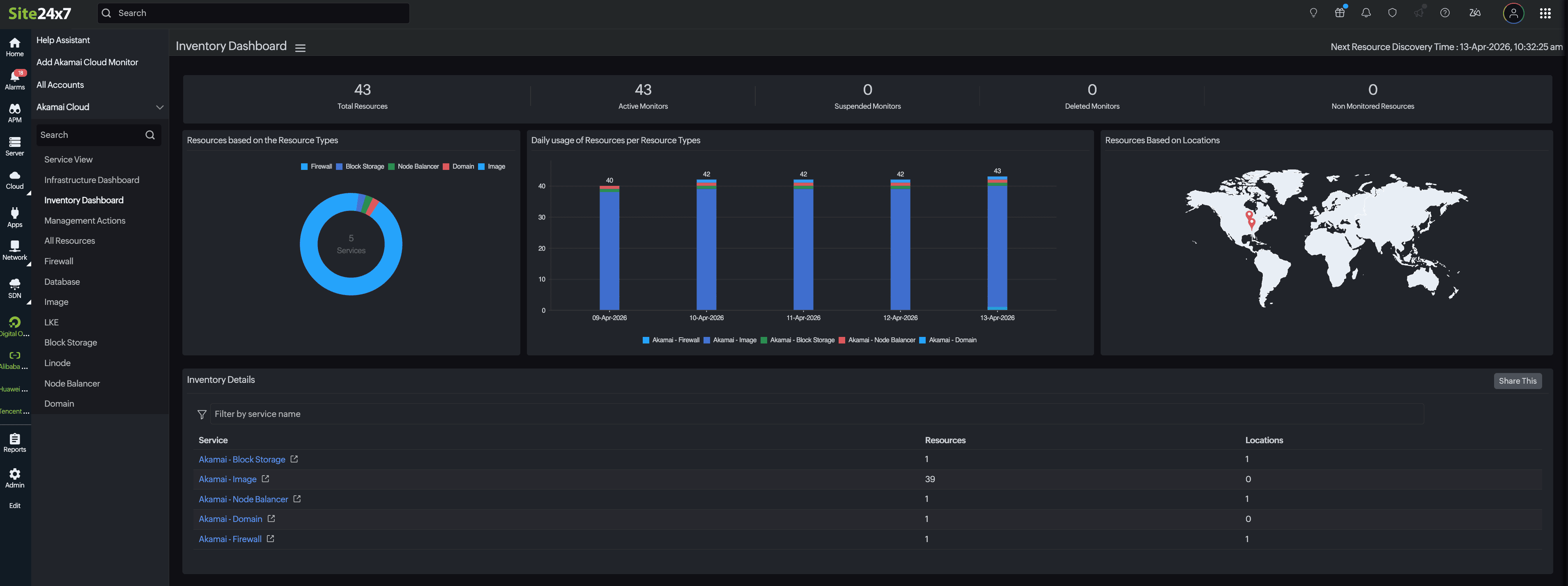
- Inventory Dashboard shows the inventory details of each cloud resource type.
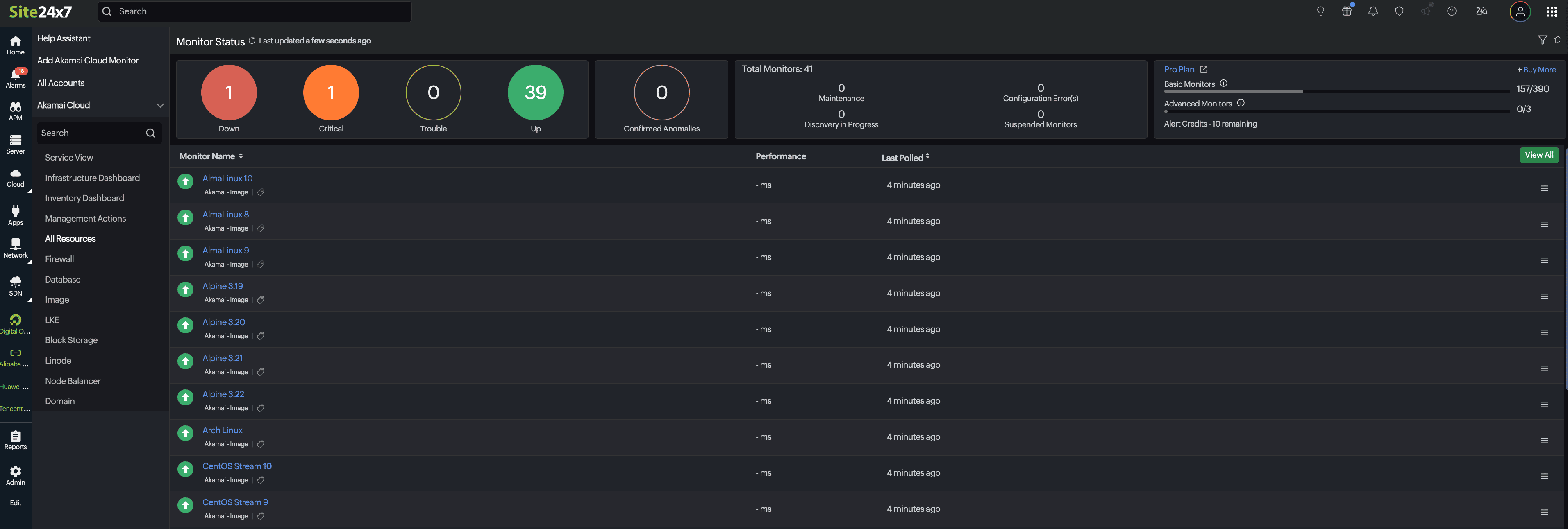
- All Resources displays a summary view of all individual cloud resources. Each resource type will be listed under the Akamai Cloud monitor, which contains all the monitors under the resource type category.
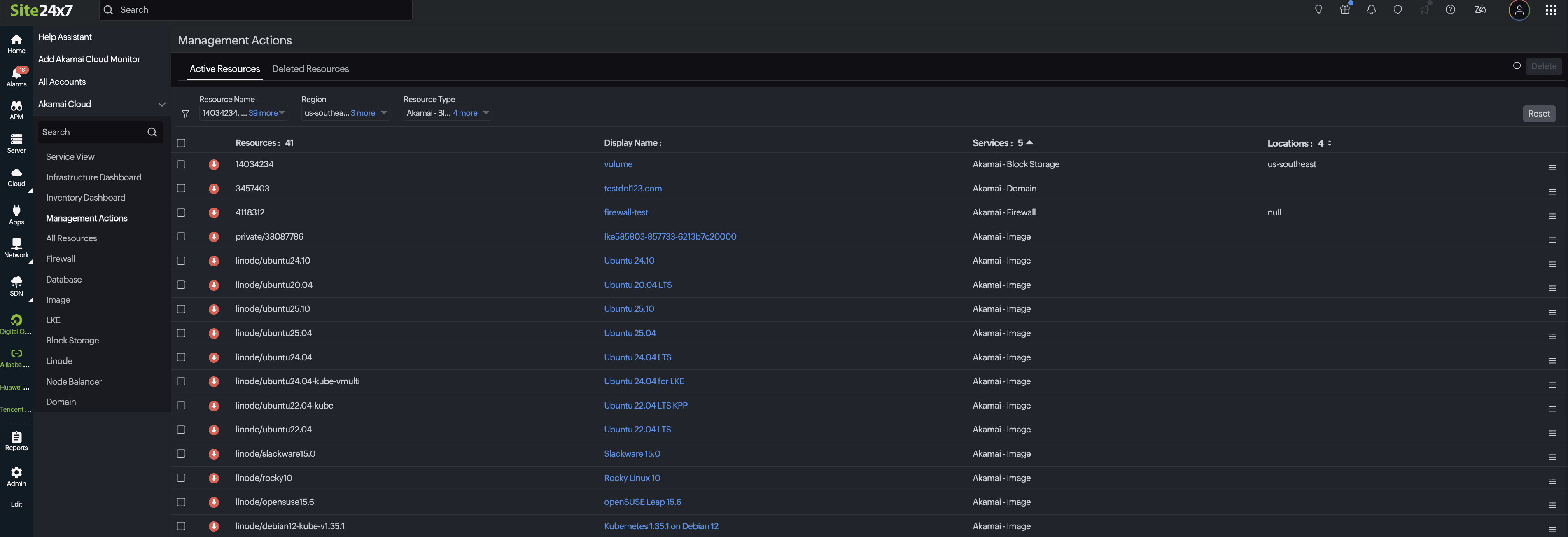
- The Management Actions page lets you manage the life cycle of your monitored resources. Active Resources will provide a comprehensive overview of all actively monitored resources associated with Akamai Cloud.
- When a resource is removed, it is not permanently deleted. Instead, it is moved to Deleted Resources.
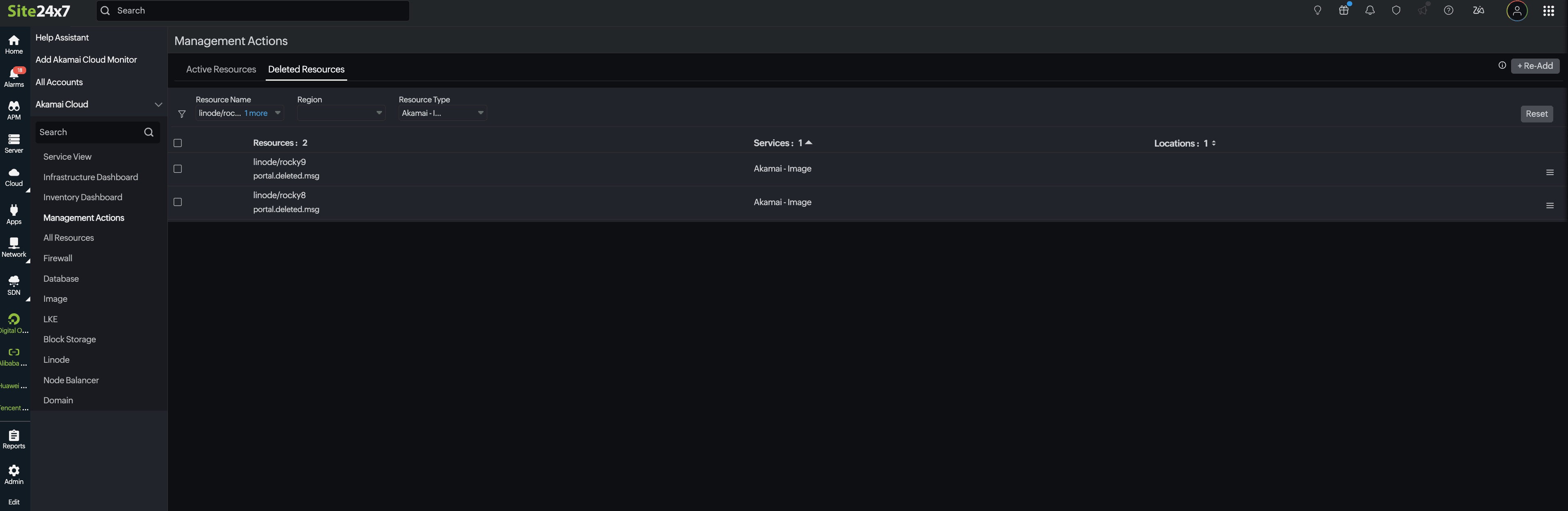
- This ensures that users can keep a record of previously monitored resources for future reference. You can also use the Re-Add button to restore any deleted resources whenever monitoring is required.
- When a resource is removed, it is not permanently deleted. Instead, it is moved to Deleted Resources.
In addition to these dashboards, you can build custom dashboards tailored to your team's specific needs, execute management actions, and identify critical anomalies.
Topology View
The new interactive Topology View maps your Linode instances, NodeBalancers, and other Akamai Cloud resources by the account, region, and service, so you can trace how they're connected before an issue spreads. The health status is color-coded at every level, cutting down the time it takes to go from an alert to the root cause.
Monitoring configuration
Threshold and availability
Establish custom threshold profiles for each service to proactively identify performance issues or outages. If you have not created a dedicated threshold profile for your Akamai Cloud resources, default threshold profiles will be auto-applied.
Tags
Use tags to categorize and filter monitors by resource type, environment (production/test/development), or ownership. Tags can be assigned to the Akamai Cloud monitor for better monitoring management.
IT automation templates
Site24x7 empowers you to automate corrective measures when a monitor enters a trouble or down state. Select the auto-remediation action template to be applied to this monitor and the condition when it should be applied.
Security and compliance
Site24x7 follows stringent data security practices compliant with all leading industry and legal standards. To view our security compliance and certifications, refer to our security page.
Integrations
Learn how to integrate with leading ITSM, analytics, workflow, and more tools from our integrations help document. Integrations help with routing alerts to ticketing tools and more.
Common troubleshooting instructions
Here are the frequent risks during Akamai Cloud monitoring:
- Incorrect access token
- Insufficient permissions: Read permission is required for monitoring
- Insufficient licenses
-
On this page
- Getting started
- Add an Akamai Cloud monitor
- Supported Akamai Cloud services
- Permissions required
- Authentication and resource discovery
- Token-based authentication
- Discovery interval
- Dashboards
- Topology View
- Monitoring configuration
- Threshold and availability
- Tags
- IT automation templates
- Security and compliance
- Integrations
- Common troubleshooting instructions