
Configuration Rules for network interfaces
Configuration Rules in Site24x7 help you automatically classify, organize, and manage network interfaces discovered across your routers, switches, firewalls, WLCs, and other network devices. These rules eliminate repetitive setup work by applying tags, thresholds, monitor groups, and automation templates based on interface attributes.
This document explains how Configuration Rules work for network interfaces and how you can create, apply, and manage them.
What are Configuration Rules?
Configuration Rules allow you to define conditions that match specific network interfaces—such as interfaces with a particular name, type, IP, operational status, or admin state—and automatically apply configuration settings during discovery or subsequent updates.
Rules can be applied when:
- A new network device is onboarded.
- New interfaces are discovered under an existing device.
- Existing interfaces change attributes.
- Configuration Rules are run manually on selected devices.
Example use cases
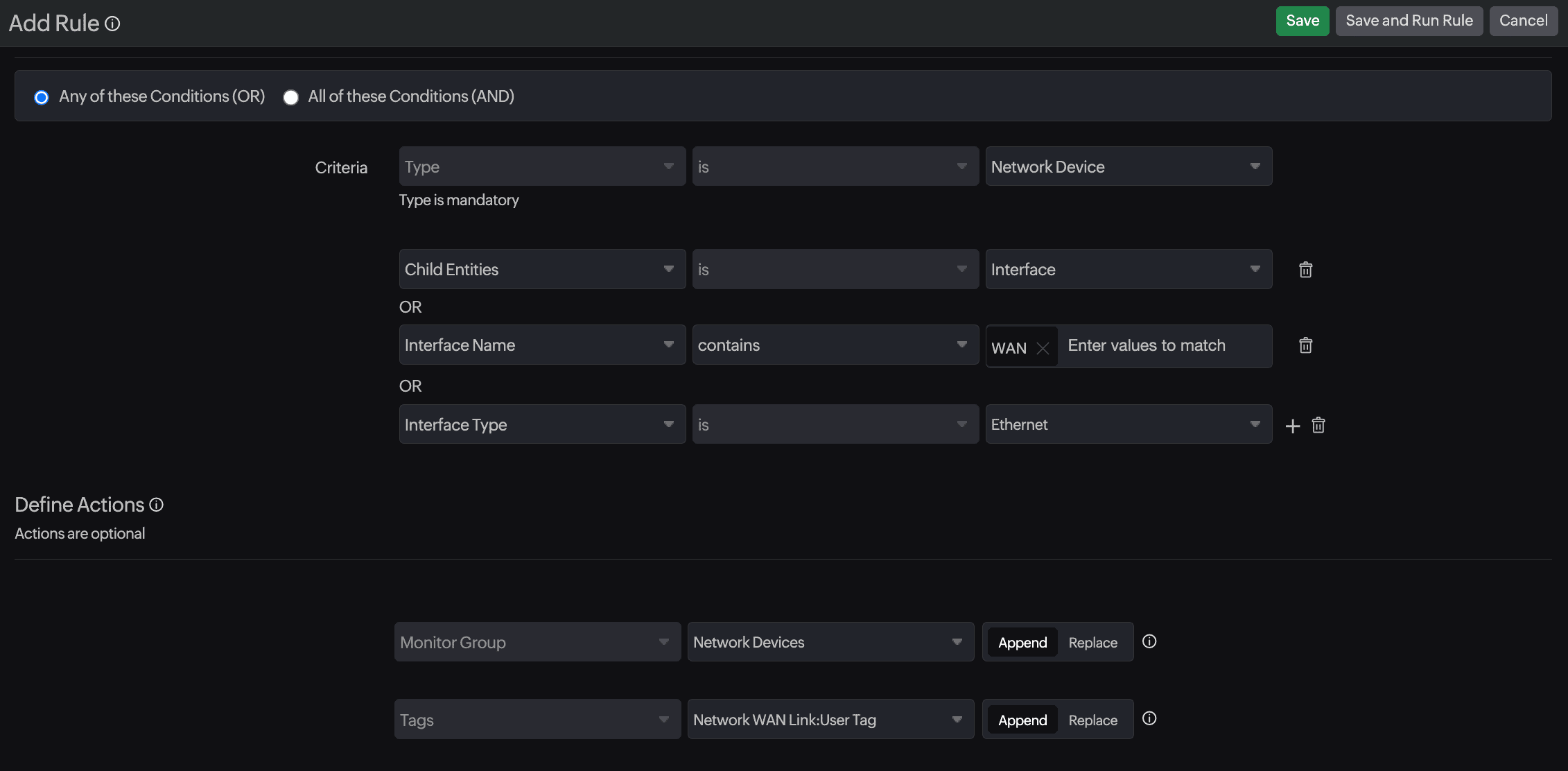
1. Add WAN interfaces to a monitor group
Criteria:
- Interface Name contains WAN
- Interface Type is Ethernet
Action:
- Set Monitor Group to Network Devices
- Append Tags to the monitor
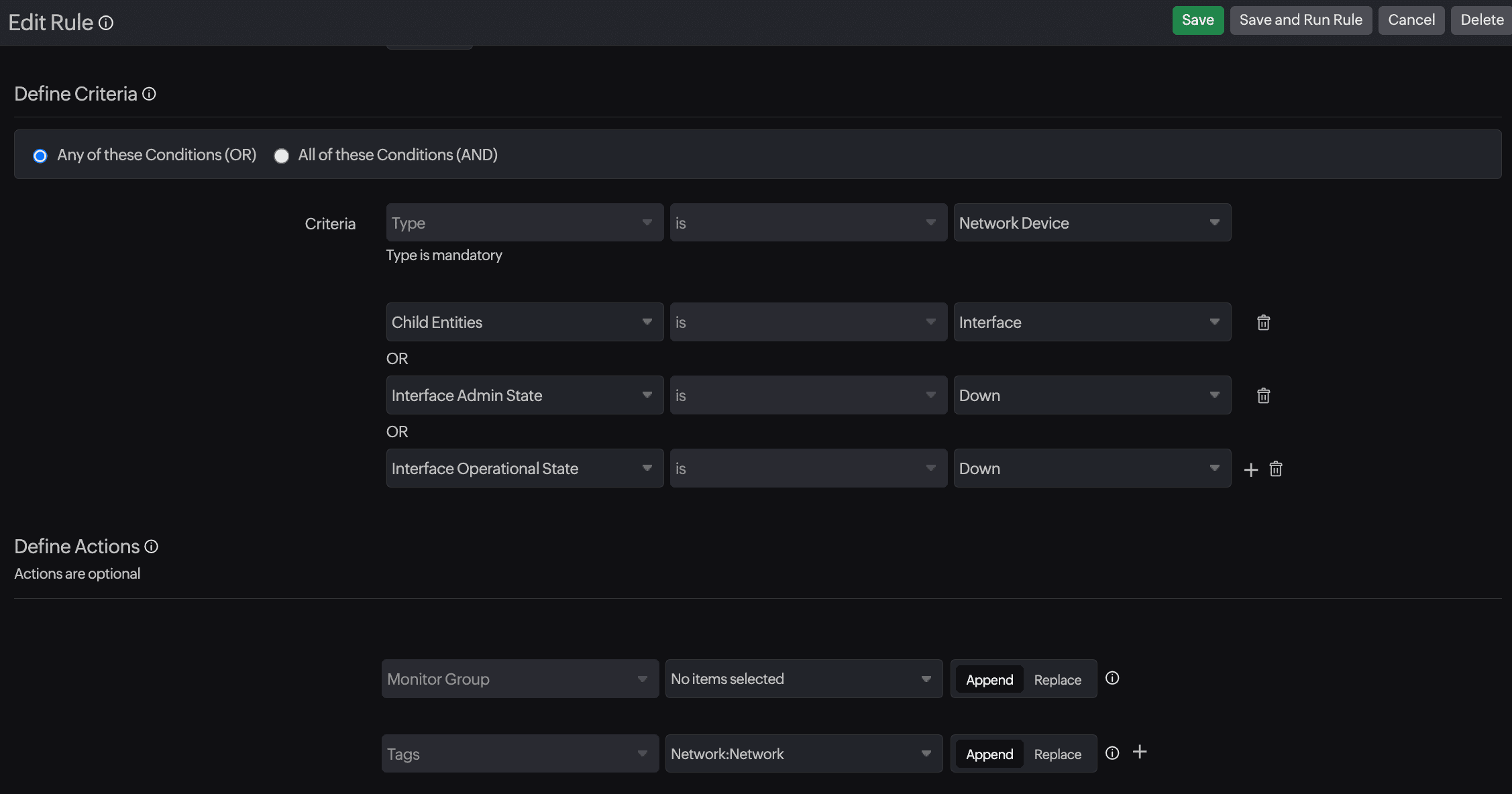
2. Add tags to down/disabled backup links
Criteria:
- Interface Operational State is Down
- Interface Admin State is Down
Action:
- Append Tags to the monitor
Supported interface-level criteria
When adding or editing a rule, choose Network Device as the Type and then specify Child Entities as Interface.
Interface-level matching supports the following attributes:
| Attribute | Description |
|---|---|
| Interface Name | Match specific names (e.g., GigabitEthernet0/1, Vlan10). |
| Interface Type | Identify types such as Ethernet, loopback, VLAN, tunnel, and port channel. |
| Interface IP | Match based on assigned IP address. |
| Interface IP Type | Filter by IPv4 or IPv6. |
| Interface Operational State | Match interfaces that are up or down (link status). |
| Interface Admin State | Match interfaces configured as enabled/disabled. |
| Interface Status | Combine admin and operational states (e.g., Up/Up, Up/Down). |
| Monitor Name | Automatically rename interfaces based on match conditions for consistent naming. |
| Check Frequency | Set how often the matched interface should be polled. |
| Monitor Group | Add the matched interface to a selected Monitor Group. When a Monitor Group is selected as part of the rule action, the interface will be added to that group and will also be created as a separate monitor in Site24x7. |
| Monitor Tags | Append or replace tags to help with filtering, reporting, and automation. |
You can define one or more conditions using AND/OR logic to target the exact set of interfaces you want to configure.
Creating a Configuration Rule for interfaces
- Navigate to Admin > Inventory > Configuration Rules.
- Click Add Rule.
- Enter a Display Name and optional description.
- Under Define Criteria:
- Set Type to Network Device.
- Add Child Entities. In the adjacent drop-down menu, select Interface.
- Configure additional interface-level criteria as needed.
- Under Define Actions, choose what should be automatically applied:
- Tags
- Monitor groups
- IT Automation templates can be executed for network interfaces if the monitor is also added under Network Configuration Management in Site24x7. Select a template from the Automation drop-down menu, choose when it should be executed using the next field, and click Add to apply it.
- Click Save or Save and Run Rule.
Interface actions supported by Configuration Rules
Configuration Rules can automatically apply:
| Action | Description |
|---|---|
| Tags | Add or replace tags for classification and filtering. |
| Monitor Groups | Automatically group interfaces for easier management. |
All actions support Append or Replace behavior.
Running rules on existing interfaces
You can apply rules to already discovered network devices:
- Go to Admin > Configuration Rules.
- Choose the rule and click Run Rule.
- Select the devices/interfaces to evaluate.
Site24x7 processes all matching interfaces and updates configurations instantly.
Best practices
- Use specific naming conventions (e.g., WAN, Uplink, Core) to simplify rule creation.
- Keep interface rules modular: Create separate rules for thresholds, grouping, and tagging.
- Test rules using Save and Run Rule before enabling for automatic application.
- Use Stop Executing Other Rules to enforce rule order when needed.