
Monitor Huawei Cloud with Site24x7
Monitor your Huawei Cloud infrastructure with Site24x7 to achieve comprehensive visibility into the health, availability, and performance of your Huawei Cloud resources.
Discover services, configure thresholds, receive alerts, and automate incident remediation in a unified monitoring console.
Use cases
Here are some use cases for Huawei Cloud monitoring:
- Global and region-specific cloud operations: Monitor all Huawei Cloud workloads from a single platform. Meet compliance and latency requirements with region-specific infrastructure.
- Large-scale infrastructure monitoring: Track health and performance of 30+ Huawei Cloud resource types and receive proactive alerts to prevent service disruptions.
- Capacity planning and performance forecasting: Analyze long-term trends in compute, storage, and networking. Forecast growth, optimize resources, and prevent capacity bottlenecks before you breach SLAs.
Benefits of Huawei Cloud monitoring
With Huawei Cloud monitoring, you can leverage the following benefits:
- Automatic resource discovery: Automatically discover Huawei Cloud resources after account integration. Monitor inventories accurately as infrastructure scales and changes.
- Real-time infrastructure visibility: View resource health and operations instantly on centralized dashboards with clear, color-coded status indicators.
- Faster incident detection and remediation: Set threshold alerts and IT Automation rules to detect issues early, notify the relevant teams, and resolve problems before users are affected, reducing mean time to resolution.
Prerequisites
Before adding a Huawei Cloud monitor, complete the following prerequisites:
- In your Huawei Cloud account, create credentials with read-only permissions to authenticate with Site24x7.
- Assign the required read-only policies to the IAM user.
- In the Site24x7 console, enter your Huawei Cloud account credentials to establish the connection and start resource discovery.
Add a Huawei Cloud monitor
Gain visibility into resource health, performance trends, and availability across your cloud environment by adding a Huawei Cloud monitor.
Supported Huawei Cloud services
Site24x7 supports out-of-the-box monitoring for various Huawei Cloud services. Newly supported services are automatically discovered and added based on your selected discovery interval.
Authentication and resource discovery
Key-based authentication
Site24x7 uses an access key to authenticate with your Huawei Cloud account. Your credentials are securely stored and encrypted for your protection.
Discovery interval
The Discovery Interval defines how frequently Site24x7 checks for newly added or removed services in your Huawei Cloud account. Available options include:
- 15 minutes
- 30 minutes
- One hour
Select a frequency that aligns with the rate of change in your infrastructure.
Dashboards
Once the Huawei Cloud monitor is successfully configured, the Service View page displayed, showing all monitored Huawei Cloud resources.
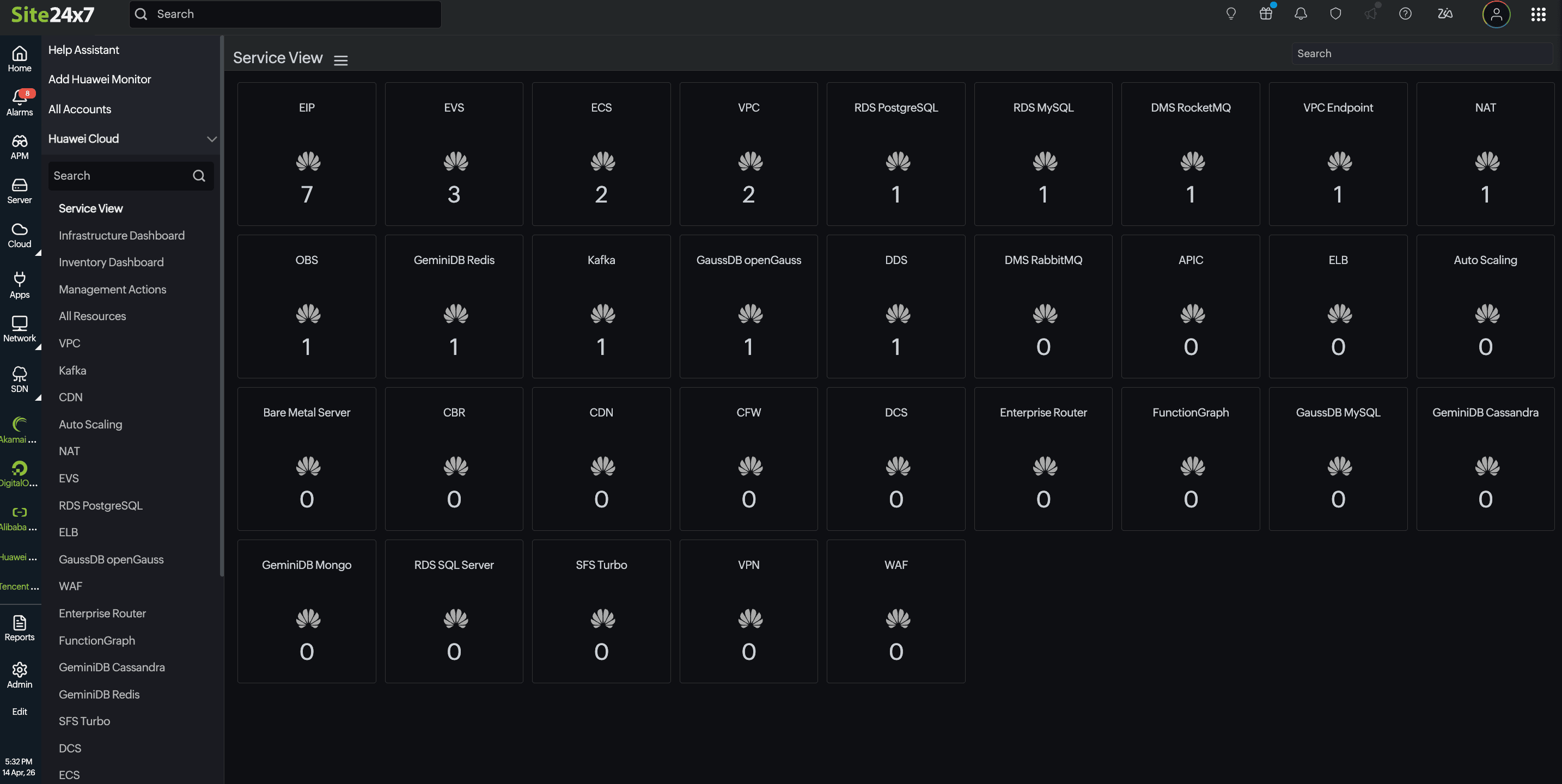
In addition to this Service View dashboard, three additional dashboards are available to provide deeper visibility into your environment:
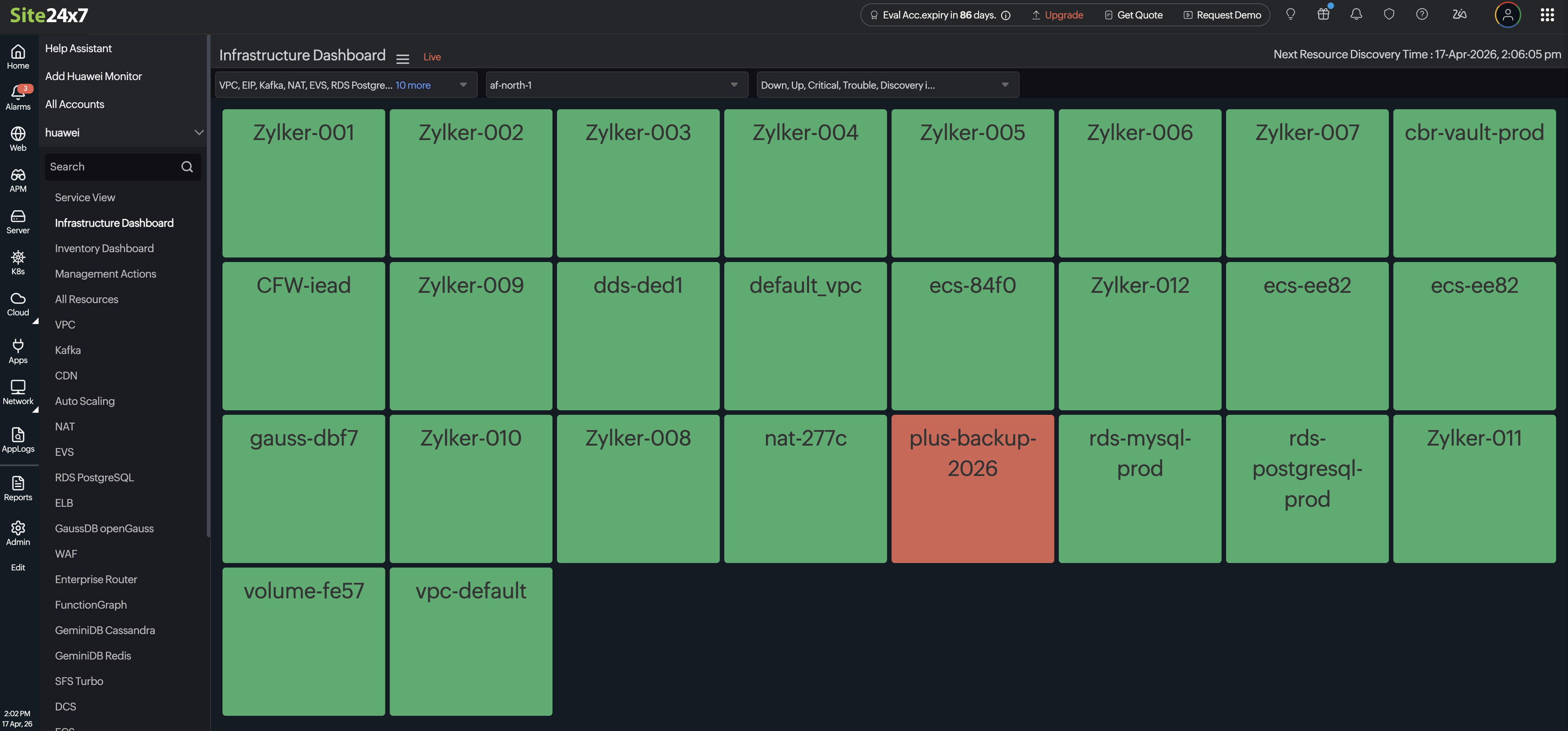
- Infrastructure Dashboard provides a live, color-coded NOC view of all your monitored resources. Each tile reflects the current health status of a resource (green for up, orange for alerts, red for down) with a simple at-a-glance picture of your entire infrastructure and making it easy to spot issues at a moment's notice.
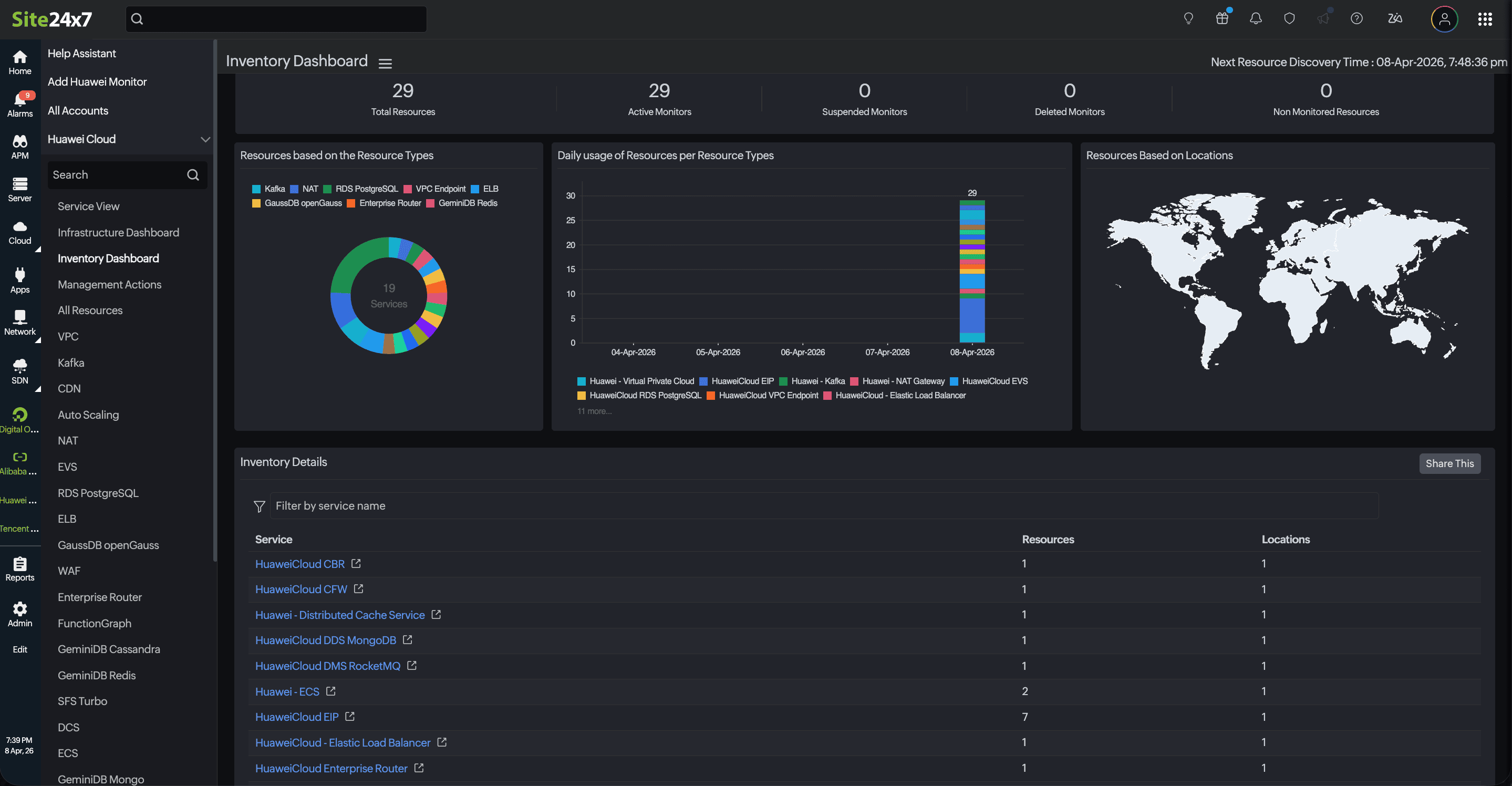
- Inventory Dashboard gives you a consolidated summary of all resources across service types and regions. It shows total resource counts, active monitors, and usage trends over time through interactive charts, along with a geographic map of where your resources are deployed.
- Management Actions lets you manage the life cycle of your monitored resources. Active Resources displays a comprehensive overview of all actively monitored resources associated with Huawei Cloud.
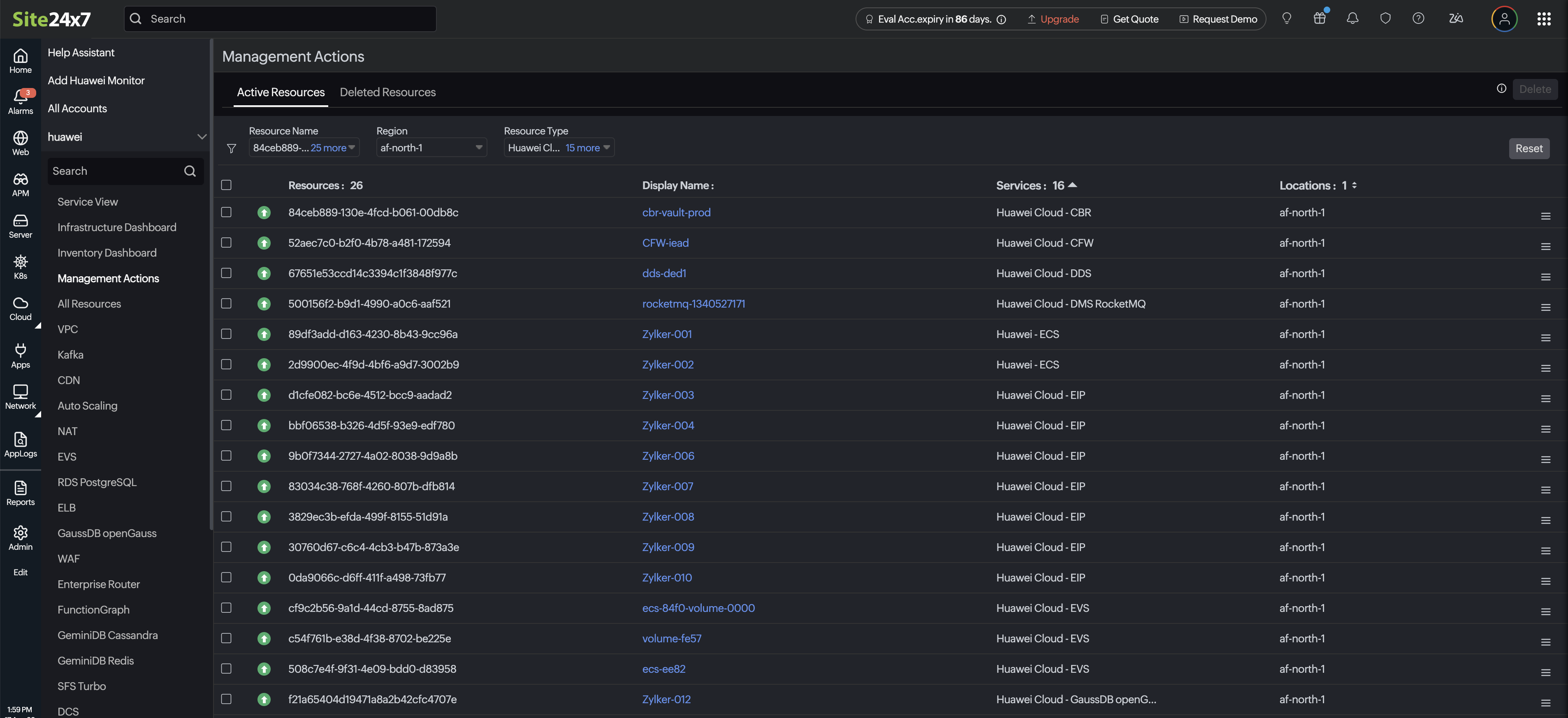
- If there are resources that are no longer needed for tracking, select the resource and click Delete to remove from active monitoring. When a resource is removed, it is not permanently deleted. Instead, it is moved to Deleted Resources.
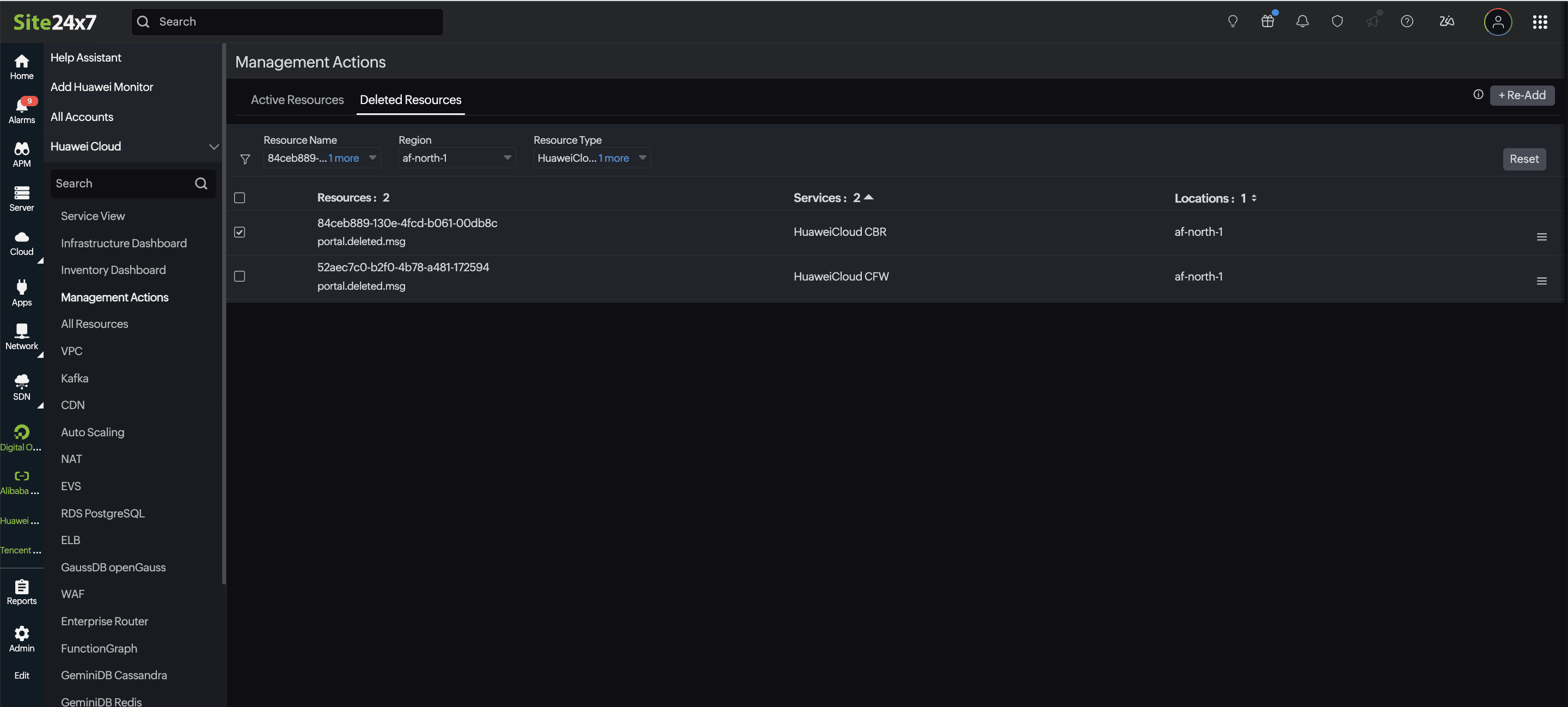
- This ensures you can keep a record of previously monitored resources for future reference. To restore a resource, click Re-Add.
- If there are resources that are no longer needed for tracking, select the resource and click Delete to remove from active monitoring. When a resource is removed, it is not permanently deleted. Instead, it is moved to Deleted Resources.
In addition to these dashboards, you can build custom dashboards tailored to your team's specific needs, execute management actions, and identify critical anomalies.
Topology View
Topology view gives you a bird's-eye view of every Huawei Cloud account, region, and service in one interactive map. Pinpoint failures faster, understand resource interdependencies at a glance, and reduce the time it takes to move from alert to resolution.
Monitoring configuration
Threshold and availability
Establish custom threshold profiles for each service to proactively identify performance issues and outages.
Tags
Use tags to categorize and filter monitors by resource type, environment (production/test/development), or ownership. Site24x7 automatically synchronizes tags imported from your Huawei Cloud account.
IT automation templates
Site24x7 empowers you to automate corrective measures when a monitor enters a trouble or down state. Possible actions include:
- Restarting a resource
- Executing a custom script or webhook
- Stopping/starting ECS instances
Execution settings: Select when to execute the action from the Execution Settings drop-down menu. Available options include: Execute on Down, Execute on Critical, Execute on Trouble, Execute on Up, Execute on any attribute status change, or Execute on any status change.
Related article
-
On this page
- Use cases
- Benefits of Huawei Cloud monitoring
- Prerequisites
- Add a Huawei Cloud monitor
- Supported Huawei Cloud services
- Authentication and resource discovery
- Key-based authentication
- Discovery interval
- Dashboards
- Topology View
- Monitoring configuration
- Threshold and availability
- Tags
- IT automation templates