
Bulk action delete for monitor groups
Bulk action lets you delete multiple monitor groups and their subgroups at once, based on defined criteria, instead of removing them one by one.
Why bulk deletion is useful?
As environments grow, monitor groups often become outdated due to infrastructure changes, migrations, or cleanup activities. Deleting these groups individually is time consuming and error prone. Bulk delete helps you quickly identify and remove unwanted monitor groups using filters like group name and tags. This keeps your inventory clean and reduces manual effort, especially in large or long running accounts.
Use case
Consider a team that recently migrated workloads from one AWS account to another. The old account’s monitor groups are no longer needed, but they are spread across multiple folders and subgroups. Using bulk delete, the admin can filter monitor groups by tag such as environment:staging or by a specific group naming pattern, review the results, and delete all related monitor groups in one action.
How to delete monitor groups in bulk
- Navigate to Admin > Inventory > Bulk Action .
- Under Monitor Group Actions , select Delete Monitor Groups .
- You will be redirected to the Advanced Search Filter window.

- The search fields work like other advanced custom filters and let you create unlimited search expressions. By default, All of these conditions (AND) is selected. With this option, monitor groups are listed only when all defined conditions are met. If required, switch to Any of these conditions (OR). With this option, monitor groups are listed when any one of the defined conditions is met.
- Add search expressions using available options such as Monitor Group Name and Tags . You can modify or delete expressions at any time.
- Once the expressions are defined, click Filter Monitor Groups to generate the matching list.
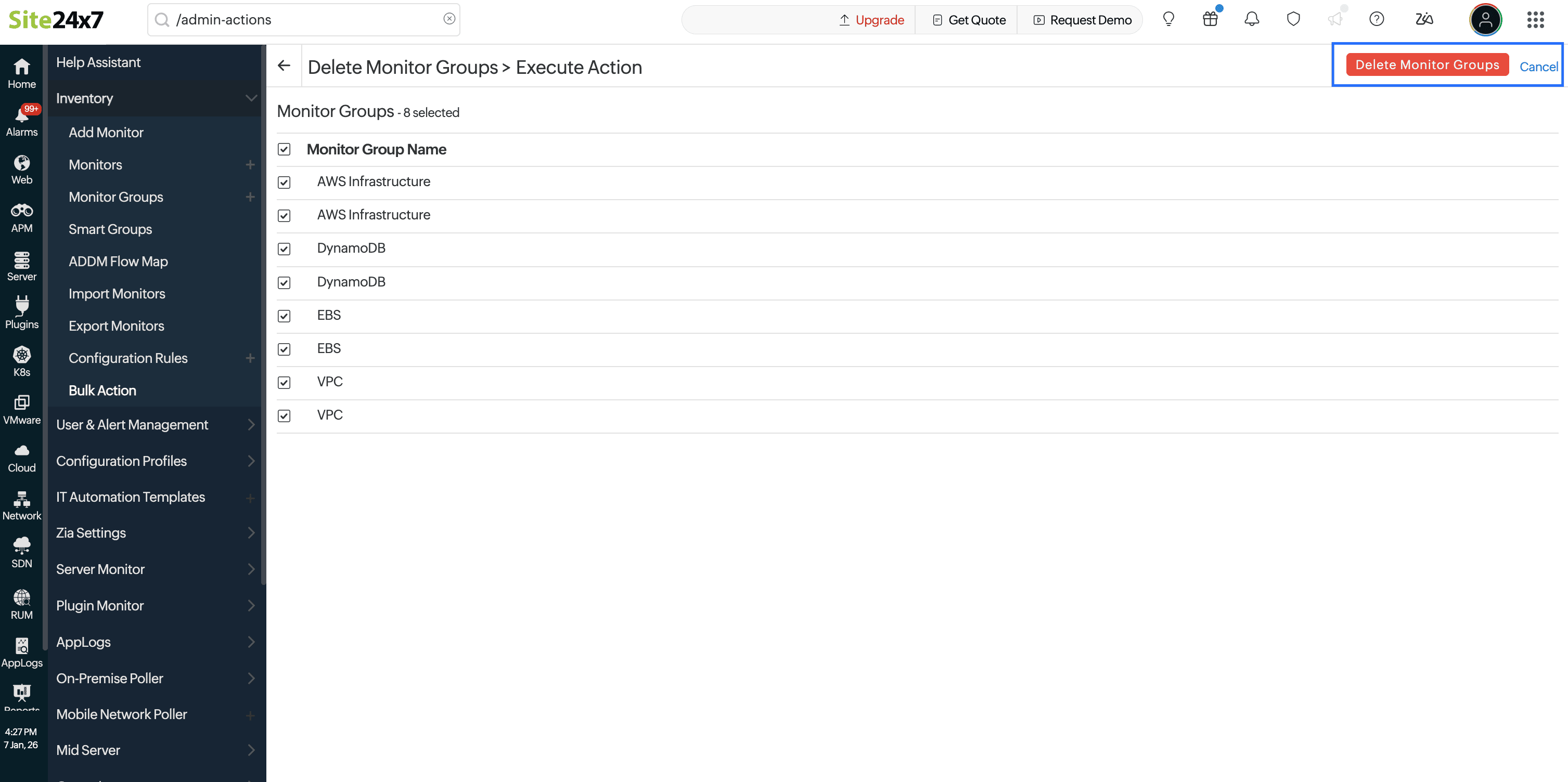
- Review the filtered monitor groups shown on the execution screen.
- Click Delete Monitor Groups to proceed with the bulk deletion.
Background task and notifications
When you perform the bulk action to delete monitor groups, a background task is triggered for better tracking. You can view the task status from the task icon in the monitor list view. A detailed message shows whether the action is in progress, completed, or failed. An email notification is also sent to the user based on the final status of the operation.
The following task icons will help you distinguish among the different task statuses.
| Task status | Icon |
|---|---|
|
Success |
|
|
Complete Failure/ Partial Success |
|
|
In Progress |
|



Related articles