
Import monitors in bulk for Web Transaction (Browser) monitoring
Create multiple Web Transaction (Browser) monitors at once by uploading a CSV file with the Import Monitors feature. Instead of manually configuring each monitor, you can define a reusable template and import multiple monitors with different parameter values in a single operation. This simplifies large-scale deployments, reduces manual effort, and ensures consistency across monitors.
Use case
Suppose your organization hosts the same e-commerce application for multiple customers. Each customer has a unique website URL, but the login, product search, and checkout workflow remains the same. Instead of recording the transaction separately for every website, you can create a single template with placeholders (for example, <$BASEURL>) and list each customer's website URL in a CSV file. During the import, Site24x7 will automatically create a separate Web Transaction (Browser) monitor for every entry in the CSV file.
How it works
Importing Web Transaction (Browser) monitors involves three simple steps:
- Create or select a template: Choose an existing template or create a new one by parameterizing the already recorded Web Transaction (Browser) script. The template defines the values that can be replaced during the import.
- Prepare the CSV file: Create a CSV file containing the values for each parameter defined in the template. Each row in the CSV file represents a separate Web Transaction (Browser) monitor.
- Import the monitors: Upload the CSV file, choose the required import options, and submit it. Site24x7 will use the selected template and the parameter values in the CSV file to create or update the monitors in bulk.
Create a template
A template defines the reusable Web Transaction (Browser) script used during a bulk import. It lets you parameterize values that differ between monitors, such as URLs, XPaths, or input values, and replace them with placeholders. During an import, Site24x7 substitutes these placeholders with the corresponding values provided in the CSV file.
Follow the steps below to create a template:
- Log in to your Site24x7 account.
- Navigate to Admin > Inventory > Import Monitors.
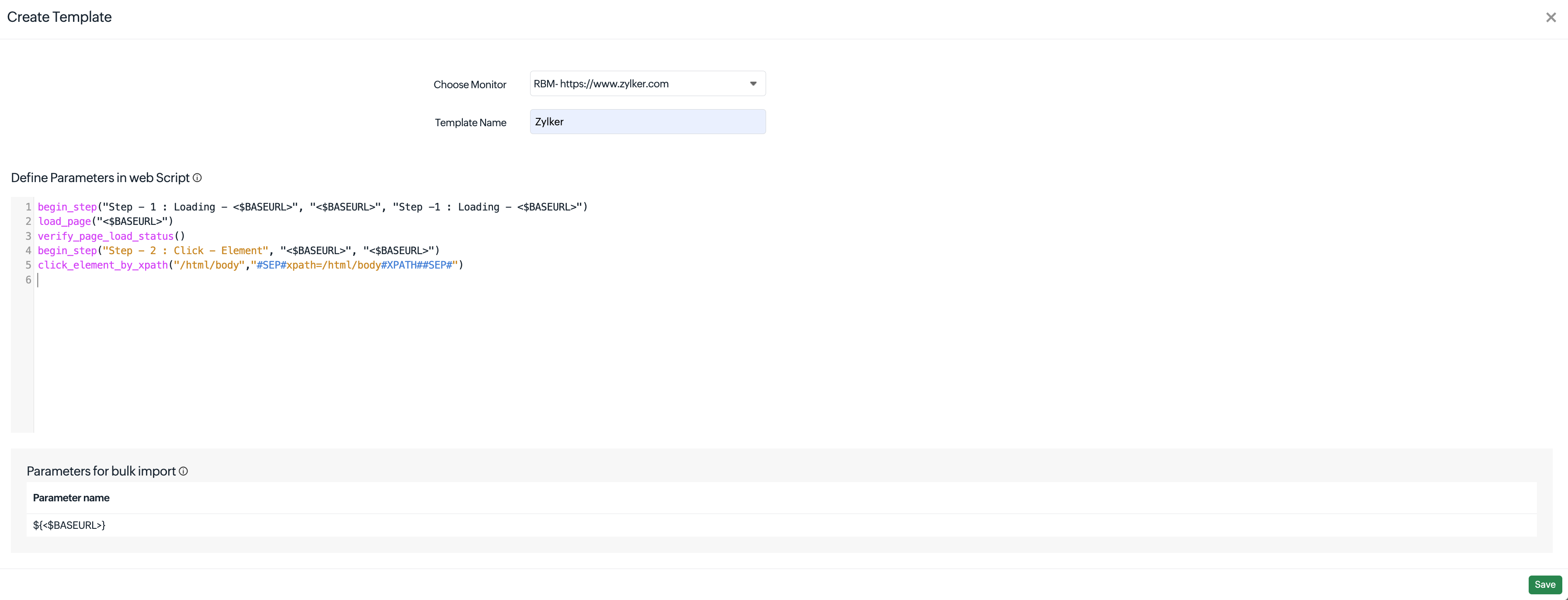
- On the Import Monitors page, click the + icon next to the Choose Template field.
- Configure the following fields:
- Choose Monitor: Select the Web Transaction (Browser) monitor with the recorded script you want to use as the template.
- Template Name: Enter a unique name to identify the template.
- Define Parameters in Web Script: The recorded script of the selected monitor is displayed. You can modify the script or replace the values that vary between monitors with parameter placeholders enclosed within angle brackets (<>).
For example, replace a hard-coded URL such as https://www.zylker.com with <$BASEURL>. You can similarly parameterize other values such as XPaths, usernames, passwords, or input fields based on your requirements. - Parameters for bulk import: This section lists the required fields, optional fields, supported CSV parameters, their possible values, and the expected CSV header format for importing Web Transaction (Browser) monitors. The parameter names listed here become the column headers in the CSV file used for the bulk import. Use this section as a reference while preparing your CSV file.
- Click Save to create the template.
The newly created template will be added to the Choose Template drop-down on the Import Monitors page and can be selected when importing Web Transaction (Browser) monitors.
Ensure that each parameter defined in the template has a corresponding column in the CSV file. During the import, Site24x7 will map the values from the CSV file to the matching placeholders in the template.
Prepare the CSV file
After creating the template, prepare a CSV file containing the values for the parameters defined in the template. Each column in the CSV file must correspond to a parameter listed under the Parameters for bulk import section on the Create Template page, and each row represents a separate Web Transaction (Browser) monitor to be created.
Sample CSV
The following example shows a CSV file for importing two Web Transaction (Browser) monitors.
    <$BASEURL>, <$FIELD1>, <$PASSWORD>, <$NAME>
    https://zylker.com, UserName 1, Password, Monitor Name 1
    https://zylker1.com, UserName 2, Password, Monitor Name 2
In this sample:
- <$BASEURL> specifies the base URL for the Web Transaction (Browser) monitor.
- <$FIELD1> specifies the value for the custom parameter defined in the template (for example, a username).
- <$PASSWORD> specifies the password or another parameterized value used in the recorded script.
- <$NAME> specifies the display name of the monitor to be created.
During the import, Site24x7 replaces the parameter placeholders in the selected template with the values from each row in the CSV file and creates a separate Web Transaction (Browser) monitor for every row.
CSV guidelines
- The first row must contain the parameter names exactly as they appear in the template.
- Each subsequent row represents a single Web Transaction (Browser) monitor.
- The values in each row replaced with the corresponding parameter placeholders during the import.
- Include the <$NAME> parameter to specify a unique display name for each monitor.
- Ensure that all the required parameters contain valid values before importing the CSV file.
Once the import is complete, Site24x7 validates the CSV file, maps the parameter values to the selected template, and creates the corresponding Web Transaction (Browser) monitors. You can verify the imported monitors from the Monitor Status page.

Importing Web Transaction (Browser) monitors
Follow the steps below to import multiple Web Transaction (Browser) monitors:
- Log in to your Site24x7 account.
- Navigate to Admin > Inventory > Import Monitors.
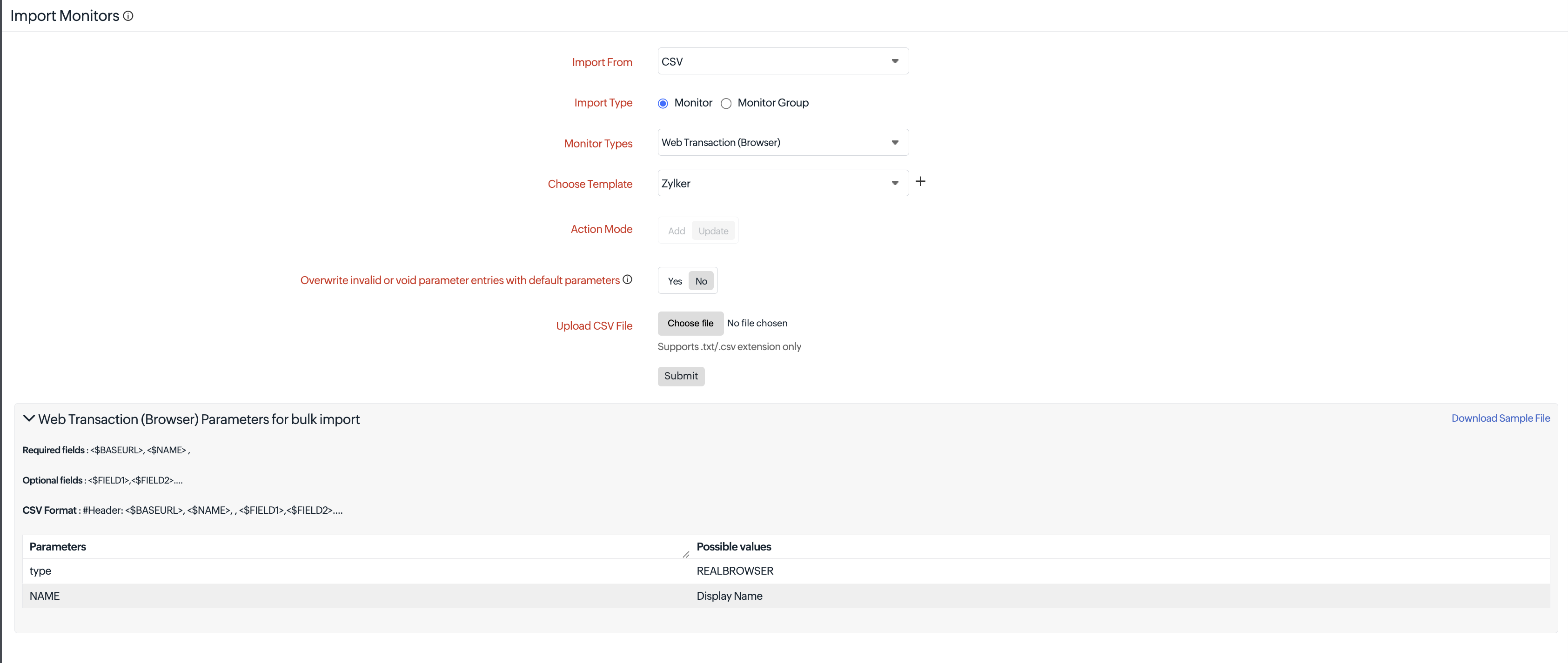
- Configure the following fields:
- Import From: Select CSV to import multiple Web Transaction (Browser) monitors.
- Import Type: Select Monitor.
- Monitor Types: Select Web Transaction (Browser).
- Choose Template: Select an existing template from the drop-down or click the + icon to create a new template. A template lets you reuse a parameterized Web Transaction (Browser) script for bulk imports. For more information, refer to the Create a template section.
- Overwrite invalid or void parameter entries with default parameters: Select Yes to replace invalid or empty parameter values in the CSV file with the default values defined in the selected template. If you select No , monitors containing invalid or empty values for supported parameters will not be imported. The parameters that support default values are listed under the Parameters for bulk import section in the template.
- Upload CSV File: Upload the CSV file containing the details of the Web Transaction (Browser) monitors to be imported. For information about the required file format, refer to the Prepare the CSV file section.Note: Only the CSV file format is supported.
- Click Submit to import the monitors.
Parsing, validation, and import task completion
After you click Submit, Site24x7 processes the uploaded CSV file. During the import, Site24x7 validates the CSV file, template, parameter names, and parameter values before creating the Web Transaction (Browser) monitors. Once the import is complete, an import summary is generated.
For more information about the import workflow, validation results, and task completion, refer to parsing, validation, and import task completion.
Verify imported monitors
After the import, navigate to the Monitor Status page to verify that the Web Transaction (Browser) monitors have been created successfully. Review any monitors that failed validation, correct the issues in the CSV file, and reimport them if required.