
Tencent Cloud Monitoring
Site24x7 Tencent Cloud monitoring lets you discover, monitor, and alert on the performance and availability of your Tencent Cloud resources from a single dashboard. Once you create a Tencent Cloud monitor in Site24x7 and select the services you want to track, all matching resources in your account are auto-discovered and monitored without any per-resource configuration.
Currently, we support monitoring for most service types with their exclusive set of metrics that help you drill down into your resources.
Get notified about any potential issues or anomalies in your Tencent Cloud resources by setting up alerts when specific metrics or thresholds are breached and automate remediation actions.
Overview
Site24x7 uses your Tencent Cloud API credentials (Secret ID and Secret Key) to authenticate with the Tencent Cloud monitoring APIs and pull resource metrics at regular intervals. Resources of the selected types are auto-discovered across your account — no per-resource configuration is needed.
Prerequisites
- An active Tencent Cloud account with at least one supported resource type deployed.
- A Tencent Cloud sub-user or collaborator account with ReadOnly access to the services you want to monitor. It is recommended to create a dedicated monitoring sub-user rather than using root account credentials.
- An API key (Secret ID and Secret Key) generated for that sub-user.
- A Site24x7 account with sufficient monitor quota for the number of resources to be discovered.
Get your Secret ID from Tencent Cloud
To authenticate Site24x7 with your Tencent Cloud account, you need the Secret ID and Secret Key of a Tencent Cloud API key. Follow these steps to retrieve them:
- Log in to the Tencent Cloud Console.
- Click your account name in the top-right corner and select Account Center, or navigate to Access Management from the main menu.
- In the left navigation pane, click User List under Users.
- Click the username of the sub-user you want to use for Site24x7 monitoring. This opens the user detail page.
- Click the API Key tab on the user detail page.
- If no API key exists, click Create Key to generate a new one. If a key already exists, proceed to the next step.
- Click Show next to the key entry and copy the Secret ID.
- Note the Secret Key.
Create a Tencent Cloud monitor in Site24x7
Once you have your Secret ID and Secret Key, follow these steps to set up Tencent Cloud monitoring in Site24x7:
- Log in to your Site24x7 account.
- Go to Cloud > Tencent Cloud > Add Tencent Cloud Monitor from the left navigation pane.
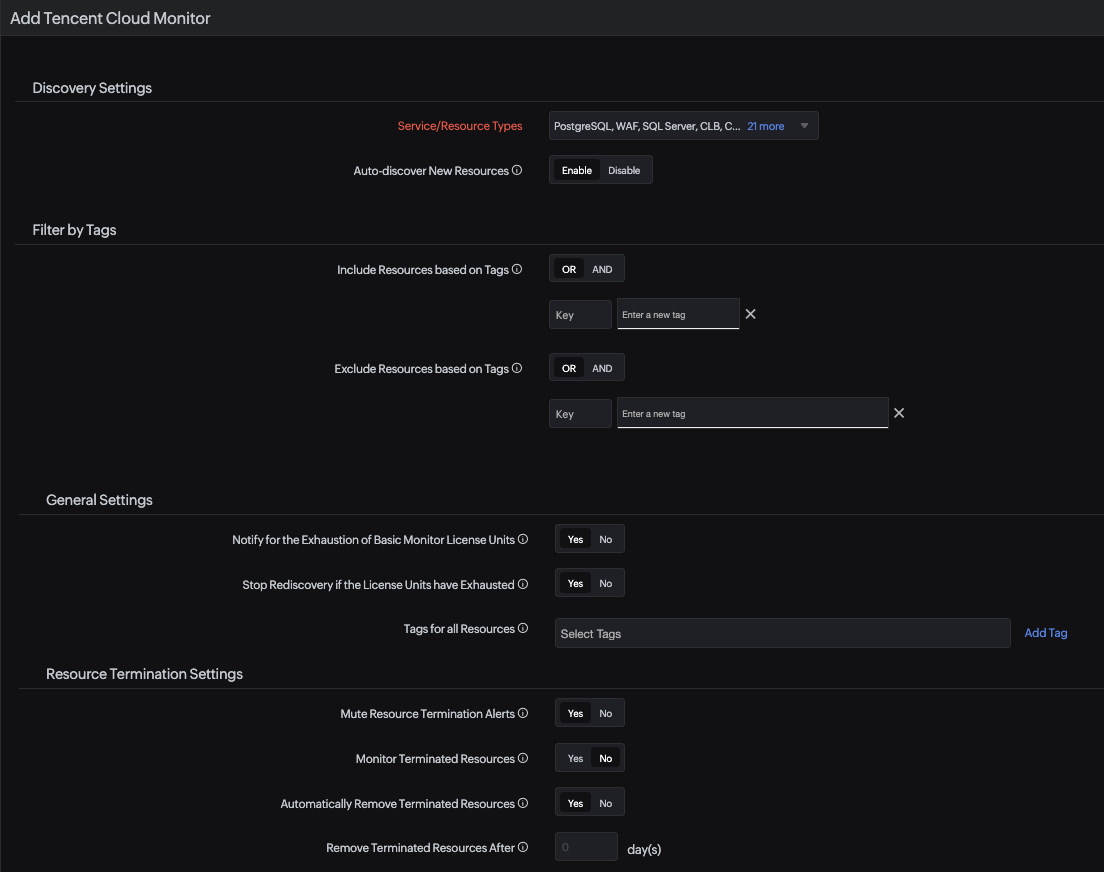
- On the Add Tencent Cloud Monitor page, fill in the following details:
- Display Name: Enter a descriptive name to identify this monitor in Site24x7 (e.g., Tencent Cloud Production).
- Secret ID: Paste the Secret ID you copied from the Tencent Cloud API Key tab.
- Secret Key: Enter the Secret Key associated with the Secret ID.
- Under Discovery Settings:
- Select the Tencent Cloud resource types you want to monitor from the Service/Resource Types drop-down. All resources of the selected types in your account will be auto-discovered. See Supported services and resources for the full list.
- Toggle Auto-discover New Resources to Enable to automatically discover and monitor any new resources added to your Tencent Cloud account in the upcoming discovery cycle.
- Under Filter by Tags:
- Include Resources based on Tags: Toggle between OR or AND based on your preference. Enter the Key and values to match the resources you want to include for monitoring. This option will include the matching resources from your Tencent Cloud account and add them for monitoring.
- Exclude Resources based on Tags: Toggle between OR or AND based on your preference. Enter the Key and values to match the resources you want to exclude from monitoring. This option will exclude the matching resources from monitoring.
- Under General Settings:
- Toggle Notify for the Exhaustion of Basic Monitor License Units to Yes to receive alerts when your basic monitor license units are running low.
- Toggle Stop Rediscovery if the License Units have Exhausted to Yes to prevent new resources from being added for monitoring once the license limit is reached.
- Use Tags for all Resources to associate Site24x7 tags with all resources discovered under this monitor.
- Under Resource Termination Settings:
- Toggle Mute Resource Termination Alerts to Yes if you don't want to receive alerts when terminated resources are automatically suspended or deleted from Site24x7.
- Toggle Monitor Terminated Resources to Yes to ensure monitoring continues for terminated resources. The monitor will be labeled Down, and polling will continue until manually suspended.
- Toggle Automatically Remove Terminated Resources to Yes to remove terminated resources from monitoring automatically. Use Remove Terminated Resources After to define how many days the resource should be retained in the Site24x7 console before being permanently deleted.
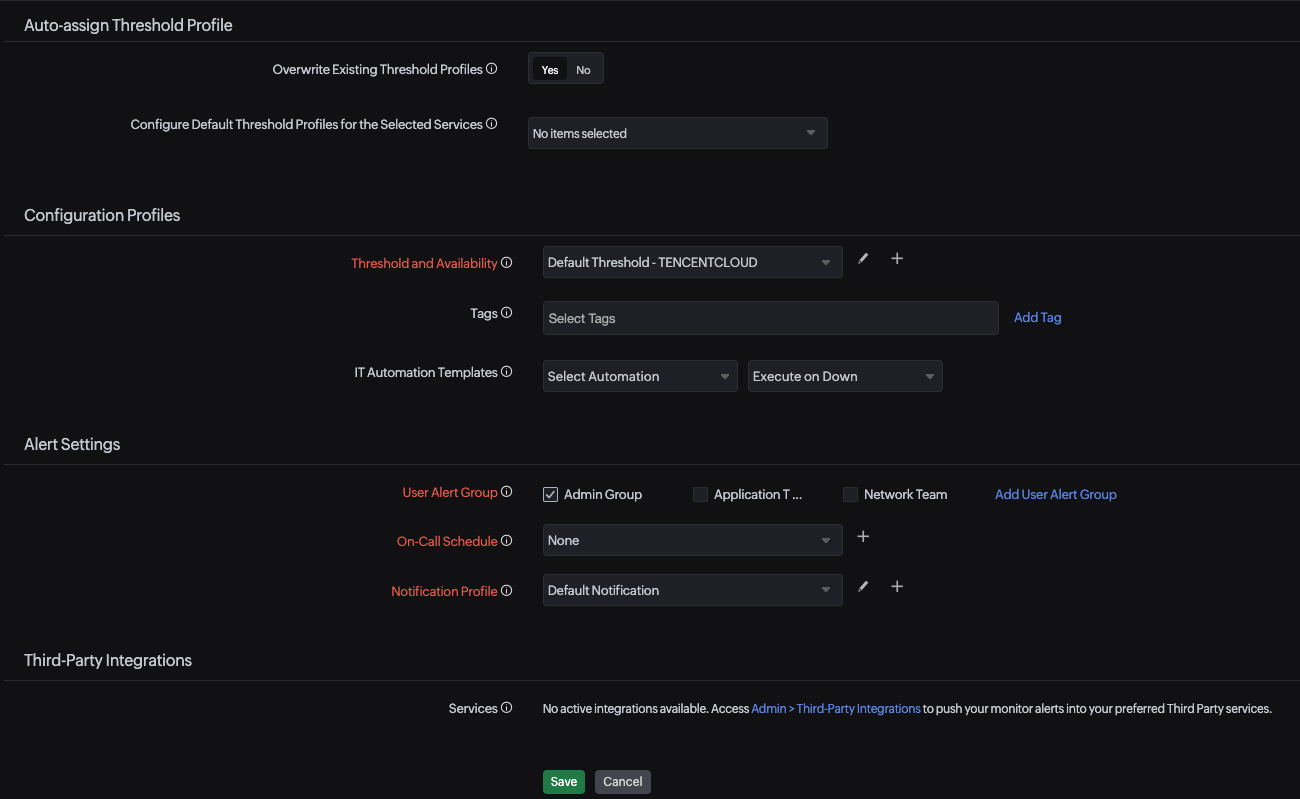
- Under Auto-assign Threshold Profile:
- Toggle Overwrite Existing Threshold Profiles to Yes to overwrite any threshold profiles already assigned to discovered resources.
- Use Configure Default Threshold Profiles for the Selected Services to assign a default threshold profile to each selected service type.
- Under Configuration Profiles:
- Threshold and Availability: Select an existing threshold profile or create a new one using the + icon, or edit an existing one using the pencil icon.
- Tags: Associate Site24x7 tags with this monitor for filtering and reporting.
- IT Automation Templates: Select an automation template and define when it should execute (for example, Execute on Down) to automatically remediate issues when a threshold breach occurs.
- Under Alert Settings:
- User Alert Group: Select the user groups that should receive alert notifications for this monitor.
- On-Call Schedule: Optionally assign an on-call schedule to route alerts to the right team at the right time.
- Notification Profile: Select an existing notification profile or create a new one to define how and when alerts are sent.
- Under Third-Party Integrations: Integrate Site24x7 alerts with your preferred third-party services. Go to Admin > Third-Party Integrations to configure active integrations.
- Click Save. Site24x7 validates the credentials and begins the first discovery cycle.
It may take up to 30 minutes to discover all your Tencent Cloud resources for the first time.
Edit a Tencent Cloud monitor
To modify an existing Tencent Cloud monitor — for example, to add new resource types or update credentials — follow these steps:
- From the left navigation pane, go to Cloud > Tencent Cloud.
- Select your Tencent Cloud monitor and go to any dashboard on the left pane.
- Click the hamburger icon
 and select Edit. This opens the Edit Tencent Cloud Monitor page.
 - Make your changes — for example, select additional services under Services/Resources — then click Save.
Supported services and resources
Select one or more during monitor creation to enable auto-discovery and monitoring. For the full list of metrics collected for each resource type, see Tencent Cloud services monitored by Site24x7.