
Outage Report
Get a detailed view of why a resource is unavailable, including downtime events such as Down, Trouble, and Critical states, using the Outage Report. It explains when an outage occurred, how long it lasted, and why it happened, all in one place.
The Outage Report simplifies troubleshooting availability issues, validating SLAs, analyzing recurring failures, and sharing outage details with internal teams or stakeholders. By applying filters such as monitor, time period, location, and status, you can quickly narrow down outages that matter most and take informed, corrective actions.
Use cases
- When a monitor experiences repeated downtime, use the Outage Report to review past outages, compare durations, identify patterns, and pinpoint recurring causes.
- During troubleshooting, your team can avoid duplicate efforts by quickly reviewing outage reasons and recent comments from previously resolved incidents.
- If users report issues from specific geographies, filter outages by monitoring location to determine whether the problem is localized or global, helping you distinguish between network issues, ISP-related outages, or regional infrastructure failures.
- Keep customers informed and build transparency by sharing Outage Reports that provide a clear historical record of service availability.
Generate an Outage Report
- Log in to Site24x7.
- Navigate to Reports > Monitor Groups > Outage Report.
- If it is for all monitors, navigate to Reports > select the monitor type > All Monitors > Outage Report.
NoteWhen a specific monitor type is selected, All Monitors displays only monitors of that type. To access Outage Reports for all monitors at the account level, navigate through Monitor Groups.
- Select the required monitor from the header drop-down and change the listed parameters to view a customized report.
- Monitors/Tags: Select the desired monitor or tag from the drop-down list.
- Time Period: Select the desired time period. When the Time Period is selected as Custom Period, select the Date Range.
- Locations: Select the desired geographical location from the list of available locations.
- Status: Filter outages by one or more availability state, such as Down, Trouble, Critical, or Maintenance.
- To generate a report, configure the required fields and filters.
- Once you have completed the configuration, click Generate to create the report.
NoteThe Generate button turns green when you modify the report configuration, indicating that the report can be generated using the updated settings.
- Once the report is generated, click Ask Zia to get AI-driven insights such as a summary or pattern identification.
- To share the report, click Share As in the top-right corner.
- Publish Report: Click to publish the report and populate the form. This creates a permalink that will make the report accessible to customers without a login.
- Email: Share the report via an email. Emails can be sent to only those verified users who have agreed to receive emails from Site24x7.
- Export CSV: Export the report as a CSV file.
- Export PDF: Export the report as a PDF file.
- Schedule Report: Schedule the report to be sent as a summary email to the specified email address(es).
- Share With: Send data directly to third-party tools. This option is available only when a third-party integration has been enabled for the selected tools.
- Third-party tool: Choose the third-party tools you want to send the report to.
- Message header: A default message header is provided. Modify it as needed to change how the header appears in the message notification.
- This option is available for integration tools such as Slack, Telegram, and Discord.
- To verify whether the data has been successfully sent to the third-party tool, check the Logs page. This displays the status of each request and helps you confirm whether the data transmission was successful or if any errors occurred.
- You can create a separate integration channel for sending reports instead of using the same channel configured for alerts. Using a dedicated channel helps maintain clarity and ensures that reports are not overlooked or mixed with alert notifications.
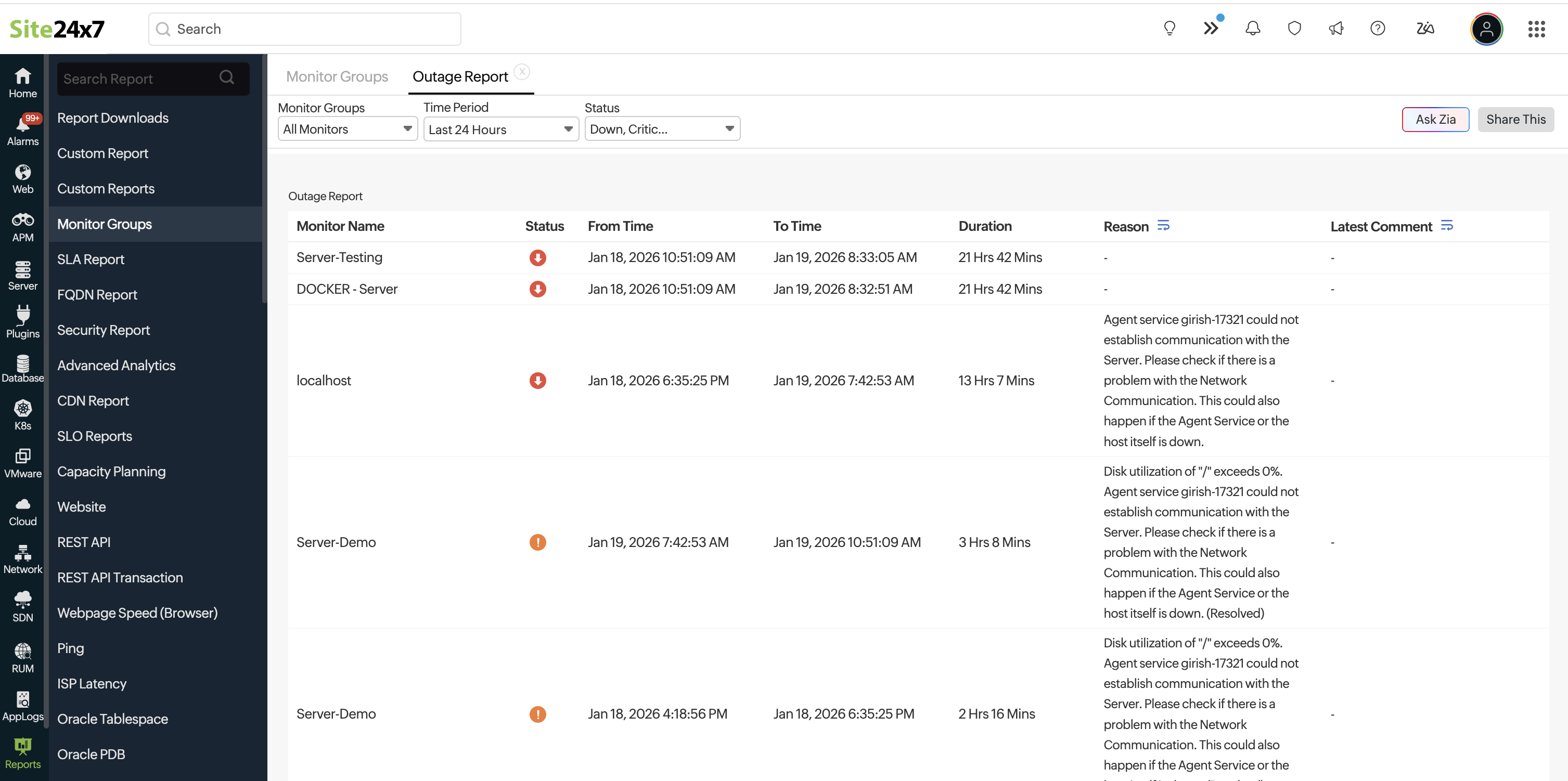
Interpreting the Outage Report
The Outage Report presents the following key outage details:
- Status: Displays the status of the monitor when the report is generated.
- Report Start Time: Displays when the outage began within the selected report period. If the outage began before the report period, the report period's start time is displayed.
For example, if the report period is August 1 to August 7 and the outage occurred from August 2 to August 3, the Report Start Time is August 2. If the outage occurred from July 31 to August 9, the Report Start Time is August 1. - Report End Time: Displays when the outage ended within the selected report period. If the outage continued beyond the report period, the report period's end time is displayed.
For example, if the report period is August 1 to August 7 and the outage occurred from August 2 to August 3, the Report End Time is August 3. If the outage occurred from July 31 to August 9, the Report End Time is August 7. - Report Duration: Displays the duration of the outage within selected report period.
For example, if the report period is August 1 to August 7, the Report Duration shows 6 days. - Outage Start Time: Displays the actual time when the outage began, even if it began before the selected report period.
For example, if the report period is August 1 to August 7 and the outage occurred from July 31 to August 9, the Outage Start Time is July 31. - Outage End Time: Displays the actual time when the outage ended, even if it ended after the selected report period.
For example, if the report period is August 1 to August 7 and the outage occurred from July 31 to August 9, the Outage End Time is August 9. - Outage Duration: Displays the total duration of the outage. For example, if an outage started on July 31 at 10pm and ended on August 1 at 2am, the duration is four hours.
- IP Addresses: Displays the IP addresses associated with the resource during the outage, to identify the affected endpoint and troubleshoot connectivity issues.
- Reason: Displays the possible reason for what caused the outage.
- Latest Comment: Displays the most recent comment added to the outage.