
On-Premise Poller checksum validation
You can verify the authenticity of the downloaded Site24x7 On-Premise Poller with SHA256 checksum validation. This ensures that the downloaded agent is credible and is not tampered with by any malicious code or software.
Note
The 32-bit On-Premise Poller is no longer supported from version 6.5 and above.
To verify the authenticity of the agent
- Download the checksum file based on your architecture.
- Compare the checksum value provided in the downloaded file with the downloaded On-Premise Poller. Follow the steps below to validate the checksum value.
- For Linux systems, execute the following command:
- Installer validation:
sha256sum Site24x7OnPremisePoller_64bit.bin
- Manual upgrade validation:
sha256sum probe64_lin_j7.zip
- Installer validation:
- For Windows, you can use either of the following commands.
- Open the Command Prompt and execute the following command:
- Installer validation:
certutil -hashfile Site24x7OnPremisePoller_64bit.exe SHA256
- Manual upgrade validation:
certutil -hashfile probe64_win_j7.zip SHA256
- Installer validation:
- Open Windows PowerShell and execute the following command:
- Installer validation:
Get-FileHash Site24x7OnPremisePoller_64bit.exe -Algorithm SHA256
- Manual upgrade validation:
Get-FileHash probe64_win_j7.zip -Algorithm SHA256
- Installer validation:
- Open the Command Prompt and execute the following command:
- For Linux systems, execute the following command:
- After executing the commands, you will obtain a checksum value; check that value with the one downloaded from the checksum file.
Sample output:
 Note
NoteIf the checksum values differ, do not use the file.
Verify the signature of your agent binaries
- Go to the folder in which the On-Premise Poller is installed on your Windows machine.
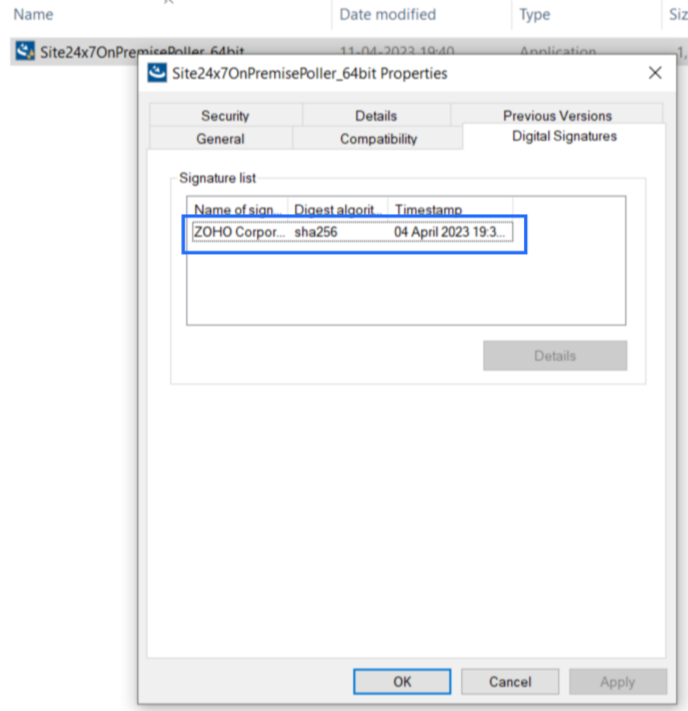
- Right-click the file (Site24x7OnPremisePoller.exe or Site24x7OnPremisePoller_64bit.exe based on your OS) and select Properties.
- Navigate to the Digital Signatures tab in the Properties window.
- The file is signed by ZOHO Corporation Private Limited. The signature will be shown here as seen in the image below:
 Note
NoteIf the signature differs, do not proceed with installation and contact support@site24x7.com.