
Status propagation in OCI monitors
Status propagation allows alerts generated at the child monitor level to be reflected at the parent monitor level. This ensures that you can manage alerts centrally without monitoring each resource individually.
When enabled, any status change in a child monitor is automatically propagated to its parent monitor. This helps maintain a unified view of your OCI resource health and simplifies alert handling.
Benefits of status propagation
Status propagation provides you with the following benefits:
- Receive a single alert from the parent monitor instead of receiving alerts from individual child resources, simplifying the alert management process.
- Get a comprehensive view of the overall health and status of your OCI infrastructure by aggregating alerts.
- Reduce the number of alerts to minimize alert fatigue and ensure that critical alerts are not missed.
- Achieve efficient monitoring by reducing the number of notifications and providing a consolidated view of resource statuses.
Use case
Consider an OCI setup where a Compute Instance is configured as the parent monitor, and its attached Block Storage volumes are monitored as child resources.
If a Block Volume starts experiencing high latency, degraded IOPS, or becomes unavailable, it can directly impact the performance of the compute instance. Instead of relying only on instance-level metrics, status propagation ensures that issues at the storage layer are reflected at the compute instance level.
When a block volume enters a Trouble or Critical state, the status is automatically propagated to the Compute Instance monitor. This triggers an alert at the parent level, helping you identify storage-related performance issues without needing to inspect each volume individually.
This setup is useful for:
- Faster detection of storage bottlenecks affecting OCI Compute performance.
- Reduced time spent correlating instance and volume level issues.
- Improved visibility into root causes of application slowdowns.
- Better monitoring across OCI Compute and Block Storage dependencies.
By linking Block Storage health to the Compute Instance monitor, you get a more accurate view of overall instance performance and can respond quickly to issues that impact workloads running on the Oracle cloud.
Configuring status propagation
To enable status propagation for applicable OCI services, follow the steps below:
- Log in to your Site24x7 account and navigate to Cloud > OCI.
- Select the service for which you wish to enable status propagation.
- Click Edit and go to the Configuration Profiles section.
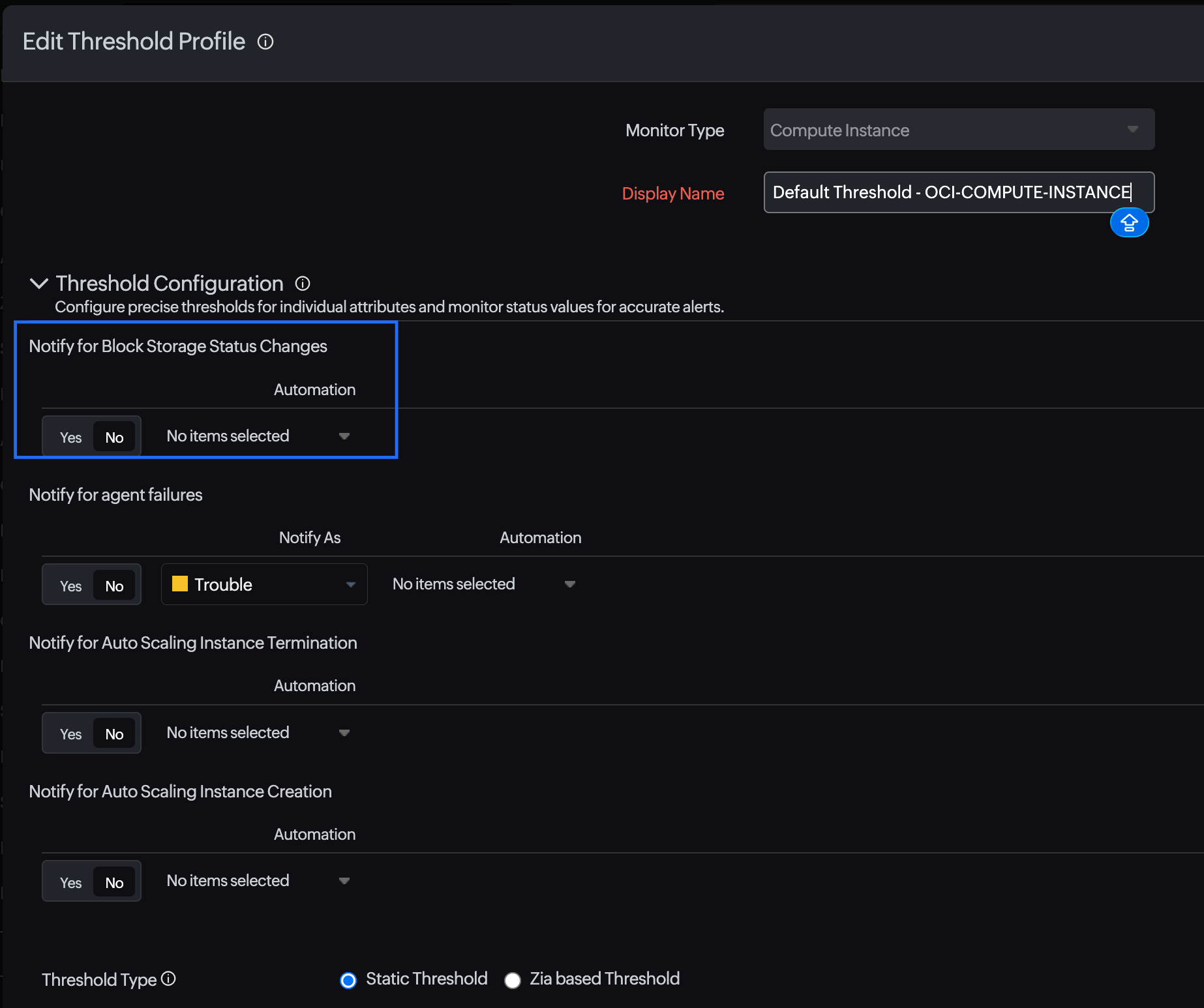
- On the Edit Threshold Profile page, toggle the applicable child monitor's threshold configuration to Yes. For example, if you wish to enable status propagation for a Block Storage monitor, toggle the Notify for Block Storage Status Changes option on the Compute Instance monitor's Edit Threshold Profile page to Yes.
- Click Save.
This will enable status propagation for the respective child monitor. In the above example, status propagation for the Block Storage monitor has been enabled. Similarly, you can enable status propagation for other supported monitors as well.
Once you enable status propagation, to receive alerts for the respective child monitor, follow the steps below:
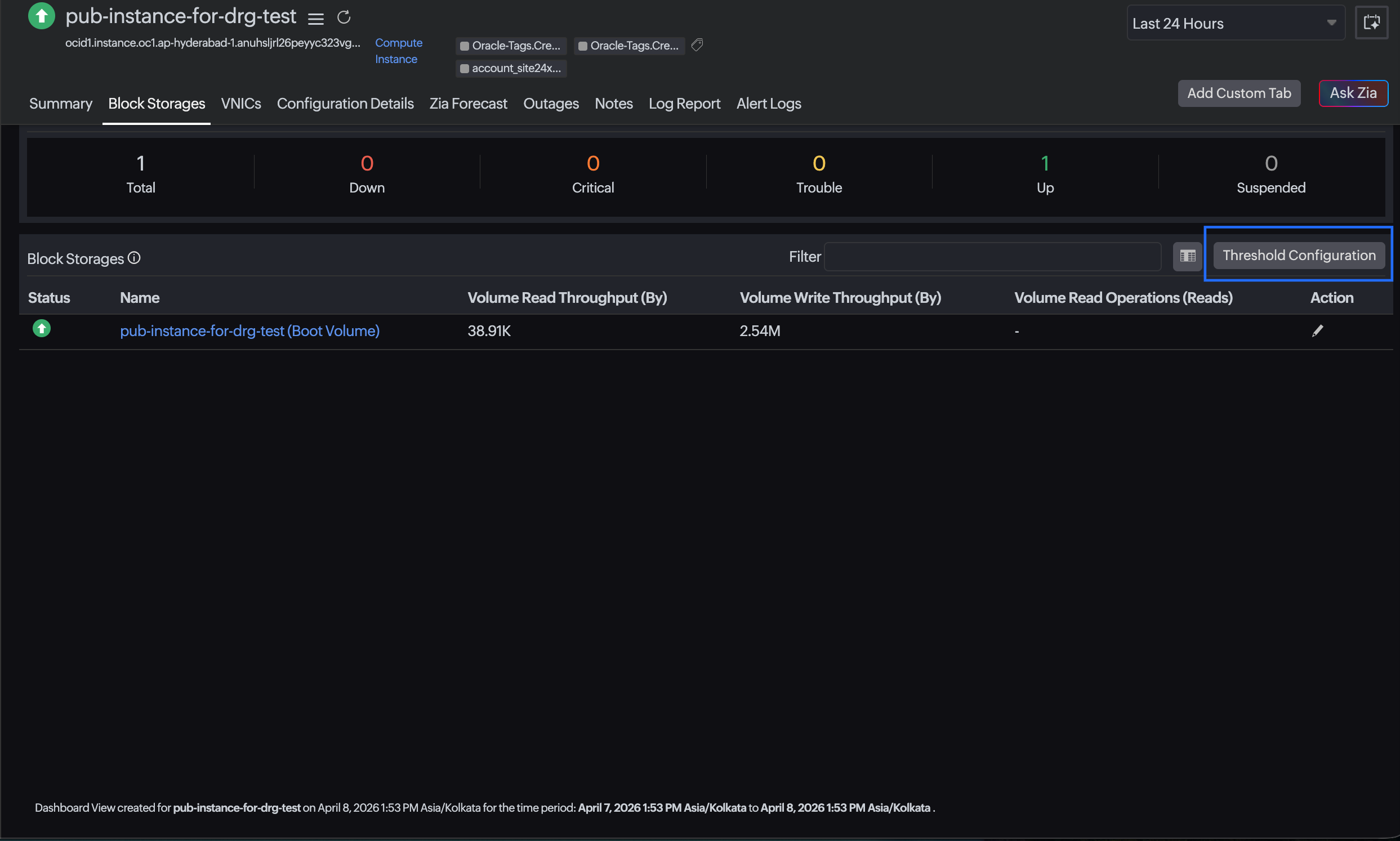
- Go to the respective child monitor list from the parent monitor. For example, to enable notifications for a Block Storage monitor, go to Compute Instance > Block Storage to view the Block Storage monitor list.
- Click the Threshold Configuration button above the monitor list.
- Select the child monitors for which you wish to receive alerts.
- The Skip Alert option is set to No by default. If you wish to skip the alert, toggle the option to Yes.
- Select the preferred alert type with the Notify As option. The available options are Down, Trouble, and Critical.
- Click Save.
Once you save the changes, you will receive alerts for the child monitor from the parent monitor. For instance, in the above examples, alerting for the Block Storage monitor will be done through the Compute Instance monitor.