
Natural language processing for AppLogs search
Site24x7's AppLogs search now supports log search based on natural language processing (NLP), letting you query your logs in conversational English without needing complex syntax. This feature lowers the barrier to log analysis by enabling you to describe what you are looking for in everyday language.
This new user interface complements the existing query mode and the classic search interface, giving you flexible options and enhancing your log analysis experience.
Use case
HTTP error code investigation
Use simple English prompts to surface HTTP failure patterns across your application logs quickly. This helps the DevOps teams distinguish server-side failures from client-originated issues without writing field-level filter expressions.
Sample NLP:
| Use case | AppLogs query | NLP prompt |
|---|---|---|
| All 4xx client errors | logtype="IIS HTTP Error Logs" and StatusCode >=400 and StatusCode <=499< /td> | show me all 4xx client errors in IIS http error logs |
| 5xx errors, excluding 503 | logtype="IIS HTTP Error Logs" StatusCode >= 500 AND StatusCode != 503 | find all 5xx errors except 503 in IIS http error logs |
Exception and stack trace detection
Manual exception searches are slow. With NLP, you can ask AppLogs to scan ingested logs for exception patterns to find and fix recurring failures early.
Sample NLP:
| Use case | AppLogs query | NLP prompt |
|---|---|---|
| Any exception in logs | logtype="IIS HTTP Error Logs" message CONTAINS "Exception" OR message CONTAINS "Error" | find all logs with exceptions in IIS http error logs |
| Stack trace entries | logtype="IIS HTTP Error Logs" message CONTAINS "at " AND (CONTAINS ".java" OR ".py") | show me all stack traces in IIS http error logs |
Key benefits
-
No query syntax required: Search logs using everyday language. There is no need to learn operator syntax, field names, or log type schemas before getting results.
-
Zia-powered query generation: The NLP engine interprets your intent and generates a structured query behind the scenes, ensuring results are accurate and field-aware.
-
Prebuilt prompt suggestions: Quick-fill prompts appear below the NLP AppLogs search bar, helping users get started immediately without crafting a prompt from scratch.
-
Consistent with existing workflows: NLP-generated queries integrate with saved searches, alerts, and dashboard views, so your existing workflows remain intact.
Prerequisites
The NLP log search feature uses a Bring Your Own Key (BYOK) model and supports integrations with OpenAI, Anthropic, and Google AI Studio. Configure your preferred AI integration and comply with the Zia BYOK terms before using NLP-based AppLogs search.
How to search using NLP in AppLogs
To enable NLP-based search in AppLogs, follow these steps:
- Log in to your Site24x7 account.
- In the left navigation pane, click the AppLogs icon
 .
. - The AppLogs search page will appear.
- In the top-right corner, click Switch to new UI.
On this page, there are two primary search modes. The purpose of these modes is to offer users options for structured, precise searches and intuitive, conversational searches.
-
Query: Provides a structured AppLogs query language mode to help users build precise, field-based log searches using logical operators and filters. This mode is ideal for users who require exact control over their log search criteria.
-
NLP: NLP mode allows users to type a plain English prompt to quickly generate a structured query and run a log search. This mode benefits users who want a simpler, conversational approach without needing technical details.
The NLP mode requires an active log type with log data.
Switch to the classic interface anytime. Click the Switch to Old UI button conveniently located in the top-right corner of the AppLogs - Search page.
The classic (old UI) interface does not support NLP-based AppLogs search. NLP-based search is only available in the new AppLogs - Search interface, which is built for users who prefer conversational log search.
Using query mode
For users who want precise, field-based filtering, the query mode provides a structured search interface. It is intended for those comfortable with technical search parameters. You can switch between query and NLP modes at any time using the toggle.
Steps to search using query language mode
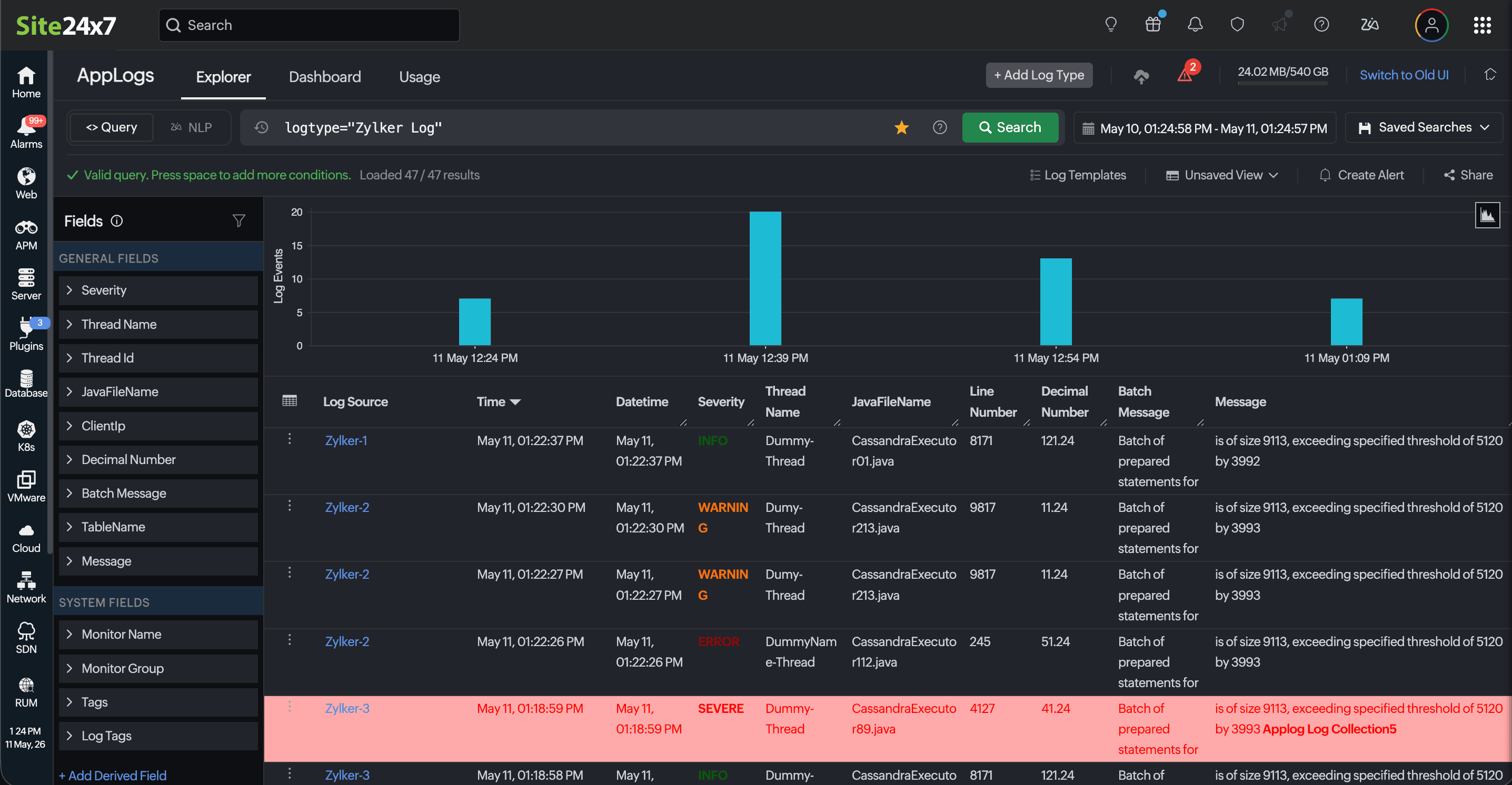
Once you have switched to the new UI in AppLogs - Search, the search opens in AppLogs Query mode by default. If you are currently in NLP mode and want to switch back to structured queries, simply toggle the search mode to Query and follow the steps below:
- Use the search bar to enter your query language.
- Search your logs by specifying a relative time period (days, hours, or minutes) in the date picker.
- Click the Search button
 .
.
In the query language mode, you can build expressions with query template using field names, operators, and values. This is useful when you need exact control over filters, such as filtering by a specific HTTP status code, log level, or timestamp range.
Using NLP mode
NLP search is intended for users who wish to describe their intent naturally. You do not need to know field names, operators, or log type schemas in advance; the system interprets your prompt and generates the appropriate query.
Steps to search using NLP
Once you have switched to the new UI in AppLogs - Search, use these steps:
- Click NLP to toggle and access NLP mode.
-
Enter your search prompt in plain English.
For example:
show me all error logs in apache access logs
find internal server error status codes in iis access logs
find all logs with exceptions or stack traces - Press Enter or click the Get Query button on the right side of the search bar.
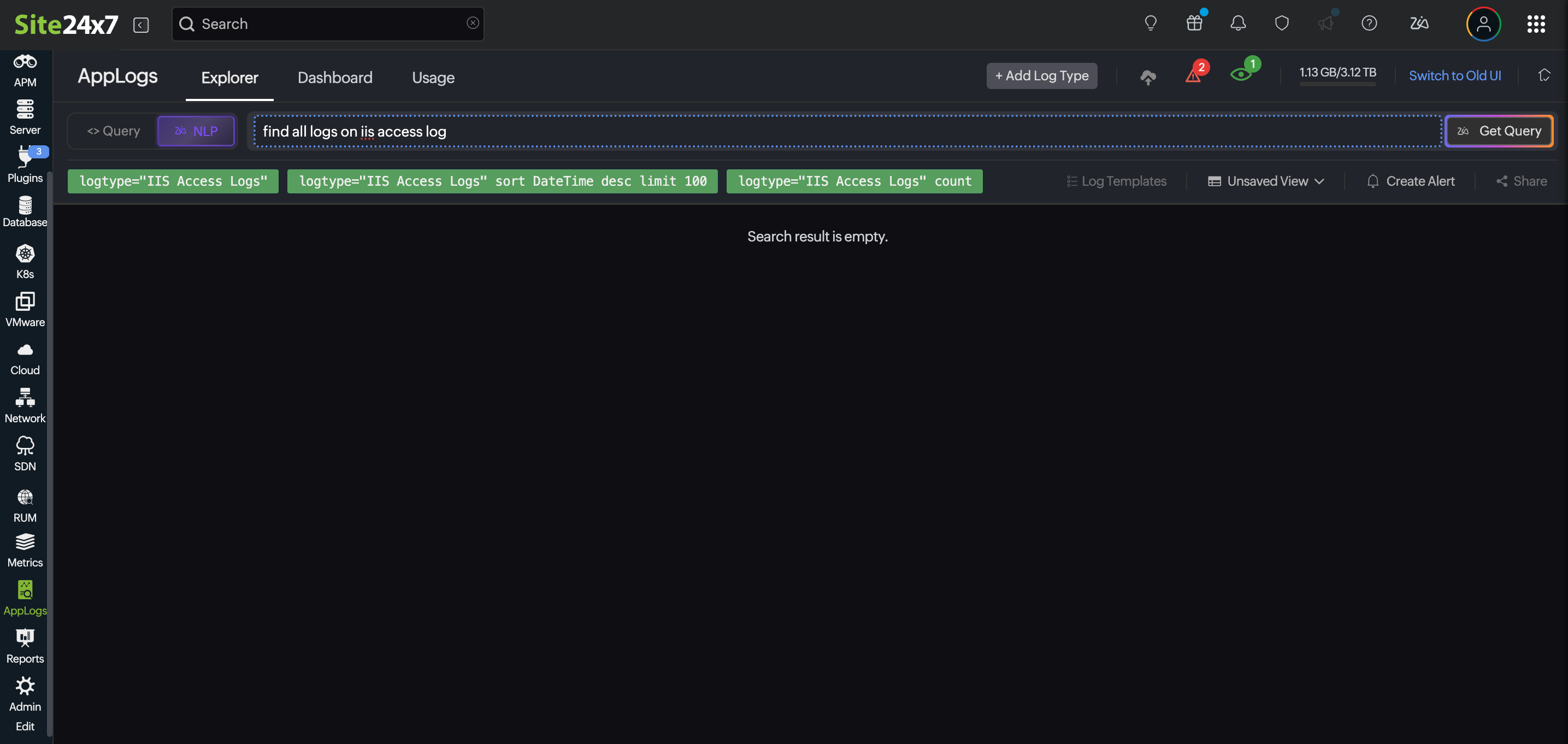
Based on your prompt, the system will return three queries. Review the suggestions and select one that best matches your criteria. The chosen query is then executed, and the matching results are displayed in the log list view below.
A sample prompt is displayed right below the NLP search bar. Click any sample prompt to populate the search bar instantly and execute or modify it to suit your needs.
Sample NLP prompts
The following examples illustrate how simple English language prompts map to common log analysis tasks:
| Prompt | Explanation |
|---|---|
| show me all the error logs on Windows Event Logs | Returns all Windows event log entries where the severity or message indicates an error condition. |
| find internal server error status codes in IIS Access Logs | Filters the IIS Access Logs where the HTTP status code is 500 or similar 5xx responses. |
| Filter the Application Logs with exceptions or stack traces | Identifies log entries containing Java, Python, or application exception output or multi-line stack traces. |
| find all failed login attempts in Syslogs | Searches for authentication failure patterns across ingested system logs. |
| show me slow database queries in PostgreSQL Logs | Surfaces PostgreSQL logs containing database query duration or timeout indicators. |