Kubernetes Automation Template
Automation templates enable you to automate specific Kubernetes management actions. For example, you can automatically restart a deployment when an alert is triggered, scale a Statefulset based on resource thresholds, or drain a node before scheduled maintenance using Site24x7's Kubernetes automation feature.
Key benefits
- Automated remediation: Trigger corrective actions when alerts occur, reducing manual work.
- Consistent cluster operations: Use the same actions across monitors and clusters for uniform results.
- Reduce operational overhead: Manage Kubernetes from Site24x7 without switching to kubectl, saving time during incidents and maintenance.
Prerequisites
Management actions must be enabled on the Kubernetes monitor before creating an automation template.
How to add a Kubernetes Automation Template
Follow the steps below to add a Kubernetes Automation Template:
- Log in to the Site24x7 web client.
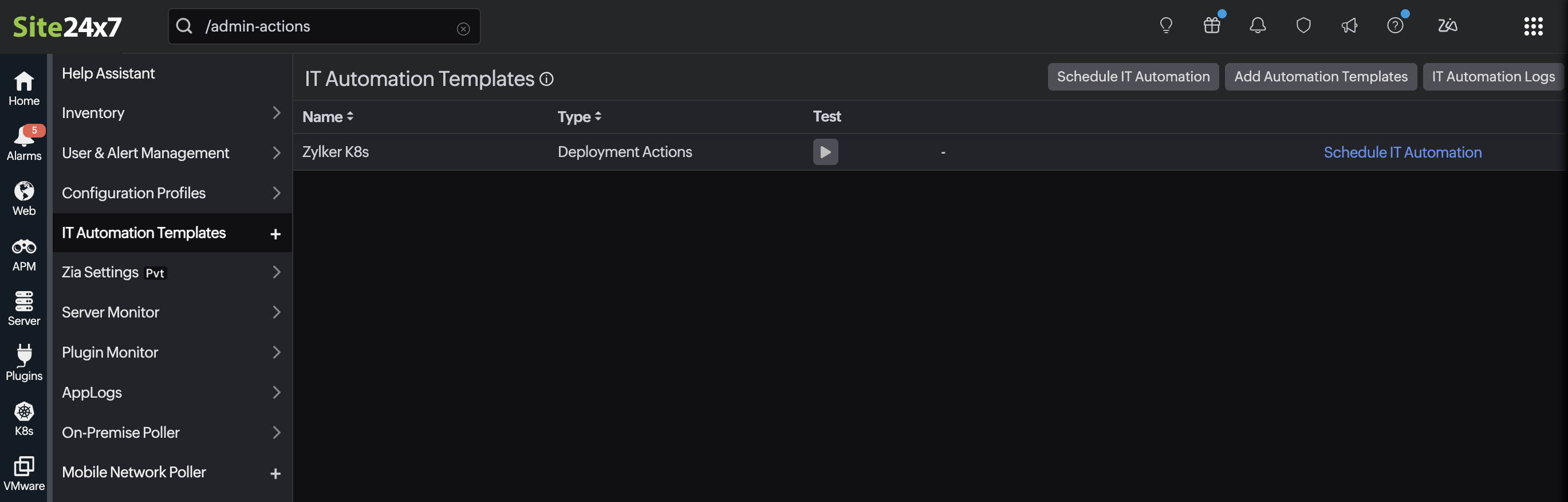
- Navigate to Admin > IT Automation Templates.
- Click Add Automation Templates in the top-right corner of the page.
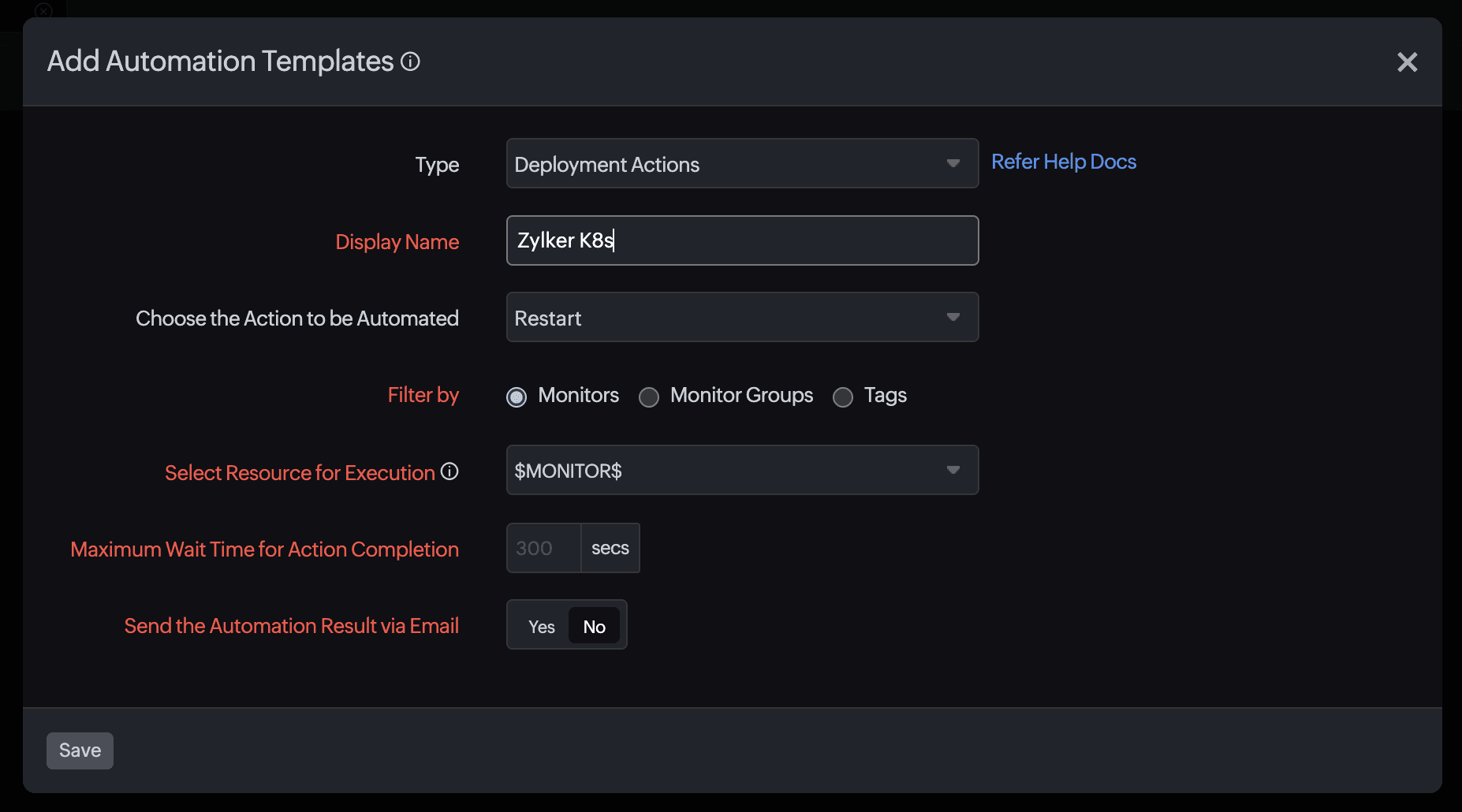
In the Add Automation Template pop-up window, select the appropriate Kubernetes action type from the Type drop-down menu. The options available are:- Node Actions
- Deployment Actions
- DaemonSet Actions
- StatefulSet Actions
- Jobs Actions
- YAML Deployment Actions
- Enter a descriptive name in the Display Name field. For example, Restart Deployment – frontend.
- Select the automated action you want to perform in the Choose the Action to be Automated drop-down menu. Available actions vary by action type.
- In the Filter by field, select the Monitor, Monitor Groups, or Tags radio button to restrict where the template will execute.
- In the Select the Resource for Execution field, you can select the cluster on which the action should run using the drop-down menu.
-
-
- The resources are organized by cluster.
For example: Select $MONITOR$ to run the action on the monitor that triggered the alert. Or, manually pick a specific Kubernetes cluster from the list.
- The resources are organized by cluster.
-
- In the Maximum Wait Time for Action Completion field, specify the maximum duration in seconds that Site24x7 should wait for the Kubernetes action to finish before timing out.
- Toggle the Send the Automation Result via Email option to Yes to send execution results to your inbox after the action runs.
- Click Save to create the template.
Once the automation template has been successfully added, you can either schedule the IT Automation to run periodically or map the automation template to an existing Kubernetes resource monitor.
Supported Kubernetes automation actions
| Action type | Automation actions |
|---|---|
| Node Actions | Cordon, Uncordon, Drain, Apply Taint, Delete |
| Deployment Actions | Restart, Scale Up, Scale Down, Rollout Undo, Delete |
| DaemonSet Actions | Restart, Rollout Undo, Delete |
| StatefulSet Actions | Restart, Scale Up, Scale Down, Rollout Undo, Delete |
| Jobs Actions | Suspend, Resume, Delete |
| YAML Deployment Actions | Apply, Create, Replace |
View and manage Kubernetes Automation Templates
Once you've created automation templates, they will appear in the IT Automation Templates page. You can view, test, and manage all Kubernetes Automation Templates from this page.
View the template list
- Navigate to Admin > IT Automation Templates.
- The list displays all existing automation templates along with:
- Name: The template's display name.
- Type: The automation category (e.g., Deployment Actions, YAML Deployment Actions).
- Test: A quick option to perform a test run.
Test an Automation Template
- In the IT Automation Templates page, click the play icon ▶ under the Test column corresponding to the template to perform a test execution.
- This helps validate whether the Kubernetes action runs successfully before attaching it to alert workflows.
Edit an existing Automation Template
- In the IT Automation Templates page, click the name of the template you want to modify.
- Update the required fields, such as the field type, completion timeout, selected resource, or filters, and click Save.
Create a new Automation Template
- In the IT Automation Templates page, click Add Automation Templates in the top-right corner to open the template creation window and configure a new Kubernetes management action.
- This opens the template creation window where you can configure URL-based automations or Kubernetes management actions.
Schedule automatic execution
- Click Schedule IT Automation to define when a template should run, such as nightly restarts or cleanup jobs.
View Execution Logs
- Select IT Automation Logs to track recent executions, failures, and output messages.