
Start, Stop, or Reboot RDS Cluster
Using Site24x7's IT Automation framework, you can create an action profile to start, stop or reboot a RDS Cluster. You can also configure automated tasks to trigger when there's a change in the status of the monitor or in individual attributes.
Required permissions
Please ensure the following read level permissions are present in the policy attached to the Site24x7 IAM entity/IAM Role created.
"rds:StartDBCluster",
"rds:RebootDBCluster",
"rds:StopDBCluster"
Create an automation for RDS Cluster
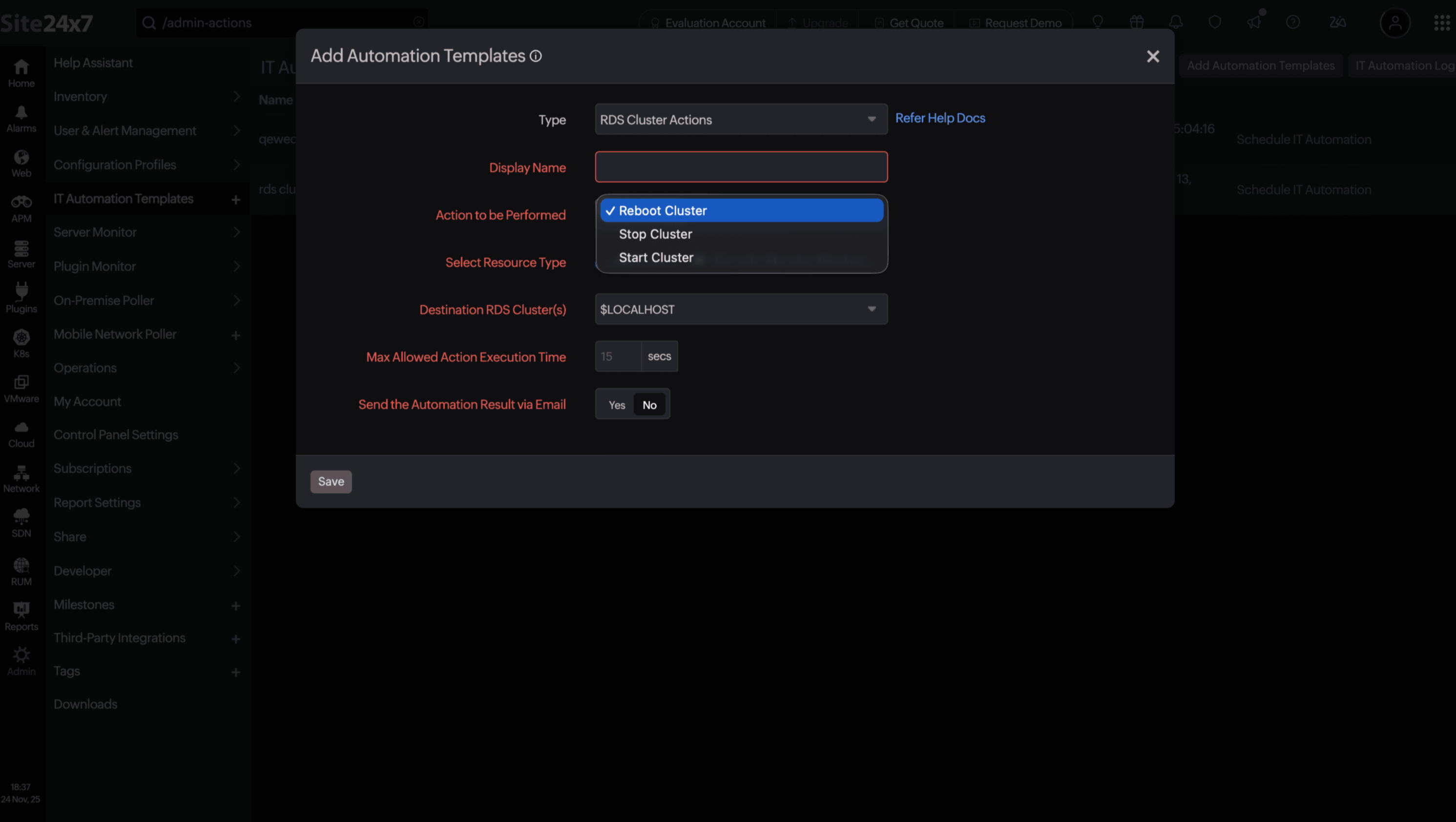
- Log in to the Site24x7 web console and go to Admin > IT Automation Templates > Add Automation Templates.
- Select the action to be performed as RDS Cluster Actions from the Type drop-down menu.
- Enter a Display Name.
- From the Action to be Performed drop-down menu, choose Start Cluster, Stop Cluster, or Reboot Cluster.
- Select the Resource Type as RDS Cluster and choose the Destination RDS Cluster(s).
- Next, select the instances on which the action should be performed.
- Max Allowed Action Execution Time: The maximum number of seconds Site24x7 should wait before the request times out. The execution time is set to 15 seconds by default. You can define an execution time between one and 90 seconds.
- Send the Automation Result via Email: You can choose to receive an email regarding the automation result by toggling this setting to Yes. Automation results can be shared via email to your User Alert Group configured in the Notification Profile. This email will contain parameters including the automation name, type of automation, incident reason, destination hosts, and more.
- Click Save to retain the profile.
Simulate the automation
Before mapping the action profile, you can test its functionality by invoking the operational task manually within the Site24x7 console or by using our REST APIs. This is done to check whether the appropriate write-level permissions required to execute the reboot action are in place. To test the profile, navigate back to the IT Automation summary page (Admin > IT Automation ) and click the play icon next to the appropriate template to execute a dry run.
Map the action profile
To execute the automation, map the action profile to the desired alert event. You can either map the profile to a predefined monitor-level event type, or to a custom attribute-level event type.
Related topic