
Monitor DHCP servers with Site24x7
DHCP servers automatically assign IP addresses and network configuration parameters, such as subnet masks, default gateways, and DNS server addresses, to devices on your network. When a DHCP scope runs low on available addresses, new devices cannot connect to the network, causing outages.
Site24x7 collects DHCP server and scope data at regular intervals through the On-Premise Poller and displays it in dashboards with graphical scope utilization views. You can configure threshold-based alerts to get notified before IP address pools are exhausted.
Prerequisites
- On-Premise Poller version 6.9.0 or above is installed. Download or upgrade from Admin > On-Premise Poller in your Site24x7 account.
- The DHCP server must be reachable from the On-Premise Poller over the network.
- Monitoring credentials must be configured for each device type. See the supported devices table below for the credential type required per device.
Supported devices
| Device type | Credentials required |
|---|---|
| Microsoft Active Directory | Windows domain credentials with read access to DHCP server data. Monitoring supported from Windows On-Premise Poller only. |
| Palo Alto firewall | SNMP v2c community string or SNMPv3 credentials |
| Linux server | SNMP v2c community string or SNMPv3 credentials |
| Cisco router | SNMP v2c community string or SNMPv3 credentials |
| Fortinet firewall | SNMP v2c community string or SNMPv3 credentials |
Adding a DHCP server monitor
To begin monitoring, add your DHCP server as a monitor in Site24x7.
Once you have added a DHCP server monitor, Site24x7 begins polling the DHCP server at the configured interval. The monitor appears under Network > DHCP Servers in the left navigation panel.
Viewing performance metrics
To view detailed performance metrics, navigate to Network > DHCP Server and click the desired device.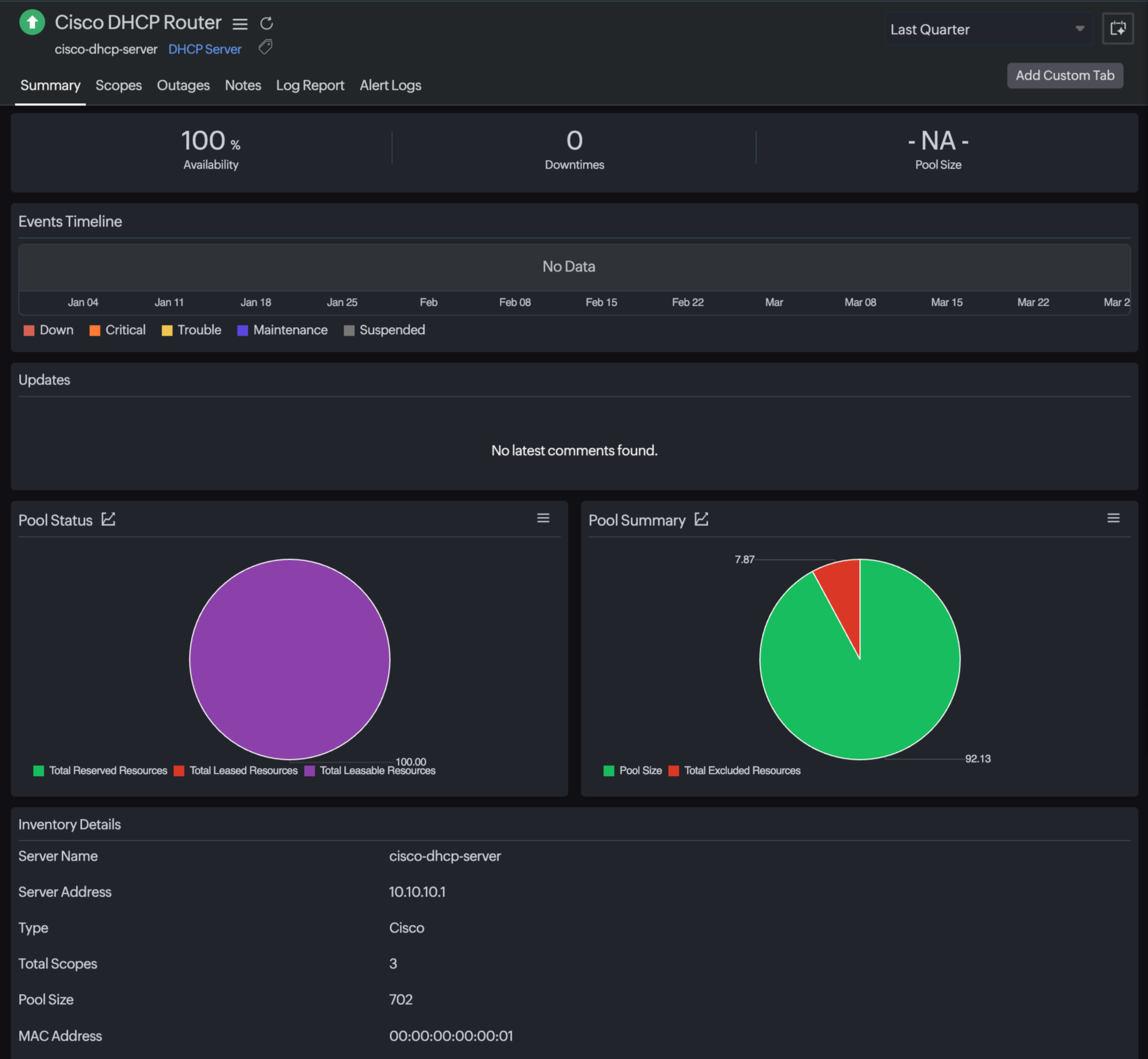
The following sections are available for each monitor:
Summary
The Summary tab provides a high-level overview of your DHCP server's health and performance. It displays key metrics, including Availability percentage, Downtimes count, and Pool Size at the top, giving you an instant snapshot of your server's operational status.
Pool Status
The Pool Status chart gives a visual breakdown of your IP address pool, showing the distribution of Total Reserved Resources, Total Leased Resources, and Total Available Resources. Use this chart to assess how your IP pool is being utilized and identify potential exhaustion risks before they impact your network.
Pool Summary
The Pool Summary chart displays the proportion of Pool Size versus Total Excluded Resources, giving you a clear picture of the effective address space available for leasing. This helps you understand how much of your configured pool is actively usable.
Inventory Details
The Inventory Details section lists the configuration attributes of your DHCP server, including Server Name, Server Address, Type, Total Scopes, Pool Size, and MAC Address. This information serves as a quick reference for identifying and validating the monitored device.
Scopes
The Scopes tab provides a detailed view of all DHCP scopes configured on the server. For each scope, you can track utilization, leased addresses, available addresses, and other scope-level metrics to monitor IP address distribution across your network segments.
Outages
The Outages tab lists all recorded downtime events for the DHCP server along with their duration and timestamps. Use this tab to review historical outage data, analyze patterns, and assess the impact of disruptions on your network availability.
Notes
The Notes tab lets you add and manage comments or observations for the DHCP server monitor. Use this space to log maintenance activities, configuration changes, and any relevant updates your team should be aware of.
Log Report
The Log Report tab provides a detailed log of all polling data and status changes recorded for the DHCP server. Use this tab to audit monitor activity, troubleshoot anomalies, or review historical performance data over a selected time range.
Alert Logs
The Alert Logs tab displays a history of all alerts triggered for the DHCP server, including alert type, severity, and timestamp. Use this tab to review past notifications and verify that your threshold configurations are working as intended.
Setting credentials
To monitor your DHCP server, you must configure the appropriate network credentials based on the server type. Site24x7 supports credential profiles that allow you to securely store and reuse authentication details across multiple monitors. To add or manage credentials, go to Network > DHCP Server > Credentials and select the relevant credential type for your environment, such as SNMP community string for Cisco or API credentials for Microsoft Active Directory.
Setting alerts and thresholds
Configure threshold profiles to receive alerts when DHCP scope utilization exceeds a defined percentage. This enables early detection of IP exhaustion before devices fail to obtain addresses.