
APM Insight Process Monitoring Rules
The APM Insight AutoProfiler simplifies application performance monitoring (APM) by automatically detecting applications running on the server and attaching the appropriate APM Insight agents when the Site24x7 Full-Stack Agent is installed. This removes the need to manually install and manage separate agents for Java, .NET, Python, Node.js, and other supported languages.
If your server runs many applications, you may not want all of them to be monitored. This is where APM Insight Process Monitoring Rules come in.
What are APM Insight Process Monitoring Rules?
APM Insight Process Monitoring Rules allow you to define the conditions that determine which applications the AutoProfiler should monitor, giving you full control over APM in your environment. Only processes that match a configured rule are attached with the required APM Insight agent for monitoring.
You can configure the Process Monitoring Rules using this path: Admin > Server Monitor > APM Process Monitoring Rules.
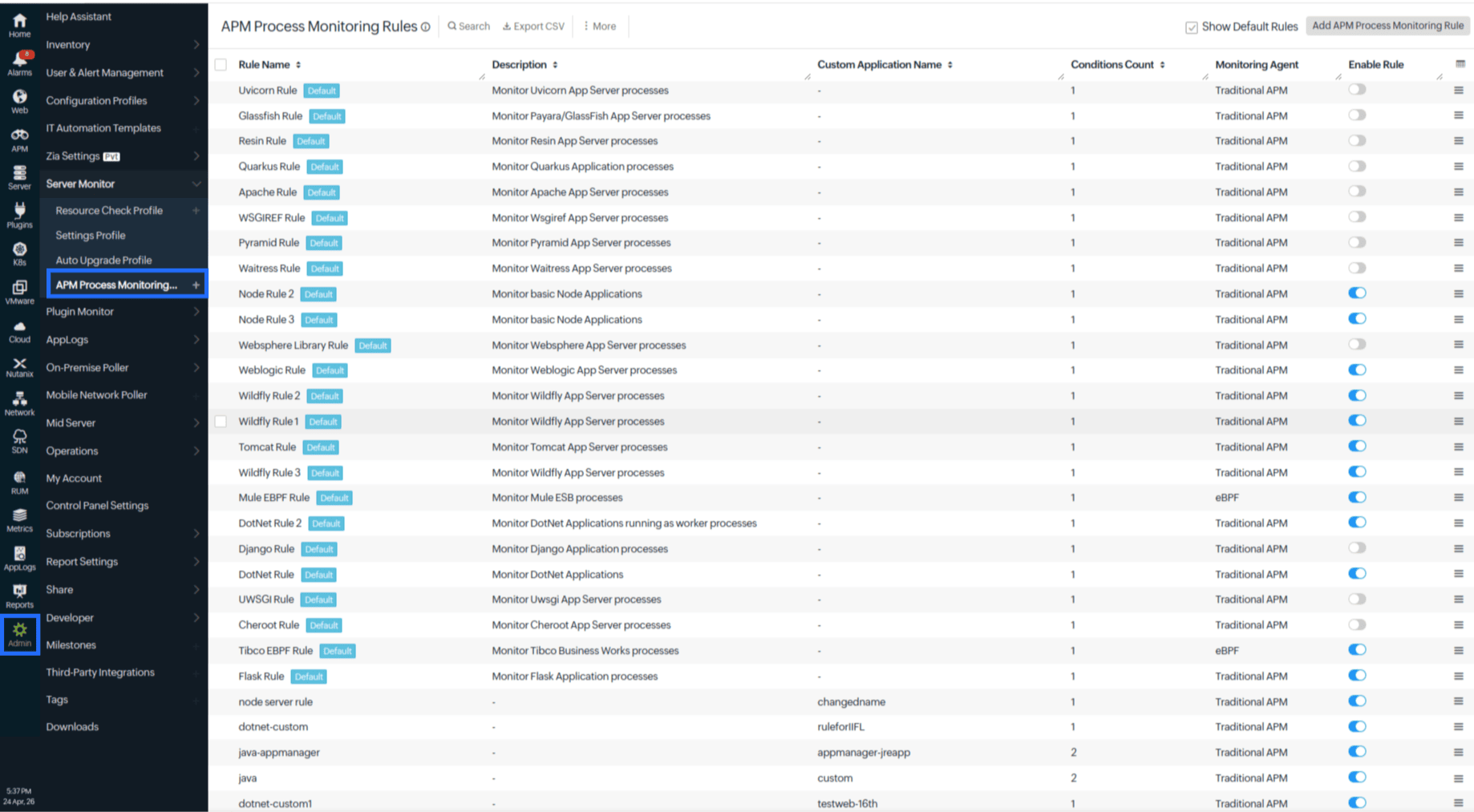
| Field | Description |
|---|---|
| Rule Name | Unique name for the rule. This field is mandatory. |
| Custom Application Name | By default, Auto Profiler assigns an application name when creating the monitor. If required, you can provide a custom name for your application using this field. The custom name will override the default name assigned by Auto Profiler and will be displayed under the Process Discovery and Applications section. |
| Description | A brief explanation of the type of application processes the rule is intended to monitor. |
| Conditions Count | Shows how many conditions are defined in the rule. |
| Monitoring Agent | Indicates whether the rule uses eBPF or Traditional APM monitoring. |
| Enable Rule | Lets you enable or disable the rule. |
You can create any number of custom rules, but only 50 rules can be enabled at a time.
Default rules
Site24x7 provides a set of default process monitoring rules to help quickly identify common application types. The following are the default rule behaviors:
- Default rules can be enabled or disabled, but they cannot be edited.
- You can clone a default rule to create a customized version.
- The Show default check box lets you hide or display default rules.
Custom rules
To create a new custom rule, click Add APM Process Monitoring Rule.
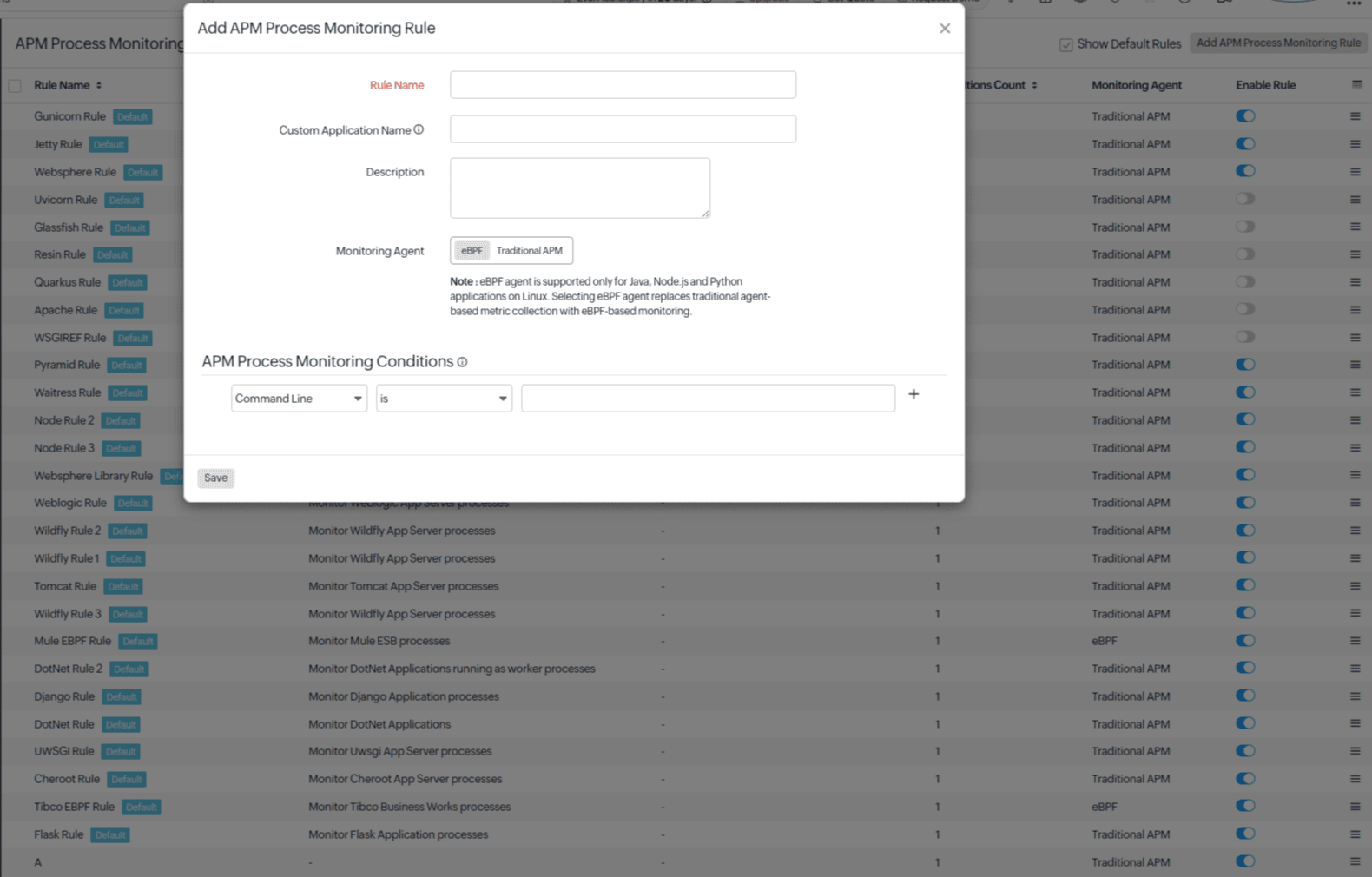
- Rule Name: Enter a unique name for the rule.
- Description: Provide a clear description (optional). These details help you easily identify and manage the rule later.
- Monitoring Agent:
- eBPF-APM: Provides agentless monitoring using eBPF at the Linux kernel level. It automatically discovers applications and collects key metrics like latency, throughput, and errors without code changes. This enables quick visibility into performance with no overhead. Available only on Linux.
- Traditional APM: Full agent-based monitoring, providing deeper visibility into the application code.
APM Insight Process Monitoring Conditions
APM Insight Process Monitoring Conditions allow you to define precise criteria for identifying and monitoring application processes. By configuring one or more conditions, you can control exactly which processes are monitored.
You can add up to 10 conditions. To add more, you have to delete an existing condition. All configured conditions must be satisfied for a rule to apply, ensuring accurate and targeted application monitoring (logical AND).
Condition Parameters
| Parameter | Description |
|---|---|
| Command | Matches the process command. |
| Command Line | Matches the whole command-line string of the application process. |
| Working Directory | Matches the current working directory of the application process. |
| IIS App Pool Name | Matches the IIS application pool name (Windows only). |
Operators
| Operator | Description |
|---|---|
| is | Matches the value exactly. |
| is not | Matches any value except the specified value. |
| contains | Matches values that include the specified value anywhere. |
| does not contain | Matches values that do not include the specified text. |
| begins with | Matches values that start with the specified text. |
| ends with | Matches values that end with the specified text. |
Value: This is a mandatory field. The value you provide is evaluated against the actual running application process to determine whether the rule matches. Please ensure it is entered correctly for the rule to work as intended.
You can add conditions using the + button or remove them with the × button. After entering the conditions, click Save to apply the rule. To remove a custom rule, click Delete.
After making changes on this page, please restart your monitored application for the rules to take effect.
Use case
Your application engineering team runs the same Java-based service, payment-service.jar, on a server for multiple environments. While both production and development instances run simultaneously, you want to monitor only the production instances using APM Insight.
Consider the below command-line strings, which belong to two different instances of the same application; one running in the development environment and the other in the production environment. You want to monitor the production environment and not the development environment.
Production environment:
java -Xms1g -Xmx2g -jar payment-service.jar -XX:+ParallelRefProcEnabled -Dspring.profiles.active=prod
Development environment:
java -Xms512m -Xmx512m -jar payment-service.jar -Dspring.profiles.active=dev
Both processes use the same Java command and application JAR (payment-service.jar), but are differentiated by the Spring profile specified in the command line.
To ensure that only the production instances are monitored, you can create a custom process monitoring rule with the following conditions:
Rule name: Payment service prod monitoring rule
Conditions configured:
- Command is java
- Command Line contains -jar payment-service.jar
- Command Line does not contain -Dspring.profiles.active=dev
When this rule is enabled, the APM Insight AutoProfiler attaches the Java agent only to the production processes and ignores the development instances. In this way, you can easily control which application processes are monitored, ensuring precise visibility while reducing overhead.