
Transaction grouping
Transaction grouping in Site24x7 APM Insight helps you monitor multiple related transactions as a single business flow. Instead of tracking individual APIs separately, you can logically group them and view their overall performance, availability, and health from a business perspective.
For example, in an e-commerce application, transactions such as: /addToCart, /payment, and /orderConfirm can be grouped together as an Order Processing Flow. This allows teams to monitor the complete workflow instead of analyzing each transaction individually.
Benefits of transaction grouping
Transaction grouping helps you:
- Group related web or background transactions into a single business transaction monitor.
- Monitor application workflows from a business perspective.
- Track aggregated performance metrics for grouped transactions.
- Configure alerting based on combined transaction metrics.
- Visualize grouped transaction performance using dashboards and reports.
- Reduce monitoring complexity for applications with large numbers of APIs.
How transaction grouping works
When transaction grouping is enabled:
- All selected transactions are treated as a single business transaction monitor.
- Metrics from all transactions in the group are aggregated.
- Alerting is performed using the aggregated metrics.
- Group-level data is collected at a one-minute interval and persisted for reporting.
If transaction grouping is deleted, transactions continue to behave as individual transaction monitors.
Create a transaction group
You can create a transaction group from the Add APM Business Transaction page.
Transaction groups can contain business transactions, non-business transactions, or a combination of both.
How to enable transaction group
- Log in to your Site24x7 account.
- Navigate to the required APM application monitor.
- Click the Transactions tab.
- Click Configure Business Transactions.
- Enable the Transaction Group option.
- Enter the following details:
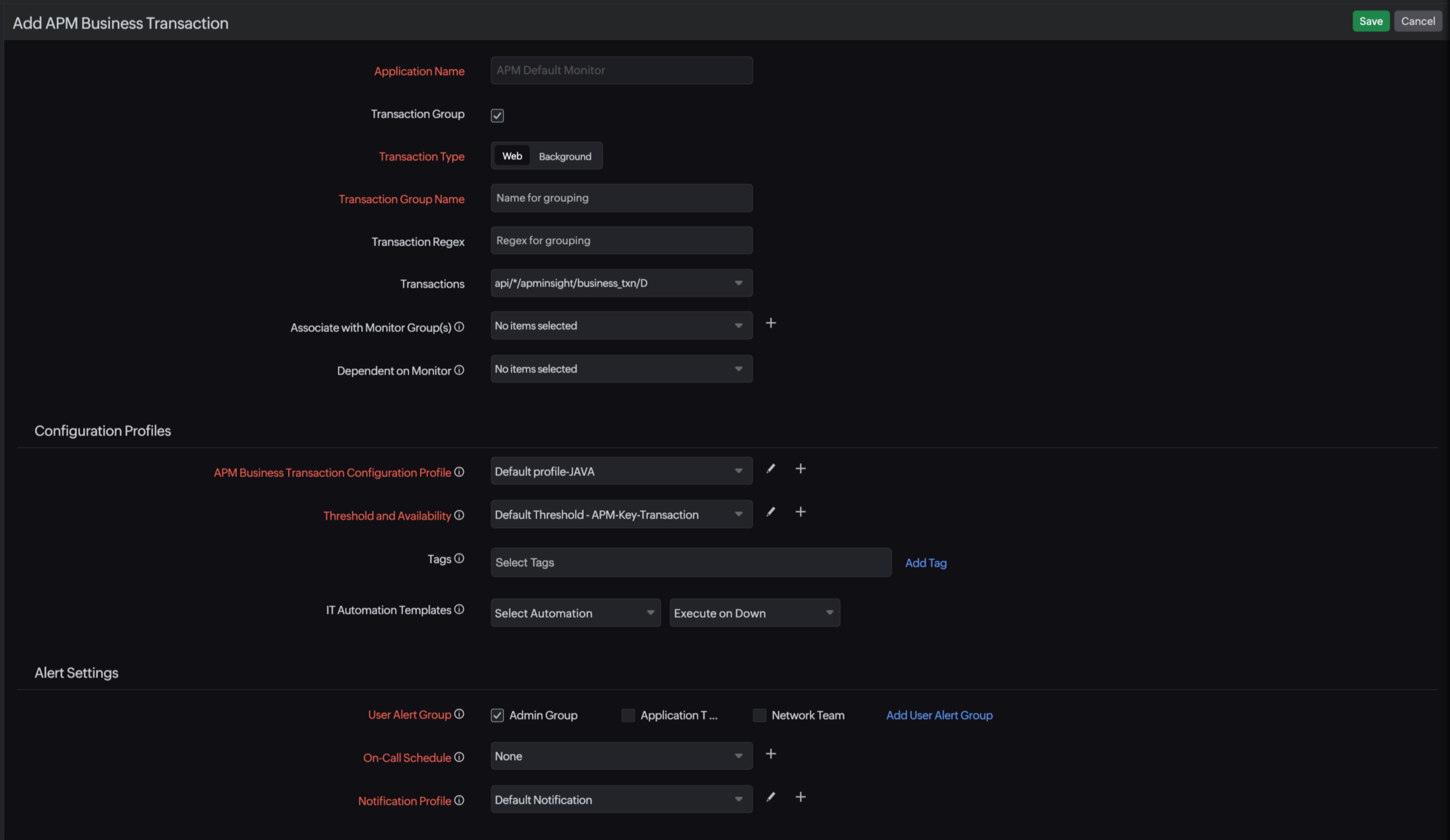
- Transaction Type: Select the transaction type.
- Web: Groups web-based transactions.
- Background: Groups background transactions.
- Transaction Group Name: Provide a meaningful name for the group.
- Transaction Regex (optional): Define a regex pattern to automatically include transactions that match the specified pattern.
Note
Newly detected transactions matching the regex are automatically added to the group.
- Transactions (optional): Select individual transactions manually from the drop-down list.
- Transaction Type: Select the transaction type.
- You can create groups using:
- Only selected transactions.
- Only regex-based matching.
- Both regex matching and manually selected transactions.
- Regex-based matching takes priority over manually selected transactions.
- Associate with Monitor Group(s) (optional): Associate the transaction group with one or more monitor groups for centralized management.
- Dependent on Monitor (optional): Configure dependency settings to suppress alerts when the selected parent monitor is down.
- You can add or edit the APM Business Transaction Configuration Profile. When adding a new profile, the default profile will be applied. Learn more.
- Threshold and Availability: The default configuration will be applied; however, you can edit or create a new profile, which affects if you'll receive alerts when the monitor goes into trouble or critical status. Learn more.
- You can also edit or add a new Notification Profile. Learn more.
- Select the User Alert Group, add Tags if necessary.
- Save the configuration.
- The transaction group will be created as a single business transaction monitor.
- Transaction groups are displayed in the APM Business Transactions page and are identified using a GROUP tag.
Edit a transaction group
You can edit an existing transaction group at any time from the APM Business Transactions page.
How to edit a transaction group
- Navigate to APM > APM Business Transactions.
- Click the hamburger icon
 of the required transaction group and select Edit.
 - Modify the required fields:
- Transaction Group Name
- Transaction Regex
- Transactions
- Configuration Profiles
- Save the changes.
- The Transaction Group option cannot be disabled after the group is created.
- Transactions matching the regex pattern are automatically included in the group.
- Regex-based matching takes precedence over manual transaction selections.
- All configuration changes are captured in audit logs.
Delete a transaction group
Transaction groups can be deleted individually or in bulk.
Steps to delete an individual transaction group
- Navigate to APM > APM Business Transactions.
- Click the hamburger icon of the required transaction group and select Delete.
Steps to delete the transaction groups in bulk
- Navigate to Admin.
- Under Inventory, click Monitor Groups.
- Select Bulk Action from the left panel.
- Under Monitor Action, choose Delete Monitors.
- Apply the required filters to identify the transaction groups.
- Select the required transaction groups.
- Click Delete to perform the bulk deletion.
When a group is deleted:
- Associated mappings are removed.
- Scheduled data collection tasks are stopped.
- Group-level monitoring data is cleaned up.
- Profile mappings are removed.
Alerting for transaction groups
Transaction groups support group-level alerting using aggregated metrics.
Alerting behavior:
- Metrics are collected every minute.
- Alerts are triggered based on aggregated transaction performance.
- Threshold profiles, notification profiles, IT automation, and user alert groups are supported.
For every transaction group, metrics from all associated transactions are aggregated periodically.
Frequently asked questions
-
Can I group both web and background transactions?
No. A transaction group can contain either web transactions or background transactions, but not both together.
-
Does creating a transaction group affect individual transaction monitoring?
No. Individual transactions continue to exist independently while the group provides an aggregated business-level view.
-
Where can I view transaction groups?
You can view transaction groups in the following ways:
- Navigate to APM > APM Business Transactions.
- Transaction groups are identified using a GROUP tag.
- Navigate to APM > Applications > Transactions tab.
- Select Groups for web transaction groups or Background Groups for background transaction groups.
- Navigate to APM > APM Business Transactions.
-
Does transaction grouping support alerting?
Yes. Transaction groups support threshold profiles, notification profiles, IT automation, and user alert groups based on aggregated metrics.
-
Can I disable transaction grouping after creating a group?
No. The transaction grouping option cannot be disabled after the group is created.
-
How are metrics calculated for a transaction group?
Metrics from all transactions within the group are aggregated and displayed as a single set of performance metrics for the group.