
Application Flow Map
The Flow Map is used to analyze and visualize how applications interact with their various components. It helps you identify which component is experiencing higher traffic or errors, or causing slowness in the application.
Difference between the Flow Map and the Service Map
| Flow Map | Service Map |
|---|---|
| Visualizes all monitored applications in the APM module along with their connected components in a single view. | Provides a detailed view of the infrastructure- and service-level dependencies for a specific application you select. |
| Displays Site24x7 APM's account-level applications and their components. | Shows an application-level perspective. |
Viewing the Flow Map
- Log in to your Site24x7 console.
- Navigate to APM > Flow Map.
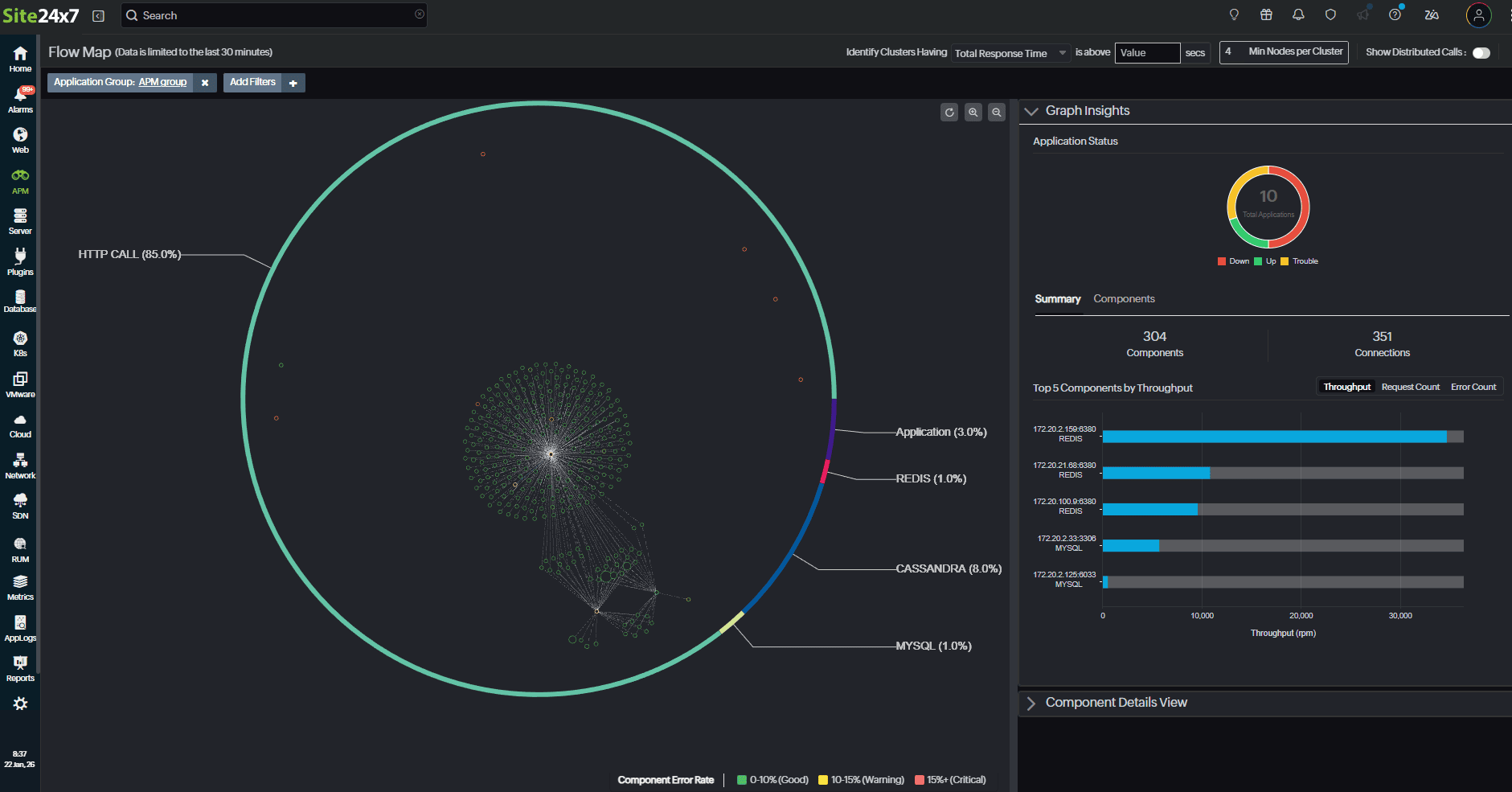
- By default, the Application Group/Status Frequency filter is added when you navigate to the Flow Map (displays the application group with the maximum number of active applications). To change this, go to Add Filters and select the required filter.
- The Flow Map displays only the last 30 minutes of data.
How it works
When you install the Site24x7's Full-Stack Agent with the Auto Profiler or technology-specific APM agents, the agents automatically detect applications, monitor their behavior, and collect performance metrics. These metrics are sent to the Site24x7 console as logs, where the system continuously evaluates the health of each application. Based on this evaluation, application statuses are identified and considered for simulating the Flow Map.
In the Flow Map, each circle represents a node, which is an application or component. The connecting lines between nodes are called edges, representing the communication between them. Nodes are positioned dynamically based on their interactions with one another. Components that communicate more frequently are placed closer together on the map. Areas with a higher concentration of nodes indicate increased traffic, while nodes with a larger radius represent higher request volumes. This visualization helps you quickly identify high-traffic components.
By default, the Application Group filter is set to APM group when you navigate to the Flow Map.
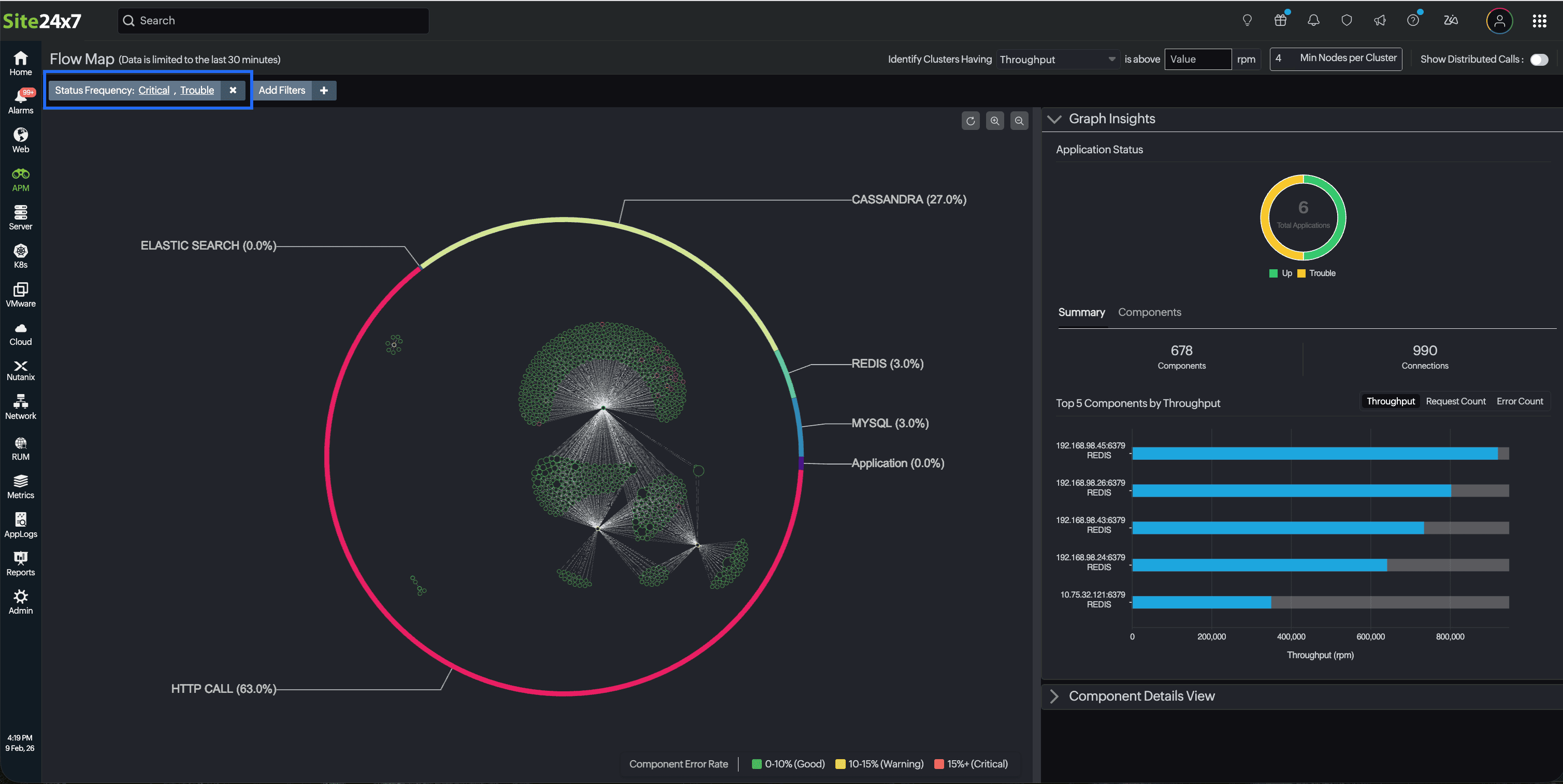
Adding many applications to a single group can make the visualization dense and difficult to interpret. To avoid this, if more than 150 active applications are added to a single application group, the system automatically filters and displays only the top 50 active applications based on monitor status: Critical or Trouble.
Therefore, if you see the Status Frequency filter applied by default, it indicates that your application group contains more than 150 active applications.
Use case
A typical user journey on an online shopping website involves browsing products, adding items to the cart, proceeding to checkout, completing payment, and generating an order confirmation. Each step is handled by different applications and back-end components that work together to provide an end-to-end experience.
Because multiple applications and components are involved, delays in one component can impact the overall user experience. Identifying which component contributes the most to the total response time becomes difficult, especially when inter-application communication causes cascading slowdowns.
The Flow Map provides an account-level view of how applications and components communicate. It helps you:
- Visualize interactions across all applications involved in the transaction flow.
- Identify components that take the most time in the end-to-end request life cycle.
- Analyze throughput, request count, and response time for each application.
- Detect slow or overloaded components that may be affecting overall performance.
By using the Flow Map, teams can quickly pinpoint performance bottlenecks across applications and focus their optimization efforts on the components with the most significant impact on user experience.
Flow Map overview
The Flow Map provides a comprehensive overview of your APM account infrastructure. You can get a complete picture of how your applications are linked and communicate with external components. Let's explore the Flow Map features in detail.
All nodes are enclosed within a circular donut chart that provides a proportional breakdown of component categories by their count (e.g., HTTP calls, DB calls, messaging services, etc.).
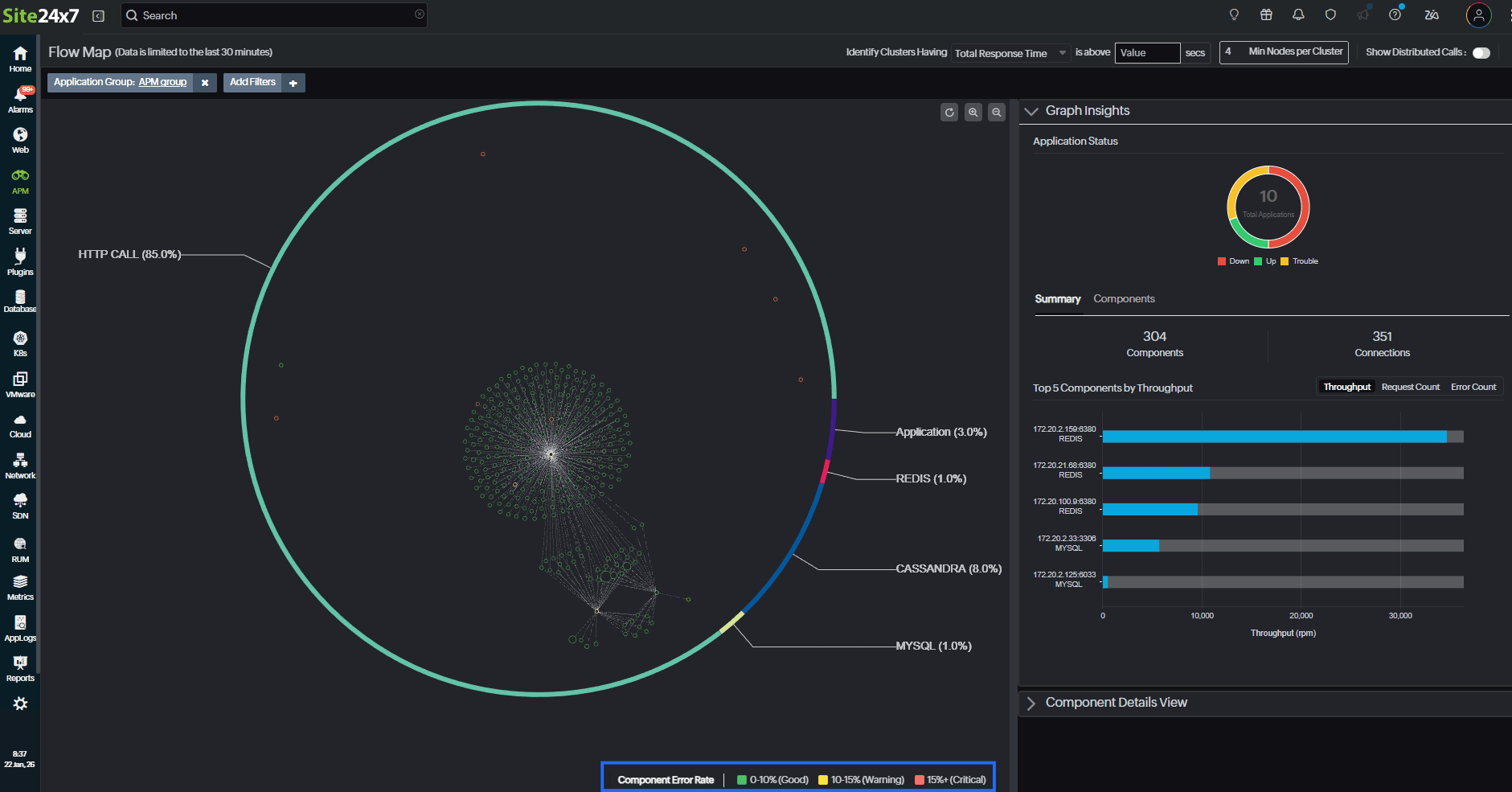
Component Error Rate
The health status of each component is represented using different colors based on its error rate. The following color codes indicate the component’s health:
- Green (Good): Error rate between 0% and 10%. Indicates regular operation with no detected performance issues.
- Yellow (Warning): Error rate between 10% and 15%. Indicates potential performance issues that require attention.
- Red (Critical): Error rate above 15%. Indicates critical issues such as high error rates or severe performance degradation.
Node representation
- Each dot represents a component or APM application.
- Edges denote the interactions or communications between components.
- Disconnected or isolated nodes are still enclosed within the circular boundary.
- Node size is dynamically scaled to reflect request throughput (i.e., Req.Throughput)—the larger the node, the higher the request volume it handles.
Node metrics
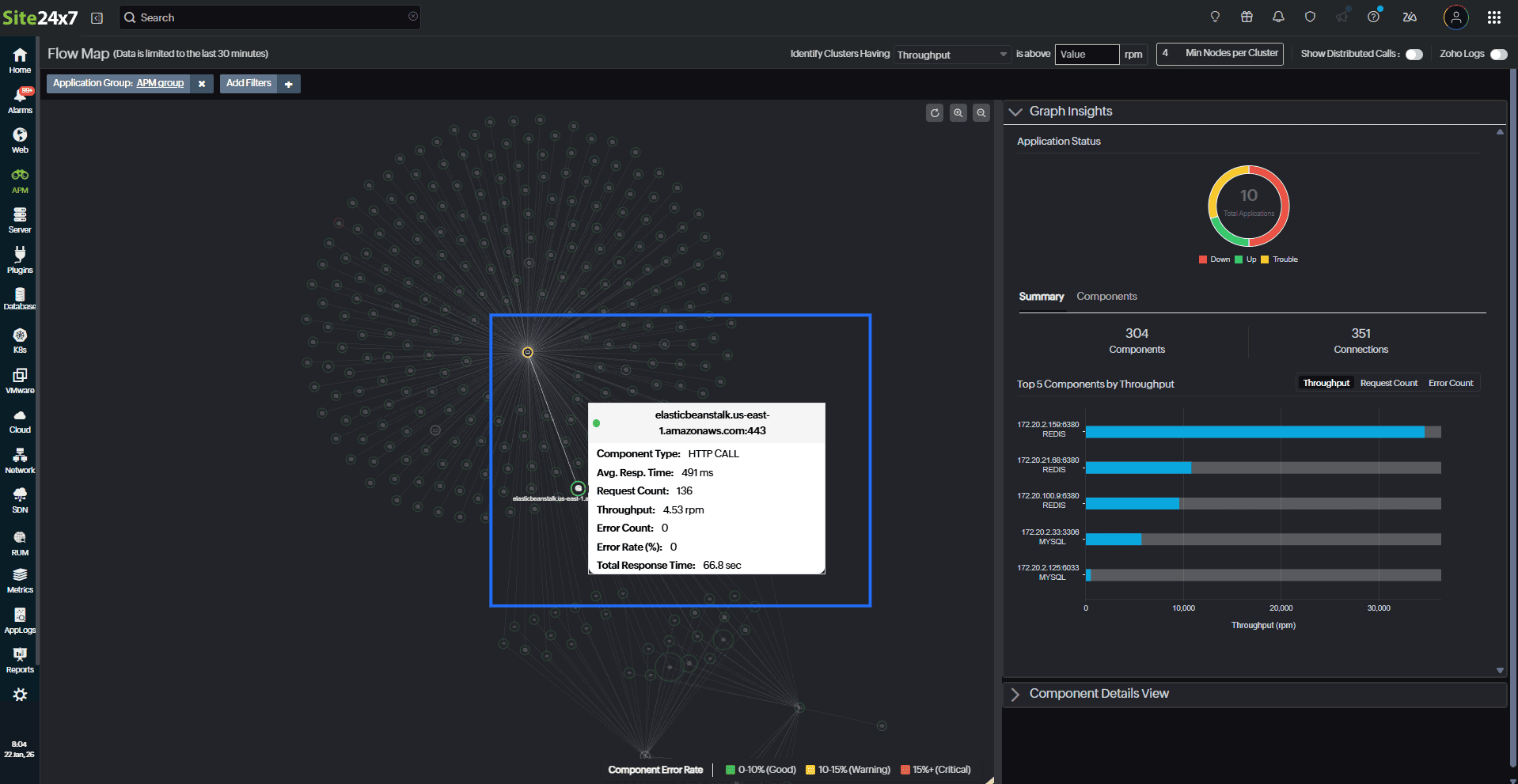
Hover over the node to view the important metrics, such as Component Type, Avg.Resp.Time, Request Count, Throughtput, Error Count, Error Rate(%), and Total Response Time. Incoming and outgoing interactions are also highlighted when you hover over the components.
Add Filters
You can filter components by Application Group, Monitor Tag, Monitor Name, Monitor Prefix, Component Name, and Status Frequency for precise analysis.
| Filter name | Description |
|---|---|
| Application Group | Lists all the monitor groups added in Home > Monitor Groups. |
| Monitor Tag | Filters monitor based on the tags. |
| Monitor Name | Displays all the APM monitors. |
| Monitor Prefix | To apply the Monitor Prefix filter, select Custom Text Input from the drop-down, enter the prefix, and press Enter. The Flow Map displays monitors that match the entered prefix along with its dependencies. |
| Component Name | List the types of the component such as HTTP CALL, Application, MYSQL, REDIS, or MEMCACHED. |
| Status Frequency | This filter includes three values—Critical, Trouble, and Anomaly.Confirmed. When you select a value, the list shows applications that often move into that specific state. |
You can add multiple filters based on your preferences. This helps you narrow down the data you want to view.
Identifying Clusters Having
Use the Identify Clusters Having drop-down to highlight specific node clusters in the Flow Map based on one of the following criteria:
- Throughput (rpm)
- Request Count
- Total Response Time (in seconds)
You can enter a threshold value and specify the minimum number of nodes per cluster (Min Nodes per Cluster). The Flow Map will then visually highlight the clusters that meet your selected condition in yellow, helping you quickly spot high impact.
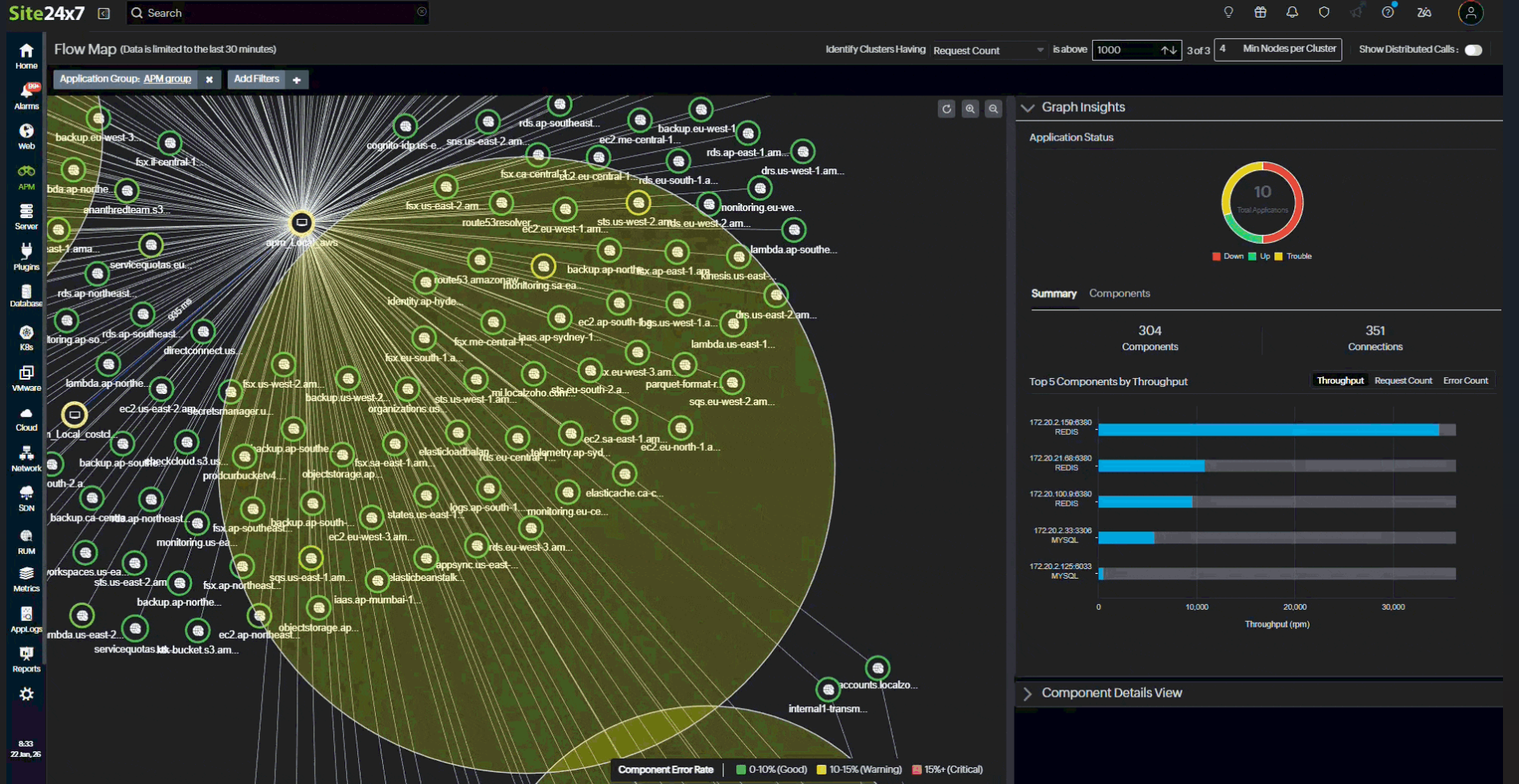
In this example, clusters are identified using a default condition of throughput greater than 50 rpm and a minimum of four nodes per cluster.
Show Distributed Calls
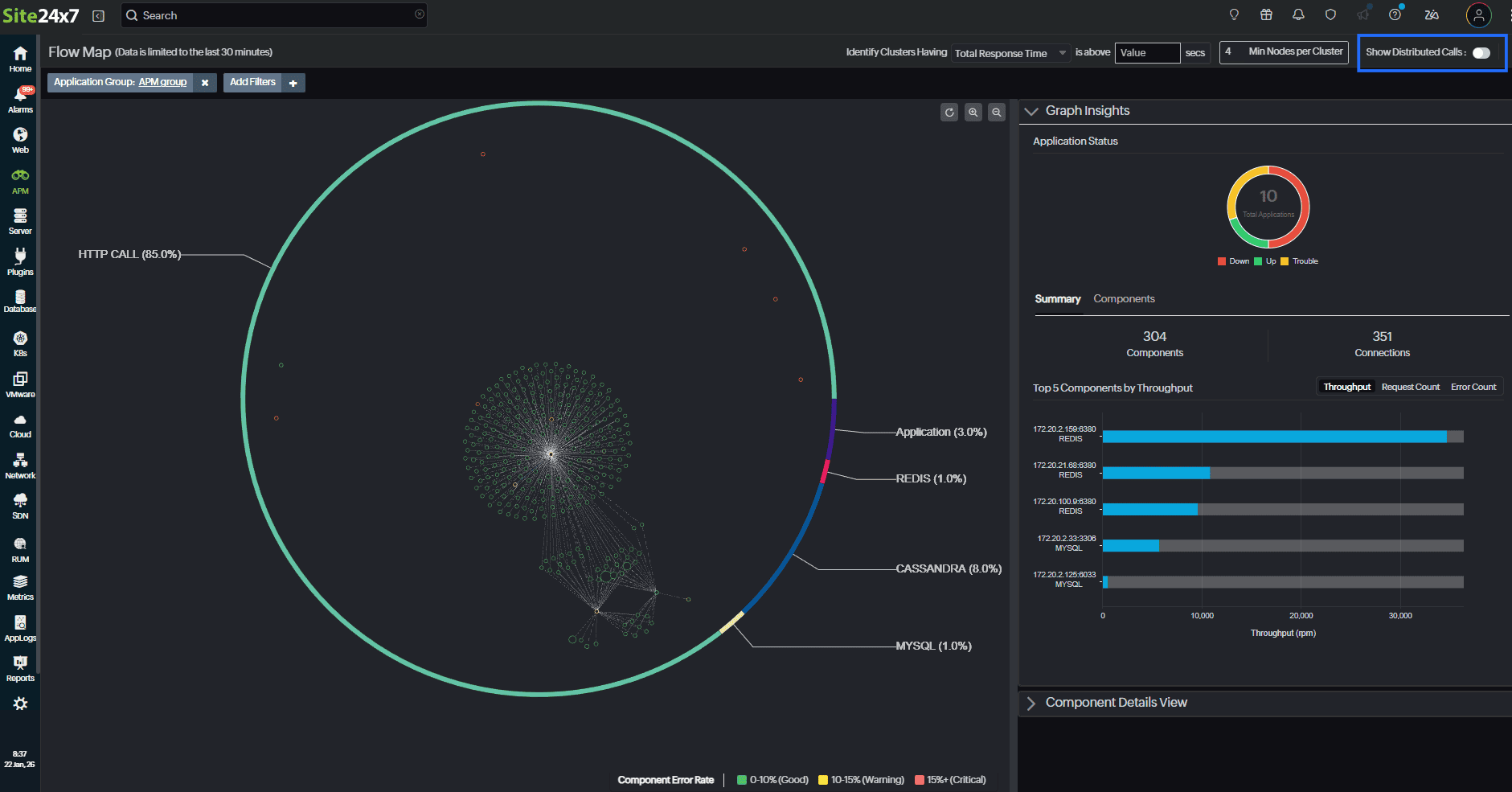
Lines in the main map highlighted in blue indicate distributed calls (i.e., application-to-application communication). These lines also display the response time between services.
You can also enable Show Distributed Calls to view only application-to-application interactions. This will be useful for monitoring communications between only the microservices, excluding the dependent components.
Graph Insights
The Graph Insights panel provides a consolidated view of your application's performance and status based on the applied filters.
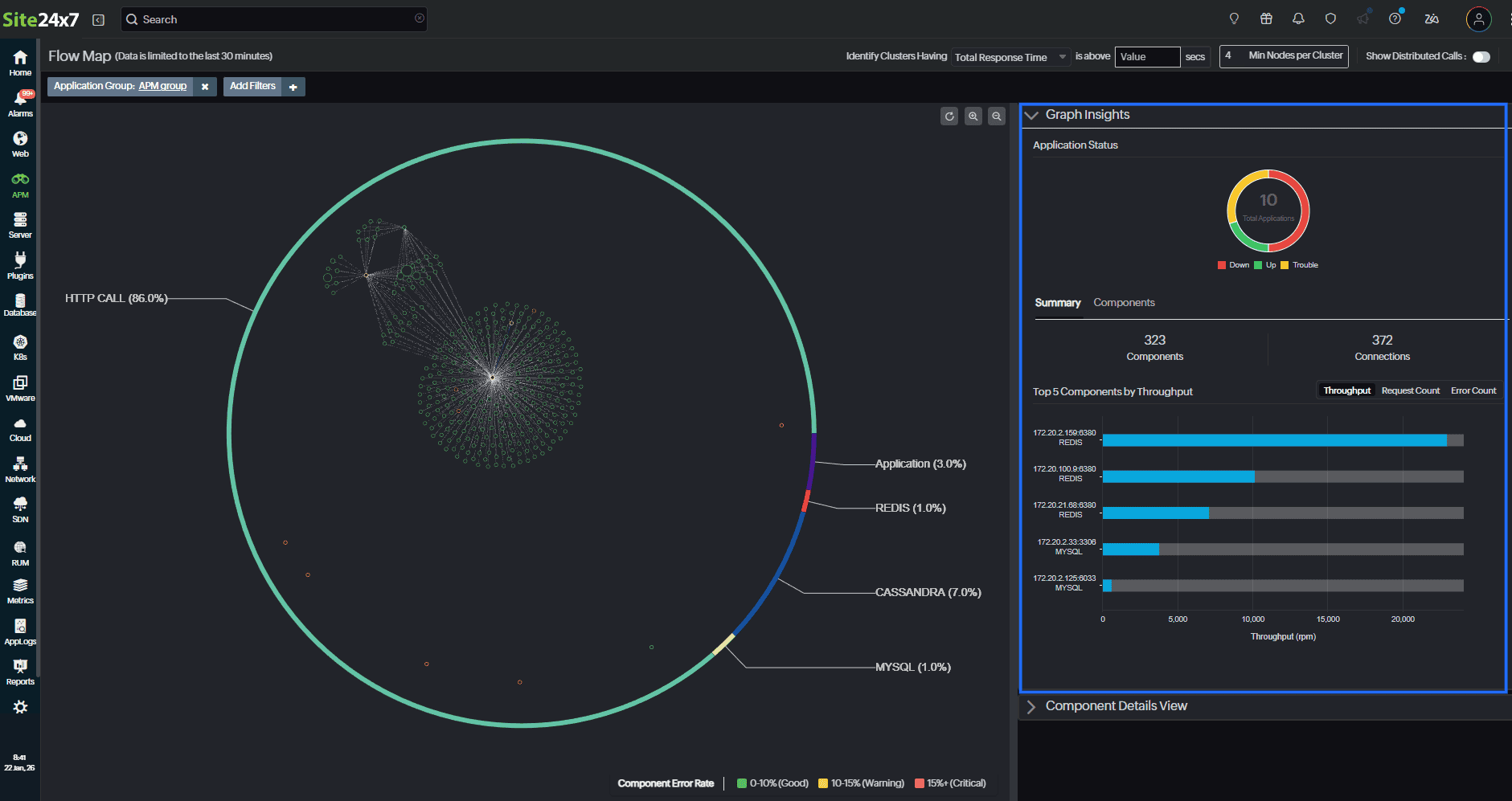
Donut chart: Displays the total number of monitored applications, categorized by status.
| Color | Monitor status |
|---|---|
| Red | Down |
| Green | Up |
| Yellow | Trouble |
| Orange | Critical |
| Grey | Suspended |
When you hover over a specific color in the donut chart, the total number of applications in that status is displayed. For example, hovering over the green segment shows how many applications are in the Up status.
You can also click an application status to filter the donut chart. For example, clicking the orange segment removes the Trouble status from the chart and displays only the remaining count of Up and Critical statuses.
Summary
The Summary tab provides the following details.
- Components: Represents the total number of individual applications or components (nodes).
- Connections: Denotes the total number of interactions or communications between components (edges).
- Top 5 Components:
-
- Lists the top five components by Throughput, Request Count, and Error Count.
- Data is visualized in horizontal bar charts for quick comparison.
- Clicking a blue bar in any chart automatically highlights and navigates to the corresponding node on the main Flow Map.
Components
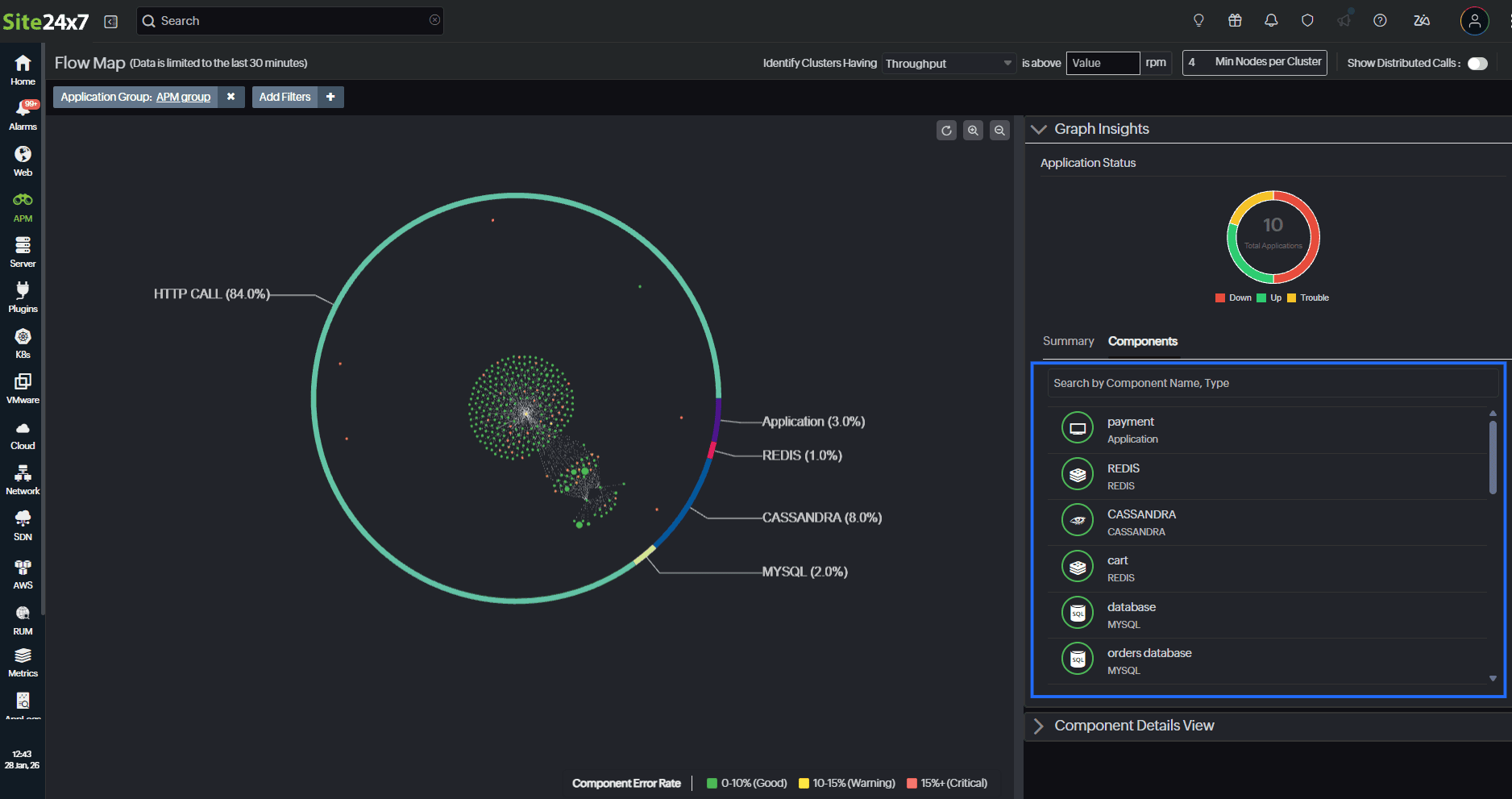
The Components tab provides a searchable list of all detected components within the application landscape. This tab displays all components involved in the application's flow, such as MySQL, REDIS, CASSANDRA, Application, and HTTP CALL. The component details include the Component Name and Type. This helps you quickly locate specific components using the search bar by typing the name or type of the component. You can also search the components by their IP address.
Use this tab to drill down into the health and type of individual components, which is especially useful when investigating anomalies in the Flow Map. When you select a component from the list, it is highlighted in the Flow Map. The selected component, along with its dependent nodes, is also displayed separately in the Component Details View section.
Component Details View
The Component Details View provides a focused analysis of a selected node within the Flow Map, offering insights into its direct interactions and performance.
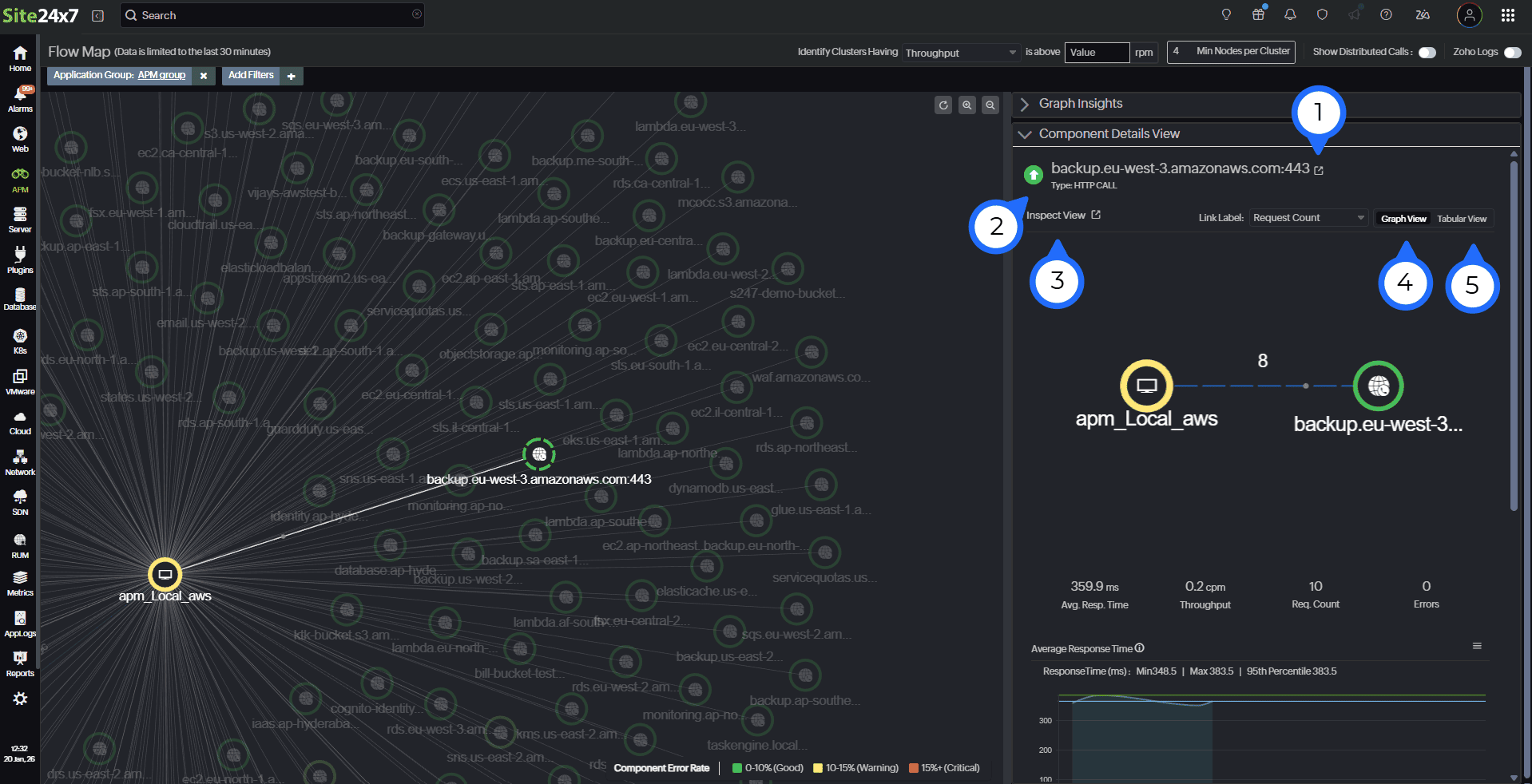
| Field number (as marked in the image) | Field name | Description |
|---|---|---|
| 1 | Component name | Displays the selected component's name. |
| 2 | Type |
Type of the selected component. Below are the types of components:
|
| 3 | Inspect View |
You can click the Open in Main Graph icon The edge with the highest throughput time or maximum request count is automatically highlighted, making it easier to identify performance hotspots. To get back to the main Flow Map, tap on the Click here to return link or the Back to Main View button to navigate back to the Flow Map. |
| 4 | Graph View |
You can view the selected component as nodes and edges. |
| 5 | Tabular View |
You can view the selected component in a tabular form with the following details:
|
 to view the selected component and its immediate dependencies. In this view, metrics for each connecting edge are shown to provide deeper insight into communication between components. You can change the metrics, such as Avg.Resp.Time, Throughput, Request Count, and Error Count using the Link Label drop-down. Note that metrics are displayed only for components. Metrics are not shown for applications in the Inspect view.
Sections under Component Details View
The sections displayed under Component Details View vary based on the selected component.
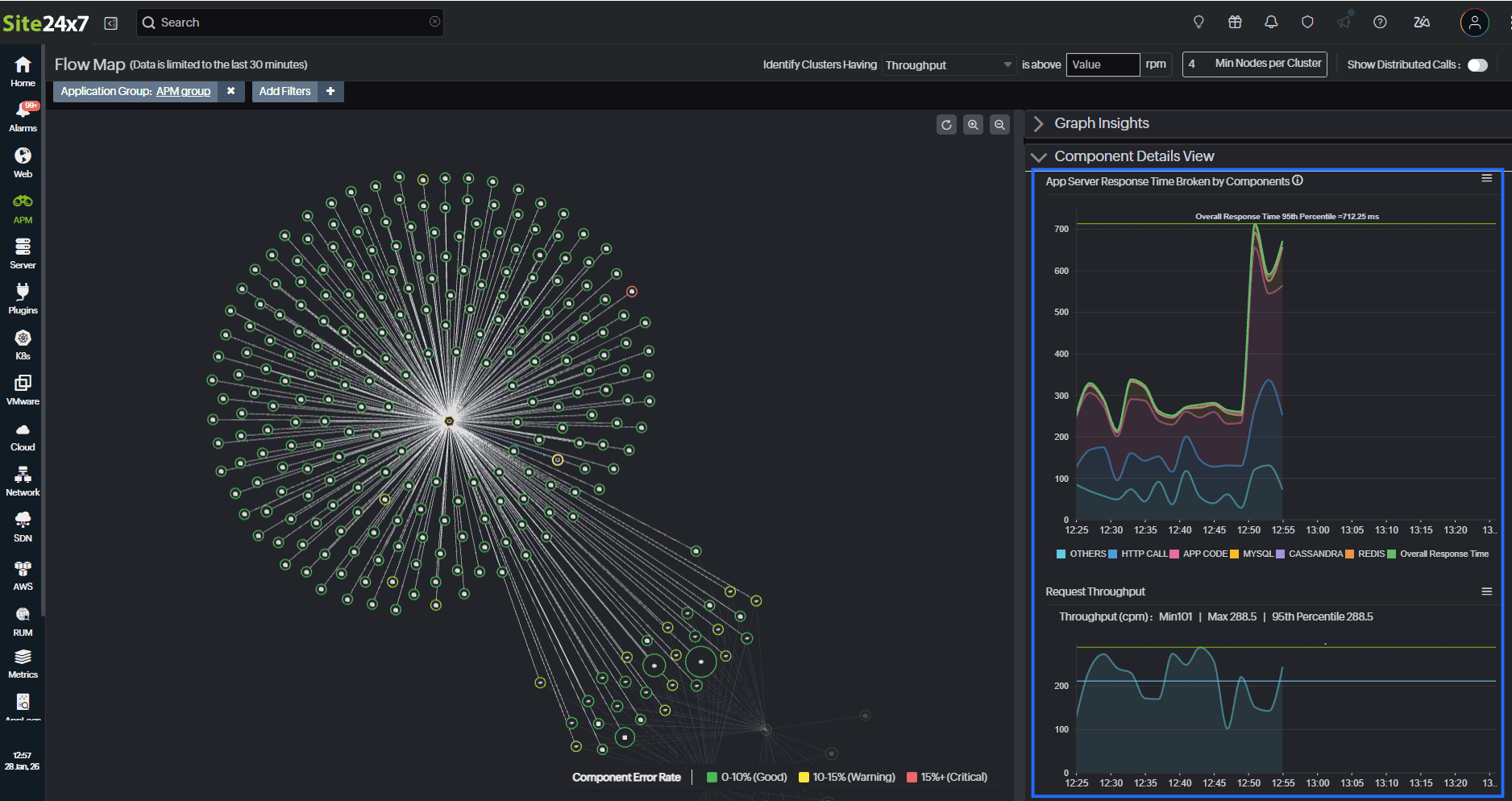
For application components:
- App Server Response Time Broken by Components: This section is displayed only for application components. It shows a graph that represents the overall application server response time and its breakdown across individual components, helping you understand how each component contributes to the total response time.
- Request Throughput: This section displays a graph of the components' request throughput over time.
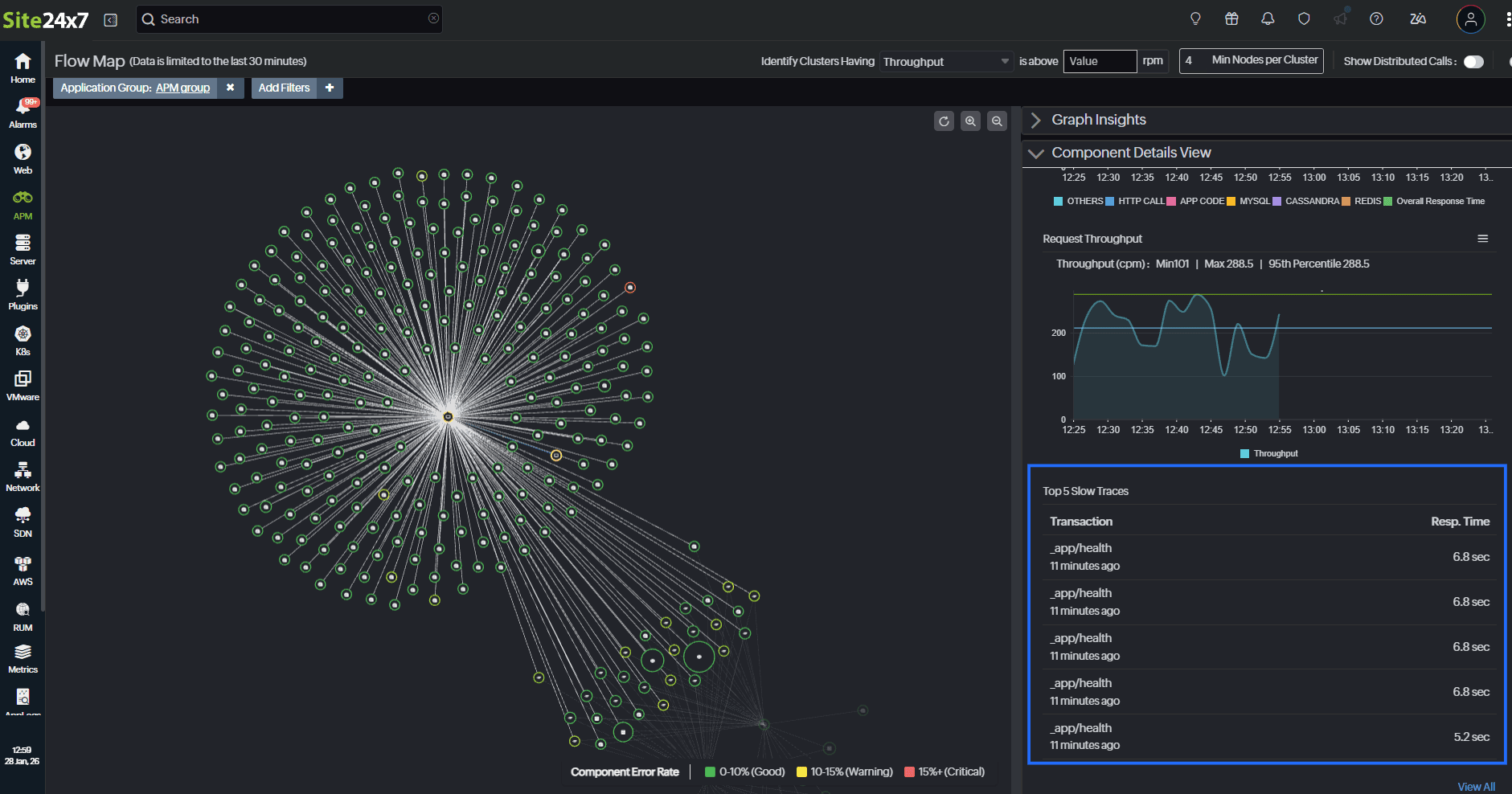
- Top 5 Slow Traces: This section is displayed only for application components. It lists the five slowest individual traces, along with the following details:
-
- Transaction
- Resp. time (in seconds)
For database and external components:
- Average Response Time: This section is displayed only for database and external components. It shows a graph representing the component’s response time over time. Along with this, a summary of the minimum, maximum, and 95th percentile response time is displayed.
- Transactions: This section is displayed only for database and external components. It shows the following details:
-
- Transaction Name
- Failed Requests
- Total Req. Count
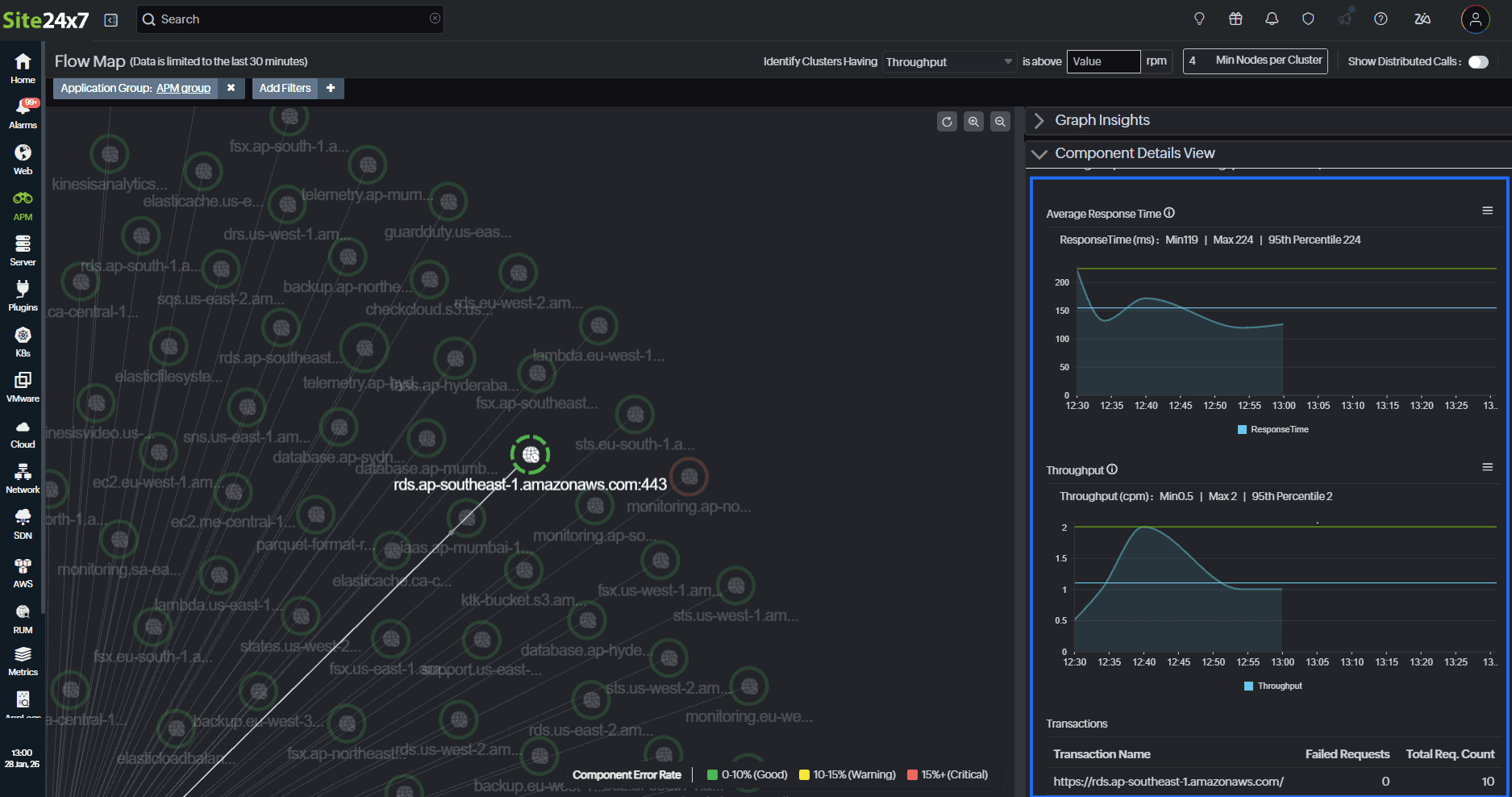
You can click a transaction to drill down into the details of each transaction.
Related article