
Alibaba Cloud Monitoring in Site24x7
Monitor your Alibaba Cloud infrastructure with Site24x7 and gain deep visibility into the health, availability, and performance of your cloud resources. Automatically discover services, configure thresholds, receive alerts, and automate incident remediation — all from a single unified monitoring console.
Getting started
To start monitoring your Alibaba Cloud environment, follow the steps to add an Alibaba Cloud monitor.
Supported Alibaba Cloud services
Site24x7 supports out-of-the-box monitoring for 40+ Alibaba Cloud services. Newly supported services are automatically discovered and added based on your selected Discovery Interval.
Permissions required
To allow Site24x7 to access your Alibaba Cloud environment, you will need to:
- Create an Access Key ID and Secret Access Key with read-only permissions.
- Ensure the required policies (for example, AliyunReadOnlyAccess) are assigned to the RAM user.
- Use these credentials in the Site24x7 console to authenticate and begin monitoring.
The following service-level policies provide least-privilege read access. You can also attach ReadOnlyAccess to cover all read permissions.
| Service | Recommended policy | Purpose |
|---|---|---|
| ECS | AliyunECSReadOnlyAccess | To fetch virtual machine and instance data |
| ACK (Kubernetes) | AliyunCSReadOnlyAccess | To list clusters, nodes, and workloads |
| ECI | AliyunECIReadOnlyAccess | To monitor container instances |
| SLB | AliyunSLBReadOnlyAccess | To discover load balancers |
| RDS | AliyunRDSReadOnlyAccess | To retrieve database monitoring metrics |
Create and manage Access Keys
Site24x7 uses Access Key authentication to connect to your Alibaba Cloud account. Your credentials are securely stored and encrypted. Follow these steps to generate an Access Key ID and Access Key Secret for a RAM user.
Prerequisites
- You must have an Alibaba Cloud account with at least RAM (Resource Access Management) user permissions.
- Your RAM user should have programmatic access and the necessary permissions to access resources (for example, ECS, ACK, ECI, Auto Scaling).
- You must have access to the Alibaba Cloud Console.
Step 1: Sign in to Alibaba Cloud Console
- Go to https://home.console.aliyun.com.
- Sign in using your Alibaba Cloud root account or an authorized RAM user.
It is recommended to avoid using the root account directly for API integrations. Instead, use a RAM user with least-privilege access.
Step 2: Open the RAM Console
- In the top navigation bar, select Resource Access Management (RAM), or go directly to https://ram.console.aliyun.com/users.
- From the left menu, click Users to view existing users, or click Create User to add a new one.
Step 3: Create or select a RAM user
If you already have a RAM user for monitoring, click the username to open the User Details page.
If you don't have one:
- Click Create User.
- Provide a username (for example, site24x7-monitoring-user).
- Select Access Mode and enable Using permanent AccessKey to access — this generates Access Keys.
- Optionally enable Console Access for manual testing.
- Click OK to create the user.
- Download the Access Key and Secret in CSV format immediately.
You cannot view the Access Key Secret again after closing the dialog. Save it securely before proceeding.
Step 4: Assign permissions to the RAM user
- In the RAM user details page, click Permissions > Grant Permission.
- Select your Cloud Account as the authorization scope.
- Search for and select the required policies (see the permissions table above).
- Click OK.
Step 5: Generate Access Keys for an existing RAM user
- In the RAM User Details page, click Create AccessKey.
- A pair of credentials will be generated: AccessKey ID and AccessKey Secret.
Copy and save both keys securely — you won't be able to view the secret again after closing the dialog. Store them in your monitoring tool configuration and avoid sharing AccessKeys over chat, email, or code repositories.
Adding a monitor
You can add an Alibaba Cloud monitor in Site24x7 to automatically discover and monitor your Alibaba Cloud resources such as ECS, RDS, SLB, OSS, and more. Site24x7 uses key-based authentication to securely connect to your Alibaba Cloud account and fetch monitoring data.
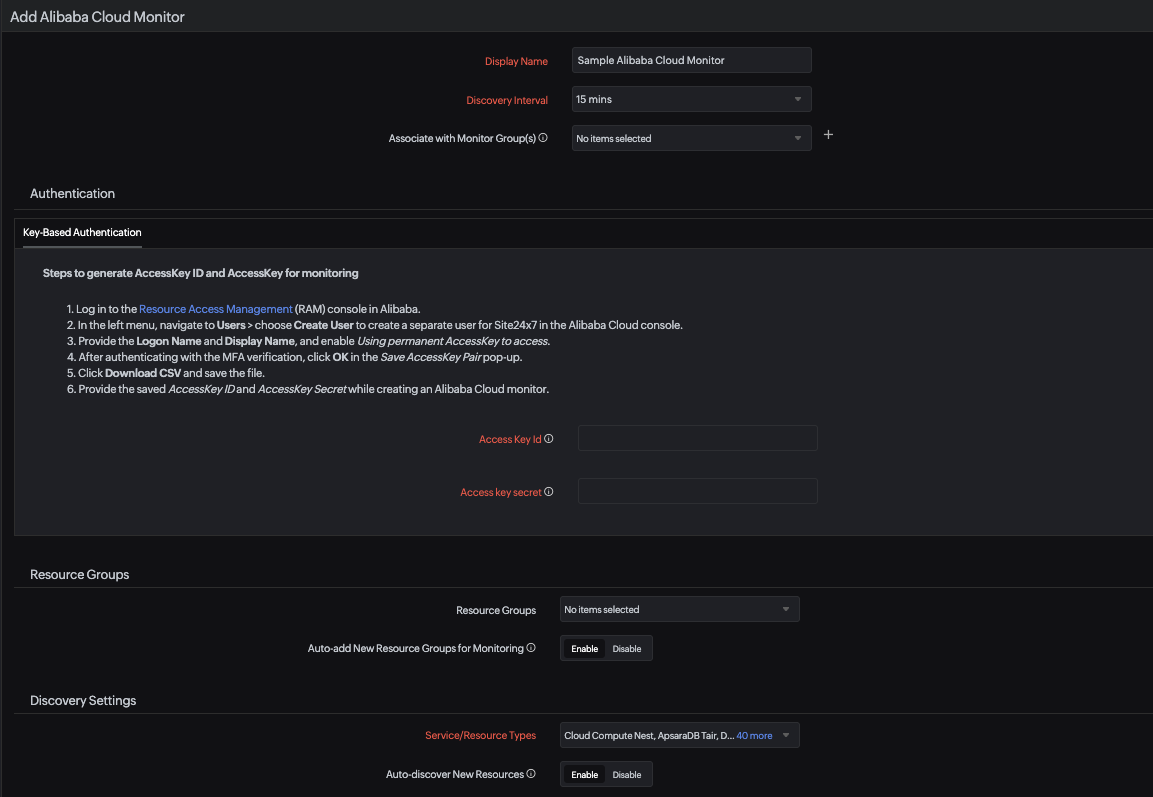
- Log in to your Site24x7 account.
- Navigate to Cloud > Alibaba Cloud > Add Monitor in the Site24x7 console.
- Enter a Display Name for your monitor.
- Set the Discovery Interval to control how frequently Site24x7 polls for new resources. You can select from 15 mins, 30 mins, or 1 hour. Choose a frequency that matches the rate at which your infrastructure changes.
- Select or create a Monitor Group to logically organize your resources using the Associate with Monitor Group(s) option.
- Under Authentication, provide your credentials using Key-Based Authentication:
- Follow the steps shown in the UI to generate your AccessKey ID and AccessKey Secret from the Resource Access Management (RAM) console in Alibaba.
- Enter your Access Key Id and Access key secret in the respective fields.
- Under Resource Groups:
- Select the resource groups to monitor from the Resource Groups drop-down menu.
- Toggle Auto-add New Resource Groups for Monitoring to Enable to automatically discover and add new resource groups for monitoring.
- Under Discovery Settings:
- Select the Alibaba Cloud service types you want to monitor from the Service/Resource Types drop-down. By default, all resource groups and supported service types in your Alibaba Cloud account will be selected for monitoring.
- Toggle Auto-discover New Resources to Enable to automatically discover and monitor any new resources added to your Alibaba Cloud account in the upcoming discovery cycle.
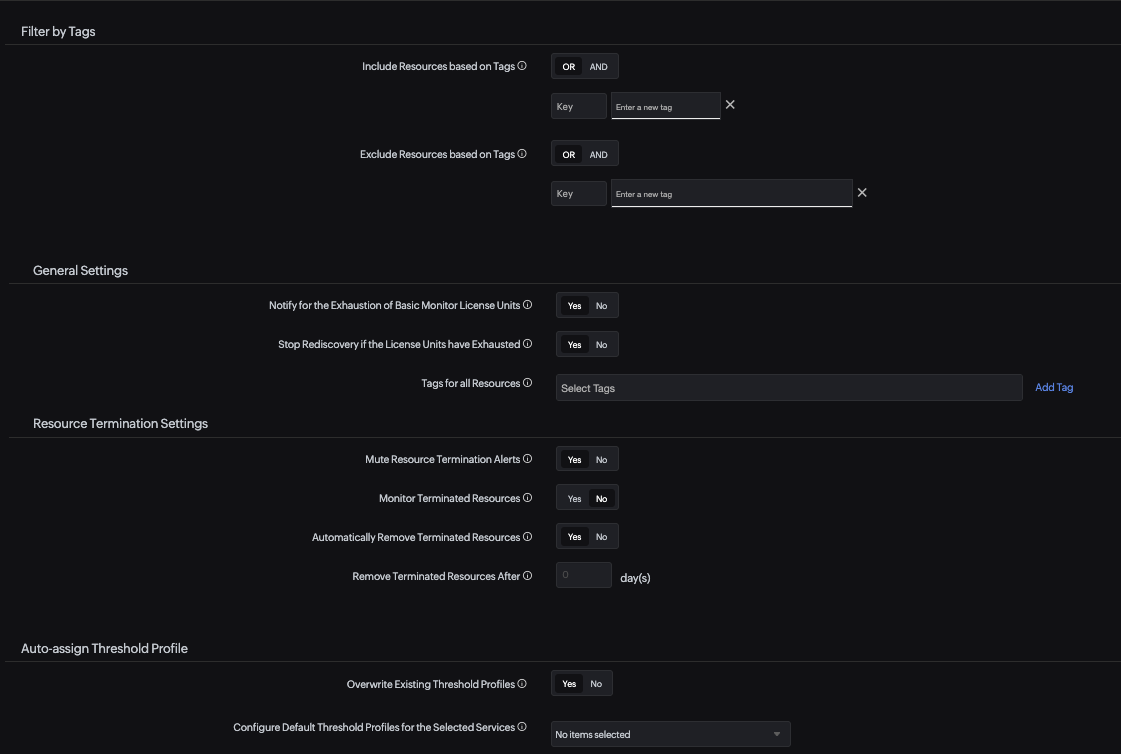
- Under Filter by Tags:
- Include Resources based on Tags: Toggle between OR or AND based on your preference. Enter the Key and values to match the resources you want to include for monitoring. This option will include the matching resources from your Alibaba Cloud account and add them for monitoring.
- Exclude Resources based on Tags: Toggle between OR or AND based on your preference. Enter the Key and values to match the resources you want to exclude from monitoring. This option will exclude the matching resources from your Alibaba Cloud account.
- Under General Settings:
- Toggle Notify for the Exhaustion of Basic Monitor License Units to Yes to receive alerts when your basic monitor license units are running low. Note that exhausting your license units will impact the addition of new resources.
- Toggle Stop Rediscovery if the License Units have Exhausted to Yes so that discovery will not happen after license exhaustion.
- Use Tags for all Resources to associate Site24x7 tags with all resources discovered under this monitor.
- Under Resource Termination Settings:
- Toggle Mute Resource Termination Alerts to Yes if you don't want to receive alerts when terminated resources are automatically suspended or deleted from Site24x7.
- Toggle Monitor Terminated Resources to Yes to ensure monitoring continues for terminated resources. The monitor will be labeled Down, and polling will continue until manually suspended.
- Toggle Automatically Remove Terminated Resources to Yes to remove terminated resources from monitoring automatically.
- If this field is set to Yes: The monitored resource will move to the deleted state.
- If this field is set to No: The monitored resource will move to the suspended state for the stipulated time period.
- Set the time duration for Remove Terminated Resources After to determine how long (in days) the terminated resources should be retained in the Site24x7 web console before permanent deletion.
- Under Auto-assign Threshold Profile:
- Toggle Overwrite Existing Threshold Profiles to Yes to apply the modified threshold profile to existing monitors of the service. Set to No to retain existing settings and apply the modified default threshold profile only to resources yet to be added for monitoring.
- Use Configure Default Threshold Profiles for the Selected Services to select the service type for which you want to configure the preferred threshold profile. Create a new threshold profile or choose an existing one.
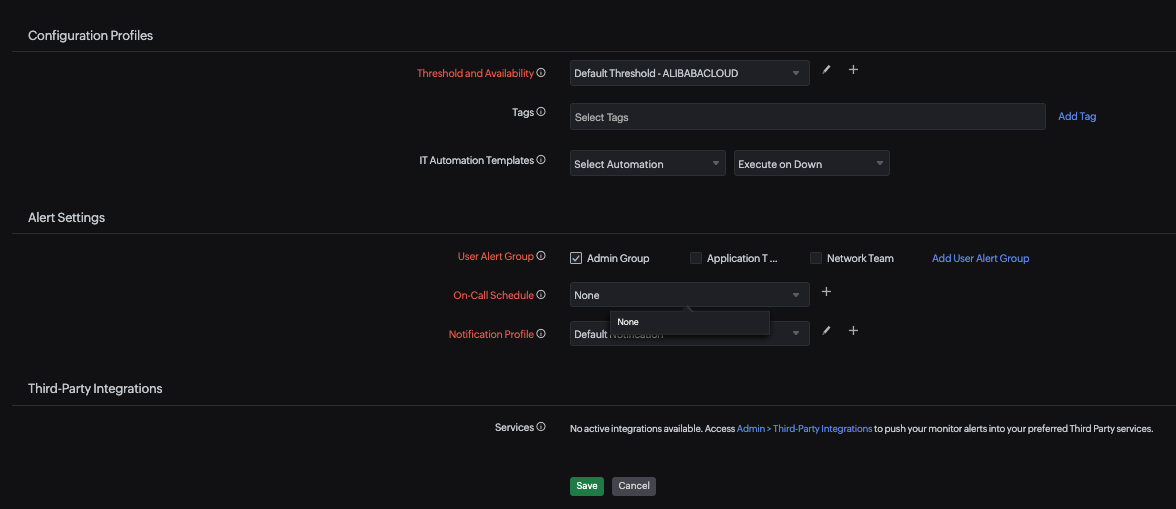
- Under Configuration Profiles:
- Threshold and Availability: Choose the desired threshold and availability profile so that the alarms engine can decide if a specific resource has to be declared as critical or down. Select an existing profile or create a new one using the + icon, or edit an existing one using the pencil icon.
- Tags: Associate Site24x7 tags with this monitor for filtering and reporting.
- IT Automation Templates: Select an automation template and define when it should execute (for example, Execute on Down) to automatically remediate issues when a threshold breach occurs.
- Under Alert Settings:
- User Alert Group: Select the user groups that should receive alert notifications for this monitor.
- On-Call Schedule: Optionally assign an on-call schedule to route alerts to the right team at the right time.
- Notification Profile: Select an existing notification profile or create a new one to define how and when alerts are sent.
- Under Third-Party Integrations: Integrate Site24x7 alerts with your preferred third-party services. Go to Admin > Third-Party Integrations to configure active integrations.
- Click Discover Alibaba Cloud Resources to start monitoring.
After customizing the Alibaba Cloud monitor, it takes up to 30 minutes to discover your preferred Alibaba Cloud resources.
Viewing the Alibaba Cloud resources
Navigate to Alibaba > select the Alibaba account > click on the respective monitor. You will find the performance metrics for that resource.
Dashboards
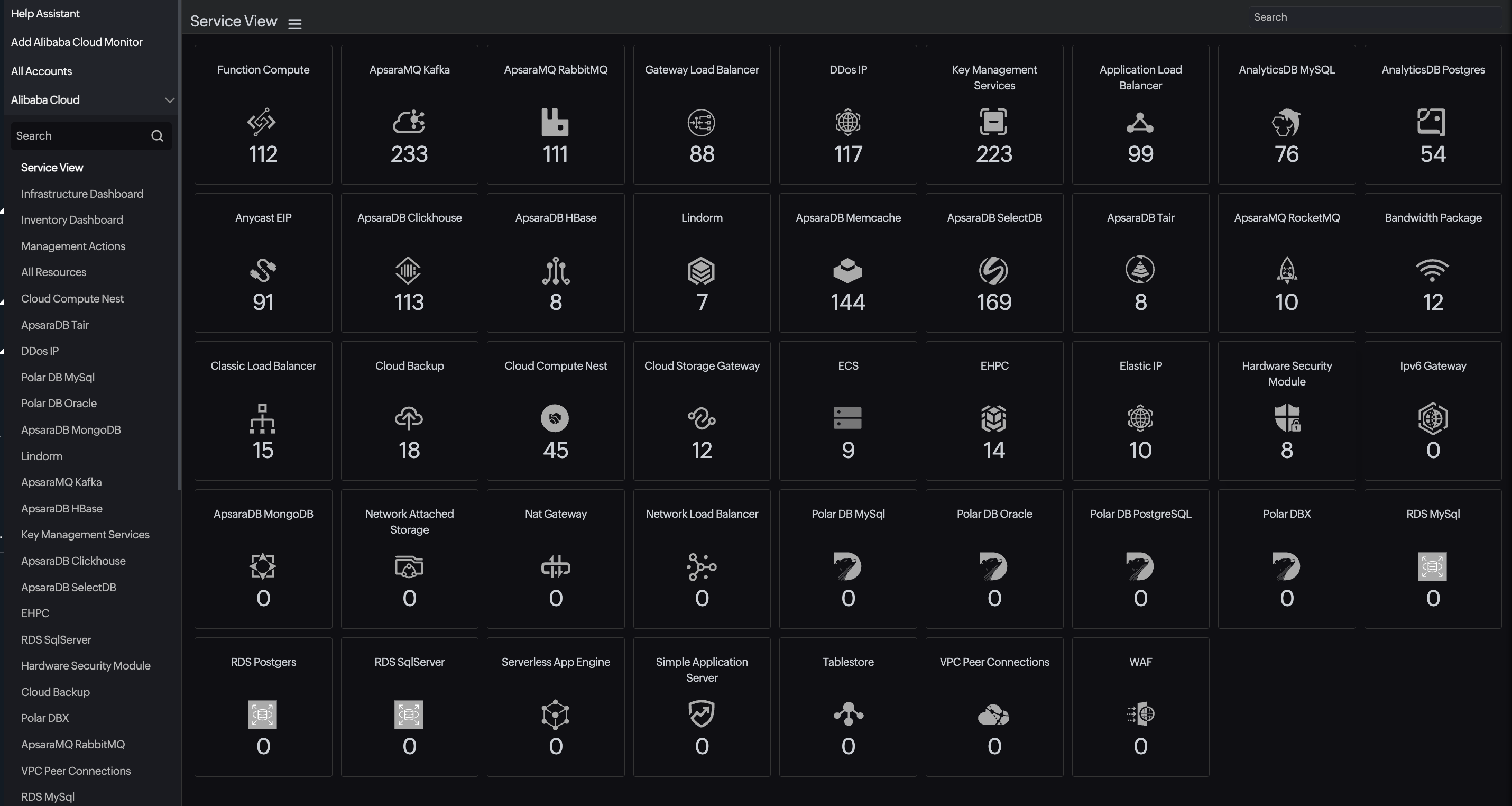
Once your Alibaba Cloud monitor has been successfully created, you will be directed to the Service View page. All of your Alibaba Cloud resources will be added to the Site24x7 user console within a few minutes.
In addition to this Service View dashboard, there are three exclusive dashboards. You can also create custom dashboards, perform management actions, and detect critical anomalies.
Monitoring configuration
Threshold and availability
Set up custom threshold profiles for each service to proactively detect performance issues or outages.
Tags
Use tags to categorize and filter monitors based on resource type, environment (prod/test/dev), or ownership. Tags imported from your Alibaba Cloud account are auto-synced. For each resource, a Site24x7 Alibaba Cloud tag consisting of Location and Resource Type will be created.
The following is the tag format:
location: {location}
serviceType: {monitortype}
IT Automation templates
Site24x7 enables you to automate corrective actions when a monitor goes into a trouble or down state. You can:
- Restart a resource
- Trigger a custom script or webhook
- Stop/start ECS instances
Execution settings: Execute on Down, Execute on Trouble, or Execute on Up.