Zia integration
Zia is Zoho's AI assistant, that helps you analyze monitoring data, troubleshoot incidents, and gain actionable insights using natural language. By integrating Zia with supported LLMs, you can summarize alarms, investigate outages, compare root cause analyses, and retrieve monitoring information faster.
What is Zia integration?
Zia integration connects with LLMs to bring AI-assisted analysis directly into your monitoring workflows. Once integrated, Zia enables you to interact with your monitoring data from anywhere in the application.
Zia can answer questions about your monitors in plain natural language, compare root cause analyses, detect recurring patterns across your stack, and surface relevant help documentation alongside its responses.
Why use Zia?
- Easy integration: Connect LLM vendors using your existing API keys or Zoho-managed keys.
- Insights and reports: Ask Zia for summaries of alarms, outages, and performance reports to inform better decisions without digging through raw data.
- Help resources on demand: Zia surfaces relevant knowledge base articles and help documentation alongside its answers, reducing time spent searching for solutions.
- Seasonal analysis: Identifies recurring traffic patterns and filters out predictable spikes as false positives, so your alert noise stays low.
- Faster troubleshooting: Quickly identify root causes, recurring issues, and affected resources using AI-assisted analysis.
Watch Zia in action
Learn how Zia helps you analyze monitoring data, gain AI-powered insights, and troubleshoot issues using natural-language queries.
Who can use Zia integrations?
Zia is available for all user roles. The following table lists the roles that have access to Zia.
|
Role Type |
Roles |
Access |
|---|---|---|
|
Site24x7 roles |
Super Admin, Admin, Operator, Read-Only, Spokesperson, Hosting Provider |
Full access |
|
MSP roles |
MSP Admin, MSP Operator |
Can enable Zia for customer accounts |
|
MSP Customers |
— |
Can independently integrate Zia |
For MSP roles, both the MSP Admin and MSP Operator can enable Zia for their customers' accounts. Additionally, MSP Customers can integrate Zia into their accounts independently.
AI integration methods in Zia
Zia supports three integration methods. Each page below covers setup steps, billing details, and supported vendors specific to that method.
- Bring Your Own Key (BYOK): Connect to supported AI providers using your own API key, giving you full control over your AI models and usage.
- Zoho Key Services (ZKS): Securely access supported AI models through Zoho-managed authentication without the overhead of managing API keys.
- Microsoft Azure OpenAI: Integrate with Microsoft Azure OpenAI to use Azure-hosted AI models using your Azure OpenAI deployment.
After configuring any integration method, select the desired AI provider and model from the Zia drop-down menu. All subsequent responses are generated using the selected model.
Supported AI models
The AI models available to Zia depend on the integration method and vendor selected. The table below summarizes the supported AI vendors and models.
| Integration Method | Vendors / Models |
|---|---|
| BYOK | OpenAI, Anthropic, Google AI Studio |
| ZKS | Zia (Zoho-hosted), OpenAI |
| Microsoft Azure OpenAI | Azure-deployed OpenAI base models (configurable) |
After configuring integrations for multiple vendors, you can switch between them from the Zia drop-down menu when requesting a response.
Billing information
Billing for Zia depends on which integration method you use. Refer to each integration page for full details.
| Integration | Billing |
|---|---|
| BYOK | Does not add additional charges. |
| ZKS | Customers receive complimentary credits. Customers can get additional credit limit by contacting support. |
| Microsoft Azure OpenAI | Does not add additional charges. |
Data and privacy
When you use Zia's GenAI capabilities, only the monitoring data required to process your request is shared with the configured AI provider. The data shared includes:
- Host name
- URL
- Monitor name
- Logs
- Metrics
- Alerts
- Outage information
- Monitor data
- Monitor inventory data
- Root cause analysis details
Monitor IDs, IP addresses, email addresses, and phone numbers are automatically masked before any data is sent to AI providers. Only the minimum data required to process the request is transmitted.
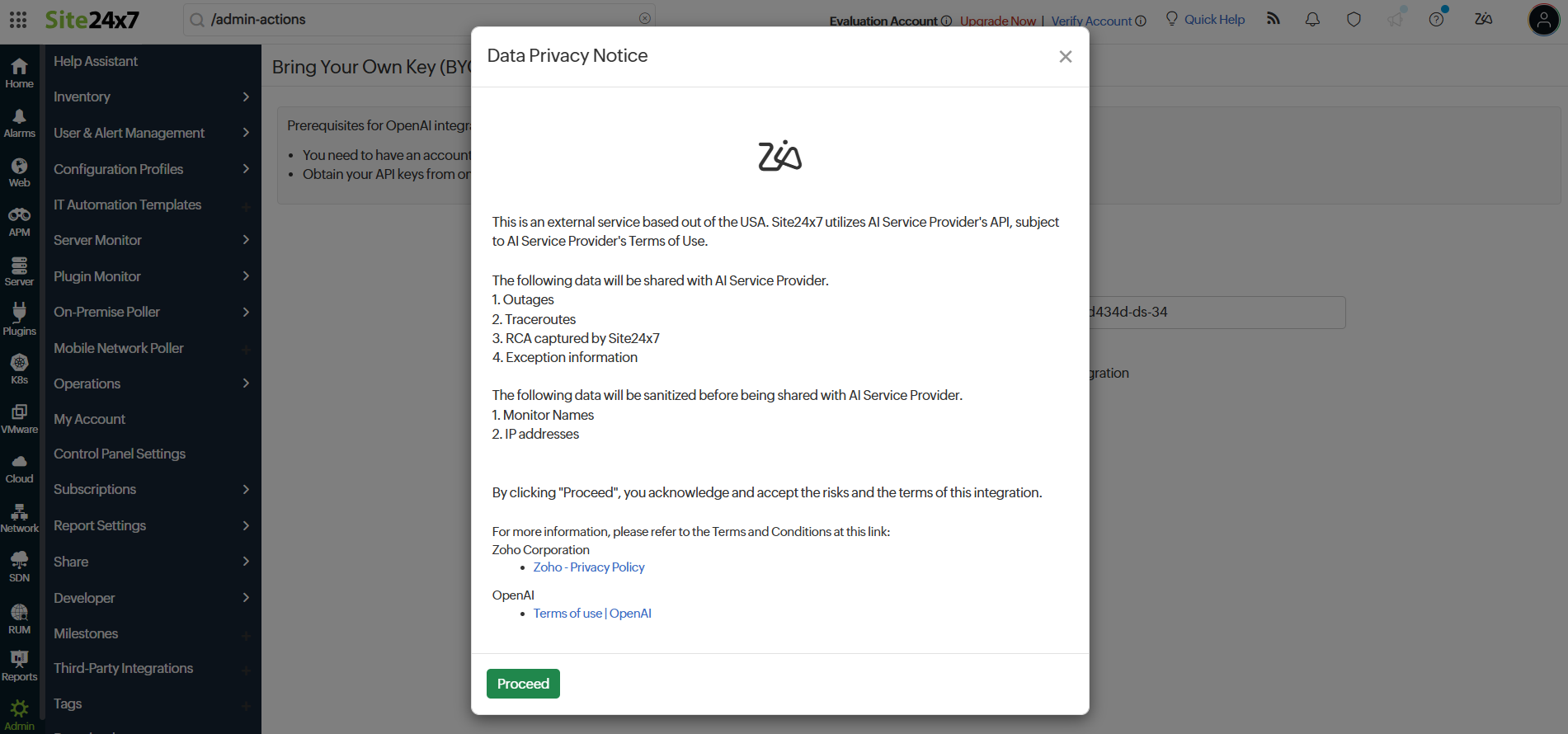
A Data Privacy Notice pop-up is presented during setup for each integration method. You must explicitly accept the terms before the integration is saved.
Zia features and use cases
The following are the key use cases of Zia:
AI-powered incident management and insights with Zia
Consider an IT operations team managing a complex observability platform with multiple monitors tracking application performance, network devices, and infrastructure health. Manually identifying recurring issues, analyzing error codes, and finding affected resources is time-consuming and inefficient. Zia addresses these issues in real time, providing accurate solutions.
- Simplified RCA analysis
Zia provides a unified root cause analysis (RCA) view that allows engineers to analyze and compare root cause analyses (RCAs) for multiple monitors in a single view, eliminating the need to inspect each monitor individually. By comparing the RCAs of two network monitors side by side, you can quickly identify common issues, understand key differences, and troubleshoot problems more efficiently. - Recurring issue detection
Zia analyzes historical monitoring data and past incidents to identify recurring issues across multiple monitors. It consolidates these recurring patterns into a single view, helping DevOps engineers address underlying problems before they escalate into critical incidents. - Error code analysis
Zia helps engineers quickly understand error codes by providing detailed explanations along with relevant knowledge base links for resolution. This helps ITOps teams troubleshoot issues faster, especially when managing network devices. - Consolidated view of down IPs
Instead of checking each monitor manually, ask Zia for a consolidated list of all currently unavailable IPs for faster identification and remediation. - Natural language queries
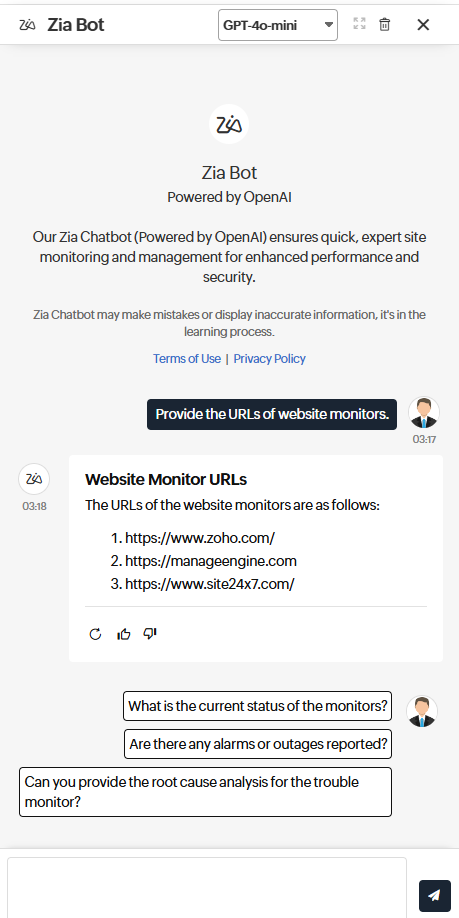
Retrieve monitor information using plain-language questions. Simply ask Zia a question, such as Show me the URLs of all browser monitors, and it will instantly return the relevant monitor details, including URLs, for quick access. - Seasonal analysis and false positive reduction
Zia analyzes historical patterns to identify seasonal trends and reduce false positives. For example, predictable traffic spikes during holidays are recognized as normal behavior, helping ensure alerts focus on genuine performance issues. - Quick search with @ prefix
Use the @ prefix to quickly search for a specific monitor or monitor group, making it easy to find what you need without scrolling through the entire list. - Ask Zia for data insights
The Ask Zia button is available on the Reports, Outages, Alarms, and RCA pages. Click Ask Zia to instantly generate AI-powered insights for the current page, or ask follow-up questions to analyze the displayed monitoring data in more detail.
Sample prompts for Zia
Use these queries as a starting point when exploring Zia's capabilities.
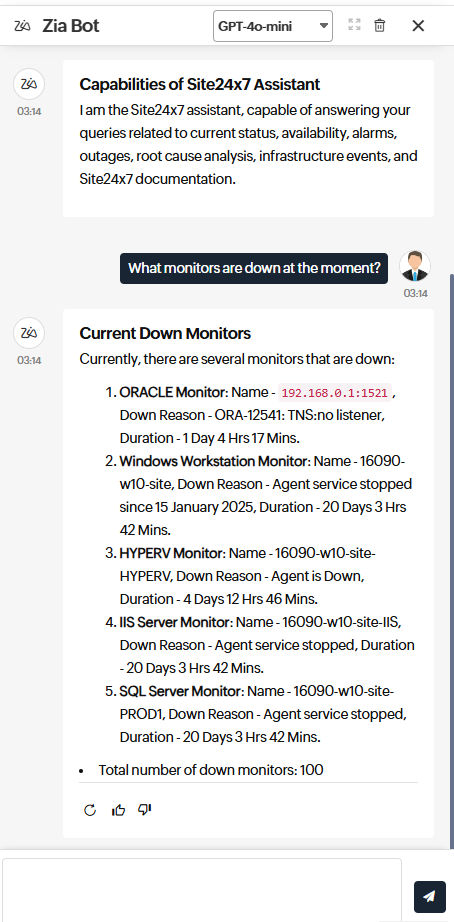
- What monitors are down at the moment?
- Provide the URLs of all website monitors.
- Show me the RCA for @production-server and @staging-server side by side.

- List all recurring issues from the past 30 days.
- What does error code 503 mean and how do I resolve it?
- Which IPs are currently unavailable across all website monitors?
Use the @ prefix followed by a monitor name to reference a specific monitor in your query instantly — for example, @api-gateway.
Suspend Zia integration
Suspending an integration disables Zia within the application and changes its status to Inactive. You can reactivate it at any time.
- Log in to your account.
- Go to Admin > Third-Party Integrations and select the LLM integration you want to suspend.
- Click Suspend on the top-left corner of the integration page
To reactivate, return to the Third-Party Integrations page, select the LLM, and click Activate.
Delete Zia integration
Deleting an integration permanently removes it from your account. This action cannot be undone.
- Go to Admin > Third-Party Integrations and select the LLM integration you want to delete.
- Click Delete on the top-left corner of the integration page.
Related articles
-
On this page
- What is Zia integration?
- Why use Zia?
- Watch Zia in action
- Who can use Zia integrations?
- AI integration methods in Zia
- Supported AI models
- Billing information
- Data and privacy
- Zia features and use cases
- Sample prompts for Zia
- Suspend Zia integration
- Delete Zia integration
- Related articles