Microsoft Azure OpenAI integration
Connect Zia to Microsoft Azure OpenAI to leverage Azure-hosted AI models using your Azure OpenAI deployment. This integration allows you to securely employ your Azure resources and credentials to generate AI-powered insights with Zia.
Why choose Microsoft Azure OpenAI?
Microsoft Azure OpenAI enables you to leverage the AI capabilities of your Azure deployment while still maintaining control over the data, credentials, and model deployments of your environment.
- Enterprise security: Your data is processed within your Azure tenant and under your existing Microsoft security controls, compliance policies, and data residency settings.
- Full credential control: Authenticate using your Azure OpenAI endpoint and API key while retaining full control over access.
- Private model deployment: Your Azure OpenAI deployment is isolated within your Azure subscription.
Prerequisites
Before configuring the integration, ensure that you have:
- An active Microsoft Azure account with a valid subscription that includes Azure OpenAI Service access.
- The endpoint URL for your Azure OpenAI deployment (available in the Azure portal under Keys and Endpoint).
- An API key for your Azure OpenAI resource.
Supported models
Supports any base model available in your Azure OpenAI deployment.
For the list of supported Azure OpenAI models, refer to the Microsoft Azure help documentation.
How to integrate Microsoft Azure OpenAI
- Log in to your account.
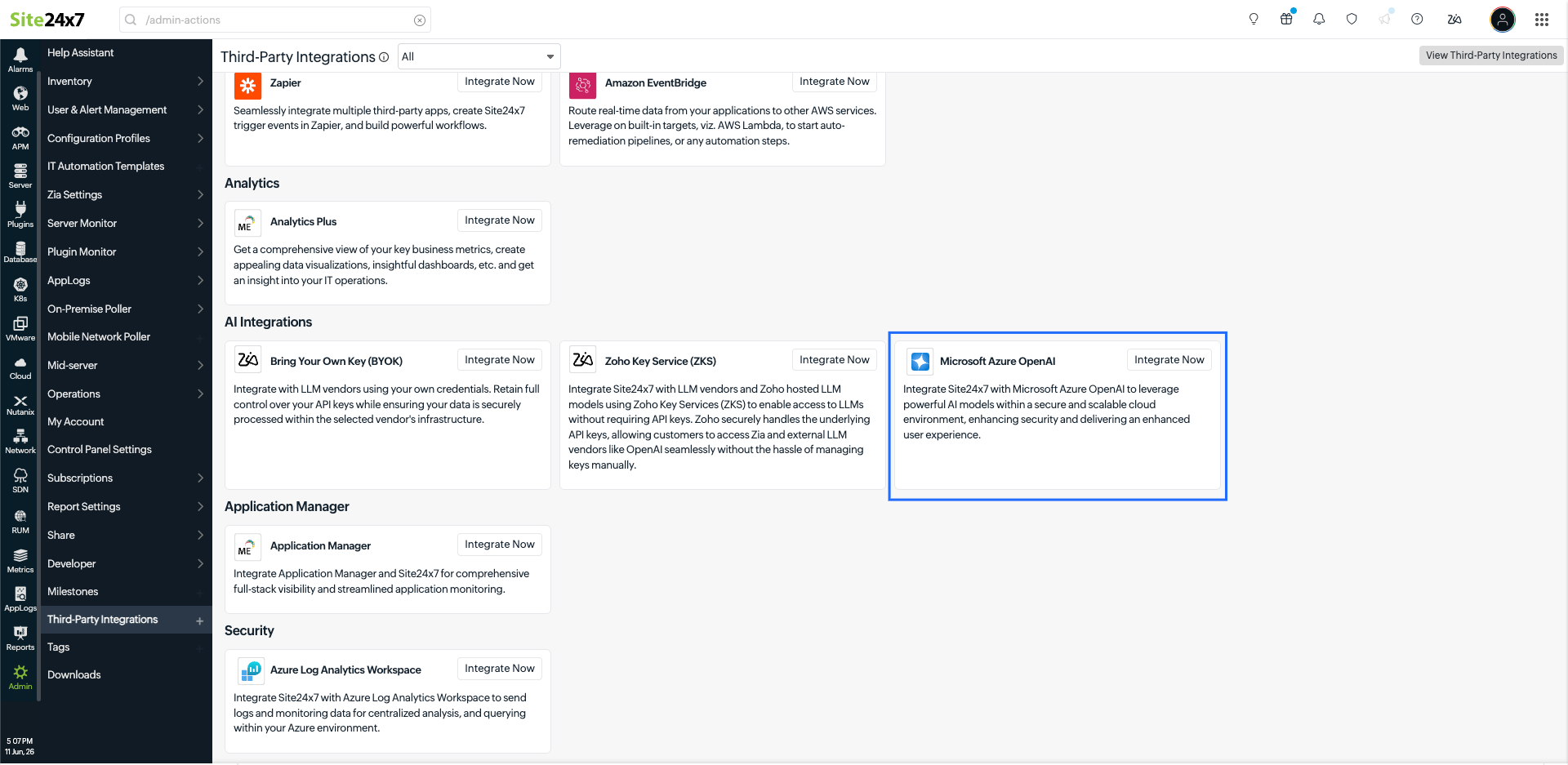
- Navigate to Admin > Third-Party Integration > Microsoft Azure OpenAI.
- Configure the following fields:
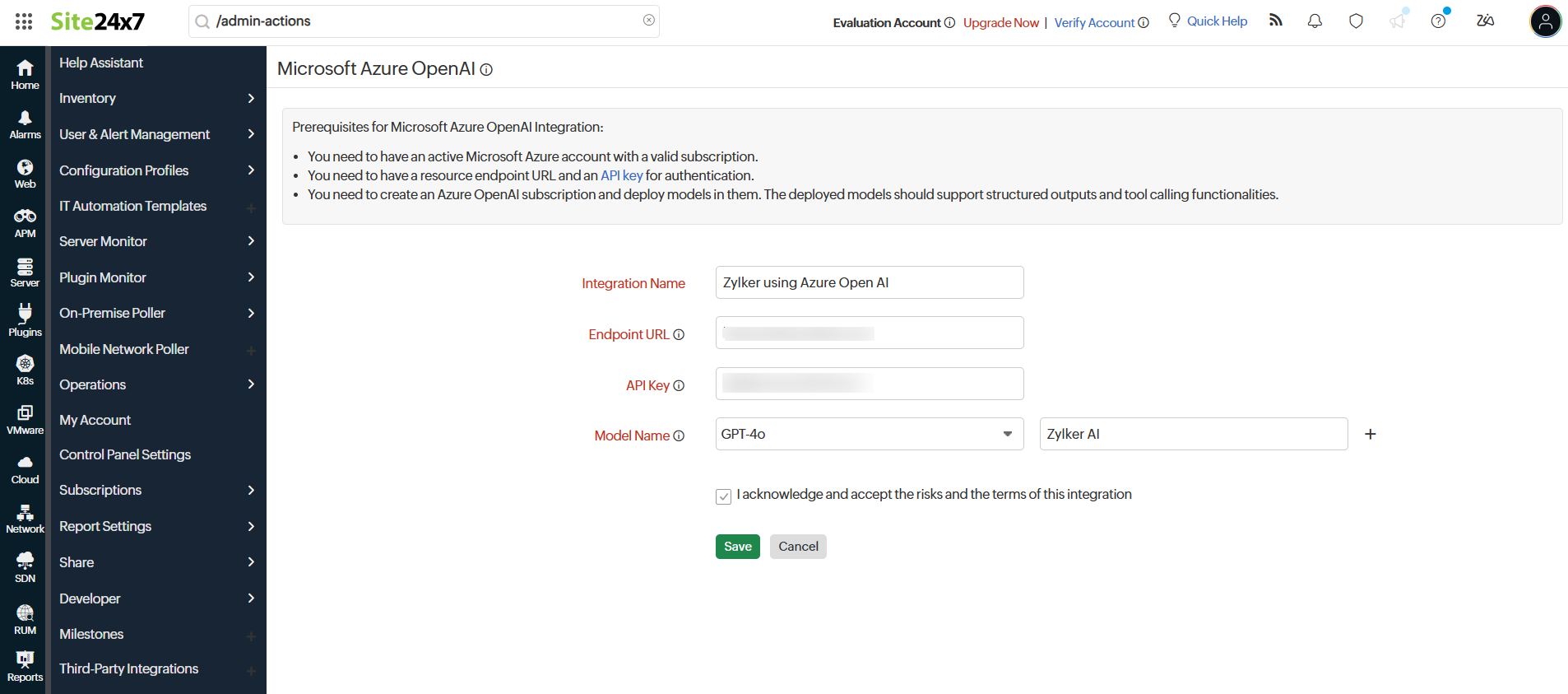
- Integration Name: Enter a name for the integration.
- Endpoint URL: Enter your Azure OpenAI resource endpoint URL. The integration uses this endpoint to send requests to your deployed models.
- API Key: Provide your Azure API key to authenticate and access the LLM service.
- Model Name: Select the Azure base model and enter the corresponding deployment name configured in your Azure OpenAI resource.
- Check the acknowledgment box to confirm that you understand and accept the integration terms and associated risks.
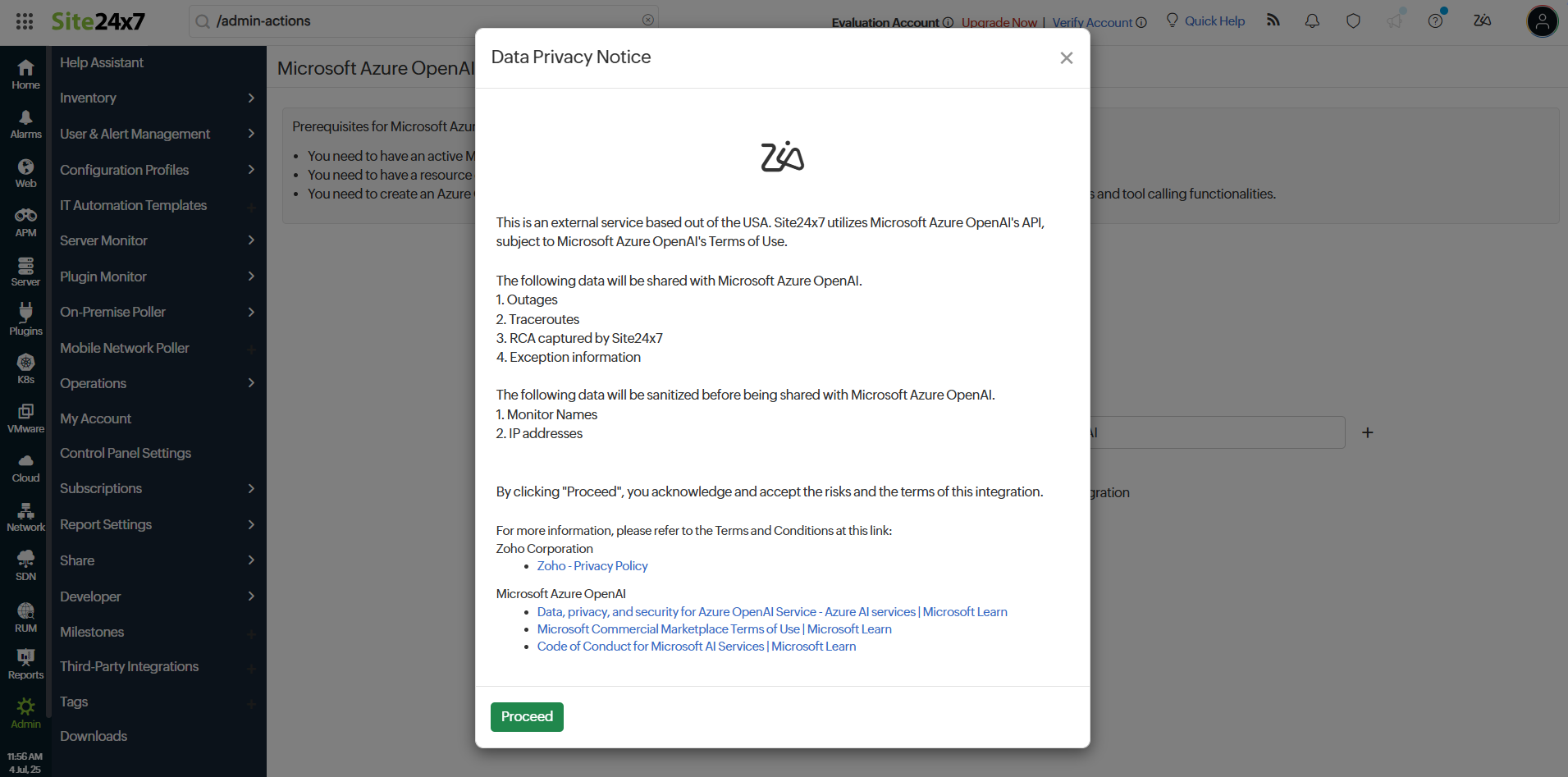
- A Data Privacy Notice pop-up window will appear. Review the notice and click I Agree to proceed.
- Click Save to save the integration.
If you have configured multiple AI integrations, you can select the required AI provider or model from the drop-down menu in Zia before submitting your prompt.