
Contact the support team
Site24x7 provides different support options based on where you are in your monitoring journey, whether you are exploring the platform, validating a use case, configuring monitoring, or operationalizing your environment. Depending on whether you are evaluating Site24x7 or are already a customer, you can choose the support path that best fits your requirements.
Choose the support option that best fits your needs:
- Existing customers: Raise a support request through multiple channels if you encounter any issues.
- New users: Get guidance and onboarding assistance as you explore the platform.
Support for existing users
With multiple ways to reach the support team, Site24x7 ensures responsive assistance to resolve issues, explain product behavior, and keep monitoring set up correctly.
To make issue reporting even easier, Quartz, a built-in screen recording feature, enables you to capture UI issues, console-side errors, and masked diagnostics while creating a support ticket, without exposing sensitive information. By automatically attaching recordings and logs, Quartz provides the complete context up front, enabling faster analysis and resolution. Here is the list of ways in which you can contact the support team:
Use cases
- Troubleshooting: You can contact the support team to troubleshoot configuration or alerting issues when monitors don’t behave as expected.
- Feature guidance: The Site24x7 support team can provide clarity on feature behavior or workflows to help you achieve the desired monitoring outcome.
- UI recording: Capturing UI issues with screenshots can be limiting. Quartz screen recordings provide clear, end-to-end context of the issue.
- Secure error capture: Record console-side errors, protecting sensitive information with the automatic masking of cookies and tokens during recordings.
- Faster resolutions: Reduce the back-and-forth with the support team by sharing the complete issue context up front.
- Less manual work: Automatically attach recordings and diagnostic logs to support tickets, eliminating manual uploads.
Contacting the support team via the Site24x7 web client
- Log in to your Site24x7 account.
- On the top band, click the Help & Support icon
 .
.
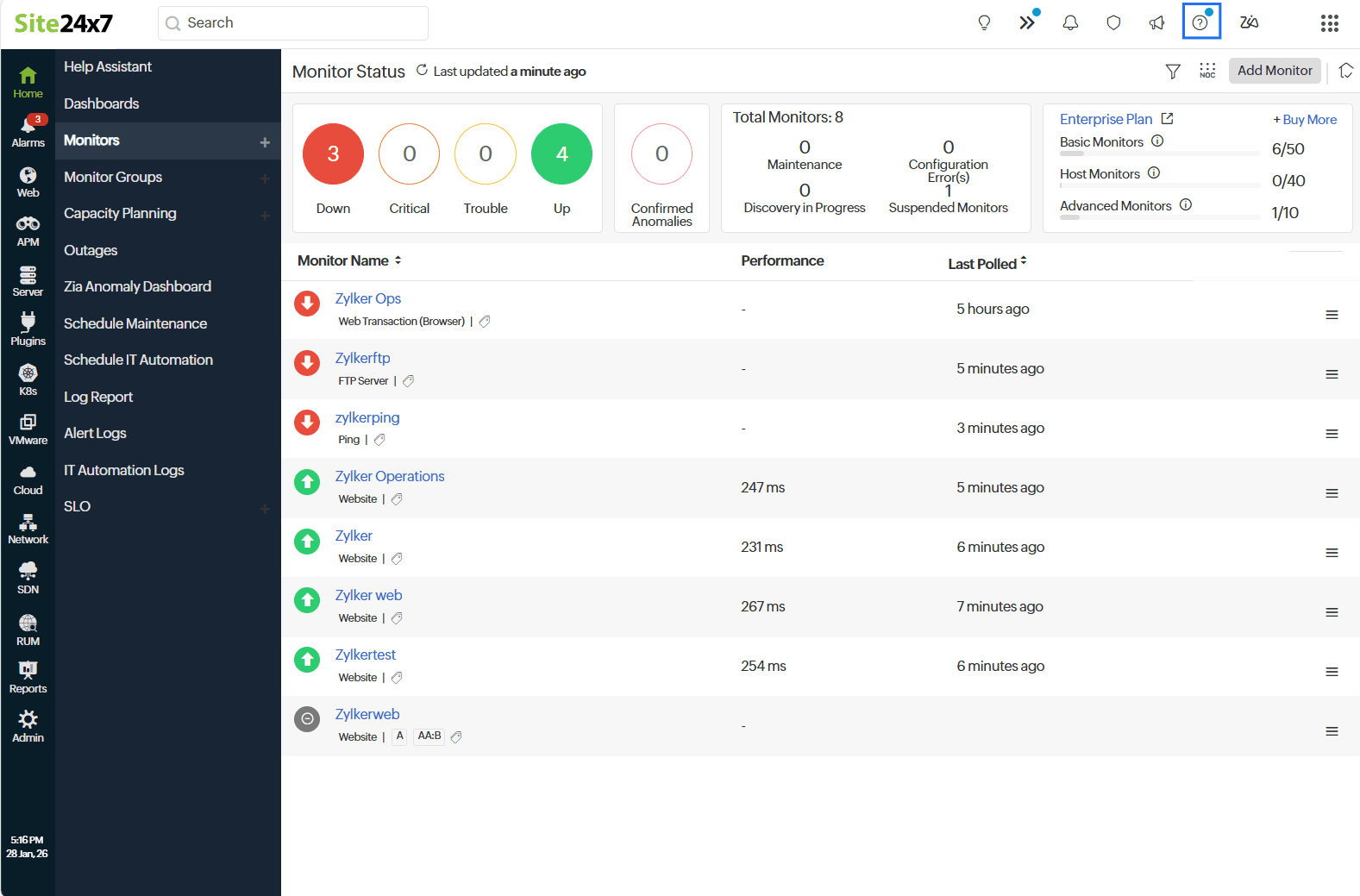
- From the drop-down menu, select Contact Support.
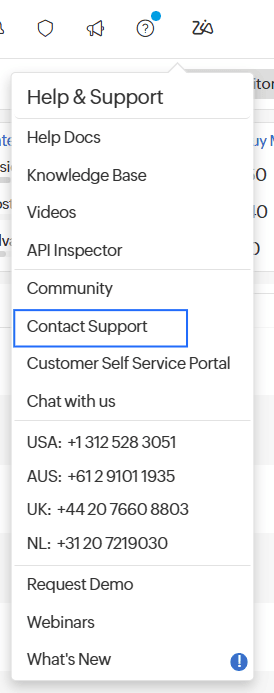
You can raise your issue through one of the two options in the Contact Support pop-up:
How to raise your issue using Quartz
To access Quartz and understand its workflow, follow the steps below:
- In the Contact Support pop-up that appears, click Start Recording in the Record and submit your issue(s) section.
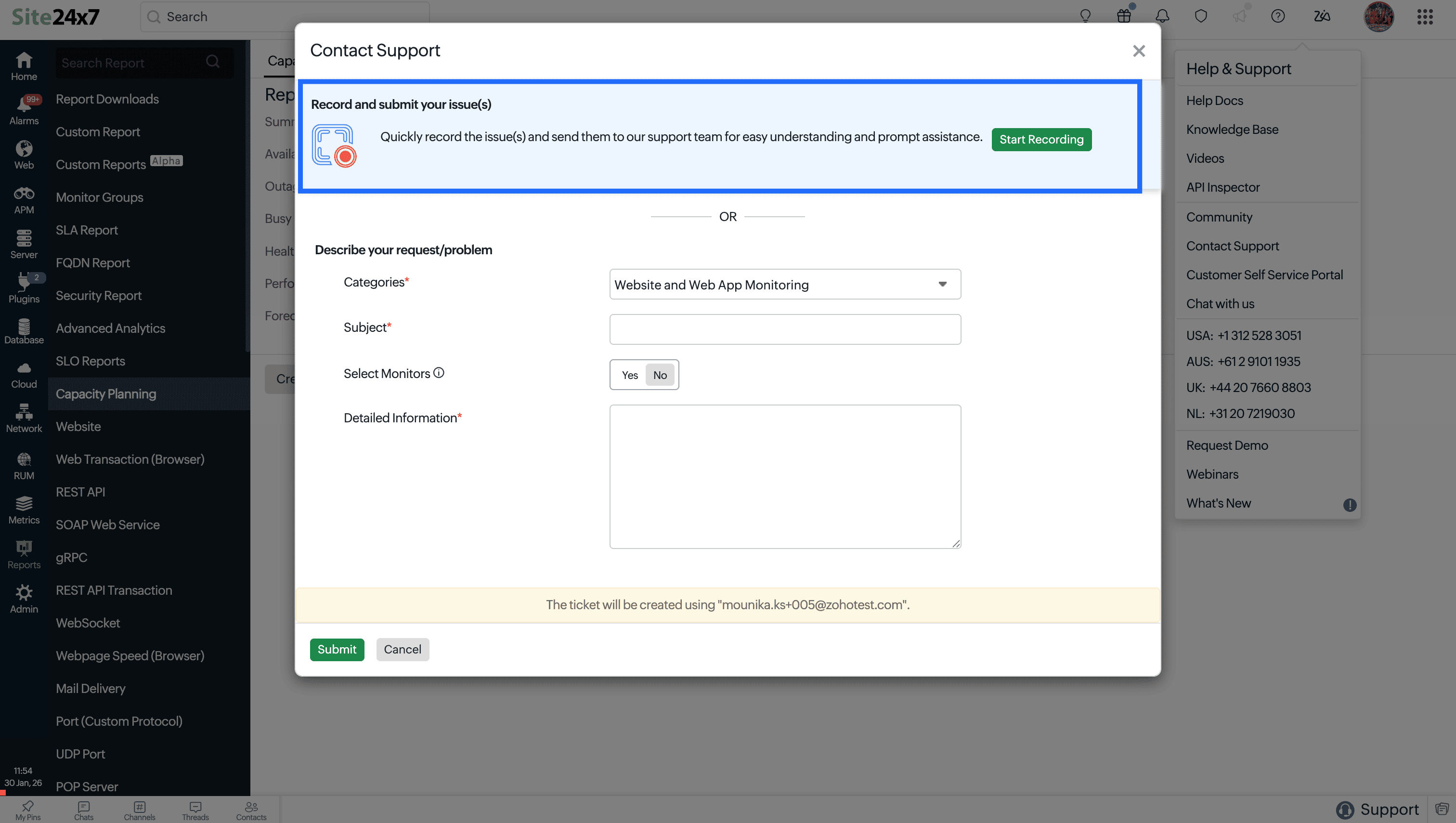
- In the Record feedback pop-up, fill in the details, provide consent for Site24x7 to collect data via Quartz, and click Start recording.
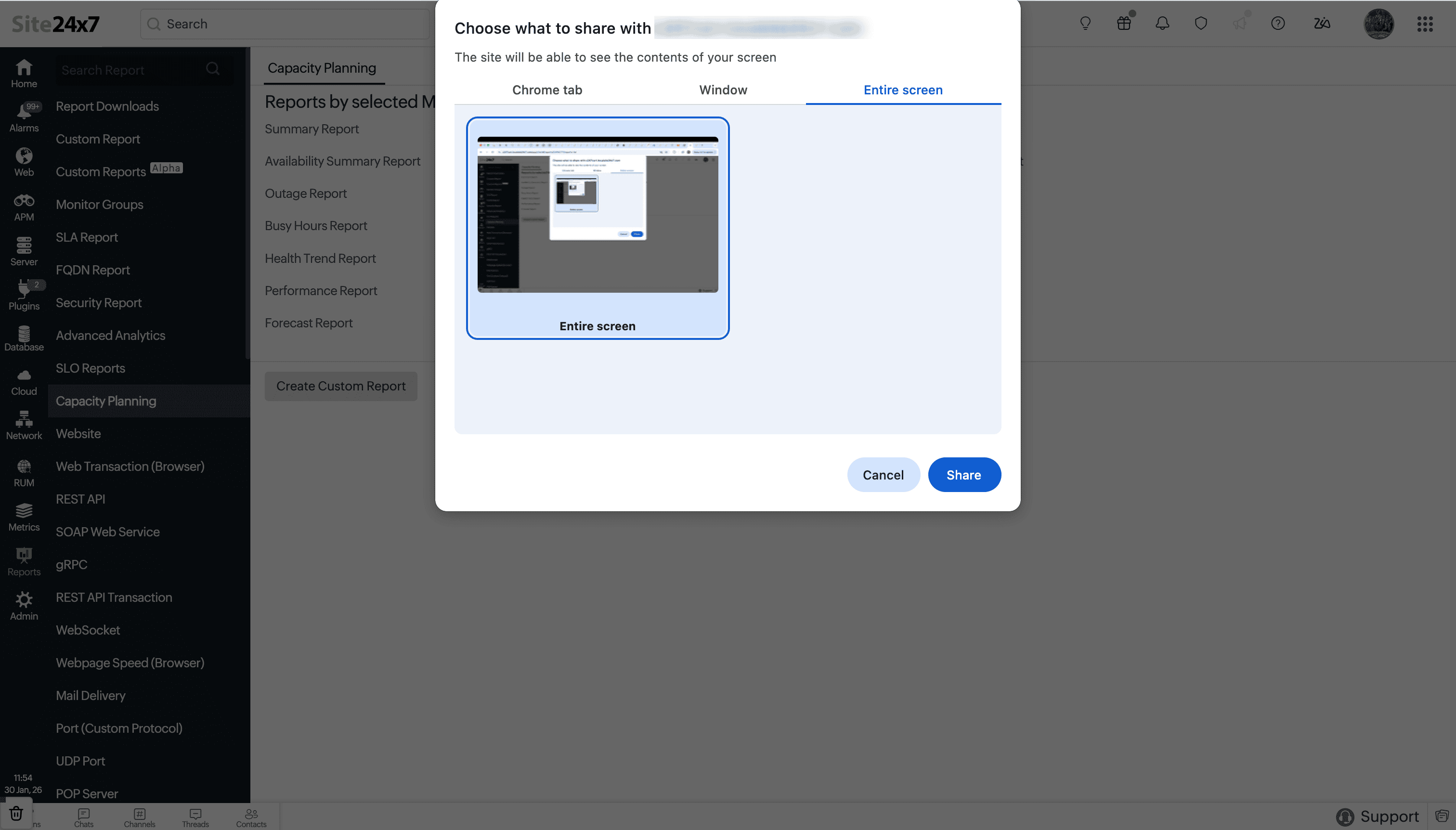
- Select the content to be shared and click Share.
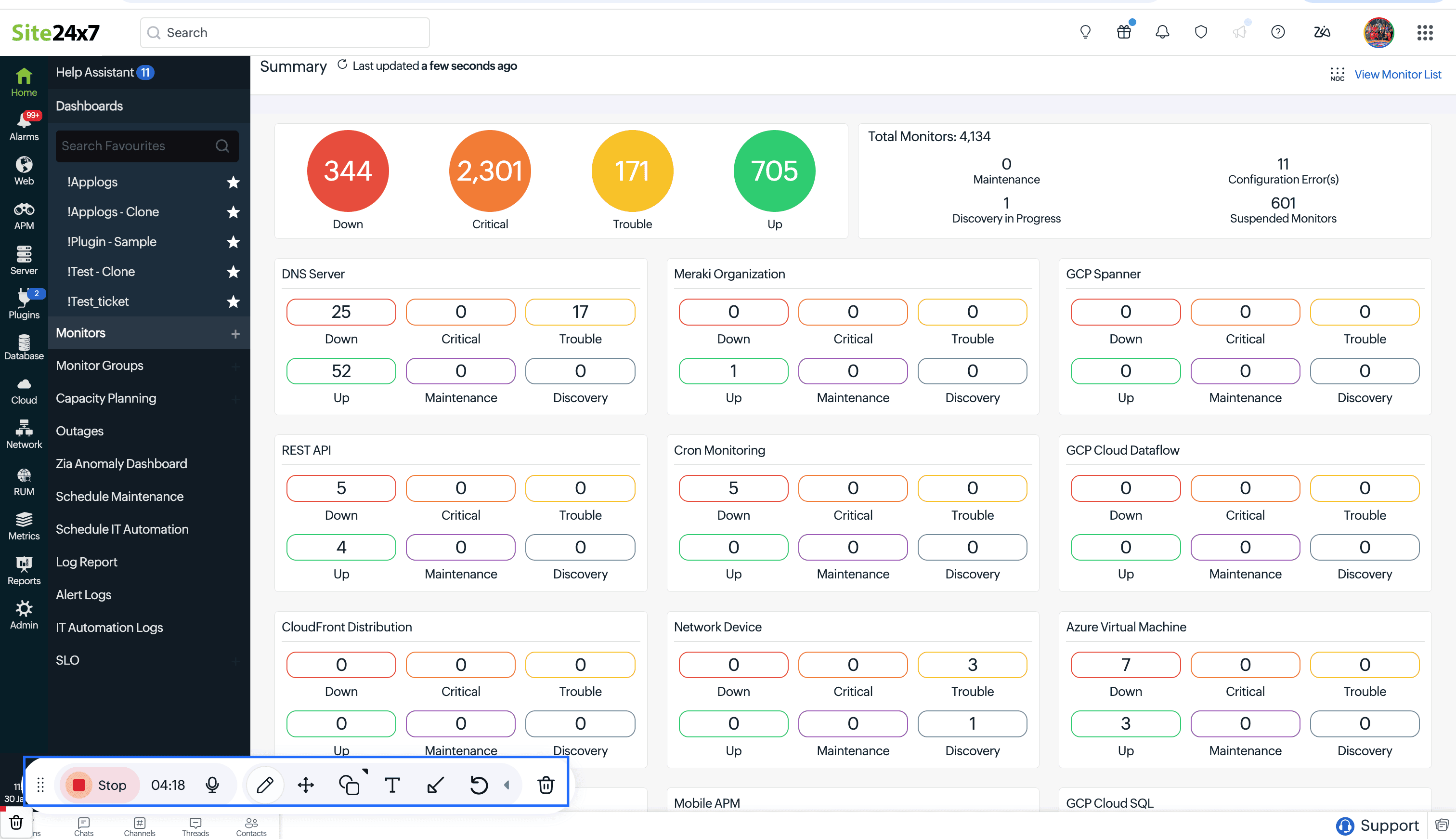
- The recording will start after a countdown of three seconds. Once the issue has been recorded, click Stop on the panel in the bottom-left corner. You can change the position of this panel by clicking the move icon
 .
. - While the screen is being recorded, you can:
- Edit any element with the pencil icon
 .
. - Communicate your issue with your voice using the microphone icon
 .
. - Highlight a part of the screen with the highlight icon
 .
. - Write any comment using the text icon
 .
. - Point an arrow at any element on the screen with the arrow icon
 .
. - Undo any changes made with the undo icon
 .
. - Delete the recording with the delete icon
 .
.
- Edit any element with the pencil icon
- Once the recording is complete, in the Submit feedback pop-up, you can review the recorded video, edit it, or rerecord it. Fill out the fields to provide more clarity on the issue.
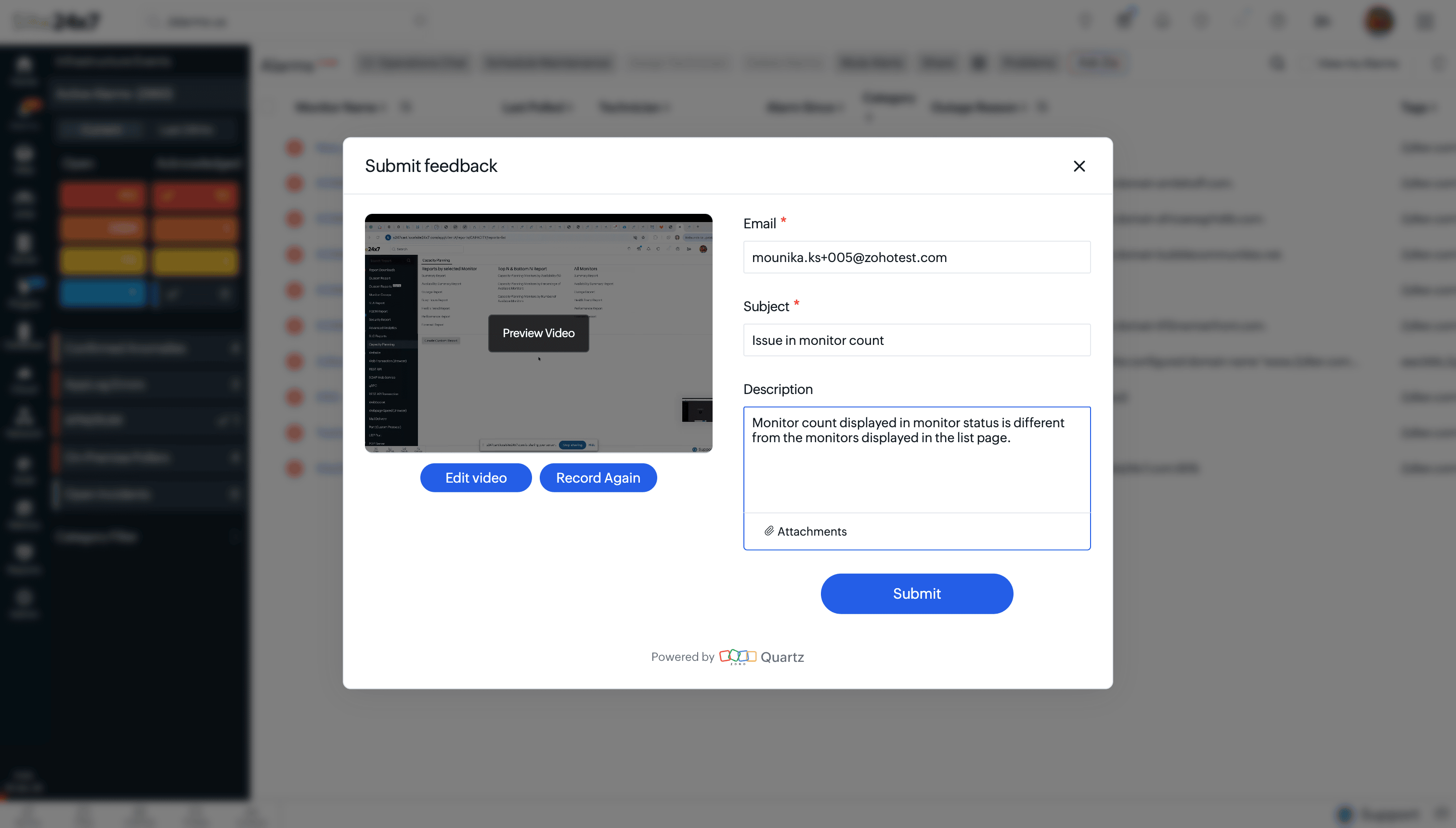
- Add more attachments if necessary and click Submit.
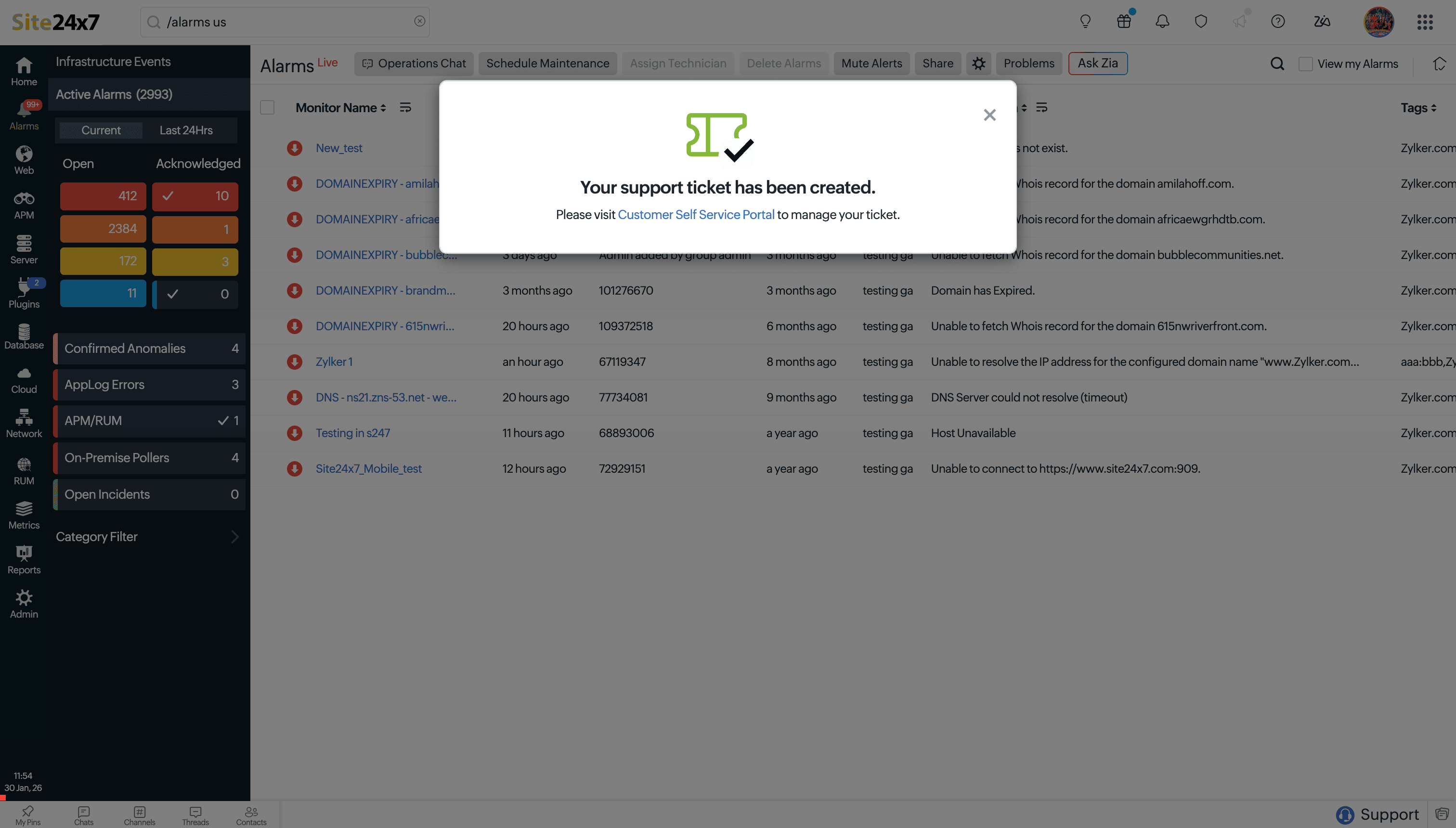
Next, you will receive a confirmation of the created ticket. You can follow up on this issue through the Customer Self-Service Portal.
How to raise your issue through the form
When your issue cannot be explained with a screen recording, you can use the form to contact the support team.
- In the second section of the Contact Support pop-up, provide the following details:
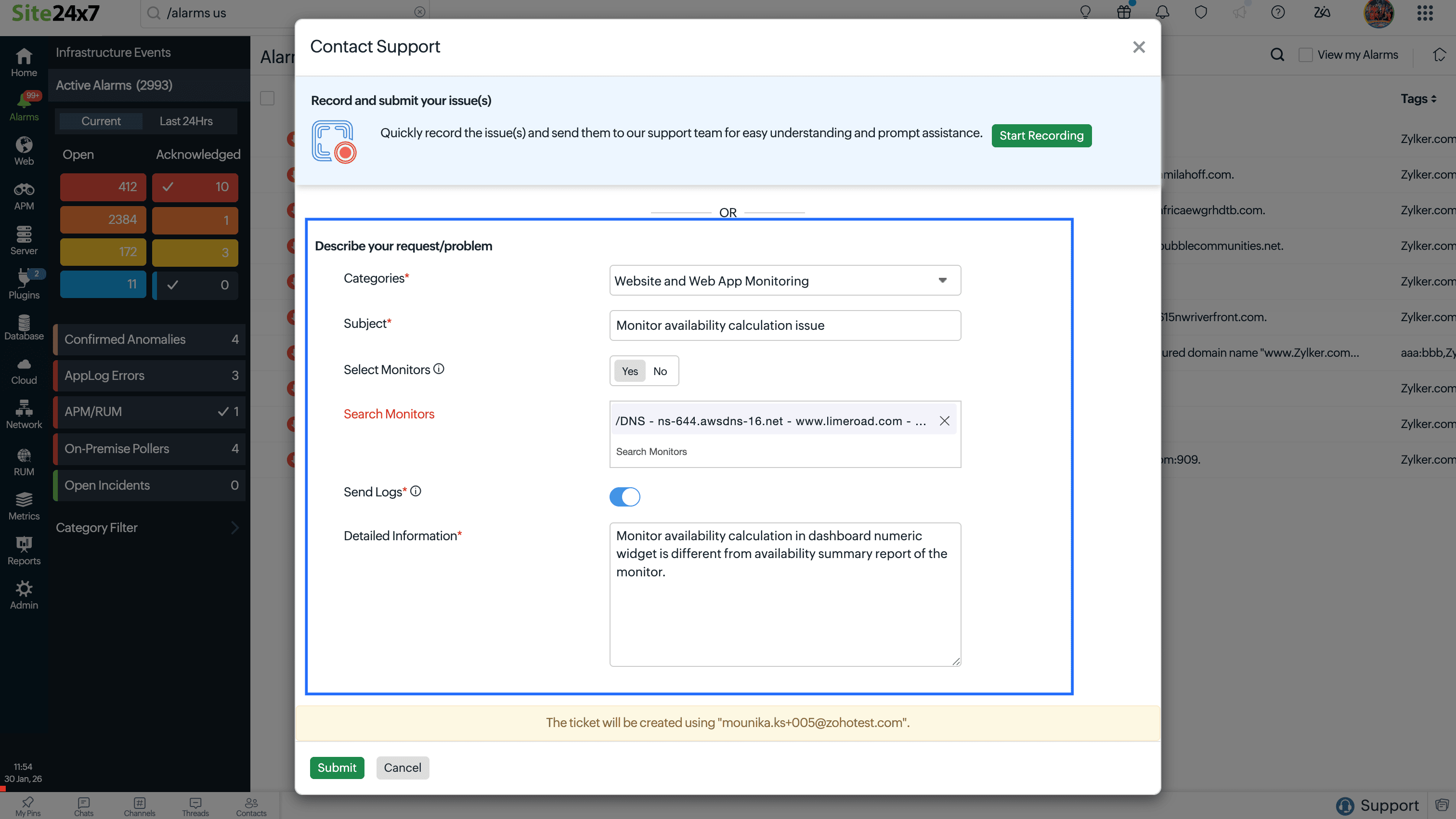
- Categories: Select the category of the monitor with which you have an issue.
- Subject: Briefly state your issue.
- Select Monitors: Click Yes if your issue is related to a specific monitor.
- Search Monitors: Search for and select the different monitors with which you have an issue.
- Send Logs: Enable this option if you have supporting logs related to your issue, especially for server agent or On-Premise Poller monitors. For example, if an On-Premise Poller stops receiving data from network devices, the logs can reveal issues such as SNMP authentication failures, device timeouts, invalid credentials, or blocked ports. With this information, the support team can diagnose and resolve the issue faster.
- Detailed Information: Describe your issue in detail.
- Click Submit to send your request to the Site24x7 support team.
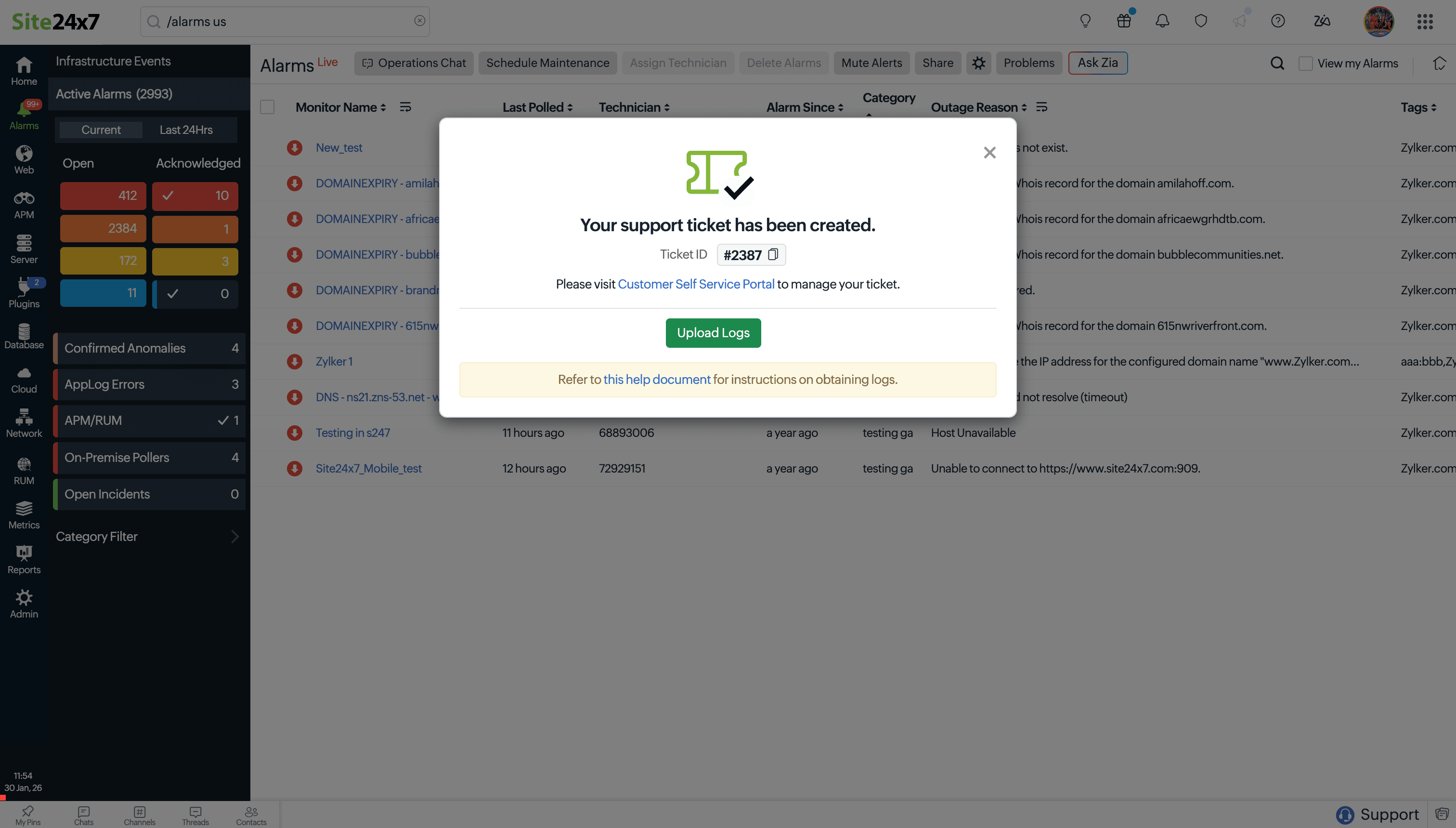
- A confirmation pop-up with the ticket ID will be displayed, allowing you to track and follow up on your support request at any time. Here, click Upload Logs to attach supporting log details.
Contacting the support team via email
You can also reach the Site24x7 support team by emailing support@site24x7.com with your question and relevant details. Our support team will review your request and respond promptly to help resolve your issue.
What are the professional services offered by Site24x7?
Site24x7 offers professional services to help you successfully adopt, deploy, and manage the monitoring solution.
- Training and certification: Enroll in product training sessions and certification programs to help your team gain hands-on knowledge of Site24x7. For more information, contact training@site24x7.com.
- Implementation services: Get assistance with implementing and configuring Site24x7 through online or on-site (offline) engagements, based on your organization's requirements. To learn more or schedule an implementation, contact sales@site24x7.com.
Support for new users
As a new user exploring Site24x7, you can use the following services to evaluate the platform and validate how it fits your monitoring requirements:
- Initial guidance before you are a customer: Receive help with setup, configuration, and best practices to maximize your trial experience. You can also get assistance in resolving configuration, deployment, or monitoring issues encountered during your evaluation.
- A demo: Understand platform capabilities and explore how Site24x7 fits your monitoring needs.
- A proof of concept: Validate specific monitoring workflows and use cases within your own environment before purchasing.
- Onboarding support: Site24x7 offers exclusive support to help you configure monitoring quickly and follow recommended best practices after purchasing. Learn more.
Best practice references
Product-specific pricing pages
FAQ
- How can I contact the support team?
You can contact the Site24x7 support team through the following channels:- Email: support@site24x7.com
- Phone: Contact the regional toll-free number for your location:
- United States: +1.312.528.3051
- United Kingdom: +44.20.7660.8803
- Australia: +61.2.9101.1935
- India: +91.1800.309.0936
- Netherlands: +31.20.721.9030
- How can I escalate a support issue if I am not satisfied with the response?
If you are not satisfied with the assistance received, you can escalate your concern to the Site24x7 escalation team by emailing escalations@site24x7.com. The team will review your case and follow up accordingly. - How quickly can I expect a response after contacting the Site24x7 support team?
The Site24x7 support team's response times vary based on the impact and urgency of the issue as well as your support plan. Critical issues receive higher priority and faster response times than general queries.
Related articles
- What are the different customer onboarding and support programs offered by Site24x7?
- How can I navigate within the Site24x7 web client?
- How can I the safely handle sensitive data?
- Where can I locate the help documents?
- Are there any documents available for troubleshooting?
- What are the different levels of support offered by Site24x7?
-
On this page
- Support for existing users
- Use cases
- Contacting the support team via the Site24x7 web client
- How to raise your issue using Quartz
- How to raise your issue through the form
- Contacting the support team via email
- What are the professional services offered by Site24x7?
- Support for new users
- Best practice references
- Product-specific pricing pages
- FAQ