
Predefined reports
Predefined reports are ready-to-use reports designed for common monitoring and reporting needs. Instead of building a report from scratch, you can start with a preconfigured report and customize it further to match your operational requirements. Predefined reports offer a structured starting point that reduces configuration effort and accelerates report creation.
Use cases
- Generate reports quickly without configuring every parameter manually.
- Create standardized reports for teams across your organization.
- Use prebuilt reports as a foundation for custom reporting requirements.
- Accelerate report creation for common monitoring and compliance needs.
- Reduce the learning curve for users who are new to report generation.
Benefits
- Fasten report generation process: Start with preconfigured reports instead of building reports from scratch.
- Maintain report consistency: Ensure teams use a standardized reporting format across monitors and resources.
- Promote customization: Modify predefined reports to suit your specific reporting requirements.
- Reduce configuration efforts: Minimize the time spent selecting report parameters and filters.
How to use predefined reports
Predefined reports are reusable reports that can be used as they are configured or customized further to be added as a new custom report. If you want to customize them further, use the same report creation workflow and customization options available in custom reports. You can select a predefined report; review its configuration; and modify parameters such as monitor types, filters, tags, and report formats to suit your requirements.
For detailed instructions on creating, customizing, and managing reports, refer to the custom report documentation.
Once you have customized the report, you can preview it before generating or saving it. In Preview mode, only a limited amount of data is displayed. To view the complete report data, generate or save the report. Follow the steps below to create the predefined report as a new custom report.
- Click Generate in the top-right corner of the page.
- Wait until the report is generated. Once generated, the Save Custom Report pop-up window appears, confirming that this report will be created as a new custom report. Click Save.
NoteYou can save a predefined report only when you have changed the configurations.
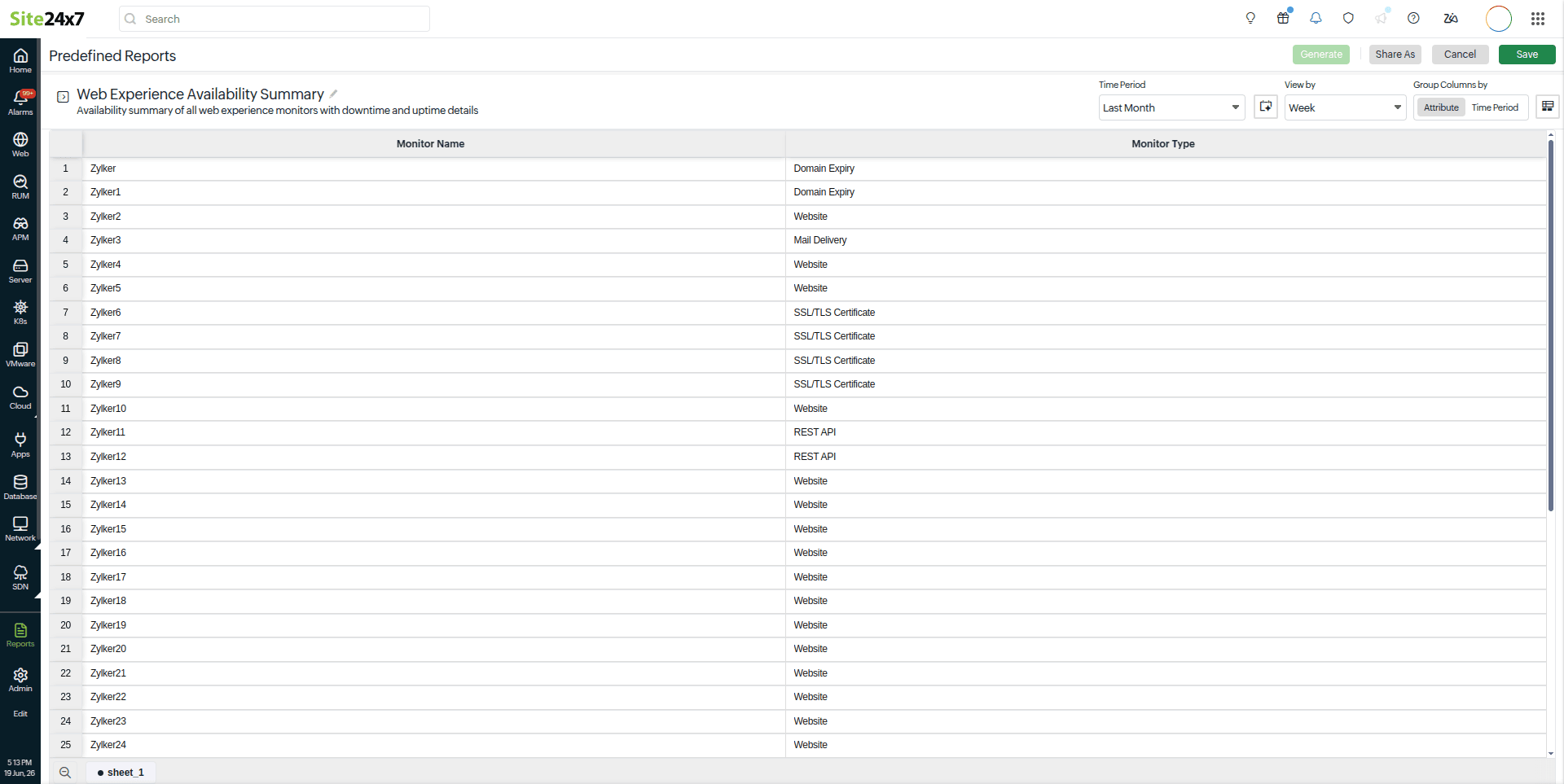
- You can select the required Time Period from the drop-down menu on the top-right section of the page.
- You can click the Share As option to:
- Export CSV: Download the report in CSV format for further processing or to import it into another tool.
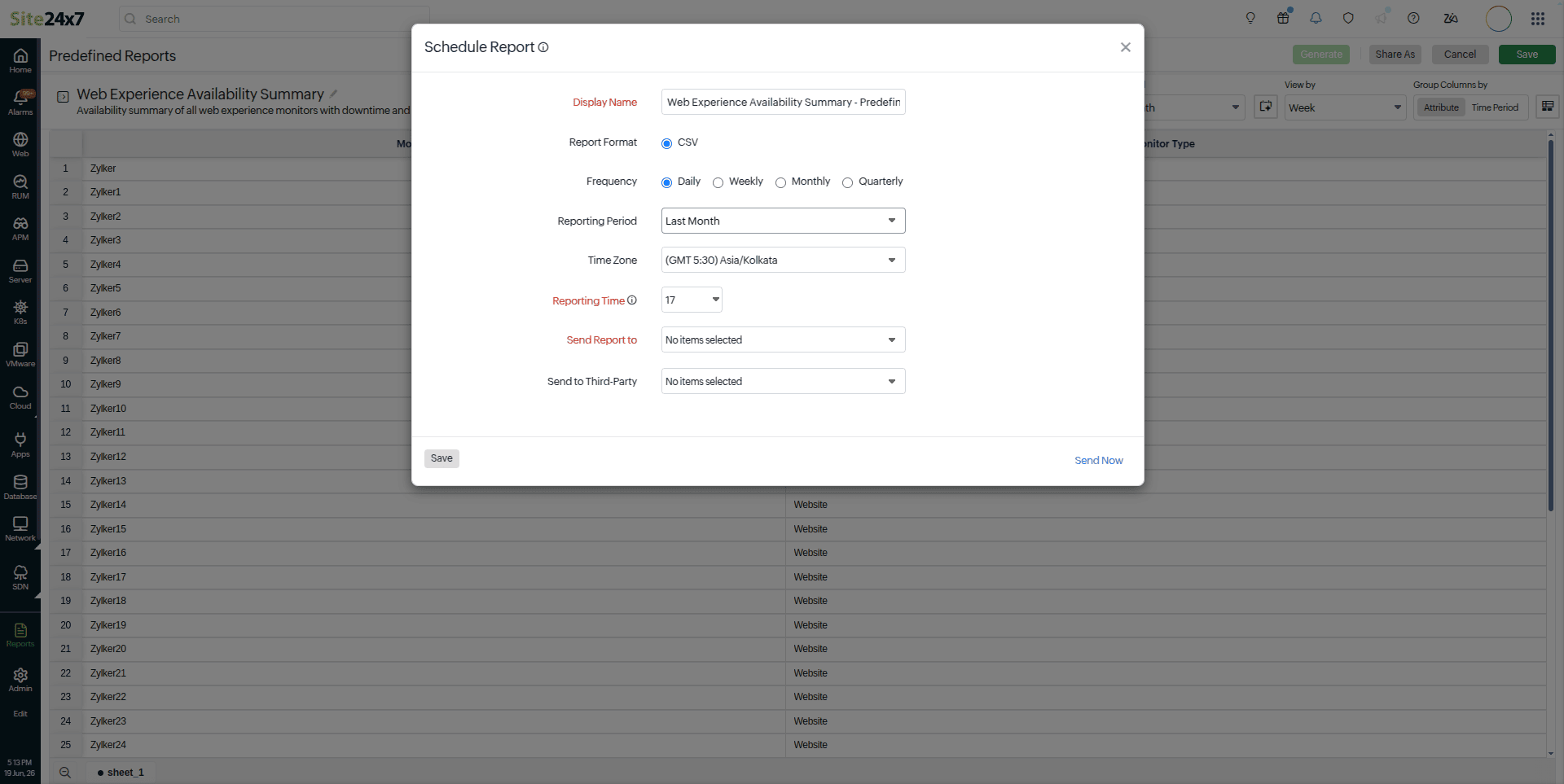
- Schedule Report: Set up periodic delivery of the custom report. Specify the required frequency and complete the form to automatically email the report to recipients.
- Email: Share the report instantly via email. Reports can be sent only to verified users who have opted to receive emails from Site24x7.
- Publish Report: Create a permalink for your custom report’s sheet view and share it with others. If the report has already been published, select this option to view the previously generated permalink.
-
Supported report categories
Predefined reports are available for selected monitor categories, as listed below: