
Latest iOS features in Site24x7
Explore the latest iOS capabilities supported in the Site24x7 mobile app to access monitoring insights and take action faster while on the go. Learn how to use these features and get the most out of Site24x7 on supported iOS versions.
Features of iOS 27 in Site24x7
The Site24x7 mobile app supports the latest iOS 27 capabilities, including extra-large widgets, on-screen awareness, Liquid Glass optimization, and Siri AI actions in Spotlight. These features help you access monitoring information and respond to incidents faster from anywhere.
To use these features, ensure that your device runs iOS 27 and that the Site24x7 mobile app is updated to the latest version.
Extra-large widgets
Extra-large widgets provide a consolidated view of alarms, monitor groups, and monitor statuses directly from your home screen. They are supported for Operations View and Monitor Groups.
Benefit: Gain an at-a-glance view of alarms and monitor health directly from your home screen without opening the Site24x7 app.
Add an extra-large Operations View widget
Follow the below steps for adding the Operations View widget.
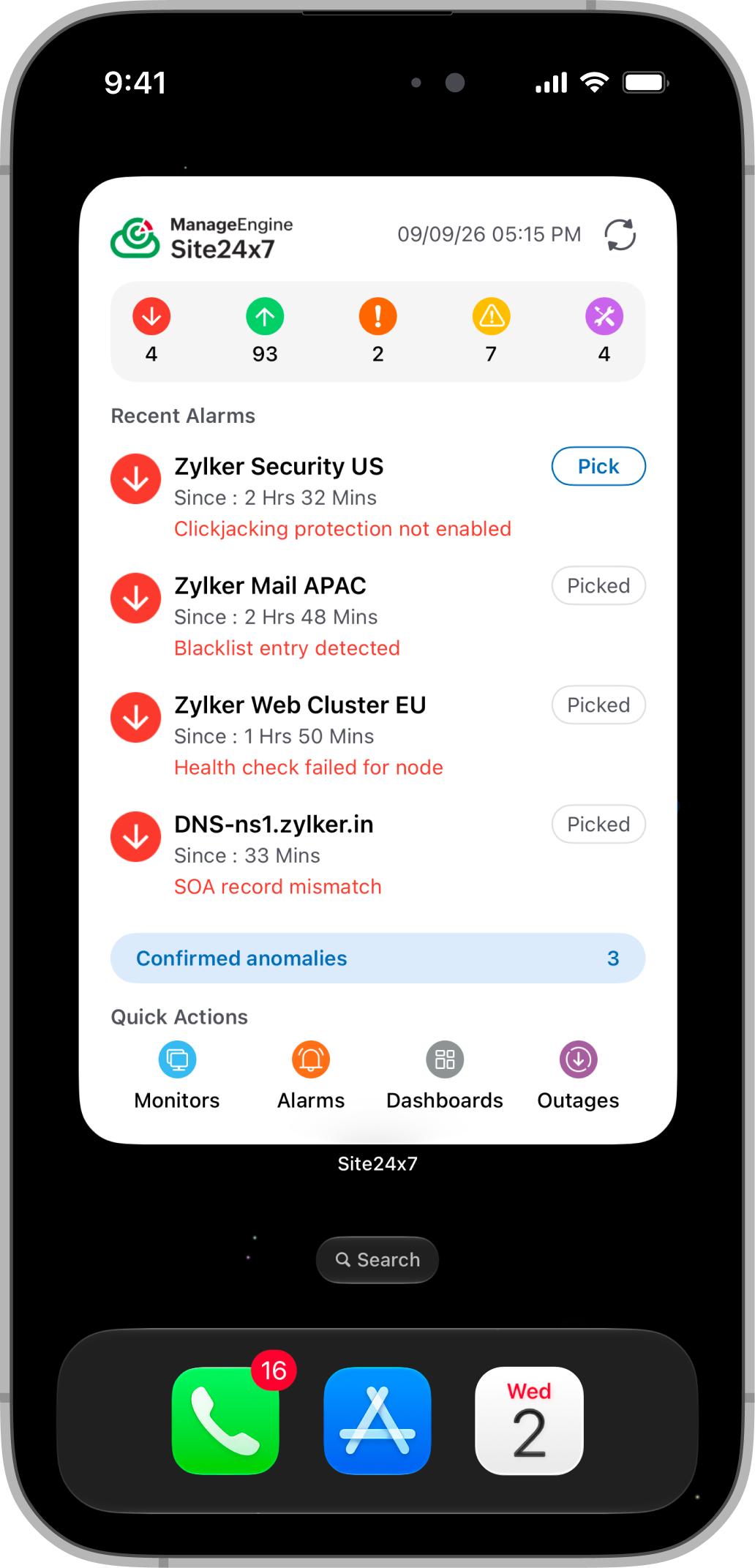
- Touch and hold the Site24x7 mobile app and select the extra-large Operations View widget.
- Position the widget on your Home Screen.
The widget displays alarm status counts and recent alarms. Tap an alarm to open its Alarm Details page.
Use the quick actions in the bottom bar to navigate directly to the Monitors, Alarms, Dashboard, and Outages screens from the widget.
If an alarm is assigned to you, select Pick from the widget to start working on it directly.
Add an extra-large Monitor Groups widget
Follow the steps below to add the Monitor Groups widget:
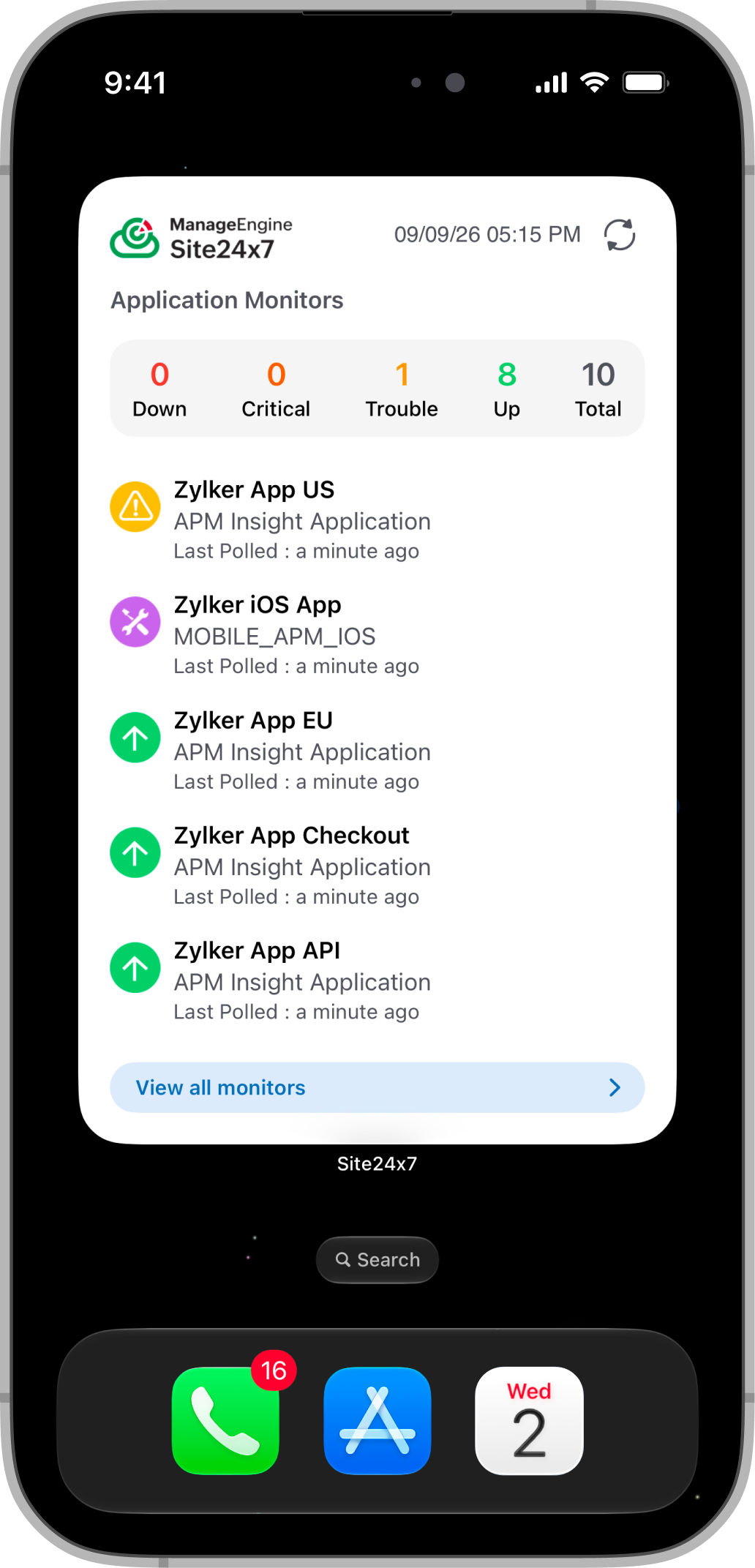
- Touch and hold the Site24x7 mobile app, then select the extra-large Monitor Groups widget.
- Position the widget on your Home Screen.
- Edit the widget card and select a Monitor Group from the list.
The widget displays the statuses and counts of the monitors in the selected group in a single view. You can also view the statuses of all monitor groups. Tap a monitor to navigate to its Monitor Details page.
Use the drop-down list in the top-left corner of the widget to switch to a different monitor group whenever needed.
On-screen awareness
Use Siri AI to summarize and understand the information displayed on the Monitor Details, Alarm Details, and Anomaly Details pages.
Summarize on-screen information using Siri
Follow the steps below to summarize on-screen information using Siri:
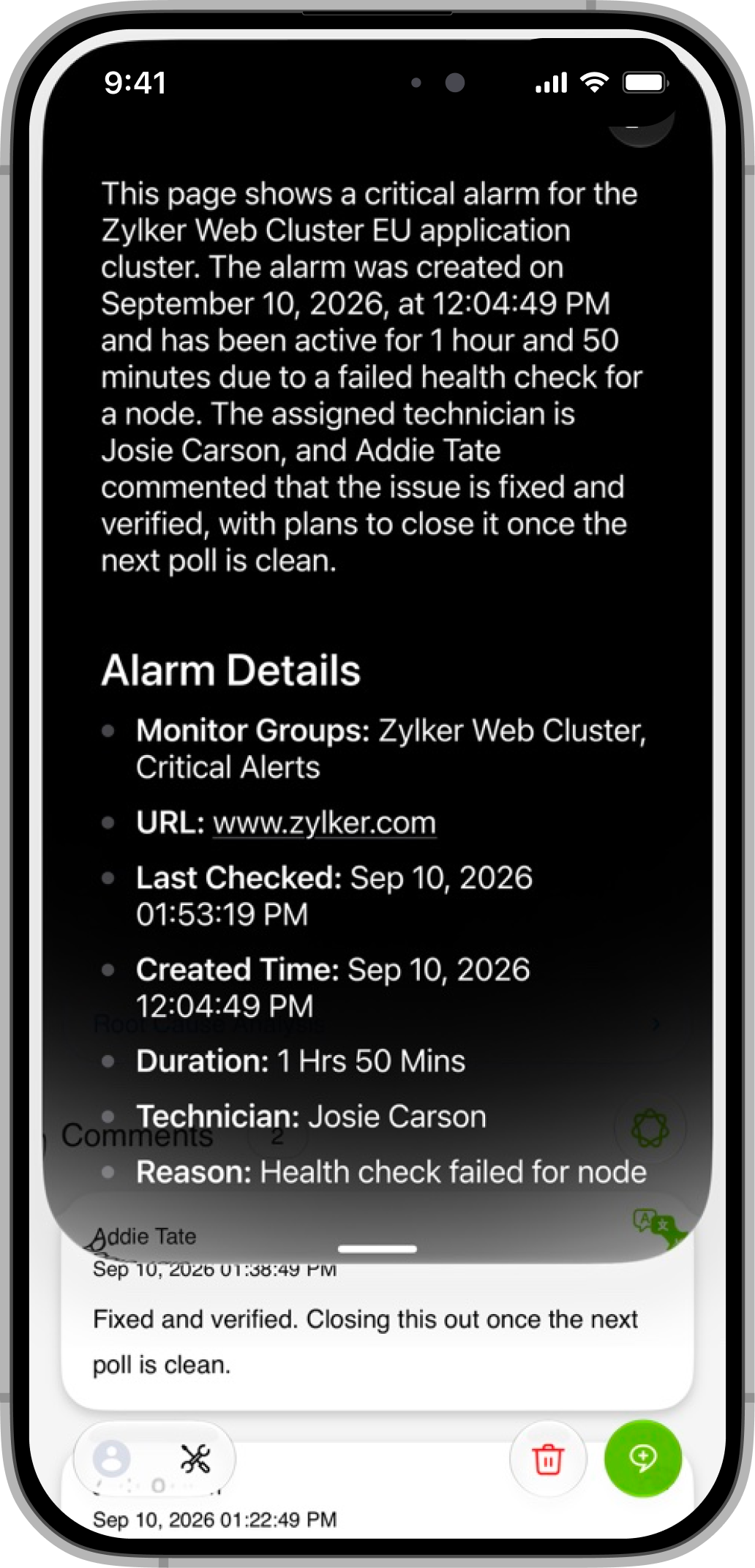
- Open the Site24x7 mobile app.
- Navigate to one of the following pages:
- Monitor Details
- Alarm Details
- Anomaly Details
- Ask Siri to summarize the information displayed on the screen.
- Review the concise summary generated by Siri. Ask follow-up questions to obtain additional information about the displayed details, if required.
Your conversations are automatically saved in the Siri app.
Benefit: Quickly understand monitor, alarm, and anomaly details without manually reviewing all the information on the page.
Liquid Glass optimization
The app’s transparency and opacity automatically adapt to your device’s system settings for improved visibility. Any opacity adjustments made in the system settings are applied directly to the Site24x7 app.
Apply Liquid Glass appearance settings
Follow the below steps to apply Liquid Glass appearance settings:
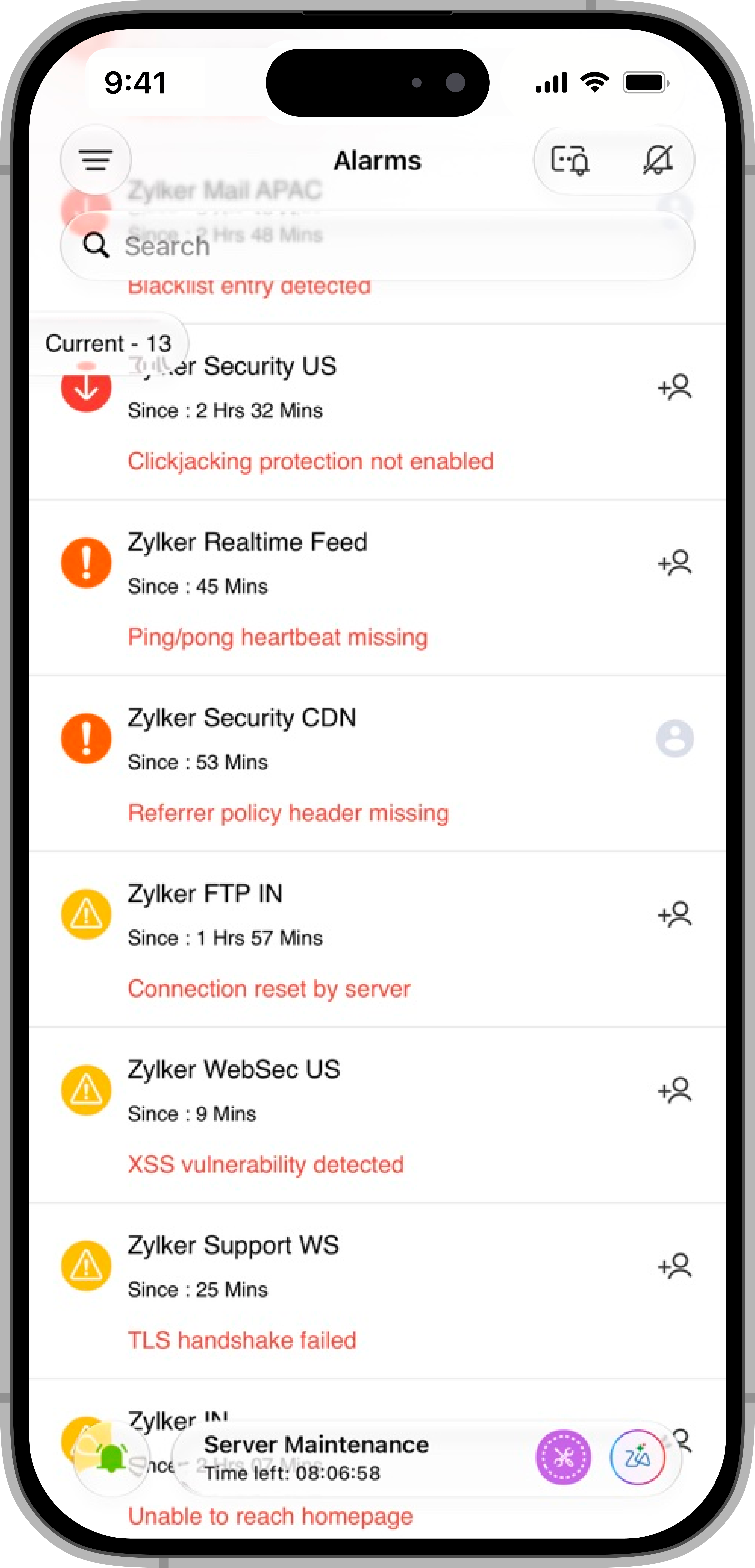
- Open the Settings app on your device.
- Navigate to the system setting that controls the transparency or opacity of the Liquid Glass interface.
- Adjust the setting based on your viewing preference.
The Site24x7 app automatically applies the transparency and opacity settings configured on your device.
Benefit: Customize the app’s visual appearance to improve readability and ensure a comfortable viewing experience.
Take action on alarms and monitors using Siri AI in Spotlight
Use Siri AI to perform key actions on alarms and access monitors by status through Spotlight.
Follow the below steps to achieve these actions:
Add a comment to an alarm using Spotlight
Follow the steps below to add a comment to an alarm:
- Open Spotlight on your device.
- Enter Add Comment and select an alarm from the displayed list.
- Type your comment.
Assign a technician using Spotlight
Follow the steps below to assign a technician to an alarm:
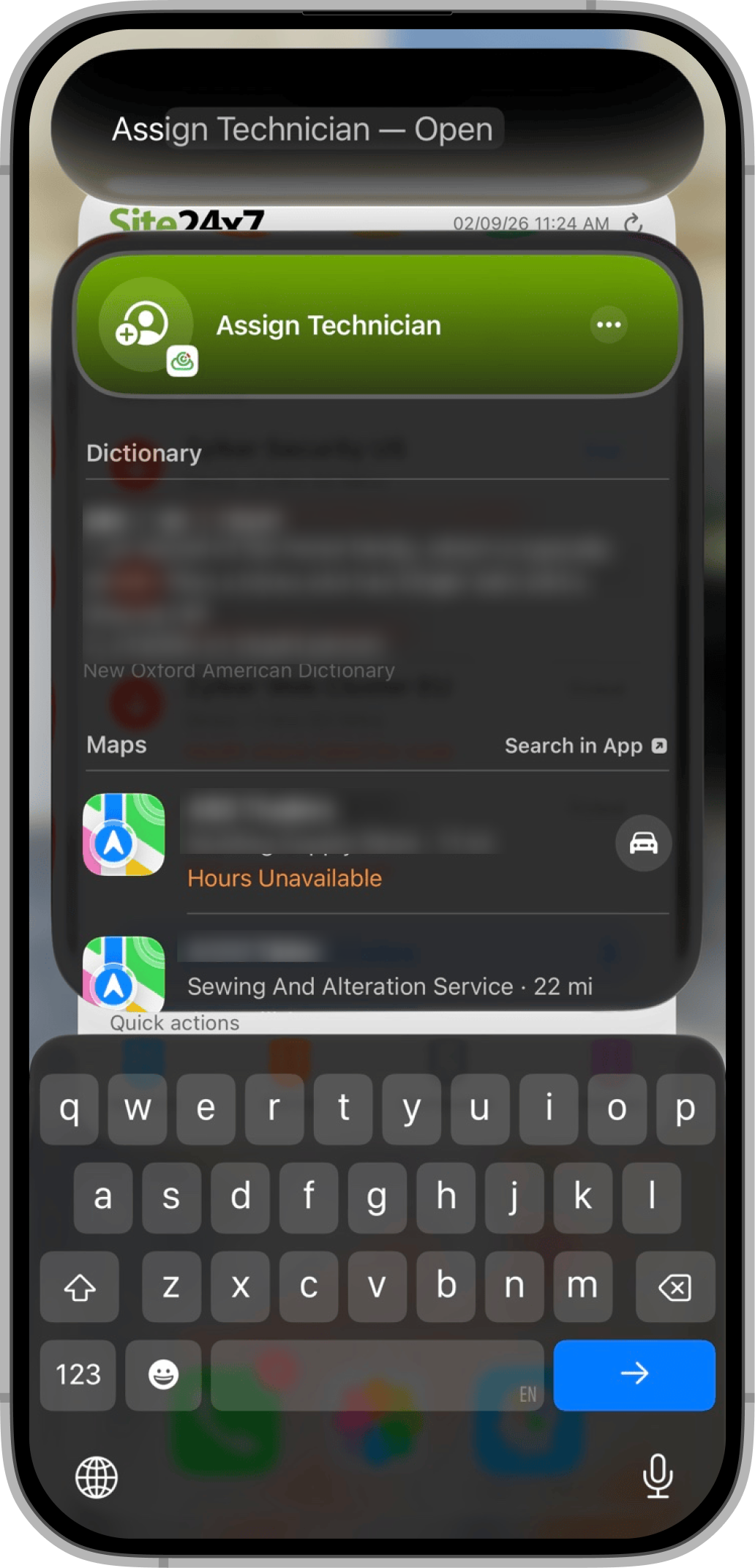
- Open Spotlight on your device.
- Enter Assign Technician and select an alarm from the displayed list.
- Select the technician to whom you want to assign the alarm.
- Confirm the assignment is correct, and select Done.
Open monitors by status using Spotlight
Follow the steps below to open monitors based on their status:
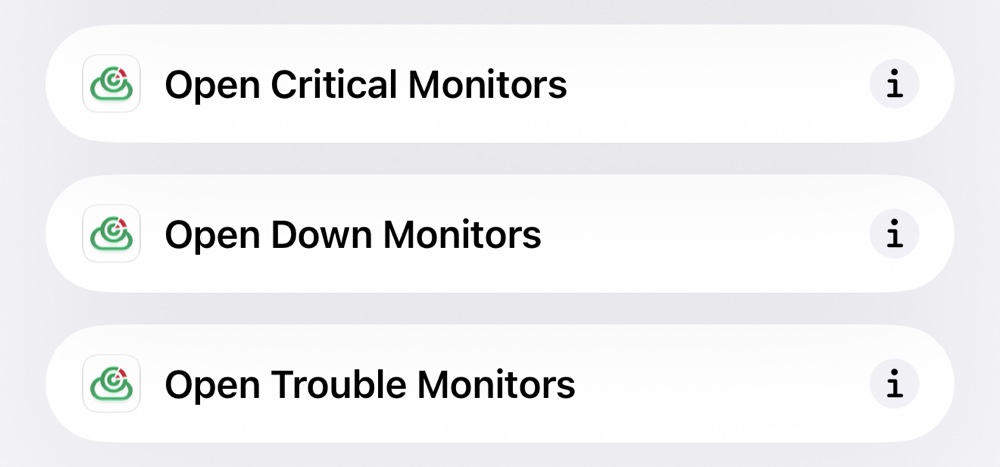
- Open Spotlight on your device.
- Enter the appropriate search phrase based on the monitor status. For example:
- Open Down Monitor(s)
- Open Critical Monitor(s)
- Open Trouble Monitor(s)
- Select the corresponding Site24x7 action.
The Site24x7 app opens the Monitors page and displays the monitors with the selected status.
Benefit: Quickly access monitors and perform key incident management actions on alarms through Spotlight, enabling faster responses while on the go.
Features of iOS 26 in Site24x7
The Site24x7 mobile app supports iOS 26, featuring the Liquid Glass design. This update delivers a visually modern and fluid experience without compromising usability. This design enhancement ensures that IT observability on the Site24x7 mobile app is as intuitive and engaging as it is powerful.
Key features
- Liquid Glass
- Rounded corners for a sleek, modern look.
- Fluid overlays, seamless search, and fast performance for effortless monitoring on the go.
- Ongoing maintenance updates
- Get ongoing maintenance updates from the floating bar at the bottom of the app.
- Apple Intelligence
- Reason analysis: Understand why an alarm was triggered with correlated metrics and logs along with quick solution suggestions.
- Comment summaries: Simplify long comment threads by turning them into concise, easy-to-read summaries with a single tap.
- Notification summaries: Stay focused with the top 25 notifications delivered in a clear, summarized view—no scrolling needed.