
Topology View for DigitalOcean monitoring
The Topology View integration feature in Site24x7 for DigitalOcean provides an interactive, visual representation of your cloud infrastructure in a single graph. It maps relationships and dependencies across accounts, regions, and services, enabling you to monitor resource health and isolate performance bottlenecks without switching between multiple dashboards.
How it works
The Topology View renders your monitored DigitalOcean resources as an interactive radial graph organized across three levels:
- Account level: Represents each DigitalOcean account connected to Site24x7 as the root node.
- Region level: Groups resources by the DigitalOcean data center where they operate, such as New York City (NYC1) or Bangalore (BLR1).
- Service type level: Organizes resources by service type—including Droplets, Load Balancers, Managed Databases, Kubernetes, and App Platform—within each region.
Use case
Consider an online booking platform with the checkout API on DigitalOcean Droplets, traffic managed by a Load Balancer, and transactions stored in a Managed Database cluster.
During a traffic surge, if bookings fail, the operations team uses the Topology View to troubleshoot:
- The team opens the Topology View for their DigitalOcean monitor.
- The graph displays a Critical (red) status radiating from the New York City region node.
- The team selects the New York City node and examines the Component Details panel. The Load Balancer and Droplet nodes show Up (green), while the Managed Databases node shows Critical (red).
- The team opens the database monitor directly from the graph, discovers connection pool exhaustion, scales the database cluster plan, and clears stuck connections.
By scaling the database plan and clearing the connection pool, the team restores bookings within minutes. The Topology View enables them to identify and address the failing component directly, avoiding a step-by-step review of each service.
Benefits of the topology view
The Topology View provides the following operational benefits:
- Consolidated visibility: View all monitored DigitalOcean accounts, regions, and services on a single interactive graph.
- Rapid fault isolation: Pinpoint the exact region or service causing an incident by using color-coded status indicators.
- Direct navigation: Access individual monitor dashboards directly from graph nodes.
- Operational context: Track resource distribution and evaluate downstream dependencies across your cloud environment.
Prerequisites
Before you access the Topology View, ensure that you meet the following requirements:
- You have an active Site24x7 account.
- You have integrated your DigitalOcean account with Site24x7 using a valid Personal Access Token or OAuth authorization.
- Site24x7 has discovered and actively monitors at least one DigitalOcean resource.
The Topology View is an included feature of the DigitalOcean integration and does not consume separate monitor licenses. Each discovered resource consumes licenses according to its type (for example, each monitored Droplet consumes one basic monitor license).
How to access the topology view
To open the Topology View for a DigitalOcean monitor, follow these steps:
- Log in to Site24x7.
- Go to Cloud > DigitalOcean.
- Select the required DigitalOcean monitor from the list.
- In the left pane, click Topology View.
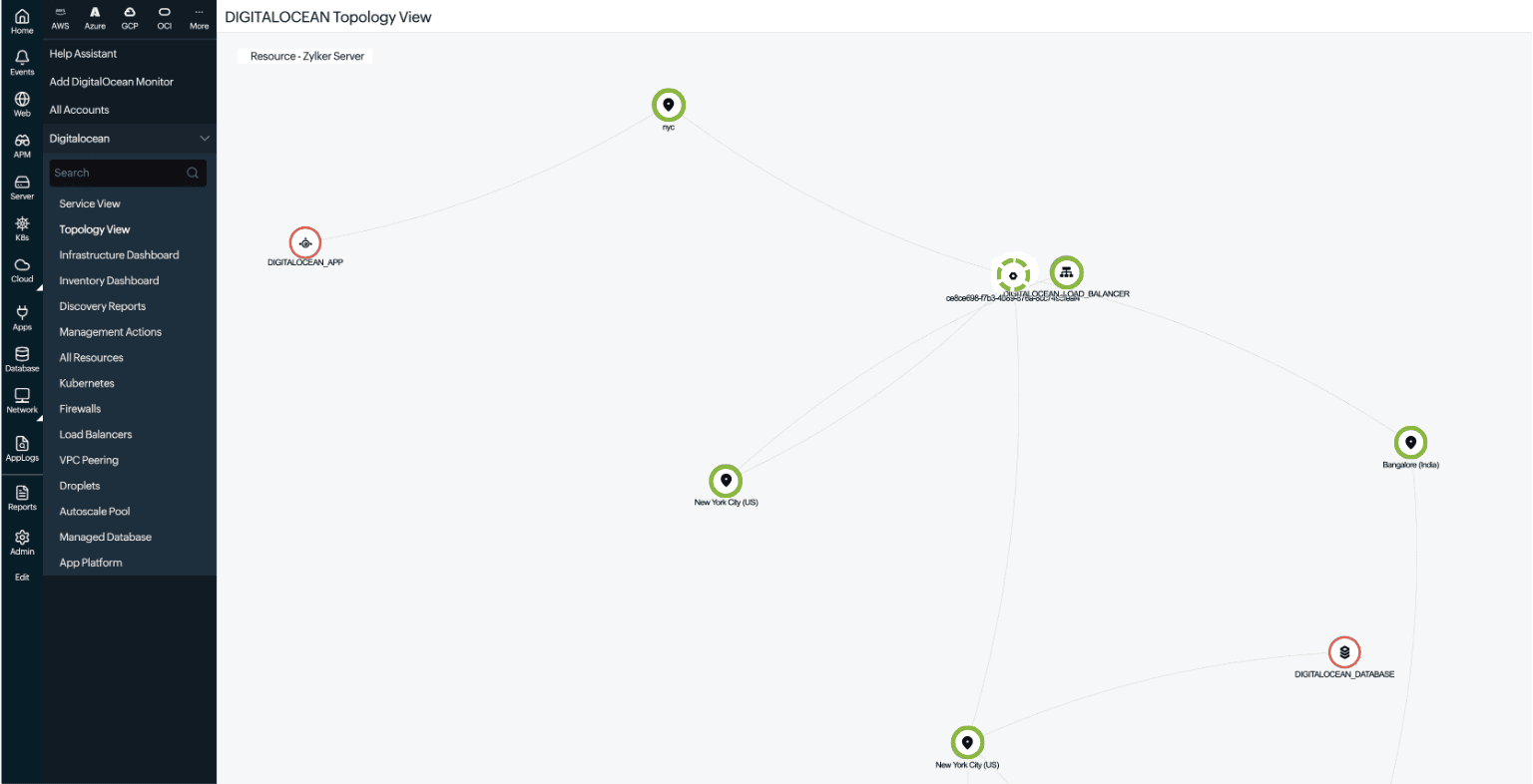
Interacting with the topology view
You can explore and analyze your infrastructure using the following features in the Topology View:
Root node
Your DigitalOcean account appears as the central root node, marked with a double circle. The graph automatically centers on this node to provide a fixed starting point for navigation.
Radial node layout
Nodes branch outward from the root node in concentric rings: first to data center regions, and then to the individual services running within each region. This layout maintains visual clarity as your infrastructure expands.
Zoom and pan
Use your mouse wheel or the on-screen zoom controls (+ or -) to zoom into specific clusters. Click and drag anywhere on the canvas to pan across large topologies.
Explore a region
Click a data center node to expand and view the services and resources running in that specific location, along with their active interconnections.
Health status legend
The legend at the top of the view identifies the color-coded health statuses used across all nodes: Up (green), Trouble (yellow), Critical (red), and Down (dark red). This enables you to evaluate system health without opening individual monitor pages.
Node tooltip
Hover your mouse over any node to view a summary tooltip displaying its resource type, status, and geographic location.
Component details panel
When you click a node, the Component Details panel opens on the right side of the screen and displays the following information:
- Region or service name: Displays the name and identifier of the selected node.
- Click the View Connections icon
 next to the name to isolate that node and its connected dependencies on the graph.
 - Click the Open in New Tab icon
 next to a service type to open its dedicated monitor summary page.
- Click the View Connections icon
- Availability status: Displays a live breakdown of child resources categorized by status (Up, Trouble, Critical, and Down), along with the total resource count.
- Connected nodes: Lists all resources directly connected to the selected node. Click any entry to view its health and configuration.
- Search bar: Filter resources in the panel by region, service, or monitor name.
- Breakdown list: Displays underlying child resources with status badges for fast identification of degraded components.
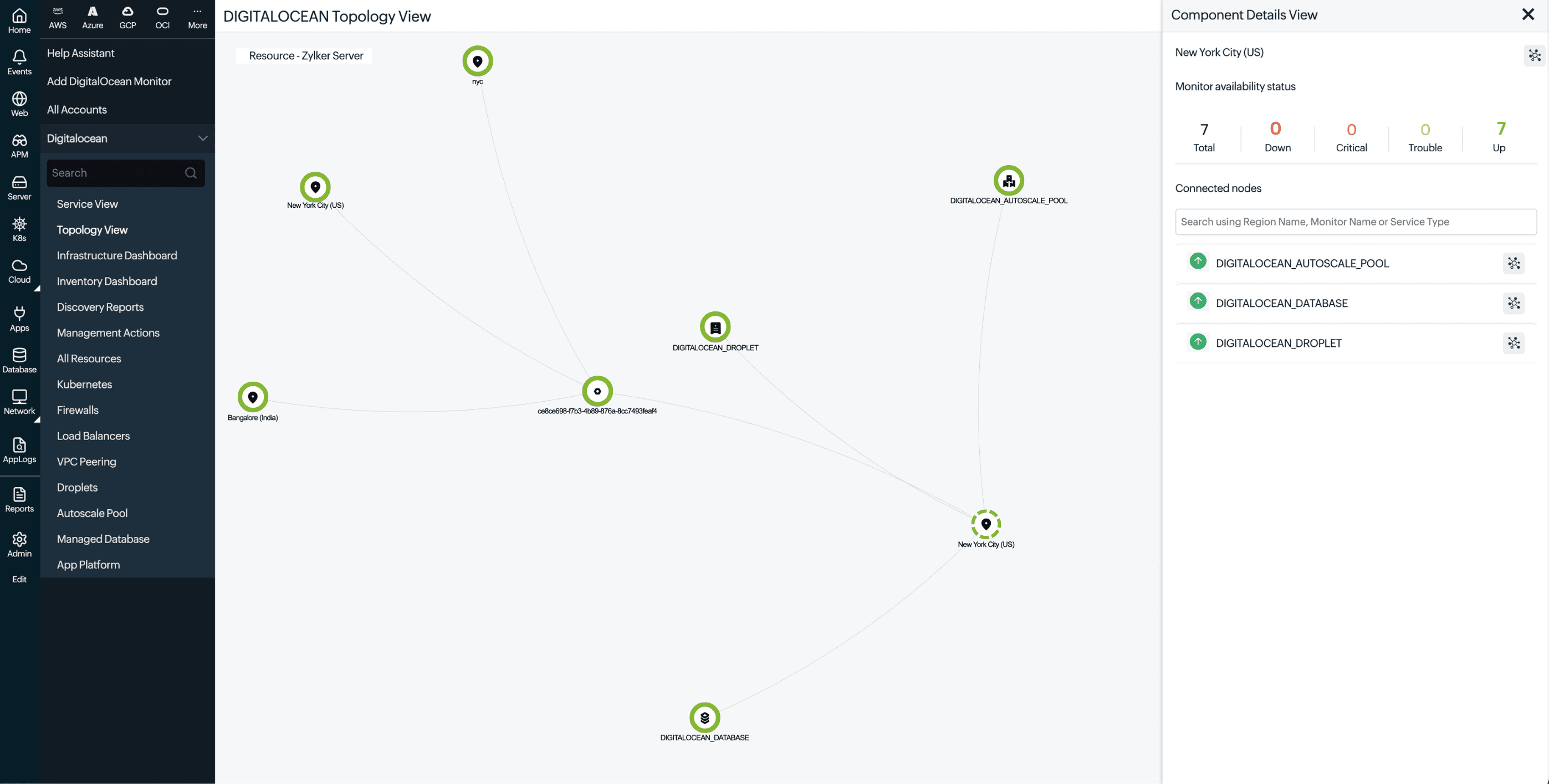
Mapping how your DigitalOcean resources depend on one another makes it easier to judge the downstream effect of an issue, cutting down root cause analysis time across your infrastructure.