Azure Recovery Services Vault backup item monitoring integration
Site24x7 monitors individual backup items registered in an Azure Recovery Services Vault (RSV). Each protected resource—such as a virtual machine or file share—is represented as a separate backup item monitor, enabling you to track its backup health, protection state, and job history independently.
Overview
An Azure Recovery Services Vault stores and manages backup data for Azure and on-premises resources. Each resource enrolled in backup within the vault is a backup item. Site24x7 auto-discovers these backup items when the Azure monitor is set up and tracks their status continuously.
Site24x7 collects two types of data for each backup item:
- Performance metrics: Availability-affecting attributes such as backup status, protection state, and failed job count collected on every poll.
- Configuration attributes: Item-level metadata such as policy name, backup management type, and last recovery point collected on every change.
Navigate to the RSV Backup Item monitor
- Log in to Site24x7 and go to Cloud > Azure > the Azure subscription.
- Under the resource list, locate and click the Azure RSV Backup Item resource type.
- Click an individual backup item monitor to navigate to its detail page.
Summary page
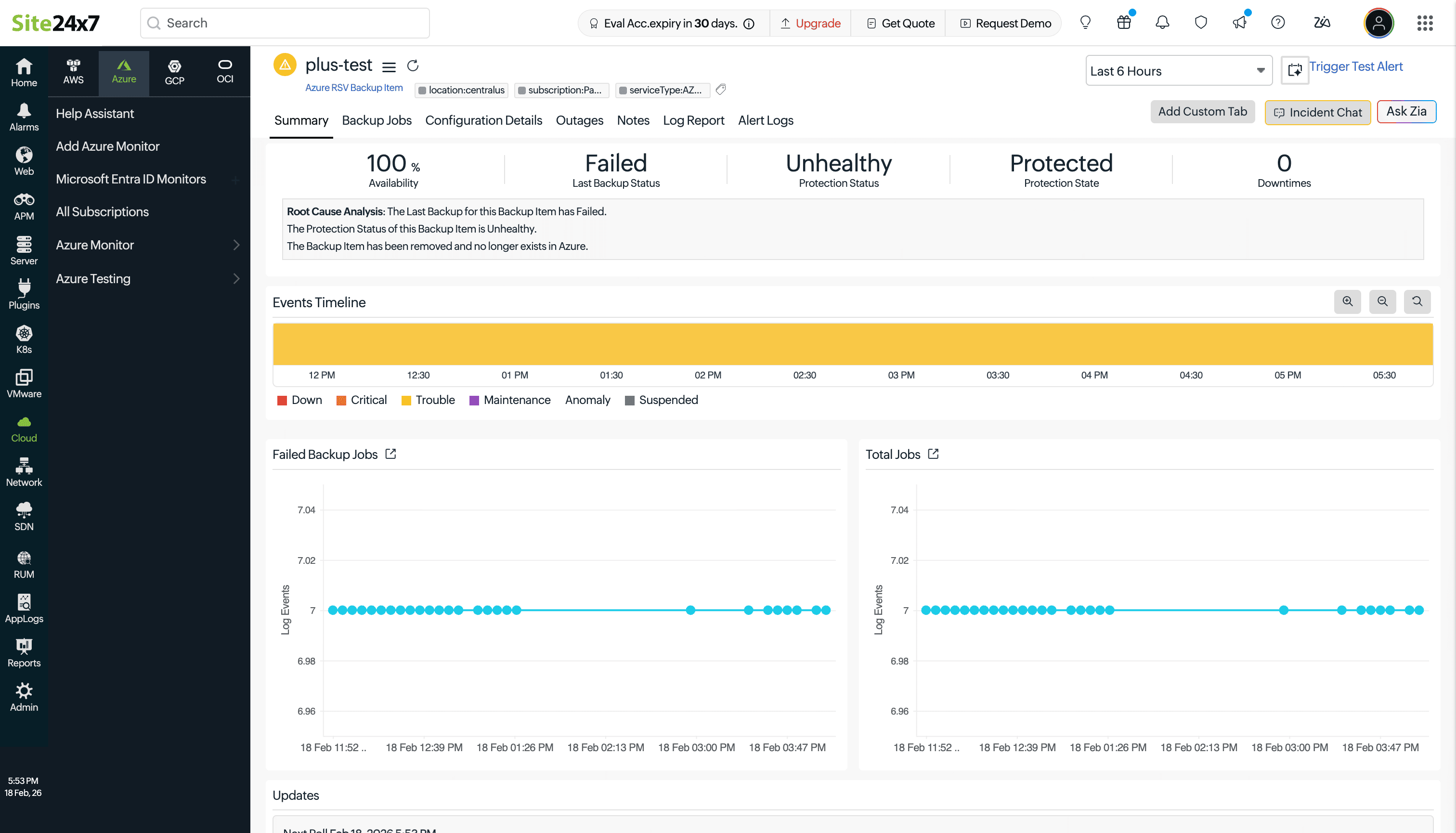
The summary page for an RSV Backup Item monitor shows the following at the top of the page:
- Status: The current availability status of the backup item monitor.
- Availability: The availability percentage for the selected time period.
- Last Backup Status: The result of the most recent backup job for this item.
- Protection Status: Whether this item is currently healthy from a backup protection perspective.
- Protection State: The detailed protection life cycle state of this item.
- Downtimes and Downtime Duration: A count and total duration of availability incidents in the selected period.
The summary page also displays two in-line charts:
- Failed Backup Jobs: A time-series chart of failed job events for this backup item, sourced from AppLogs.
- Total Backup Jobs: A time-series chart of all job events for this backup item.
Performance metrics
The following metrics are collected on each poll and used for availability tracking and alerting:
| Metric name | Description | Statistic | Unit |
|---|---|---|---|
| Last Backup Status | The result of the most recent backup job for this backup item (for example, Healthy, Unhealthy, or IRPending). An unhealthy status indicates the last backup did not complete successfully. | — | Status |
| Last Backup Time | The timestamp of the most recent backup operation for this backup item. Used to detect stale or missed backups. | — | Timestamp |
| Protection Status | The overall health of backup protection for this item. Indicates whether the item is being backed up successfully and whether any issues have been detected with the backup policy or configuration. | — | Status |
| Protection State | The detailed life cycle state of this backup item's protection (for example, Protected, ProtectionStopped, ProtectionPaused, or IRPending). Reflects the current operational state of the backup enrollment. | — | Status |
| Resource Status | Indicates whether the backup item still exists in Azure and is available for monitoring. A change in this metric may indicate the protected resource has been removed or deregistered from the vault. | — | Status |
| Failed Jobs | The number of backup jobs for this item that ended in a Failed state during the collection period. Derived from AppLog data using the s247azurersvbackupjobs log type. Non-zero values trigger alerts and are tracked over time for trend analysis. | Sum | Count |
| Vault Name | The name of the Recovery Services Vault in which this backup item is registered. | — | Text |
| Workload Type | The type of workload being backed up (for example, VM, AzureFileShare, or MSSQL). Identifies the category of resource this backup item protects. | — | Text |
| Backup Status | The human-readable status string of the most recent backup operation for this item. | — | Text |
| Backup Time | The human-readable timestamp of the most recent backup operation for this item. | — | Text |
Configuration attributes
The following attributes are collected when the configuration changes and are shown in the Metadata tab. They represent the static or infrequently-changing properties of the backup item.
| Attribute | Description |
|---|---|
| Subscription | The Azure subscription in which this backup item's parent resource is deployed. |
| Resource Group | The Azure resource group containing the protected resource. |
| Location | The Azure region where the Recovery Services Vault and the protected resource are located. |
| Name | The display name of the backup item as it appears in the Azure portal. |
| Protection Status | The health of backup protection for this item as recorded in the configuration snapshot. |
| Protection State | The life cycle protection state of this item as recorded in the configuration snapshot. |
| Health Status | The overall health status of this backup item, indicating whether any actionable issues have been detected. |
| Last Backup Status | The result of the most recent backup job as recorded in the configuration snapshot. |
| Last Backup Time | The time of the most recent backup job as recorded in the configuration snapshot. |
| Protected Item Data ID | The unique internal identifier for this protected item within Azure Backup. |
| Policy Type | The type of backup policy applied to this item (for example, V1 or V2 policy). |
| Protected Item Type | The Azure Backup internal type classification for this item (for example, Microsoft.Compute/virtualMachines). |
| Backup Management Type | The management type used to back up this item (for example, AzureIaasVM, AzureStorage, or AzureWorkload). |
| Workload Type | The workload category of the resource being protected (for example, VM, AzureFileShare, or MSSQL). |
| Container Name | The name of the container within the vault that holds this backup item. |
| Policy Name | The name of the backup policy applied to this item, which defines the schedule, retention, and tier settings. |
| Last Recovery Point | The timestamp of the most recent recovery point available for this backup item. Indicates the latest point in time to which this resource can be restored. |
| Vault ID | The full Azure Resource ID of the Recovery Services Vault that contains this backup item. |
| Is Archive Enabled | Indicates whether archive tier storage is enabled for this backup item's recovery points. |
| Soft Delete Retention Period | The number of days that deleted backup data for this item is retained in a soft-deleted state before permanent removal. |
Backup Jobs log
The Backup Jobs tab provides a searchable log of all backup job events for this backup item, powered by Site24x7 AppLogs. Job events are stored under the log type Azure RSV Backup Jobs (s247azurersvbackupjobs).
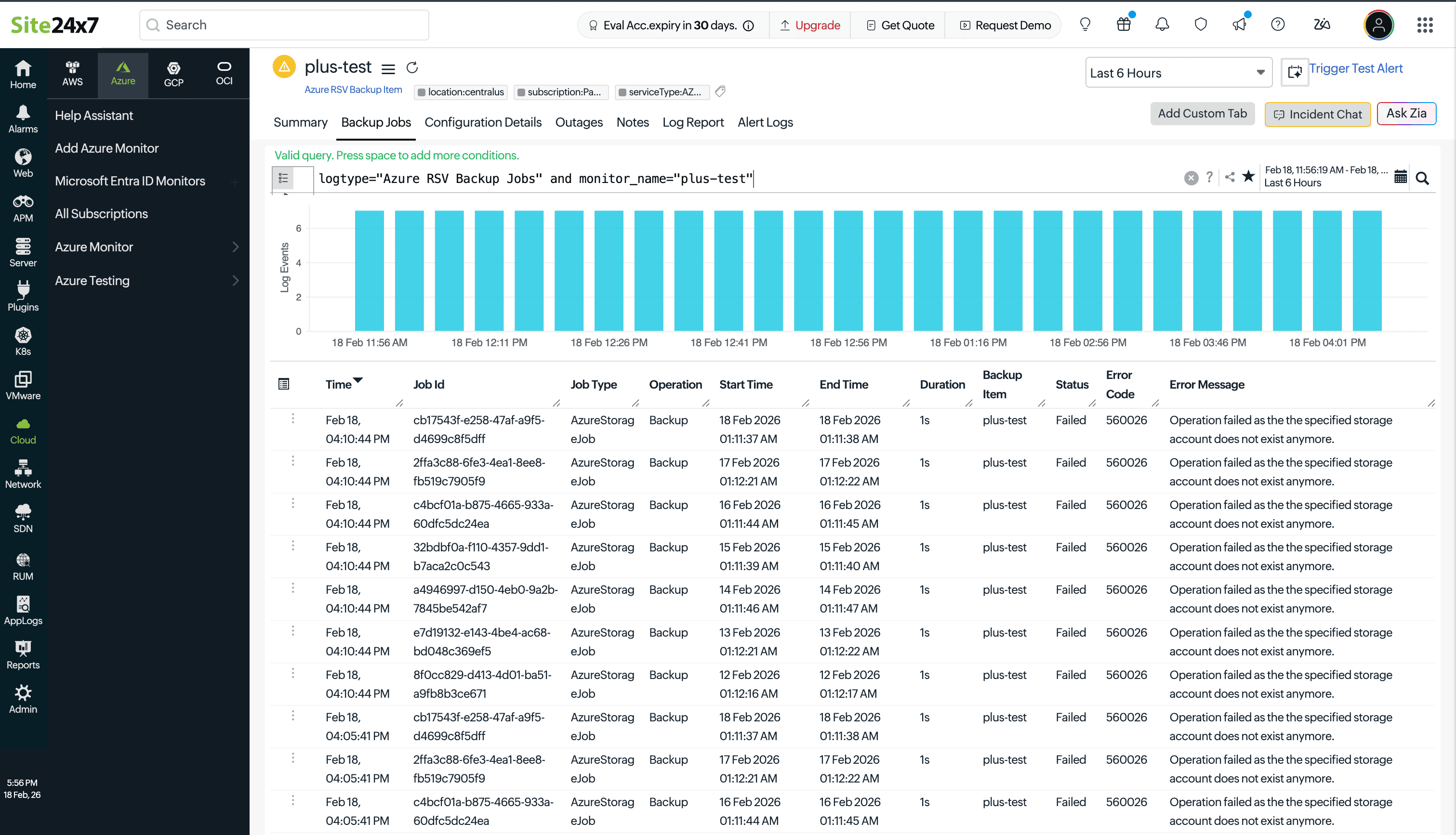
To search backup job events for this monitor directly in AppLogs, go to Apps > AppLogs > Search and use the query:
logtype="Azure RSV Backup Jobs" and monitor_name="<your-monitor-name>"
You can filter results by status to isolate failed jobs:
logtype="Azure RSV Backup Jobs" and monitor_name="<your-monitor-name>" and status CONTAINS "Failed"
Setting up alerts
All five availability-affecting metrics support threshold-based alerting. By default, alerts are enabled for Last Backup Status, Protection State, and Resource Status. The following alert toggles are available in the threshold profile:
| Metric | Alert trigger | Default |
|---|---|---|
| Last Backup Status | Triggered when the last backup health status changes to an unhealthy or error state. | Enabled |
| Last Backup Time | Triggered when the last backup time breaches the configured threshold, indicating a missed or overdue backup. | Disabled |
| Protection Status | Triggered when the protection health status of this item changes to an unhealthy state. | Disabled |
| Protection State | Triggered when the protection life cycle state changes (for example, from Protected to ProtectionStopped). | Enabled |
| Resource Status | Triggered when the backup item is removed or deregistered from the vault. | Enabled |
| Failed Jobs | Triggered when the number of failed backup jobs exceeds the configured numeric threshold. Supports anomaly detection. | Numeric threshold |
To configure threshold profiles for this monitor:
- In Site24x7, click Admin in the left navigation pane.
- Select Configuration Profiles, then select Threshold and Availability.
- Click Add Threshold Profile and select Azure RSV Backup Item as the monitor type.
IT Automation
Site24x7 IT Automation allows you to define automated remediation actions that trigger on alert events for this monitor—for example, notifying a team channel or invoking a webhook when backup protection stops. How to configure IT Automation for a monitor.