
How to install APM Insight AutoProfiler
The APM Insight AutoProfiler automatically detects running application processes and attaches the appropriate APM Insight agents for monitoring. This eliminates the need to install language- manually or platform-specific agents, configure them, or modify your application code.
Supported operating systems and agents
- Supported OS: You can find detailed information about the supported operating systems in the article.
- Supported agents:
- Windows: Java, .NET, .NET Framework, Node.js
- Linux: Java, .NET, Node.js, Python
In Site24x7, navigate to APM. Click the + icon to view the installation instructions for the APM Insight AutoProfiler on both Linux and Windows systems.
Windows
For Windows, download the Site24x7FullStackAgent.msi file and run it. The installation wizard will open, with Full-Stack Observability selected by default. Enter your license key to proceed with the installation.
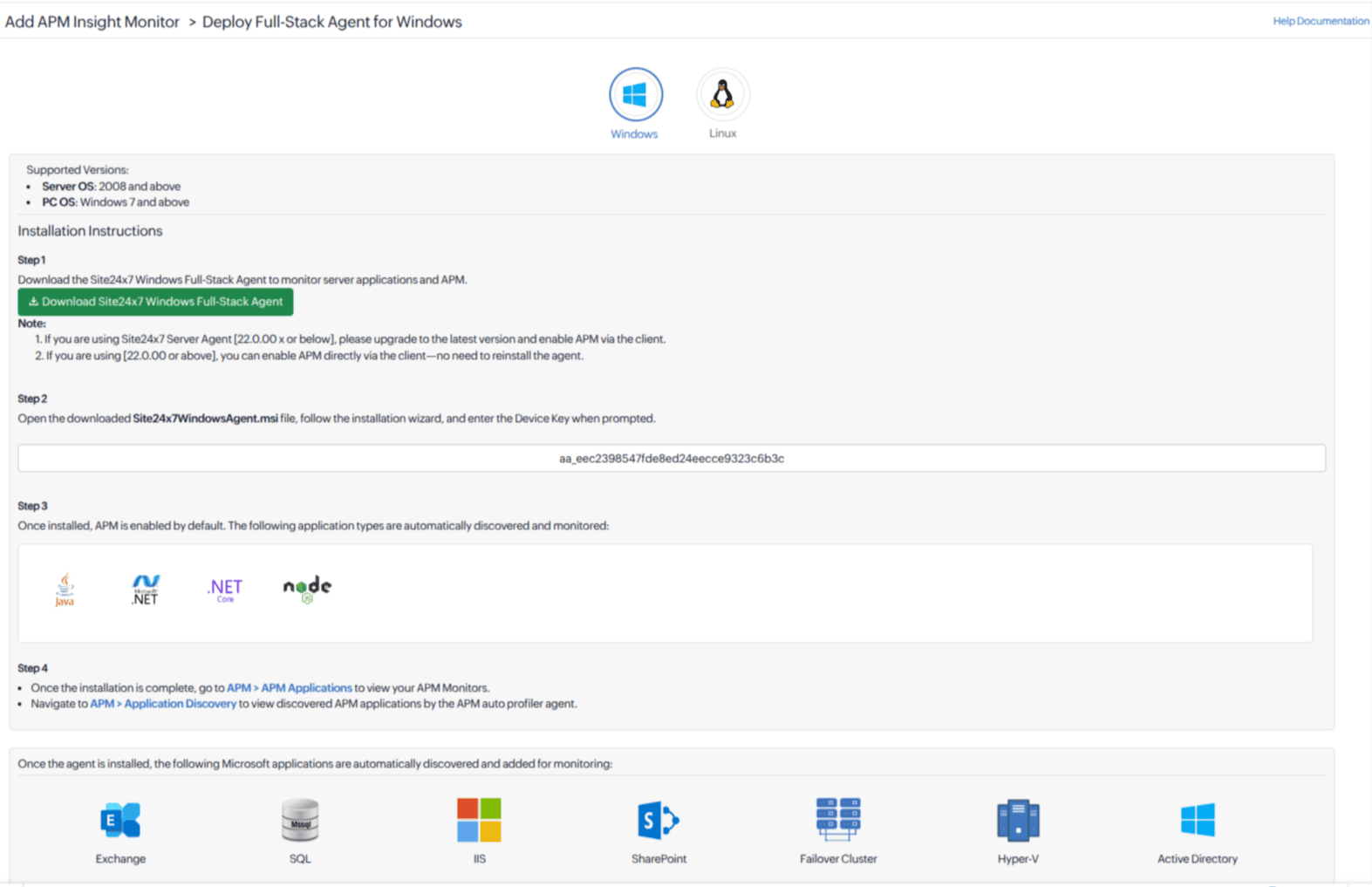
Figure 2. Windows installation wizard
How APM Insight AutoProfiler works in Windows
After the installation finishes, the APM Insight AutoProfiler will verify the system’s architecture and libraries. Once these checks are completed, the details are shared with Site24x7, which then returns the license key to authorize the agent installation. The APM agents are downloaded and authorized. The logs are stored in C:\ProgramData\Site24x7 APM Auto Profiler\logs folder.
Now the AutoProfiler will detect your applications running on the host and report them to the Site24x7 server. Those applications will be added in the Site24x7 console. Restart your application process to initiate communication between the agent and the Site24x7 client. After that, you can perform transactions to view the APM monitoring data in the Site24x7 console.
Linux
To automatically monitor your application’s performance in Linux, execute the command provided in the installation steps.
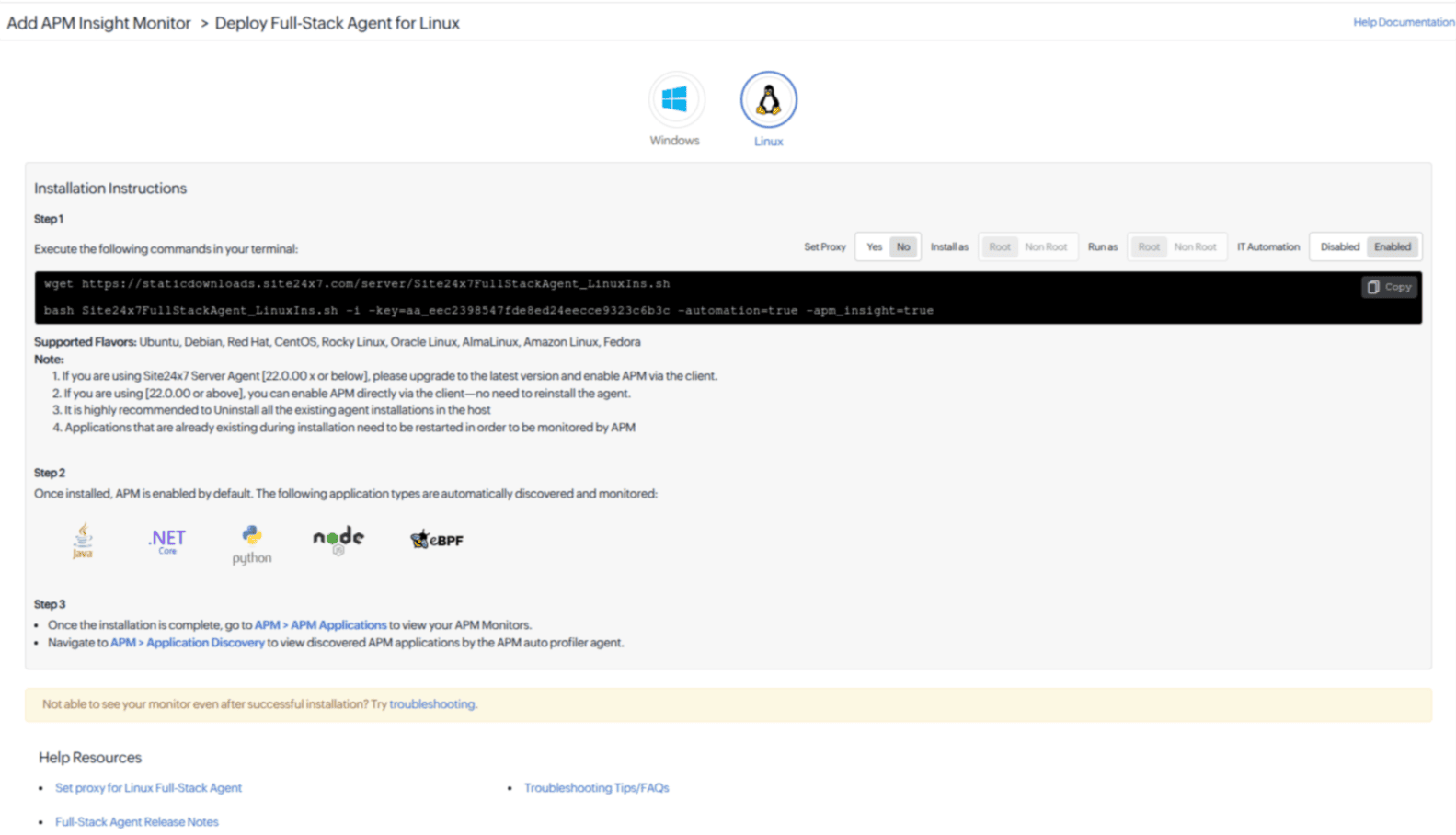
Figure 1. Linux installation screen.
How APM Insight AutoProfiler works in Linux
When the Site24x7 Full-Stack Agent is installed with APM Insight enabled, the APM Insight AutoProfiler is installed and runs as a service, provided the host machine architecture and libc implementation, are compatible with the APM Insight agents it supports.
The site24x7apmautoprofiler.service registers the AutoProfiler instance. The service will download the APM Insight agents and install them in the APM Insight root directory, making them ready to be attached to application processes. The Application Discovery will identify the web application process running in your host machine. Whenever a new application process is identified, the preloader checks whether the particular process is supported by Site24x7 APM Insight and evaluates it against the configured APM Process Monitoring Rules.
When a matching rule is found, the AutoProfiler attaches the appropriate monitoring agent based on the selected agent type:
- eBPF-APM: This option uses an eBPF-based APM agent to attach kernel-level eBPF programs that observe system calls, network activity, and process behavior in real time. It allows metrics to be collected with no impact on application performance, without any code changes or restarts. This is supported only on Linux.
- Traditional Monitoring Agent: This option hooks into the application process to collect detailed performance metrics, including transactions, traces, and method-level insights.
In Linux, logs are stored in /opt/site24x7/apminsight folder.
Key points to note
- You can use APM Process Monitoring Rules to monitor applications using default rules for common apps or by creating custom rules as needed.
- The AutoProfiler automatically attaches APM agents to processes that start after the AutoProfiler is installed. Any applications processes that are already running must be restarted for the rules to take effect and for the appropriate APM agents to be added.
- For Windows systems, you can apply or update monitoring rules for Java applications without restarting the application process. For .NET and .NET Core applications, you should either recycle the application pool or perform iisreset command as administrator. For Node.js applications, restart the application by starting it again from a fresh terminal session.
- You can check the supported operating systems and agents for the AutoProfiler here.
- It is strongly recommended that you uninstall and remove all existing agent installations before installing the FSO agent with APM Insight enabled.
- Agents added through AutoProfiler will create new APM monitors if the same processes are already being monitored using individual agents.
How to enable APM Insight AutoProfiler if it is not selected during installation
There are two scenarios in which you may need to install the APM Insight AutoProfiler from the Site24x7 console:
- The Full-Stack Agent is already installed, but APM Insight is disabled.
- Infrastructure Monitoring was selected during the AutoProfiler installation on Windows.
If you want to enable APM Insight after either of these scenarios, you can do so using the Bulk Action option in the Site24x7 console. Follow the steps below to proceed.
- Navigate to Admin > Inventory > Bulk Action.
- Select Full-Stack Agent Actions from the Bulk Actions list.
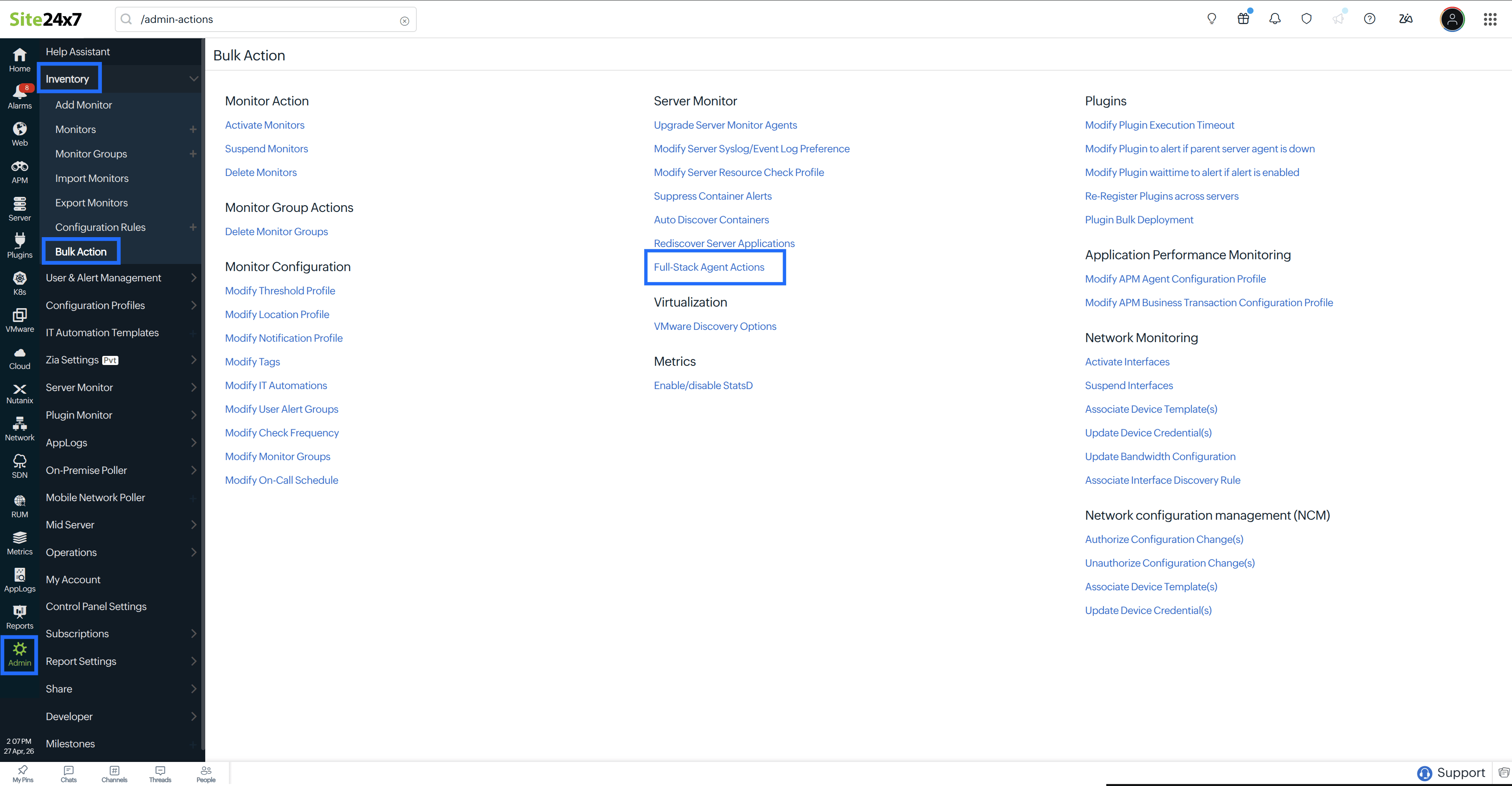
Figure 3. Full-Stack Agent option on Bulk Action list.
- Use the available filter options to narrow down the list of monitors for which you want to enable the APM Insight.
- Click Filter Monitors to proceed.
- Choose Install from the Action dropdown.
- Select the monitors for which you want to enable the APM Insight monitoring and click Execute. The APM Insight AutoProfiler will be installed for the selected monitors.
- Restart the application process. Allow user traffic to flow through your application to view the APM monitors in the Site24x7 console.
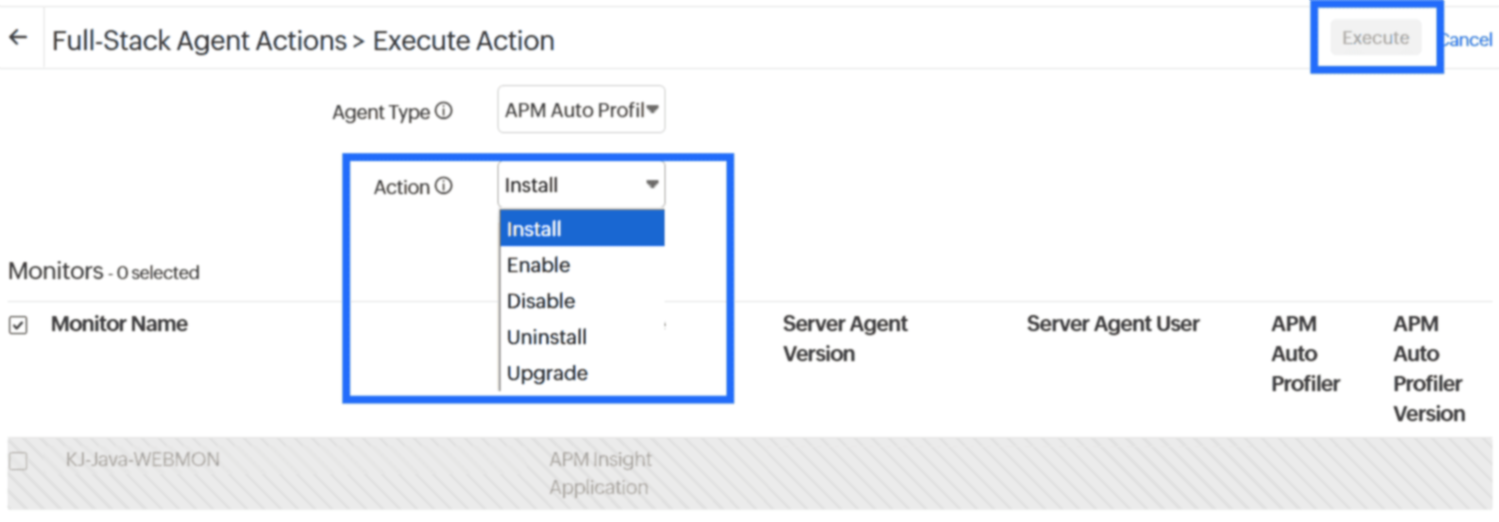
Figure 4. Actions list on Execute Action screen.
You can use this Bulk Action workflow to Install, Enable, Disable, Uninstall, or Upgrade APM Insight as needed.