
Zia Agents
Zia is Zoho’s advanced AI assistant. In Site24x7, Zia enhances incident management with agents, solutions, and automation recommendations. Zia Agents analyze alerts, correlate operational data, and automate diagnostics to help teams identify issues faster.
- Zia Solutions complement this by providing organization-specific runbooks and troubleshooting instructions tailored to your operational workflows.
- Building on these capabilities, Zia Recommendations automatically generate IT Automation templates and commands based on the instructions configured in your Solutions.
The following agents are available in Zoho's Zia Agent store.
- Autonomous IT Automation agent: To automatically detect operational issues and execute predefined remediation actions without manual intervention. For example, it restarts a failed application service and clears temporary files when server memory usage exceeds a critical threshold.
- Root Cause Analysis agent: To analyze related alerts, metrics, and dependencies to identify the underlying cause of an incident. For example, it correlates database latency, application slowdown, and storage I/O spikes to identify a disk bottleneck as the root cause of an outage.
Zia Agents
Zia Agents in Site24x7 enables intelligent, workflow-driven operations by combining AI insights with automated execution. These agents act on monitoring data using predefined or custom instructions, helping teams respond faster and more consistently to operational scenarios.
Use cases
- During a production incident, an engineer struggles with the correct log query syntax. They invoke a Zia Agent configured with validated query files. The agent instantly suggests the right query pattern based on the monitor context, helping the engineer isolate the issue faster without manual documentation search.
- While configuring a monitor, a user is unsure which metrics to prioritize for alerting. They employ a Zia Agent linked to a solution containing metric documentation and best practices. The agent recommends relevant metrics and threshold guidance, reducing guesswork and misconfiguration.
- A recurring alert requires a fixed troubleshooting sequence. Instead of manually repeating steps, the engineer invokes a Zia Agent configured with logs, events, metrics, and automation tasks. The agent guides the user through structured checks and suggests remediation actions, ensuring consistent resolution.
- For frequent disk space congestion alerts, you can configure a Solution with instructions to delete temporary .log and .tmp files and restart the affected service. Based on these instructions, Zia Recommendations can generate an IT Automation script or command to remediate the incident automatically.
Agent types
The different types of Zia Agents and their scope are given below:
System-defined agents
- Preconfigured by Site24x7
- Use built-in intelligence and predefined instructions
- Commonly applied in areas like APM, where agents analyze traces, queries, and performance patterns
- Provide probable root causes and recommended next steps
User-defined agents
- Created and configured by users
- Driven by runbooks and user-defined logic
- Can be mapped to specific incidents or conditions
- Allow users to decide which IT automation or action should run for a given scenario
How Zia Agents work
The following points help describe the function of Zia Agents:
- Zia Agents can be configured by admins as either system-defined or user-defined agents with specific modules, monitor types, and tasks.
- They are linked to a Zia Solution that includes uploaded files, knowledge sources, validated queries, and custom instructions.
- Users invoke them when they need contextual assistance within a selected module or monitor type.
- Zia Agents analyze available data sources such as logs, events, metrics, traces, inventory, and automation templates based on configured tasks.
- They respond with guided insights or actions, helping users troubleshoot issues, retrieve relevant information, or follow structured remediation steps.
How to configure a Zia Agent
Prerequisite: Add the Zia integration to your account to enable the Zia Agents and solutions.
To configure a Zia Agent, follow the steps below:
- Log in to Site24x7.
- Navigate to Admin > Zia Settings > Zia Agent > Add Zia Agent.
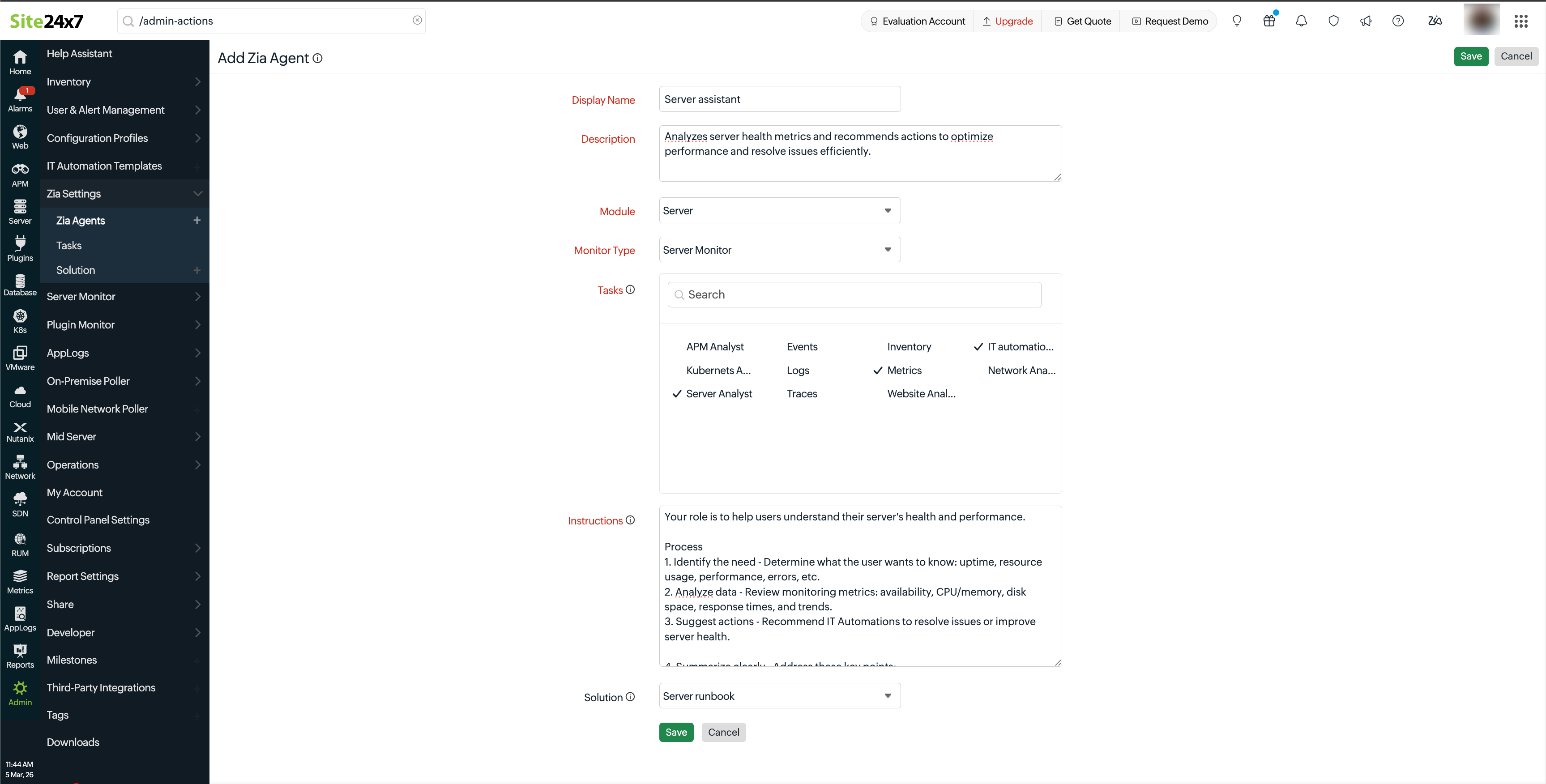
- In the Add Zia Agent form, fill out the following details:
- Display Name: Enter a valid name for the agent.
- Description: Enter a clear description explaining the purpose and scope of the agent.
- Module: Select the monitor module for which the agent is to be created. For example, website monitors are grouped under Internet Service Monitors.
- Monitor Type: Select the desired monitor type. If Module is set as Common, you can select features like Alarms and Reports.
- Tasks: Select the required tasks to enable actions such as summarizing, analyzing, or extracting insights from observability data and other configured sources.
- Instructions: Define the sequence of steps that the agent must follow to achieve its objective.
- Solution: Select the desired solution the current agent should use.
- Click Save.
Zia Agents is available only for enterprise customers.
Zia Solutions
Zia Solutions is a feature that allows users to upload structured runbooks and troubleshooting documents that can be referenced by the Zia Agent during incident analysis and remediation workflows. These uploaded documents act as contextual guidance, enabling Zia to align its automated diagnostics and recommendations with your organization’s predefined operational procedures.
Zia Solutions offers insights to Zia Agents solely based on internal best practices, escalation paths, validation steps, and remediation standards.
How to configure a Zia Solution
To configure a Zia Solution, follow the steps below:
- Log in to Site24x7.
- Navigate to Admin > Zia Settings > Zia Solution > Add Solution.
- In the Add Solution form, fill out the following details:
- Solution: Provide a title for the solution.
- Description: Enter a clear description explaining the purpose and scope of the solution.
- Upload Files: Click Choose File to upload runbook files that can serve as solutions for failure scenarios. You can add a maximum of 10 files for a solution. Note: The uploaded files act as reference material for troubleshooting. Only text files with a size limit of up to 1MB per file are supported. Once uploaded, the files cannot be edited or revisited.
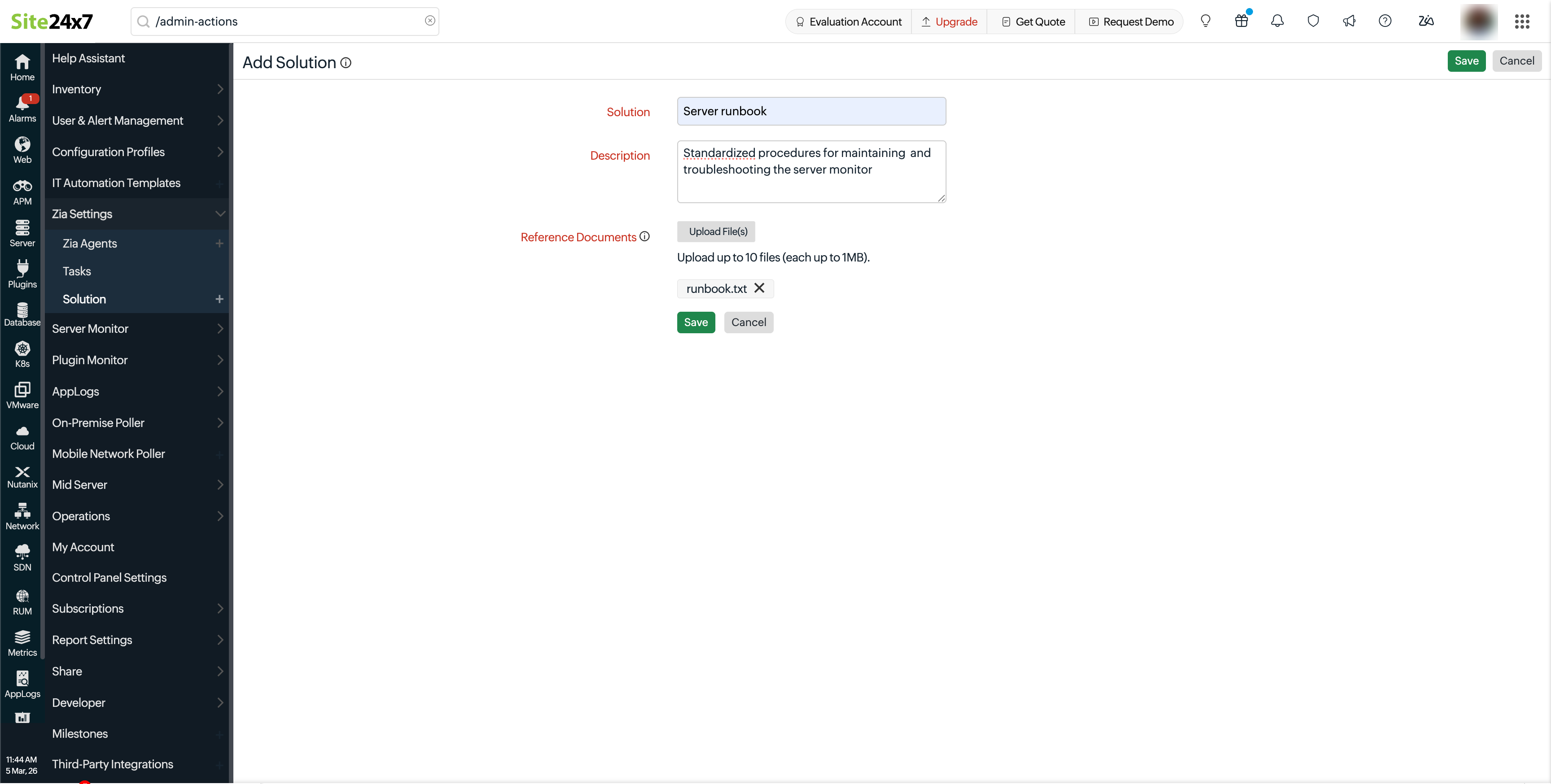
- Click Save.
Zia Recommendations
When a Solution is updated, Zia analyzes its instructions and generates IT Automation recommendations wherever applicable.
Follow these steps to understand how Zia Recommendations function:
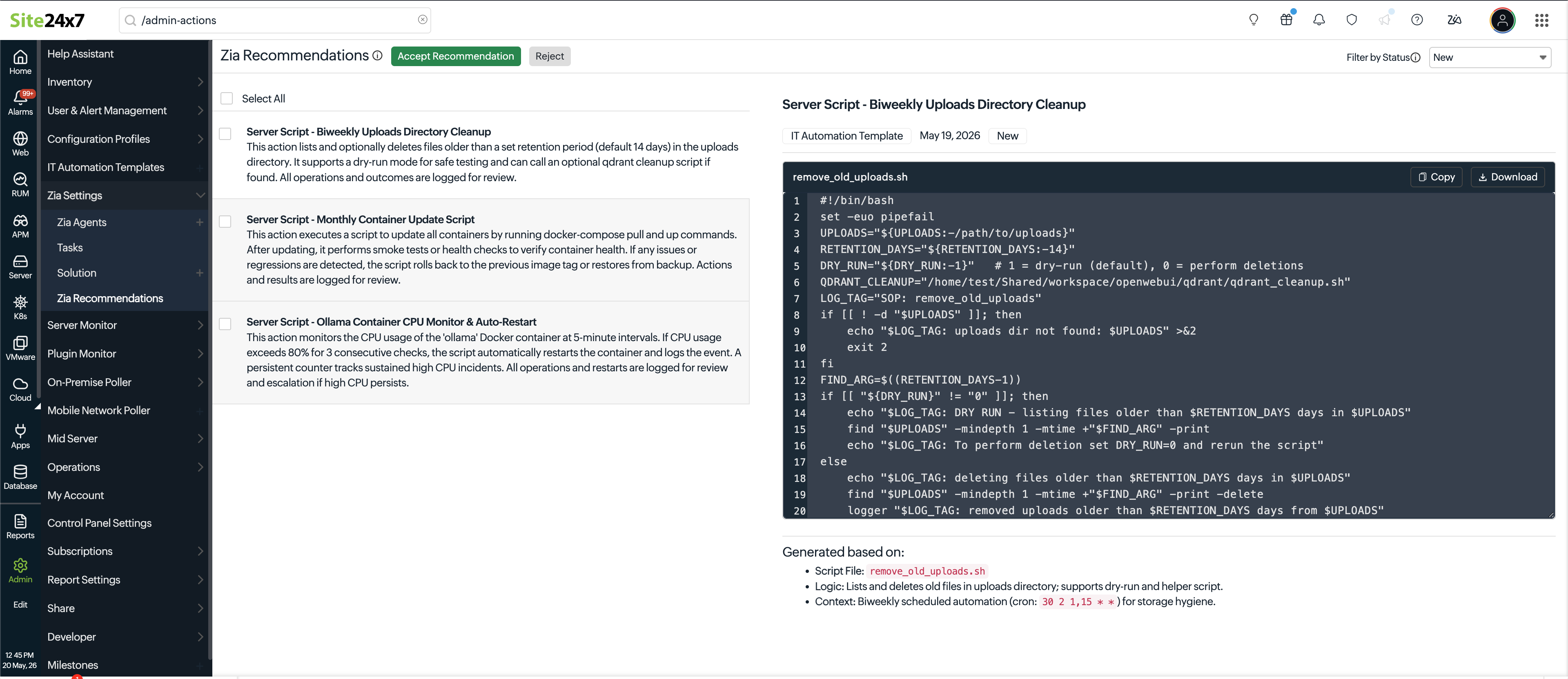
- Navigate to Admin > Zia Settings > Zia Recommendations.
- Click on the recommendation to drill down into the generated script.
- The Generated based on section reveals why the script is generated in a specific way based on the instructions given in the solution.
- Review the recommendation and click Accept or Reject.
- When a recommendation is accepted, a prefilled Add IT Automation Template form appears.
- Make necessary modifications, select the monitors or monitor group for which you want to apply the current recommendation and click Save.
- To modify the generated script or command, update the corresponding Solution and regenerate the recommendation, as recommendations cannot be edited directly.
- To bulk review existing recommendations, use the Filter by drop-down menu, and review the newly generated, previously accepted or dismissed recommendations.
- For solutions that do not provide instructions suitable to be solved using IT Automations script or command, no recommendations are generated.
- You cannot bulk accept multiple recommendations.
- Use the Filter by drop-down menu and select Rejected to view the previously generated recommendations that were dismissed.
- The rejected recommendations will be auto-cleared after one week.