Mattermost integration
Mattermost is an open-source collaboration platform for team messaging, file sharing, and workflow automation. Teams use its channels to coordinate work and respond to incidents in real time.
Site24x7 forwards monitor alerts to a Mattermost channel through an incoming webhook, so your team sees outages and status changes where it already collaborates. You choose which monitors, tags, or monitor groups send alerts, and which status changes trigger them.
Key capabilities of the integration
Below are the key capabilites of this integration:
- Forward alerts for monitors, tags, monitor groups, or all monitors to a Mattermost channel.
- Customize the alert message title with dynamic variables such as $MONITORNAME and $STATUS using incident parameters and custom parameters in each alert message.
- Send monitor tags along with alerts to give your team context.
- Fall back to an alternate notification mode and target specific user alert groups.
Prerequisites for the Mattermost integration
Before you connect Site24x7 with Mattermost:
- You need a valid and active account in Mattermost.
- You need to generate a Hook URL by creating an incoming webhook in the Mattermost channel that receives the alerts.
Configuring the Mattermost side of the integration
Create an incoming webhook in Mattermost. The webhook gives you the Hook URL that Site24x7 uses to send alerts to your channel.
- Log in to your Mattermost account.
- In the top-left corner of the page, click the product menu icon and select Integrations.
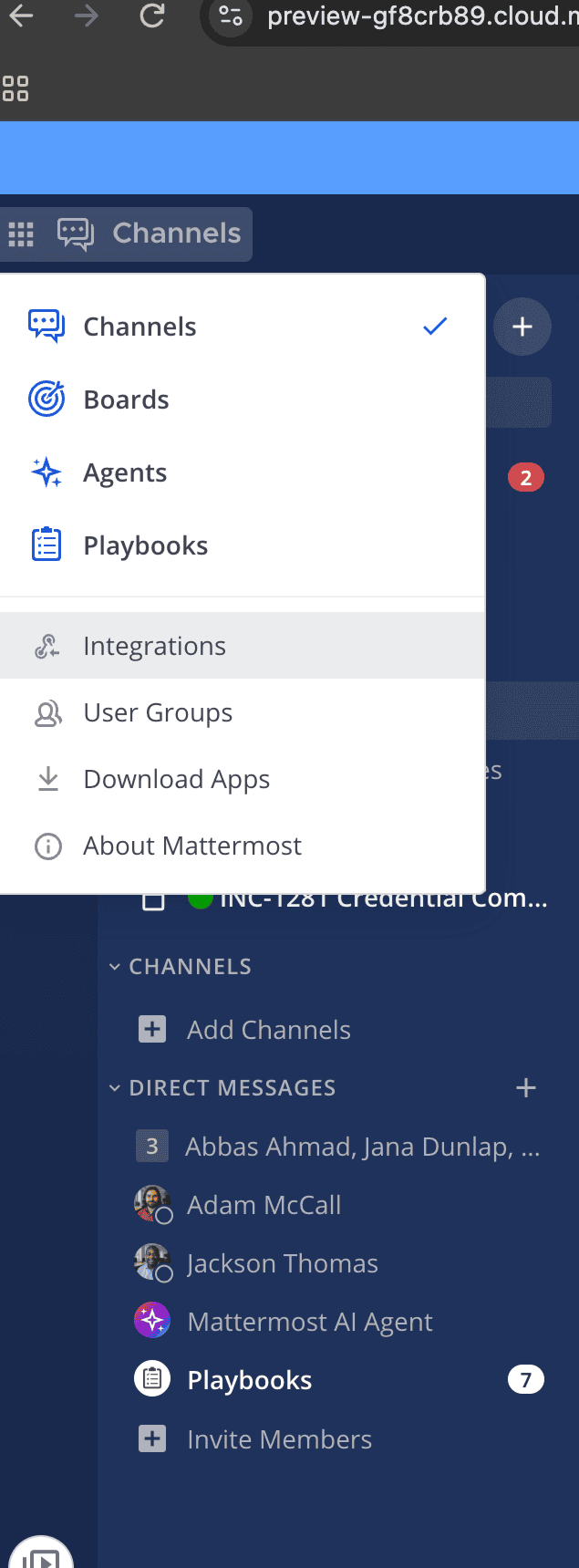
- On the Integrations page, select Incoming Webhooks.
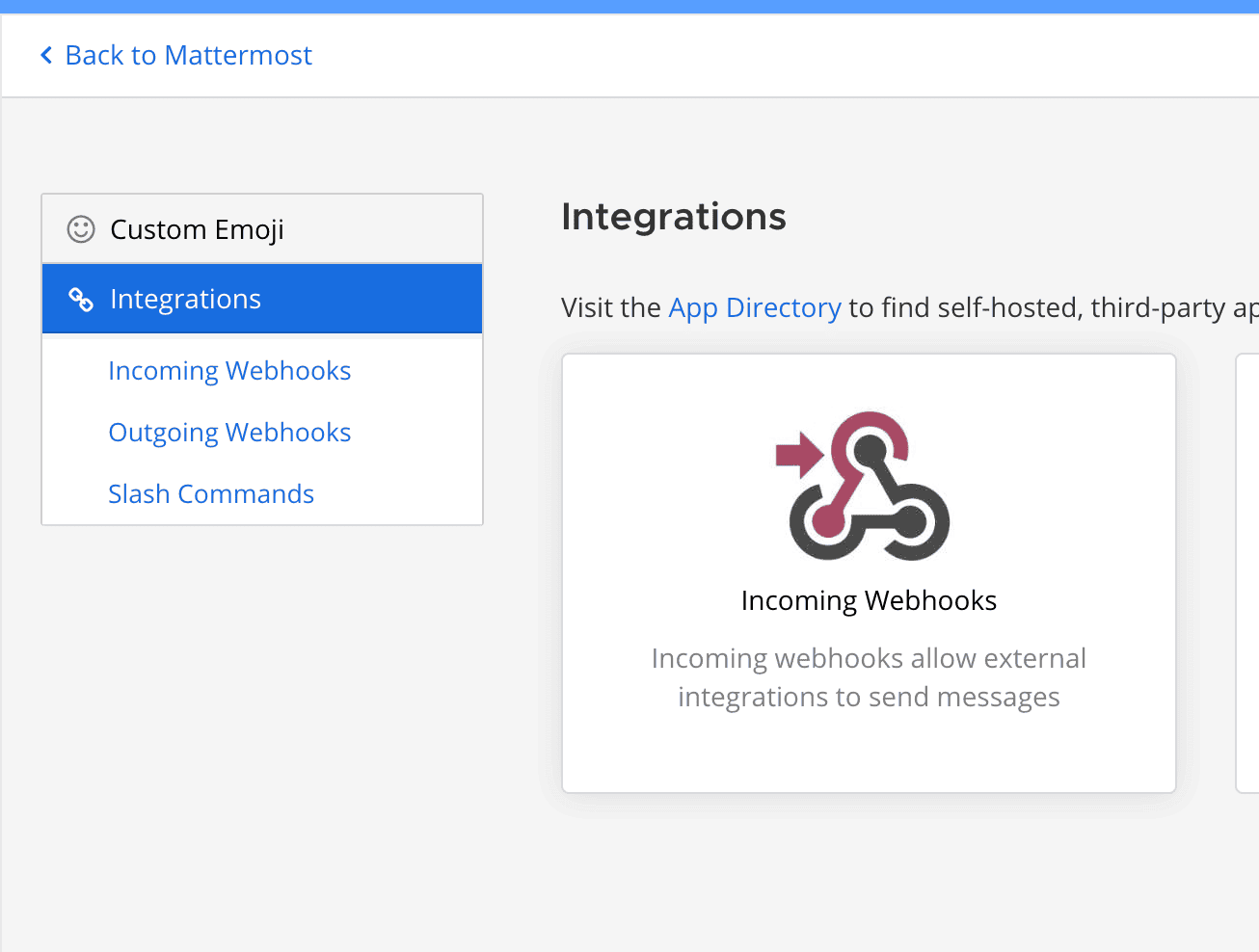
- On the Incoming Webhooks page, click Add Incoming Webhook.
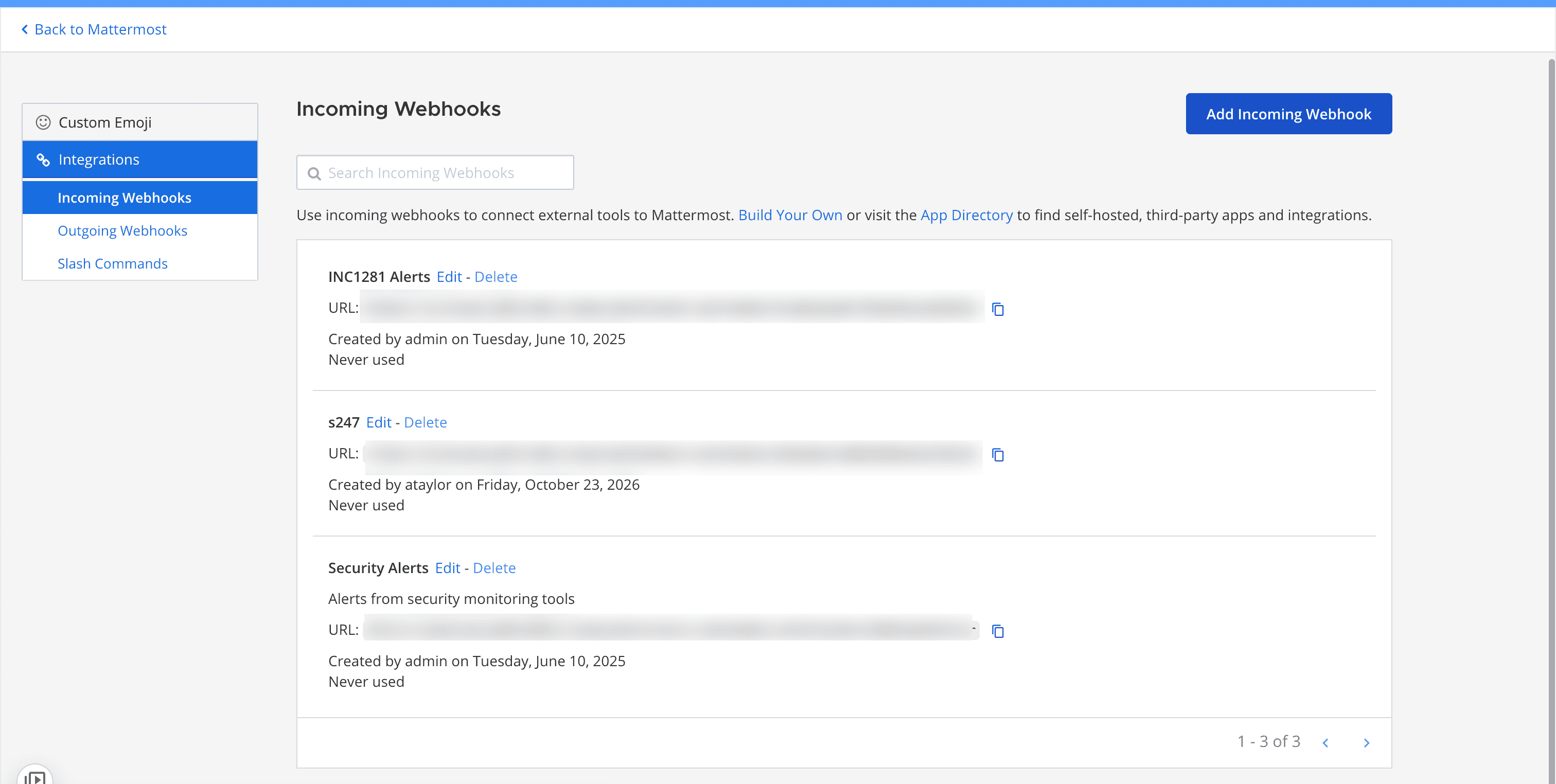
- Enter a title, and select the channel that receives the alerts.
- Save the webhook.
Copy the webhook URL shown for the new entry. This is the Hook URL that you provide in Site24x7. The URL follows this format:
https://<your-mattermost-domain>/hooks/<webhook-id>
If you can't see Incoming Webhooks in Mattermost, ask your system admin to set the Enable Incoming Webhooks field to True in the Integration Management section under System Console > Integrations.
Treat the webhook URL as a secret, because anyone who has it can post messages to your channel.
Configuring the Site24x7 side of the integration
- Log in to Site24x7.
- Navigate to Admin > Third-Party Integrations > Mattermost.
- Provide the following details in the Mattermost integration form:
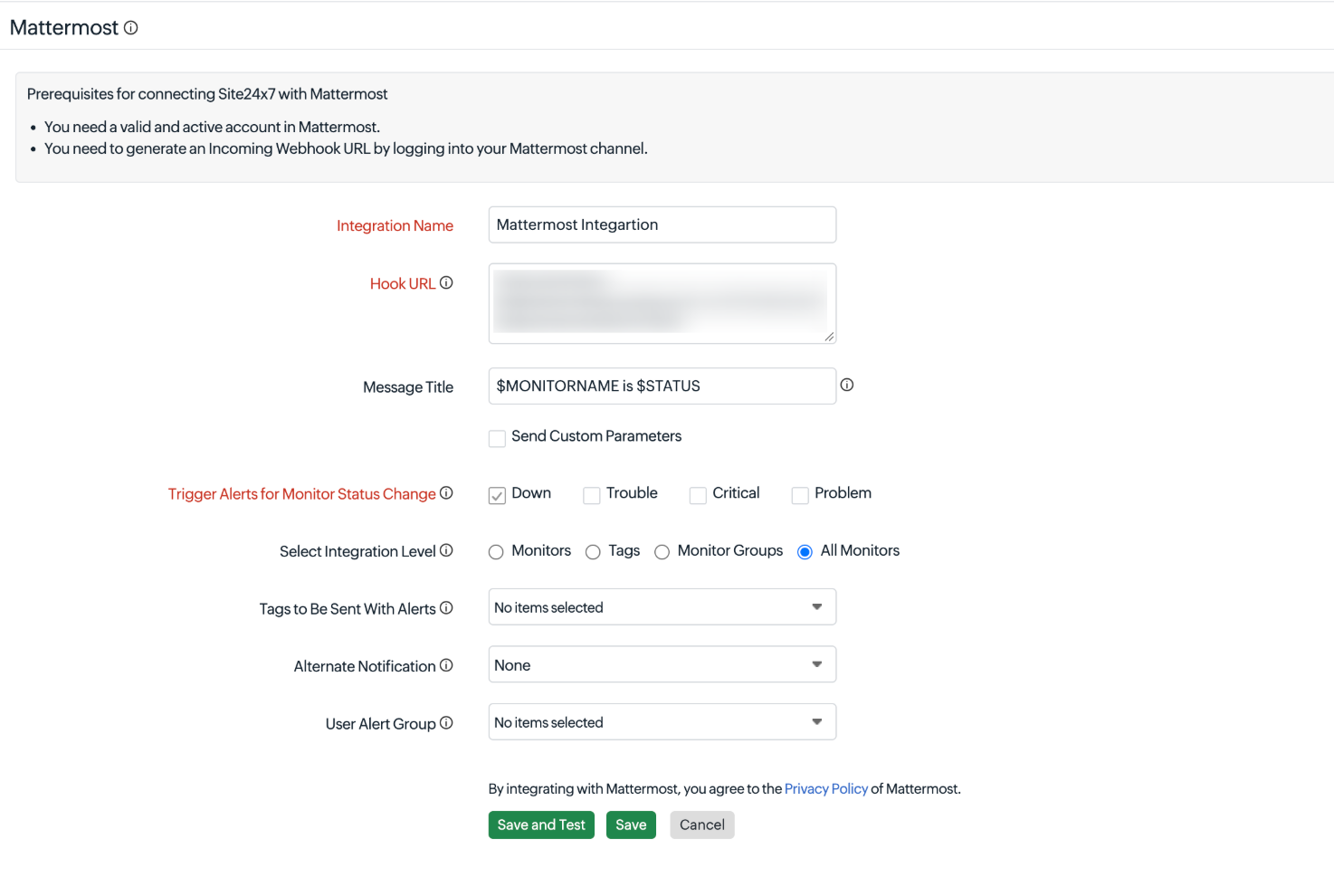
- Integration Name: Enter a name for the integration.
- Sender Name: Specify the name that appears as the sender of the alert messages.
- Webhook URL: Paste the webhook URL that you copied from Mattermost. This field is mandatory. Site24x7 sends alert data to this URL.
- Message Title: Specify the title of the alert message.
Use dynamic variables to include monitor-specific details, such as $MONITORNAME and $STATUS. - Send Custom Parameters: Select this option to include additional parameters that you define in the alert message.Learn more about incident and custom parameters.
-
- Select Integration Level: Select the scope of the integration:
- Monitors: Send alerts only for the monitors that you select.
- Tags: Send alerts for all monitors associated with the tags that you select.
- Monitor Groups: Send alerts for all monitors in the monitor groups that you select.
- All Monitors: Send alerts for every monitor in your account. This option is selected by default.
- Tags to Be Sent With Alerts: Select the tag keys associated with the monitor that need to be sent with the alert. When an alert is triggered, tags that match with the monitor will be included in the alert notifications. If no tags are selected, all the tags associated with the monitor will be present in the alert notifications.
- Trigger Alerts for Monitor Status Change: Select the statuses that trigger an alert: Down, Trouble, Critical, or Problem. This field is mandatory, and Down is selected by default.
- Alternate Notification: Select the notification mode from the drop-down menu to use if Site24x7 cannot deliver alerts to Mattermost. If the primary notification medium encounters an issue, the selected alternative medium is activated to ensure alerts are not missed.
- Configure User Alert Group for Notification Failures: Choose who should be notified if this integration fails. Select one or more user alert groups so Site24x7 can automatically notify the appropriate team whenever an integration failure occurs. This enables faster troubleshooting and helps prevent failures from going unnoticed.
- Select Integration Level: Select the scope of the integration:
- Click the Save and Test button to save the integration and to receive a test alert. Or, you can click the Save button to finish the integration.
When you update an integration configuration and click Save or Save and Test, Site24x7 displays a review page that highlights the modified fields. You can click View Diff to compare the updated configuration with the existing configuration and verify the changes before proceeding.
Once the set up process is completed, the Mattermost integration will be listed in the Third-Party Integration dashboard. You can set up multiple such Mattermost integrations in your Site24x7 account.
Suspend, activate, or delete the Mattermost integration
Suspend the integration
- Go to Admin > Third-Party Integrations.
- Click the hamburger icon
 next to the Mattermost integration listed in the dashboard page.
- Select Suspend.
Site24x7 stops sending alerts to your Mattermost channel.
Activate the integration
- Go to Admin > Third-Party Integration s.
- Click the hamburger icon next to the Mattermost integration.
- Select Activate.
Site24x7 resumes sending alerts to your Mattermost channel.
Delete the integration
- Go to Admin > Third-Party Integrations.
- Click the hamburger icon next to the Mattermost integration.
- Select Delete.
Site24x7 removes the integration and stops sending alerts to Mattermost. This action can't be undone.
Receive alerts and RCA in your Mattermost channel
Once the integration is completed, you'll start receiving Site24x7 incident messages and RCA permalinks in your specified Matermost channel.