ITOC360 integration
ITOC360 is an alert and incident management platform that brings alerts from your monitoring sources into one place, so teams can track incidents and escalations faster. The ITOC360 integration forwards alerts to ITOC360, so your team can view and manage them from their Alerts page. You choose which status changes trigger alerts and which monitors, tags, or monitor groups the integration covers.
Key capabilities of the integration
Below are the important capabilities of this integration:
- Forward Site24x7 alerts to ITOC360 as they trigger.
- Trigger alerts for Down, Trouble, and Critical, and Problem status changes.
- Scope the integration to specific monitors, tags, or monitor groups, or apply it to all monitors.
- Store the ITOC360 token in a credential profile and reuse it across integrations.
- Validate the connection with a test alert.
Prerequisites for the ITOC360 integration
Before you begin, make sure you have the following:
- A valid and active ITOC360 account.
- A Site24x7 source created in ITOC360. Copy the token generated for the source, as you need to paste it in the API Access Token field under Credential Profile.
Configuring the ITOC360 side of the integration
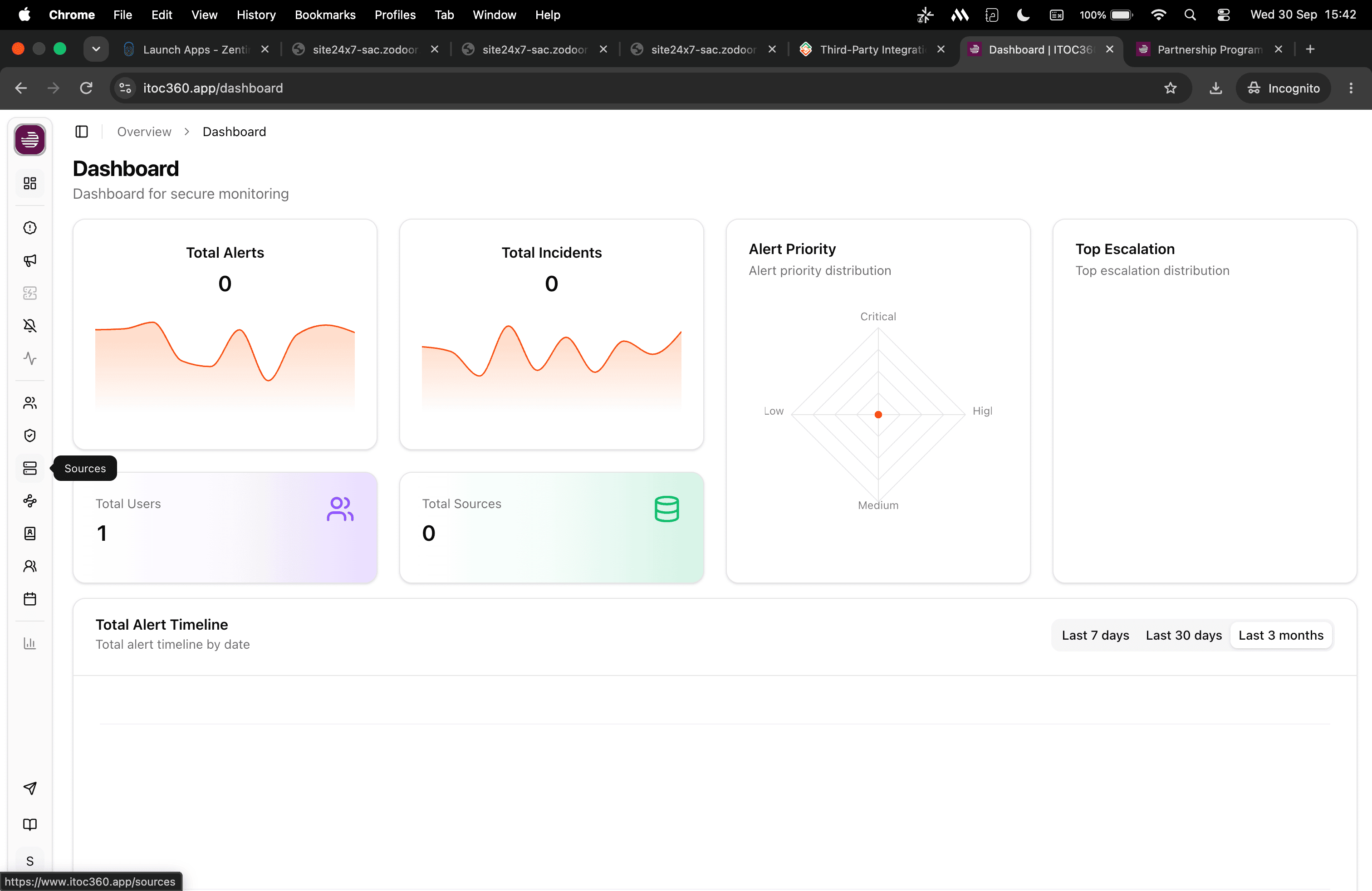
- Log in to your ITOC360 account.
- In the left pane, click the Sources
 icon.
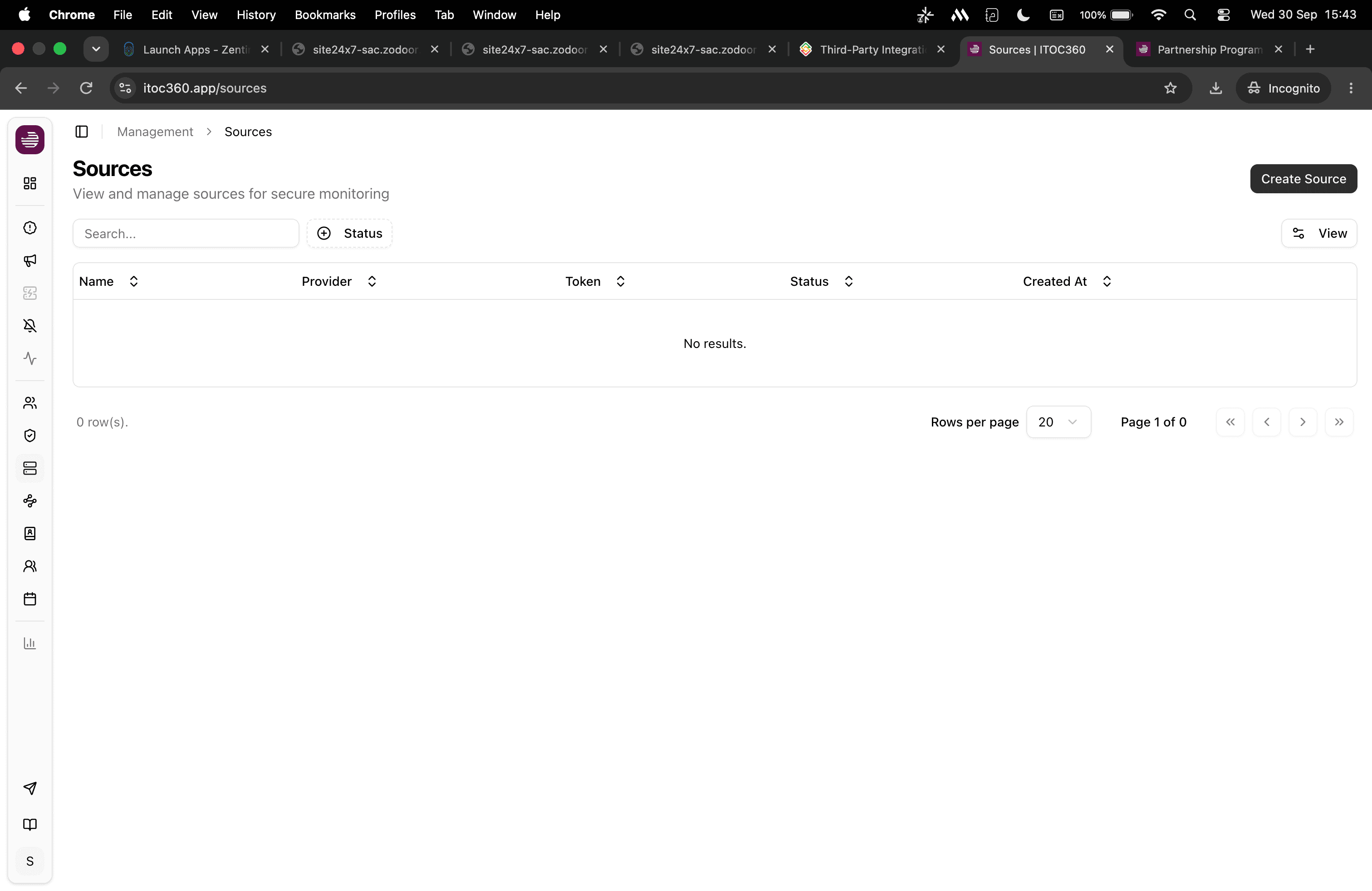
- Click Create Source button on the top right of the page.
- Provide the below details in the Create Source page:
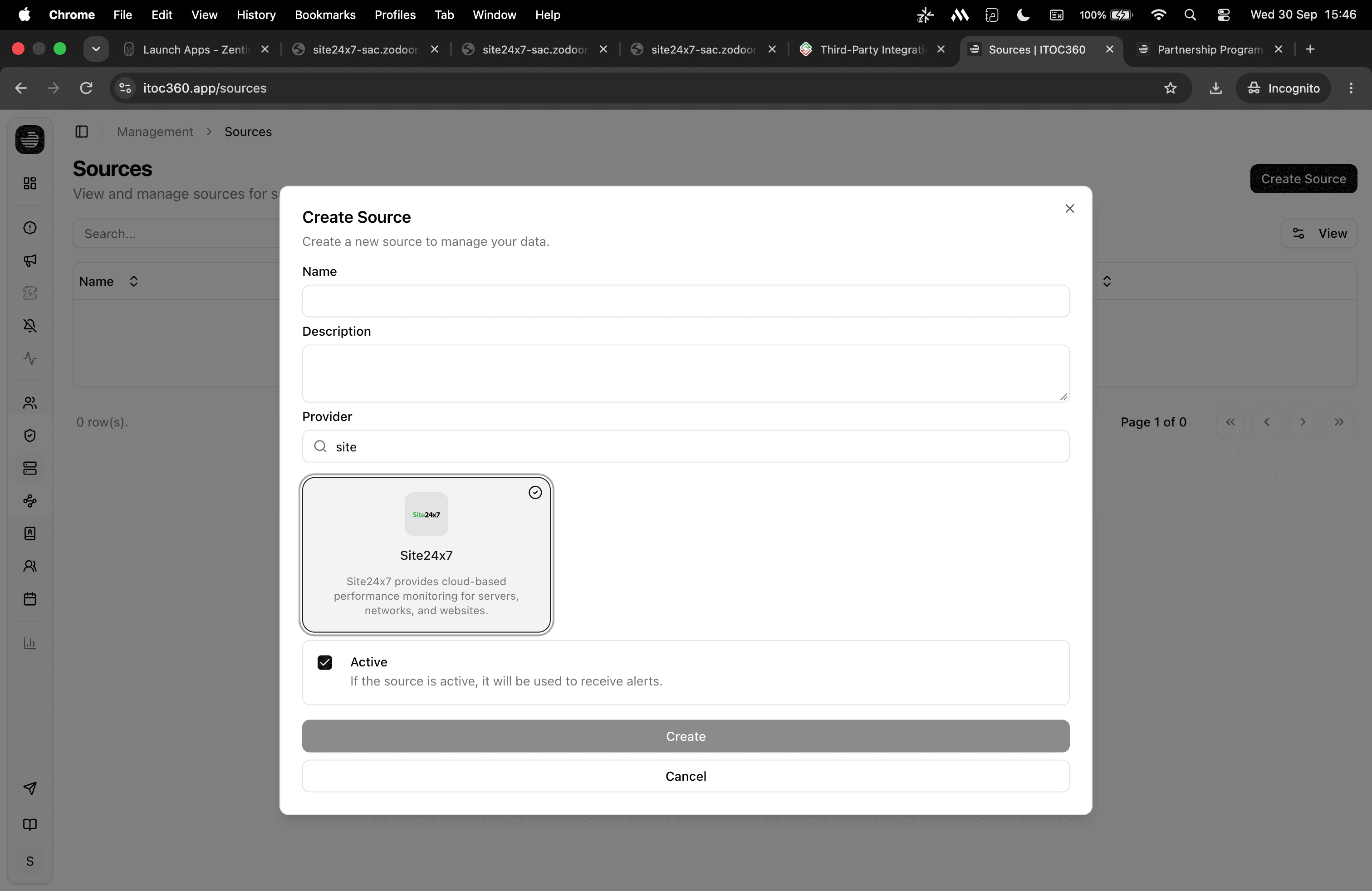
- Name: Enter a name for the source.
- Description : Enter a short description for the source. This field is optional.
- Provider : Search for Site24x7 card and select it.
- Active : Keep this checkbox selected. ITOC360 uses only active sources to receive alerts.
- Click Create to create a new source.
- On the Sources page, you will find the newly created source for Site24x7.
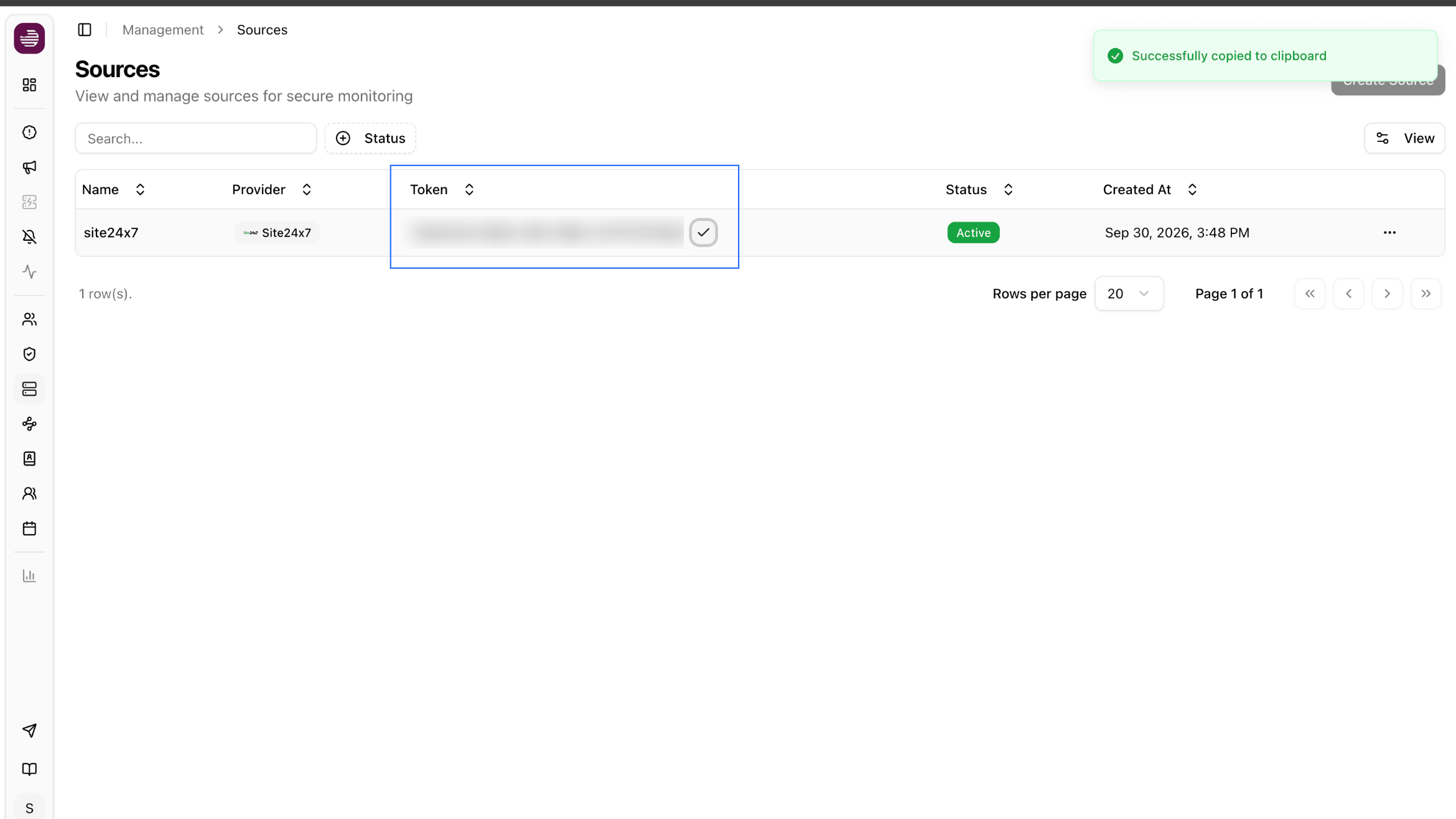
- Click the copy icon next to the token in the Token column. ITOC360 confirms with a Successfully copied to clipboard message. You will need this token while creating a Credential Profile in the Site24x7
Do not share the token with anyone. This token helps to send alerts to your ITOC360 source.
Creating a Credential Profile
- Log in to Site24x7.
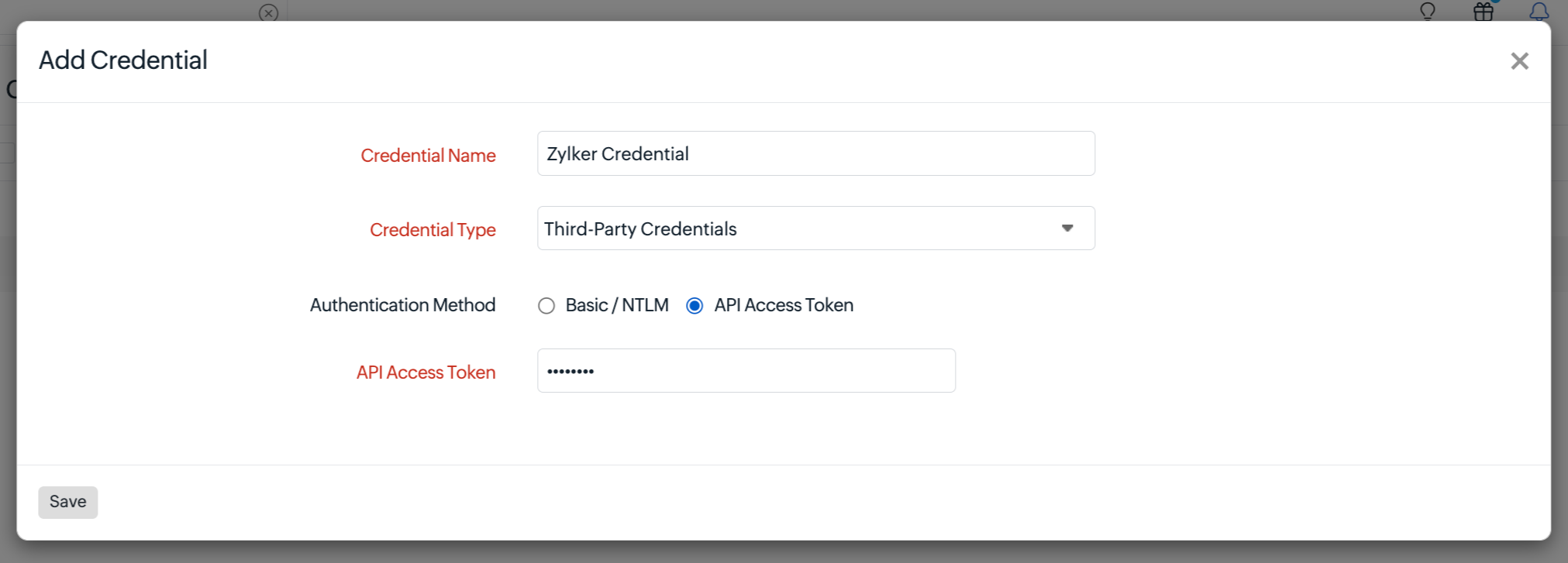
- Navigate to Admin > Configuration Profile > Credential Profile > Add Credential.
- Provide the following in the form:
-
- Credential Name: Enter a name for the credential profile.
- Credential Type: Choose Third-Party Integrations from the drop-down menu.
NoteWhen you click on + button near the Credential Profile in Third-party integrations page, the Third-Party Integrations will be selected by default.
-
- Authentication Method: API Access Token is selected by default.
- API Access Token: Paste the token you copied from ITOC360.
4. Click Save.
This credential profile can be used in Site24x7 integrations. Learn more about Credential Profile.
Configuring the Site24x7 side of the integration
- Log in to Site24x7.
- Navigate to Admin > Third-Party Integrations > ITOC360.
- Provide the following details in the ITOC360 integrations form:
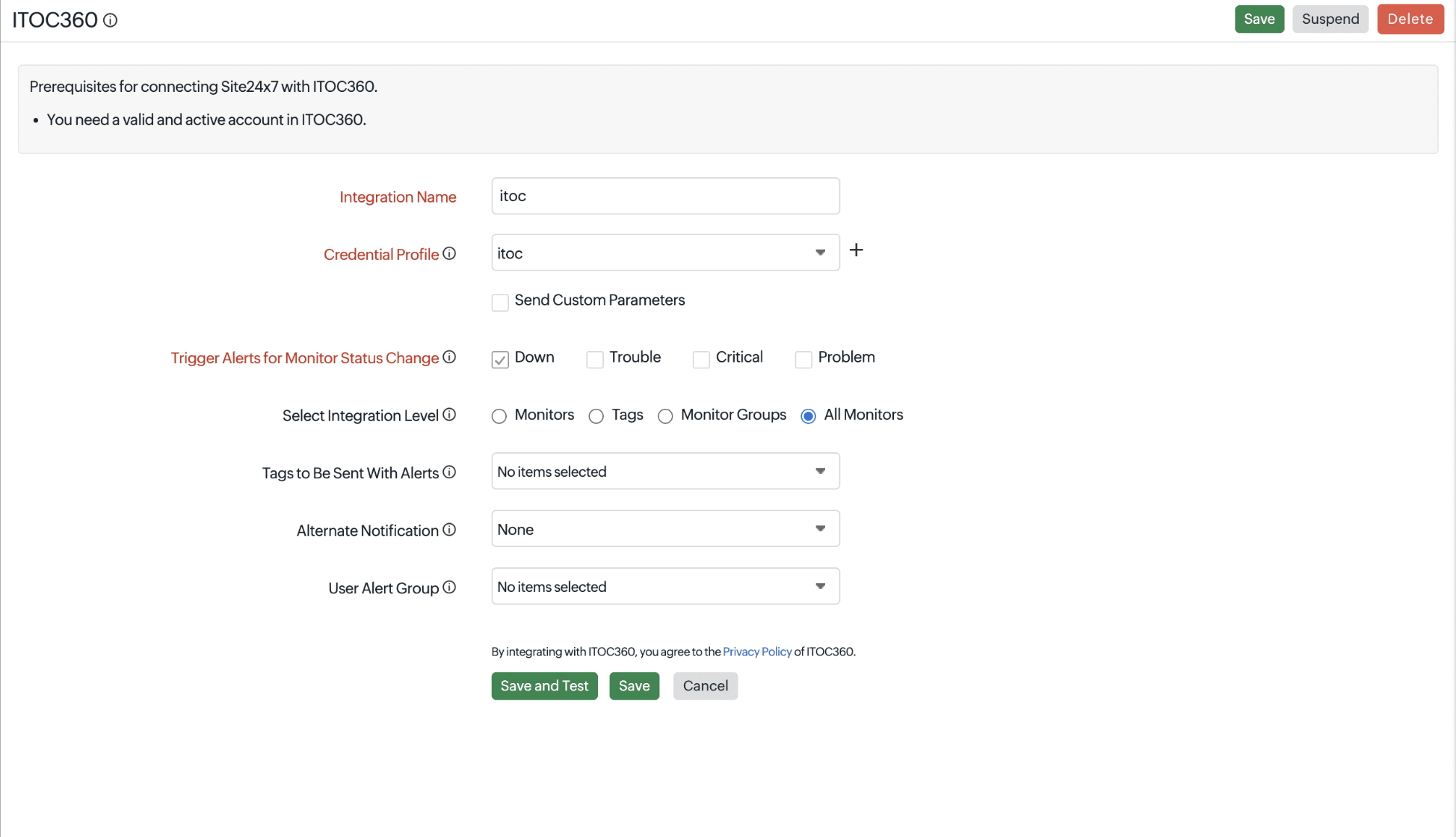
- Integration Name: Enter a name for the integration.
- Credential Profile: Select the profile that holds your ITOC360 token from the drop-down. If you don't have a profile, click the + button next to the drop-down. Learn more about adding a credential profile.
- Send Custom Parameters: Select this option to include custom parameters in the alert data that is sent to ITOC360.
- Trigger Alerts for Monitor Status Change: Select the monitor status changes that should create or update tickets in ITOC360. The available options are Down, Trouble, Critical, and Problem. Select at least one status.
-
- Select Integration Level: Choose the resources for which alerts should be sent to ITOC360. The available options are:
- Monitors: Select specific monitors for which alerts should be sent to ITOC360.
- Tags: Select specific tags to send alerts associated with those tags.
- Monitor Groups: Select specific monitor groups to send alerts from monitors in those groups.
- All Monitors: Send alerts from all monitors in your account to ITOC360.
- Tags to Be Sent With Alerts: Select the tag keys associated with your monitors that should be included with alerts sent to ITOC360. If no tags are selected, all applicable monitor tags will be included with the alert.
- Alternate Notification: Select an alternate notification medium that can use if the primary ITOC360 integration encounters an issue.
- User Alert Group: Select the user alert groups that should be notified if the ITOC360 integration fails. This helps the appropriate team identify and troubleshoot integration failures.
- Select Integration Level: Choose the resources for which alerts should be sent to ITOC360. The available options are:
- Click Save and Test to validate the connection, or click Save to save the configuration.
Testing the ITOC360 integration
After configuring the integration, you can send a test alert to verify the connection between this platform and ITOC360.
- Navigate to Admin > Third-Party Integrations.
- Locate the configured ITOC360 integration.
- Click the Trigger Test Alert icon and verify that the corresponding ticket is created successfully in ITOC360.
If the test fails, verify the if the correct token is used in the integration.
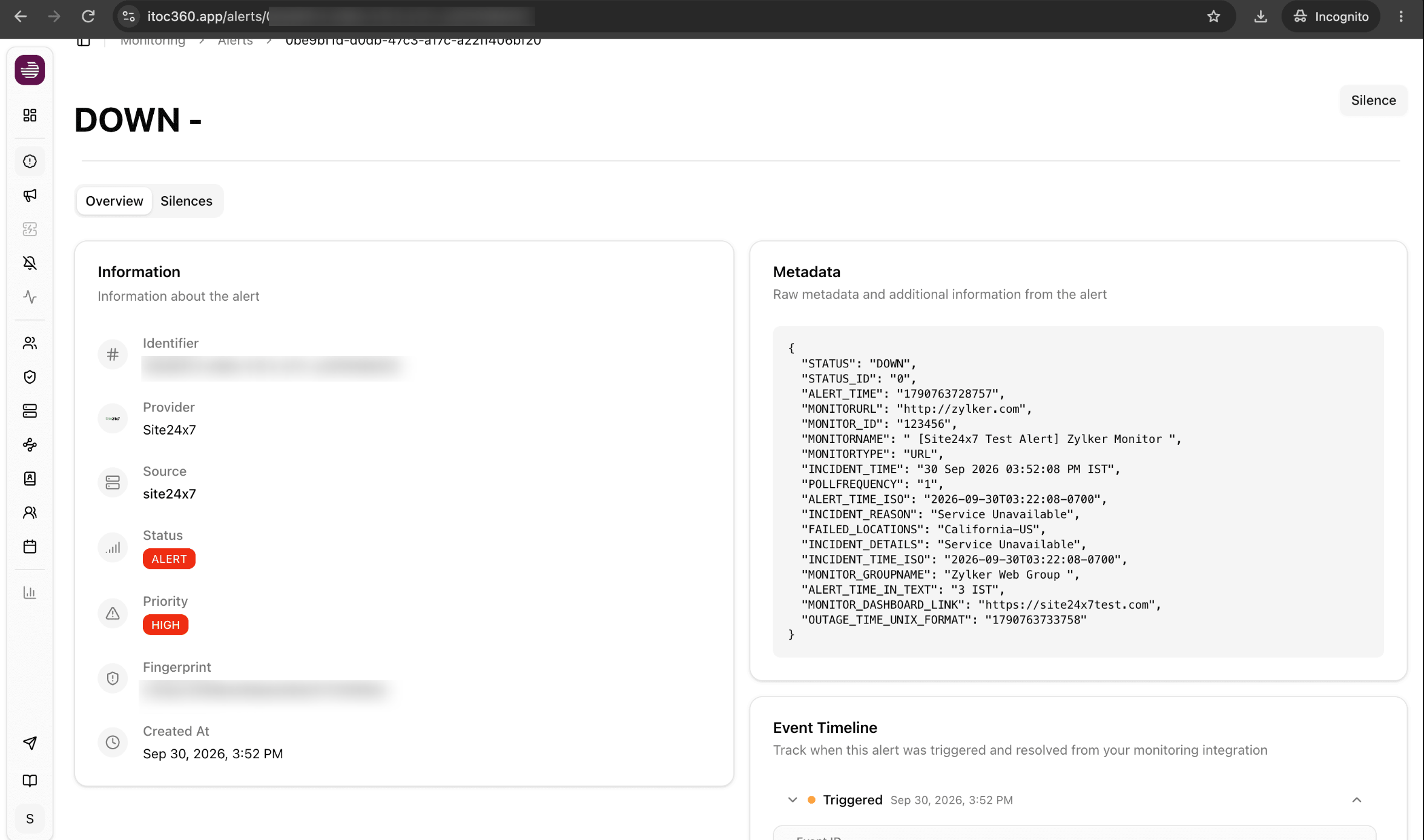
The ticket displays the alert details. Metadata, and Event Timeline from Site24x7
Suspend, activate, or delete the ITOC360 integration
Suspend the integration
- Go to Admin > Third-Party Integrations.
- Click the hamburger
 icon next to the ITOC360 integration.
- Select Suspend.
This stops sending alerts to ITOC360 until you activate the integration again.
Activate the integration
- Go to Admin > Third-Party Integrations.
- Click the hamburger icon next to the ITOC360 integration.
- Select Activate.
This resumes sending alerts to ITOC360.
Delete the integration
- Go to Admin > Third-Party Integrations.
- Click the hamburger icon next to the ITOC360 integration.
- Select Delete.
This removes the integration and stops sending alerts to ITOC360. This action can't be undone.
-
On this page
- Key capabilities of the integration
- Prerequisites for the ITOC360 integration
- Configuring the ITOC360 side of the integration
- Creating a Credential Profile
- Configuring the Site24x7 side of the integration
- Testing the ITOC360 integration
- Suspend, activate, or delete the ITOC360 integration