Adding a DigitalOcean Monitor
Simplify monitoring for your DigitalOcean environment with Site24x7. Automatically discover key services and track resource performance to identify bottlenecks quickly and ensure smooth operations.
Site24x7 leverages token-based or OAuth-based authentication for a secure connection to your DigitalOcean account, allowing for streamlined monitoring data access.
Prerequisites
Have an active DigitalOcean account with a Personal Access Token (PAT) or an OAuth application configured for Site24x7.
Instructions to add a DigitalOcean monitor
-
Log in to Site24x7. Follow any of these paths. Each path leads to the same configuration page where you can set up monitoring for your DigitalOcean monitor:
- Navigate to Admin. In the Cloud Monitoring section, click DigitalOcean. Then click Add Monitor in the Site24x7 console.
- On the left panel, click the DigitalOcean icon
 . Then, click Add DigitalOcean Monitor.
 - On the left navigation panel, go to Home > Monitors (+) > DigitalOcean.
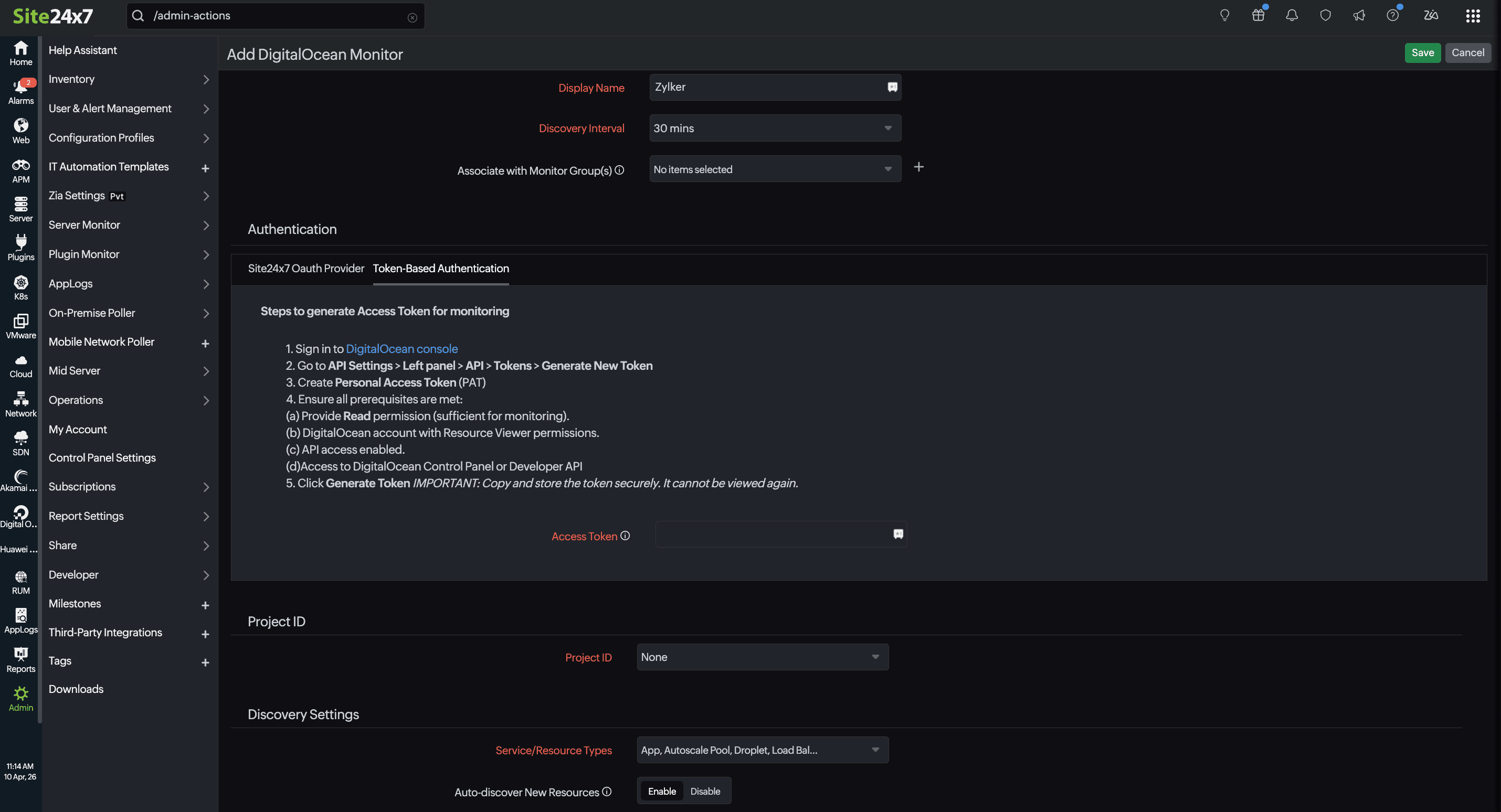
- Enter the Display Name of your monitor.
- Set the Discovery Interval to control how frequently Site24x7 polls for new resources.
- Select or create a Monitor Group to logically organize your resources with the Associate with Monitor Group(s) option.
-
In Authentication:
- If you chose Site24x7 OAuth Provider, provide your Provider name.
- If you chose Token-Based Authentication, provide your Access Token. Generating and authenticating these keys are essential for accessing your DigitalOcean account.
- Select your Project ID. This drop-down will provide your DigitalOcean region-specific resource that needed monitoring.
-
In Discovery Settings:
- Select DigitalOcean in the Service/Resource Types field to monitor. By default, all resource groups and supported service types in your DigitalOcean account will be selected for monitoring.
- Toggle the Auto-add New Resources to Enable to automatically detect new DigitalOcean resources and add them to monitoring without manual configuration.
-
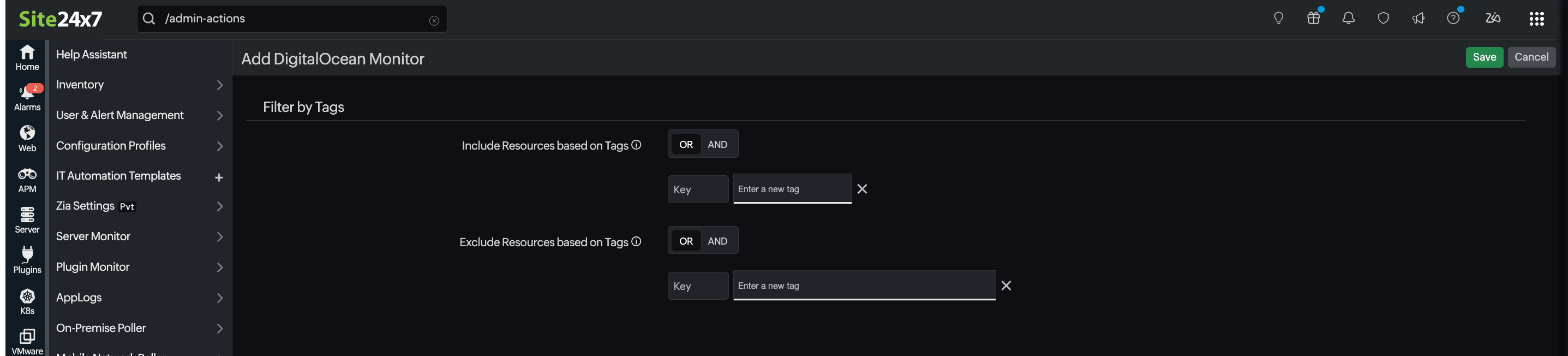
In Filter by Tags:
-
Include Resource based on Tags: Toggle between OR or AND based on your preference. This option will include the matching resources from your DigitalOcean account and add them for monitoring.
- Enter the Key and the tag value to match the resources that you want to include for monitoring.
- You can add as many tag values as you need by clicking the plus icon + next to the tag text box.
-
-
Exclude Resource based on Tags: Toggle between OR or AND to determine how tag values are matched when including resources. This option allows you to prevent certain tagged resources from being monitored.
- Enter the key along with the corresponding tag value to filter the resources you wish to monitor.
- You can easily add more tag values by clicking the plus icon + next to the tag text box.
General settings
Notifications
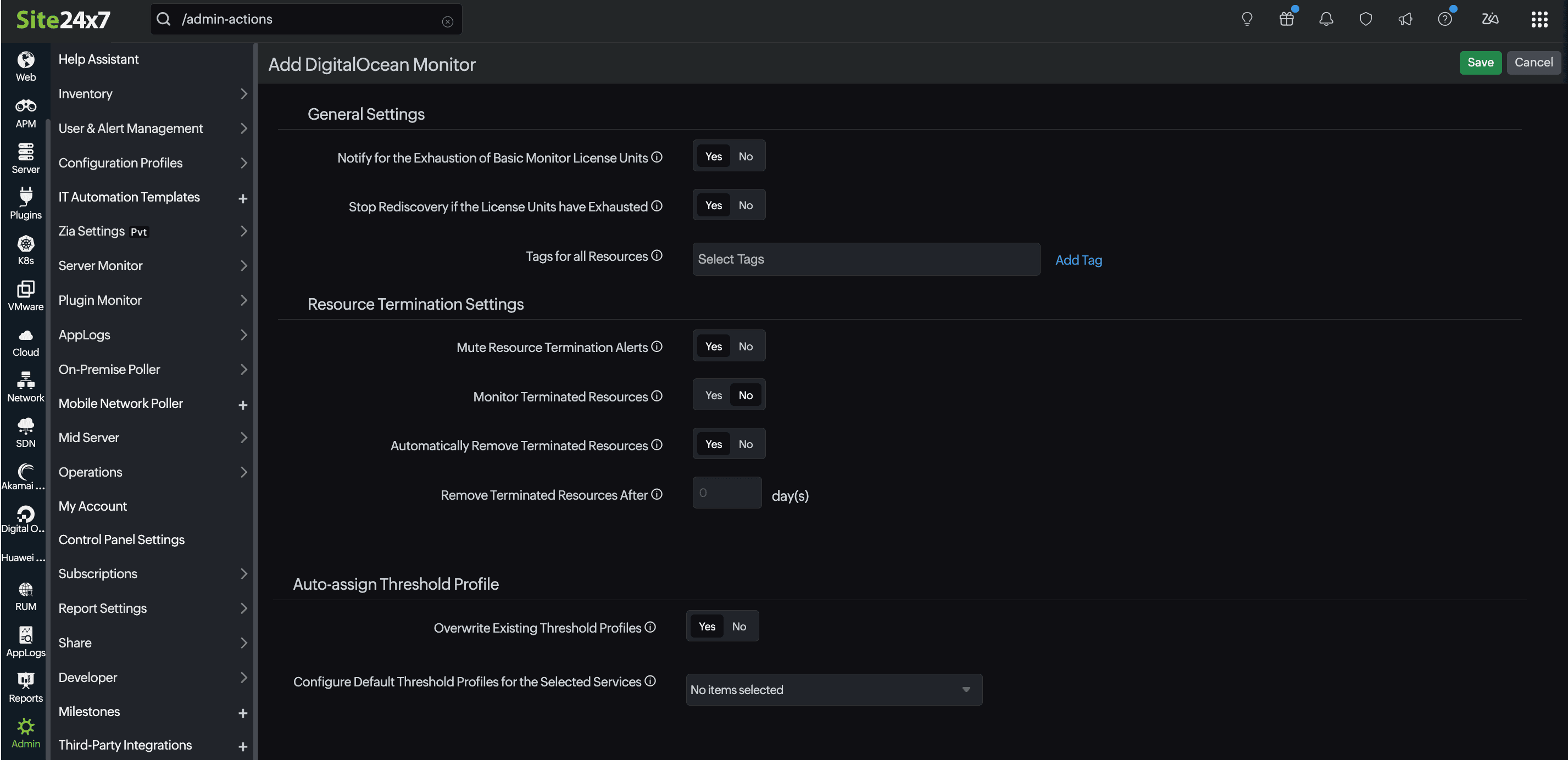
Select Yes to Notify for the Exhaustion of Basic Monitor License Units to get alerts when you have exhausted your license units. Note that exhausting your license units will impact the addition of new resources.
Stop discovery after license exhaustion
You can also select Yes to Stop Rediscovery if the License Units have Exhausted so that the discovery will not happen after license exhaustion.
Grouping your resources
Group by Tags: With the Tags for all Resources setting, you can select or add a tag and organize your DigitalOcean resources into groups.
Resource Termination Settings
In the Resource Termination Settings:
- Mute Resource Termination Alerts: Toggle to Yes if you don't want to receive alerts when the terminated resources are automatically suspended or deleted from Site24x7.
- Monitor Terminated Resources: Toggle to Yes to ensure monitoring continues for terminated resources. The monitor status will be labeled Down, and the polling will continue until manually suspended.
-
Automatically Remove Terminated Resources: Toggle to Yes to ensure auto removal of terminated resources from monitoring. You can also choose to define a specific period (in days) to determine how long the terminated resources should be retained in Site24x7 before being permanently deleted.
- If this field is set to Yes: The monitored resource will move to the deleted state.
- If this field is set to No: The monitored resource will move to the suspended state for the stipulated time period.
- Remove Terminated Resources After: Set the time duration to determine how long (in days) the terminated resources should be retained in the Site24x7 web console before permanent deletion.
Auto-assign Threshold Profile
- Overwrite Existing Threshold Profiles: Switch the toggle to Yes to apply the modified threshold profile to existing monitors of the service. Alternatively, you can retain the existing setting (No) and apply the modified default threshold profile to the resources that are yet to be added for monitoring.
- Configure Default Threshold Profiles for the Selected Services: Click the drop-down near Configure Default Threshold Profiles for the Selected Services, and select the service type for which you want to configure the preferred threshold profile. Create a new threshold profile or select an existing one, which will be applied to the resources based on the above setting.
Configuration Profiles
Threshold and Availability: Choose the desired Threshold and Availability Profile so the alarms engine can decide if a specific resource has to be declared as critical or down. Also ensure that you configure downtime rules to reduce false alerts.
Notification Profiles, User Alert Groups, and Tags
Select existing Notification Profiles, User Groups, Tags, or add new ones. This will apply to the resources that are added in the upcoming discovery. These will be applied to all the associated resource monitors too. For each resource, a Site24x7 DigitalOcean tag consisting of ResourceGroup, Location, and Resource Type will be created. You can also integrate Site24x7 alarms with your preferred third-party service.
The following is the tag format:
subscription: {subscription_name}resourceGroup: {resourcegroup_name}location: {location}serviceType: {monitortype}
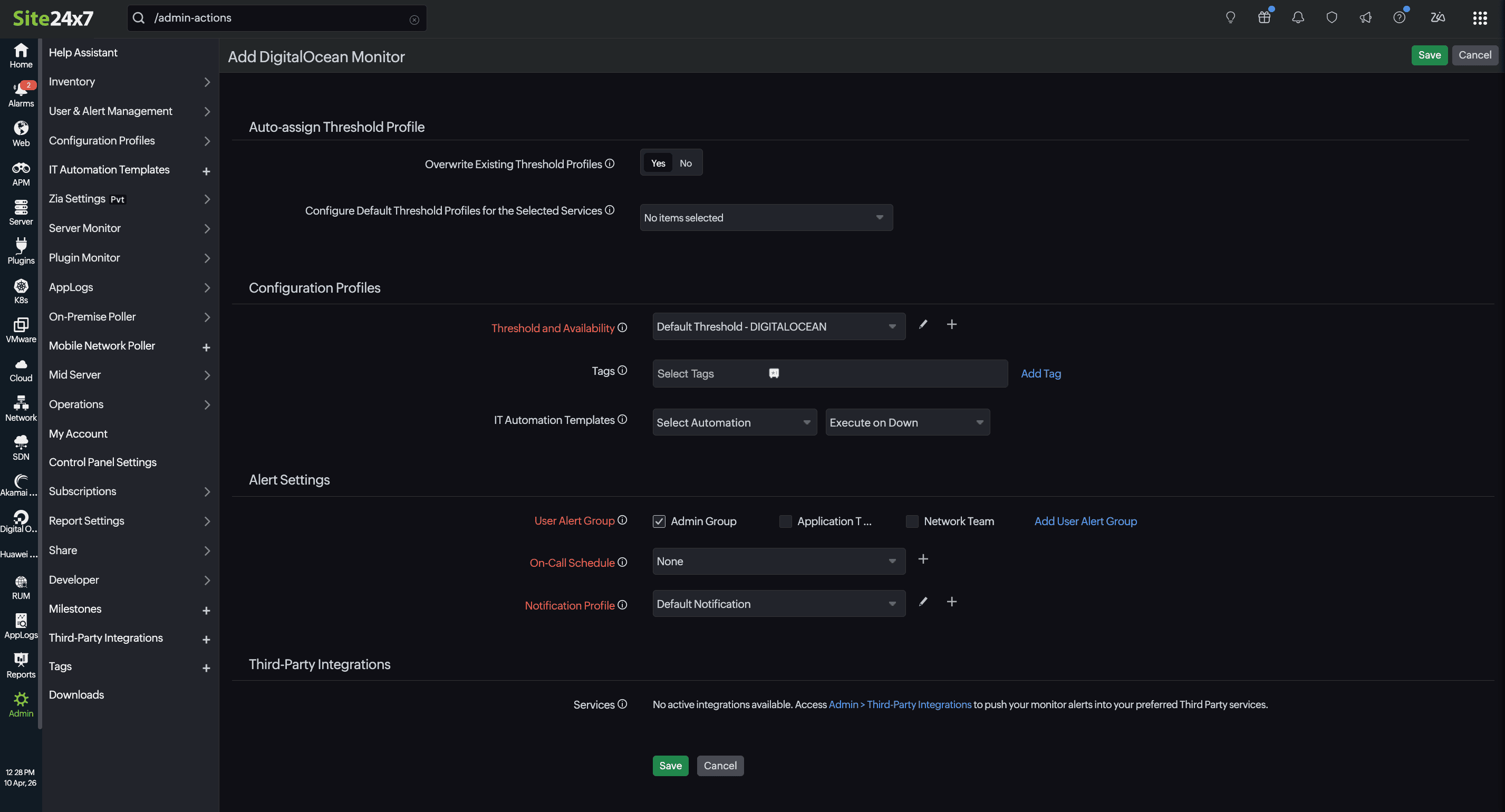
Once the preferred configuration is applied, click Save. This will begin discovering the DigitalOcean resource based on the Discovery Setting and start monitoring.
Based on the customization of the DigitalOcean monitor, it takes up to 30 minutes to discover your preferred DigitalOcean resources.
View the DigitalOcean resources
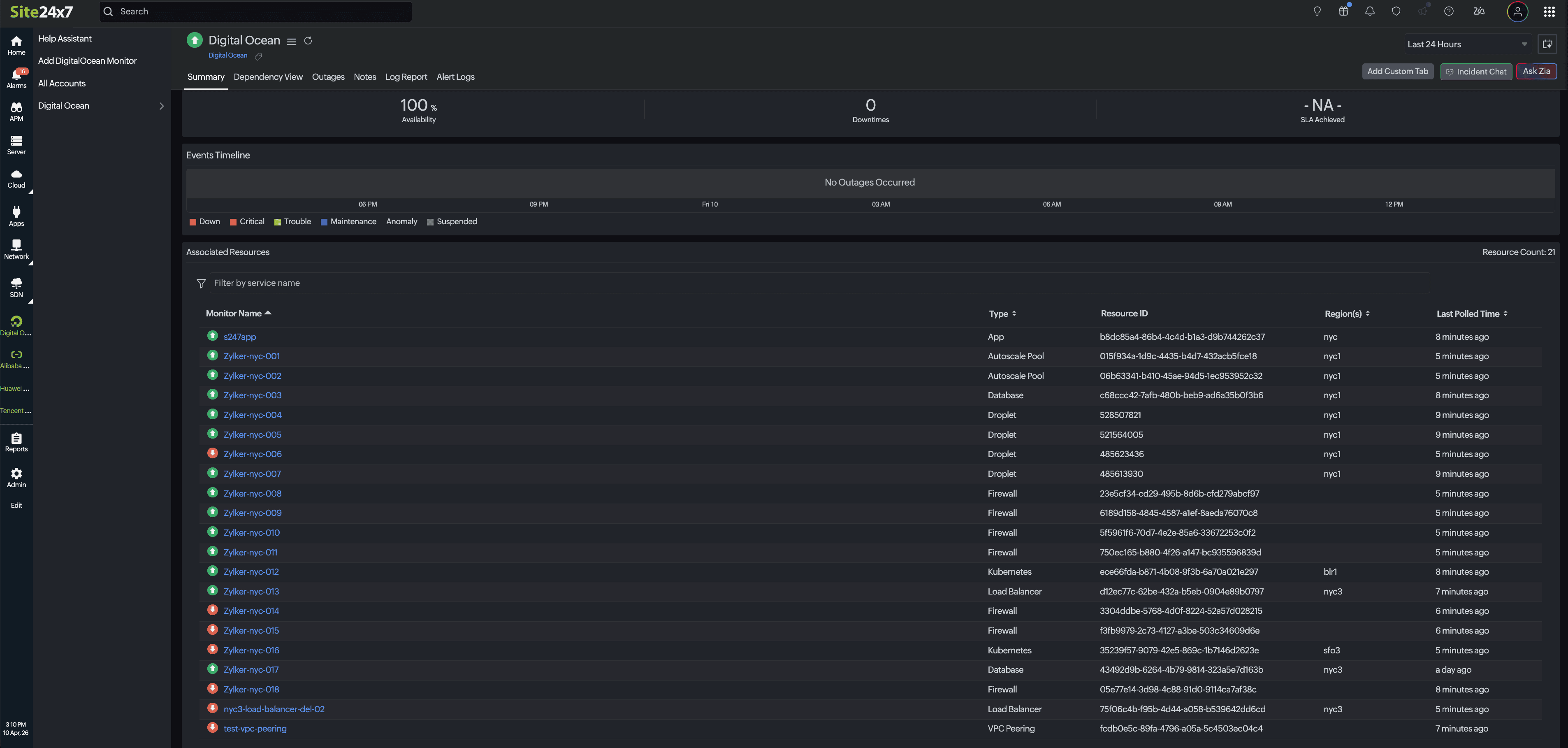
After discovery and monitoring, the added DigitalOcean resources will be listed. To view the discovered resources, follow the steps below:
- On the left navigation panel, click DigitalOcean. Then, select the created display name of your DigitalOcean monitor.
- Click the Summary tab.
- The discovered monitors will be listed under Advanced Resources.
- Click the respective monitor name. You will find the performance metrics for that resource listed below.