Status Pages
Publish the current status of your services to your customers and end users. This will help reduce calls to the help desk. Additionally build customer confidence in the long term.
Add Status Page
- Click Admin > Share > Status Pages.
- Click Add Status Page.
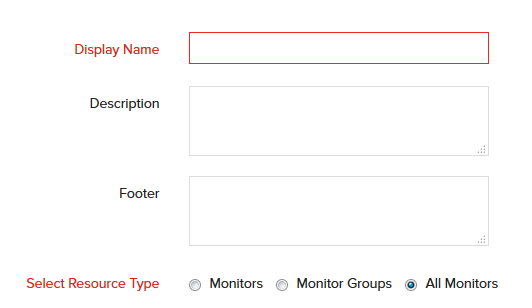
- Specify the following details to add the status page:
- Allow customers to view the performance of the service: Select this option to view the performance of the service status in milliseconds.
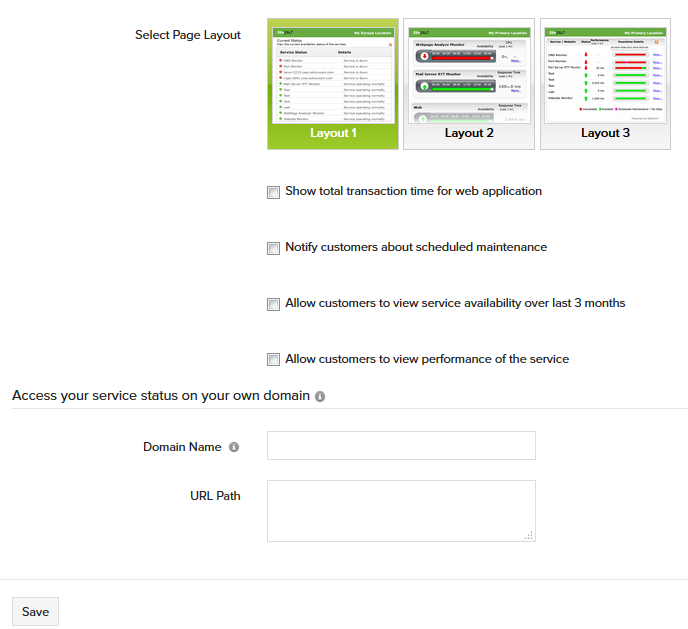
If Layout 2 is selected, mention the following details:
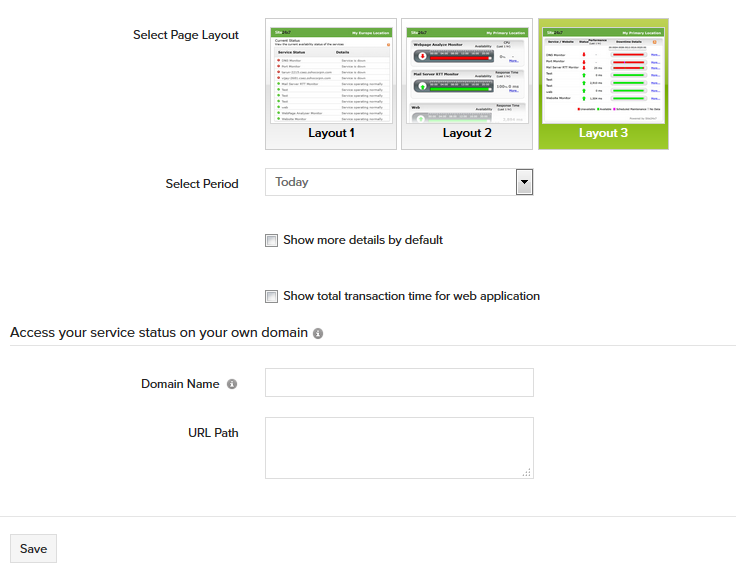
- Select Period: Select the appropriate time from the dropdown to view the availability and down status for the selected time period.
- Show more details by default: Check the option to view a detailed chart on the availability and the down status.
- Show total Transaction time for web application: Select this option to view the total transaction time for the web application.
If Layout 3 is selected, mention the following details:
- Select Period: Select the appropriate time from the drop down to view the availability and down status for the selected time period.
- Show more details by default: Check the option to view a detailed chart on the availability and the down status.
- Show Total Transaction time for web application: Check this option to view the total transaction time for the web application.
- Mention the following details to access the service status on your own domain:
- Domain Name: To publish service status via custom domain, do the following:
-
- Create a new domain using which you can publish your service status.
- Configure CNAME record for the above domain and point it to www.site24x7.com
- Configure the above domain in the Domain Name field under Status page view.
- Within 15 minutes of configuring, you will be able to access the service status view via the custom domain.
- URL Path: Provide the URL path.
- Click Save.
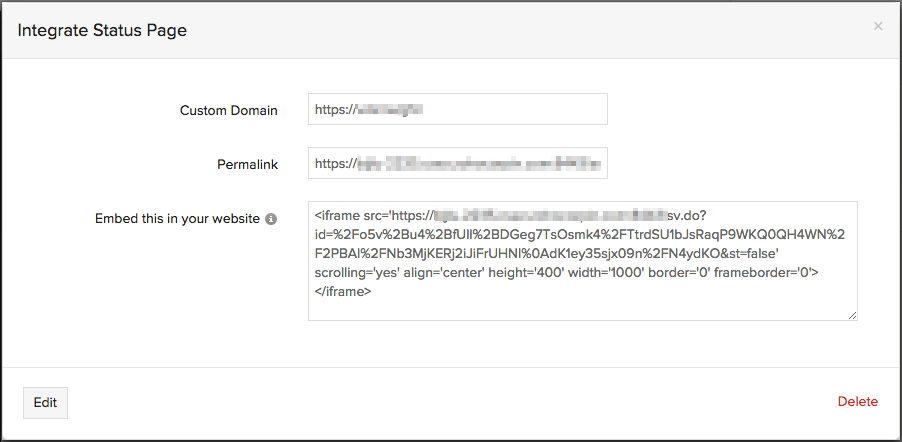
- Once saved, this navigates to Integrate Status Page window.
- To view the Status Links, do the following:
- Custom Domain URL: Specify the domain URL.
- Permalink: A default permalink is present for the users. You can use this link to view the current status too.
- Embed this in your website: Use this iframe code to embed into any other HTML document.
The status view created will be automatically added to the status page screen, along with those already created.
You can publish the status pages to your customers by creating a link to the permalink URL in your website or embedding the iframe in a HTML.
You should add the iframe code snippet within the HTML body tag.
Edit Status Page
- Click on the Status page which you want to edit.
- Click Edit in the Integrate Status Page screen.
Delete Status Page
- Click on the Status page which you want to delete.
- Click Delete in the Integrate Status Page screen.