Windows Server Monitoring
Monitor CPU, memory, disk utilization, processes, services of Windows servers and drill down to the exact reason for server outage with our in-depth root cause analysis report.
How Can I...
Add a Windows Server Monitor
- Click Admin > Inventory > Monitors > Add Monitor.
- Select Server Monitor in Add Monitor page.
- Select View Instructions under Windows and Click Download Site24x7 Windows Server Agent to add the windows monitor.
Install the Agent
- Open the .msi file which will open Site24x7 Window Agent Setup wizard. Click Next.
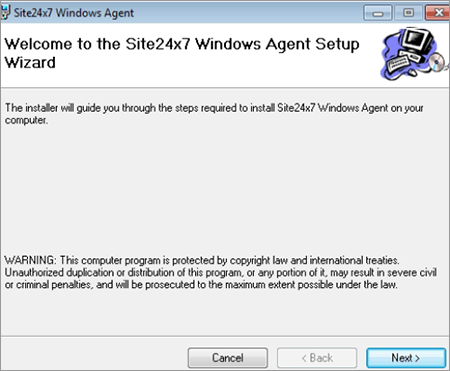
- Enter your Device key to start the installation setup.
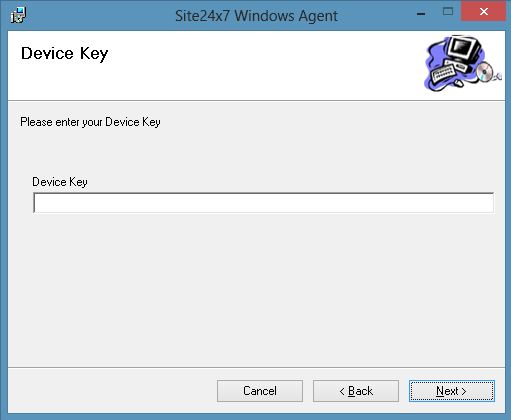
Device key can be obtained from Admin > Developer > Device Key.
- Select a installation folder where you want to place the agent. The installer will automatically install Site24x7 Windows agent to that folder specified.
The folder where the agent is placed must have a Read and Write permission.
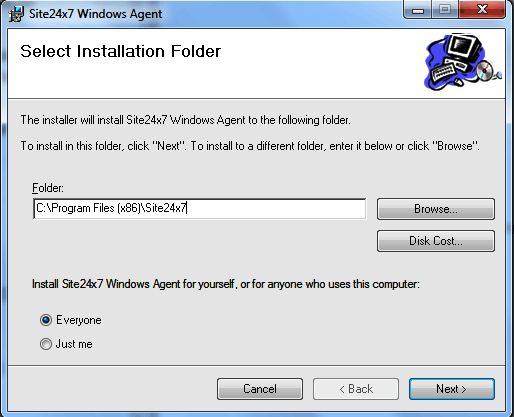
- Follow the wizard instruction to complete the installation procedure.
The agent needs to be installed separately in all machines that needs to be monitored.
- Once the agent is installed, a tray icon appears in the quick launch bar. The tray icon is also listed in Start > All Programs > Site24x7 Windows Monitor > Tray Icon.
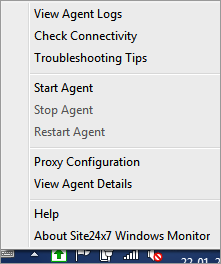
- You can also Start, Stop and Restart the agent directly from the tray icon.
- The agent details can also be viewed from Tray Icon > View Agent Details.
- Once the agent is installed, Windows Server monitor will be automatically added to your account. The monitor can be viewed under Admin > Inventory > Monitors.
- The agent will also auto-discover the SQL server and IIS server the user possess.
Access Tray Icon
You can access the tray icon from the quick launch bar. Various menus available are:
- View Agent Logs
- Check Site24x7 Connectivity
- Configure Proxy
- View Agent Details
- Start Agent
- Restart Agent
- Stop Agent
View Agent Logs
- Right click the tray icon in your quick launch bar and click View Agent Logs.
- The agent logs will contain various details like error code, warning, data collection metrics etc.
Check Site24x7 Connectivity
- Access the agent software from the tray icon in your quick launch bar.
- Right click to check Site24x7 connectivity.
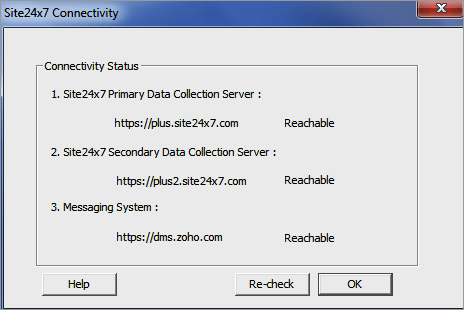
- Ensure that the connectivity status is reachable for all the three domains.
- Click OK when all the three domains are reachable.
- If connectivity is not available, provide access to the below domains and ports for the communication between the monitoring agent and the Site24x7 server.
| Domain |
Port |
| https://dms.zoho.com |
443 |
| https://plus.site24x7.com |
443 |
| https://plus2.site24x7.com |
443 |
Configure Proxy/Firewall
- Right click the tray icon and select proxy configuration.
- Mention the proxy server details to communicate to the central server.
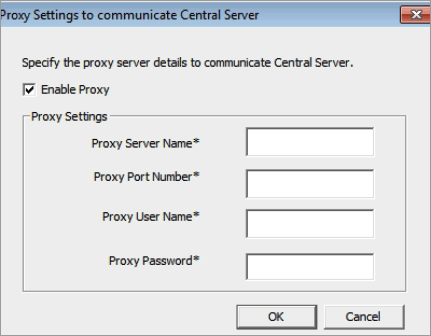
- Click OK to enable the proxy where agent will be ready to collect data from your server.
Bulk Installation of Windows Agent
Site24x7 supports bulk installation in three ways:
- Remote Commands
- Active Directory
- Custom Scripts
Bulk Installation using Remote Commands
The following steps will guide through the process:
- Download and save the following files in the machine where you want to run the bulk installation:
- Site24x7WindowsBulkInstall.zip: This zip folder will contain BulkInstall.vbs, RemCom.exe and hostnames.txt under the folder name Site24x7.
- Site24x7WindowsAgent.msi: Download and save this .msi file in the same Site24x7 folder extraced earlier.
To download .msi file, click Admin > Inventory > Monitors > Add Monitor > Server Monitor. Select Windows tab and click Add Monitor.
- Open the command prompt and go to the directory where you have downloaded the files.
To open command prompt, type cmd in Windows search field
- In the command prompt, the following command should be executed in the exact format
cscript BulkInstall.vbs <DIR\hostnames.txt> <Domain Name or Workgroup Name\username> <password> <DeviceKey>
- Replace <DIR> with the name of the directory where you have downloaded the files.
- Replace DOMAIN or WORKGROUP with the name of the associated domain name or workgroup.
- Replace username with username of the domain or workgroup.
- Replace password with password of the domain or workgroup.
- Replace devicekey with your unique Device key specific to your account. To obtain Device Key key, Click Admin > Developer > Device Key.
- The following format needs to be followed when you have configured a proxy server.
cscript bulkinstall.vbs <DIR\hostnames.txt> <Domain Name or Workgroup Name\username> <password> <DeviceKey> <proxyserver:port> <proxyusername> <proxypassport>
<> indicates command line parameters. All are mandatory and should be in the same order.
Bulk Installation via Active Directory
The agent is installed once the user logs into the machine and can be deployed to all newly added workstations automatically on scheduling an AD import.
- Create a network share in your Windows machine. For example: \\MyServer\MyShare
- Download and save the files Site24x7WindowsAgent.msi and InstallAgent.vbs.
- To download Site24x7WindowsAgent.msi, click Admin > Inventory > Monitors > Add Monitor > Server Monitor. Select Windows tab and click Add Monitor.
- Edit the InstallAgent.vbs file. The following is how a sample InstallAgent.vbs file:

- Find <COMMAND-LINE-PARAMS> and replace it using the parameters given below:
EDITA1= <Your Site24x7 Device Key>
To generate your Device key, Click Admin > Developer > Device Key.
- If you have configured a proxy server, then the command format will be appended as below:
EDITA1= <Your Site24x7 Device Key> ENABLEPROXY=yes ProxyServerName=<proxyservername:port> ProxyUserName=<proxyusername> ProxyPassword=<proxypassword>
- To define the Group Policy Management, do the following:
- Go to Start > Administrative Tools > Group Policy Management
- Right click on your domain and select Create a GPO in this domain, and Link it here in the console tree.
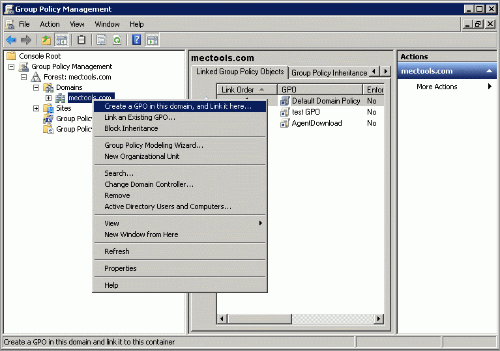
- Provide a name for New GPO.
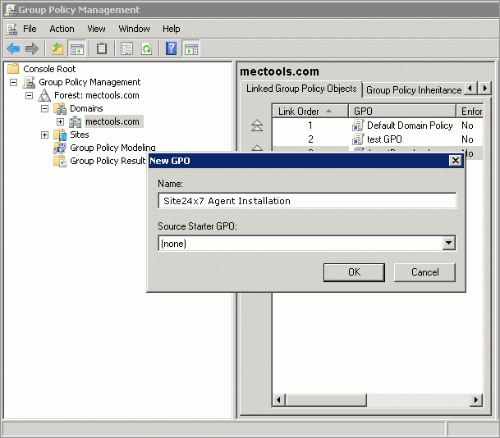
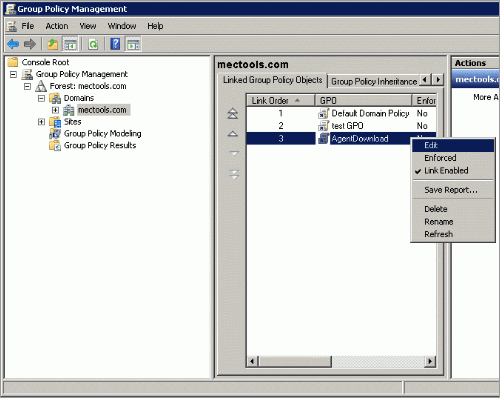
- Right click on the new GPO and select Edit. This will open up Group Policy Management Editor window.
- Select Computer Configuration > Policies > Windows Settings > Scripts > Startup.
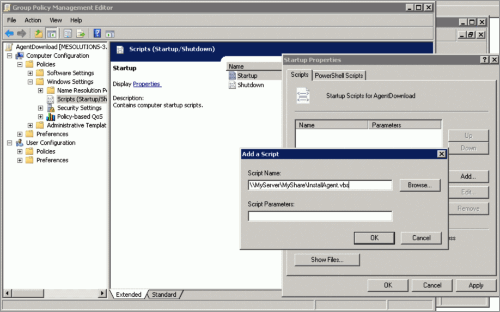
- Double click on Startup to open Startup Properties window.
- Click Add and select browse option to select the script \\MyServer\MyShare\InstallAgent.vbs. The script should be accessible by the target windows servers.
- Close the Group Policy Management window and click OK.
- Now the agent gets installed automatically, when the individual computer under the particular domain starts.
Bulk Installation using Custom Scripts in Silent Mode
You can write your own scripts using command prompt and execute it in multiple machines.
For example:
msiexec.exe /i Site24x7WindowsAgent.msi EDITA1=<Your Site24x7 Device Key> ENABLEPROXY=yes ProxyServerName=<proxyservername:port> ProxyUserName <proxyusername> ProxyPassword=<proxypassword> /qn
Edit/Modify the added Windows Server Monitor
- Click the server monitor which you want to edit in Monitors screen.
- Enter an appropriate display name for the added monitor.
- The Host Name and IP address will be displayed by default.
- Select from the drop down the list of monitors group to which you want to associate.
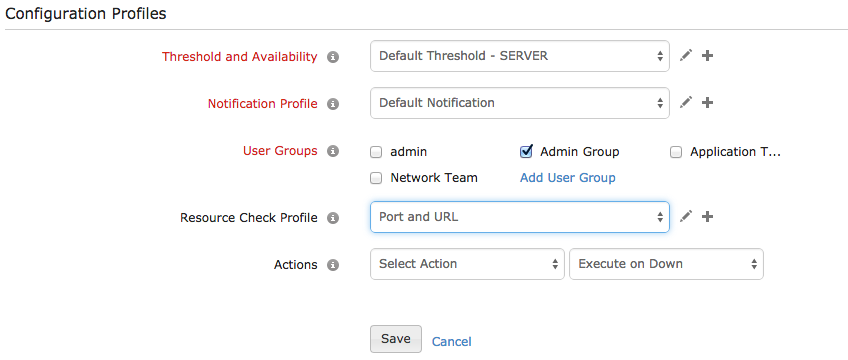
- Specify the following details to edit Configuration Profiles:
Threshold and Availability: Select a threshold profile from the drop down list or choose the default threshold set available and get notified when the resources cross the configured threshold and availability.
To create a customized threshold and availability profile, refer Threshold and Availability.
Notification Profile: Choose a notification profile from the drop down or select the default profile available. Notification profile helps to configure when and who needs to be notifed in case of downtime.
Refer Notification Profile to create a customized notification profile.
- User Groups: Select the user group that need to be alerted during a outage.
To add multiple users in a group, see User Groups.
- Action: Select an action to be executed when the website is down/trouble/up/any status change/any attribute change. The defined action gets executed when there is a state change and selected user groups are alerted.
To automate corrective actions on failure, refer Actions.
- Resource Check Profile: Choose a resource check profile from the drop down. Resource check profile helps configure resources to be monitored on a server.
- Click Save.
Resource Check Profile
Resource Check Profiles can be used to monitor a resource on the server using server monitors. The resources to be monitored are added as checks to a resource check profile and this profile can be associated with any number of server monitors.
- URL Check : Check if a URL on the server is accessible. Only local URLs can be added.
- Port Check : Check if a port is accessible on the server.
- File Checks
- Access Check : Alert when a file is accessed.
- Permissions Check : Alert is raised when the file's metadata attributes are modified.
- Last Modified Check : Get notified when a file is modified or stays unmodified for a period of time.
- Size Check : Check if a file's size has exceeded a set threshold.
- Content Check : Search for some specific content within a file.
- Directory Checks
- Access Check : Alert when a directory is accessed.
- Permissions Check : Alert is raised when the directory's metadata attributes are modified.
- Size Check : Check if a directory's size has exceeded a set threshold.
- File Availability : Get notified when a file is created/deleted within a directory.
- Subdirectory Availability : Get notified when a sub directory is created/deleted within a directory.
- Windows Event Log : Configure event log rules to watch. When the configured log occurs, an alert is sent.
- Linux Syslog : Configure syslog rules to watch. When the configured log occurs, an alert is sent.
To know more about each check, click here.
Add Resource Check Profile
- Login to Site24x7.
- Select Admin > Server Monitor > Resource Check Profile.
- Select Add Resource Check Profile.
- The Add Resource Check Profile screen is displayed. Select the required check type.
- The following are common for all checks.
a. Display Name : Specify a name for the profile. This is common to all checks within the profile.
b. Check Name : Specify a name to identify an individual resource check.
- Enter the details unique to each check type.
- Click Add Check.
- To add more checks, select the type of check from the menu and add.
- Click Save to save the profile with the checks.
Edit Resource Check Profile
- Login to Site24x7.
- Select Admin > Server Monitor > Resource Check Profile.
- The list of profiles is displayed. click on the profile to edit. The Edit Resource Check Profile screen opens.
- To edit a check, select the check from the Configured Checks list, edit the values and click Update.
- To add a check, click on the type of check from the menu and add.
- To delete a check from a profile, select the check from the Configured Checks list and click Delete.
- Click Save to save a profile with the checks.
Delete Resource Check Profile
- Login to Site24x7.
- Select Admin > Server Monitor > Resource Check Profile.
- The list of profiles is displayed. Click on the profile to delete. The Edit Resource Check Profile screen opens.
- Click Delete to delete the profile including all the checks.
A profile that is associated with a server monitor cannot be deleted, it can only be edited. Being an irreversible action, caution must be taken before deleting the profile.


