User Groups
User Groups help you organize individuals so that they receive alerts and reports based on their responsibility. Associate the contact to an appropriate contact group so that monitoring alerts will reach the contact. This also decides the access permission for this user. Users (with Operator or lower access role) in a User Group associated with a Monitor Group alone can access monitors in that Monitor Group. Admin Role allows access to all Monitor Groups and Monitors in it
Add a User Group
- Click Admin > User Management > User Groups.
- Click Add Group in User Groups screen.
- Specify the following details to add a user group:
- Display Name: Specify a name for the user group for easy identification.
- Add Users: Select the users who need to be associated with the user group from the drop down.
The users displayed in drop down is created via Admin > User Management > Users > Add User.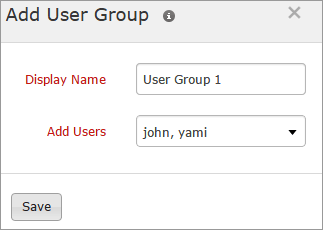
- Click Save.
- The user group created will be automatically listed in User Group screen along with the other user group already created.
Default User Groups are also listed in User Groups screen. As it is mandatory for each user to associate himself with a User group, you can also choose the default group instead of customizing one.
Edit a User Group
- Click the User Group in the User Groups screen which you want to edit.
- Edit the parameters which needs to be changed in Update window.
- Click Save.
Delete a User Group
- Click the User Group in the User Group screen which needs to be deleted.
- This will navigate to Update window.
- Click Delete.


