Import Monitors
Get started real quick by importing existing Monitor configuration using a flat file in CSV / JSON format. You can even automate addition using our REST APIs.
Import the Monitors
- Click Admin > Inventory > Import Monitors.
- Monitor Type: Select the required monitor that you want to bulk import.
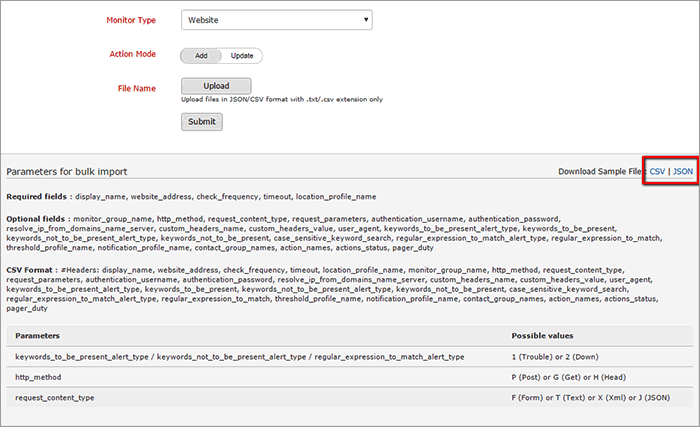
- The parameters for bulk import for the selected monitor will be displayed at the bottom where users have to store the parameters in a file and then upload.
- The files can be uploaded in JSON/CSV format with .txt/.csv extension only.
- The parameters for bulk import require certain mandatory fields which needs to be present in the file. Refer the sample screenshot to view the list of required and optional field necessary for a website monitor. The mandatory fields will vary for each monitor.
- For CSV format, the first line should have a #Header:<space> followed by all the parameters which are seperated by a comma.
- You can also download the sample CSV/JSON file where you can edit the parameters and upload.
- Action Mode: Use the toggle button to add or update the monitor as per your requirement.
- File Name: Click Upload File option to upload the JSON or CSV file.
- Click Submit.


