Ping Monitoring
Monitor the availability of your ping service and receive instant alerts when the response time crosses the configured threshold.
Add a Ping Monitor
- Click Admin > Inventory > Monitors > Add Monitor.
- Select Ping from Add Monitor screen.
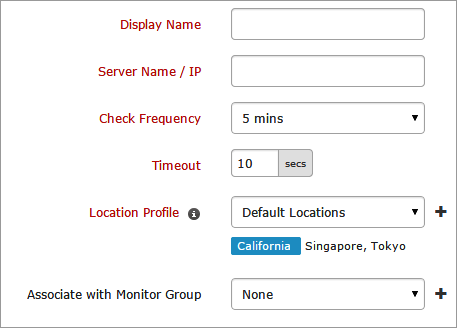
- Specify the host information to add the ping monitor:
- Display Name: Provide an appropriate name to the ping monitor for identification purpose.
- Server Name/IP: Specify the host name.
- Check Frequency: Change poll interval to check frequency. The frequency can be set from 1 minute to 1 day.
- Timeout: Specify time in seconds the connection need to establish with the target server.
- Location Profile: Select a location profile from the drop down list from where the ping service can be polled from the selected location.
To know more, refer Location Profile.
- Associate with Monitor Group: Select a monitor group from the drop down list to logically group your monitors.
To learn how to create a group for your monitors, refer Monitor Groups.
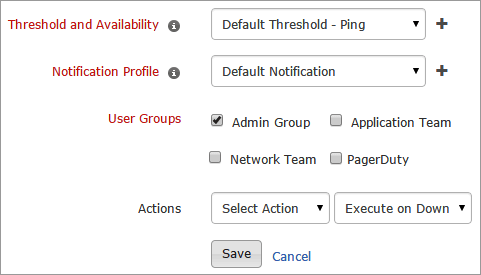
- Specify the following details for Configuration Profiles:
- Threshold and Availability: Select a threshold from the drop down list or choose the default threshold set available and get notified when the resources cross the configured threshold and availability.
To create a customized threshold and availability profile, refer Threshold and Availability.
- Notification Profile: Choose a notification profile from the drop down list or select the default profile available. Notification profile helps to configure when and who needs to be notified in case of downtime.
Refer Notification Profile to create a customized notification profile.
- User Groups: Select the user group that need to be alerted during a outage.
To add multiple users in a group, see User Groups.
- Action: Select an action to be executed when the ping service is down/trouble/up/any status change/any attribute change. The defined action gets executed when there is a state change and selected user groups are alerted.
To automate corrective actions on failure, refer Actions.
- Click Submit.


