Location Profile
Location Profiles make it convenient to set monitoring locations consistently across many websites or monitors.
Add a Location Profile
- Click Admin > Configuration Profiles > Location Profile.
- Select Add Location Profile in Location Profile screen.
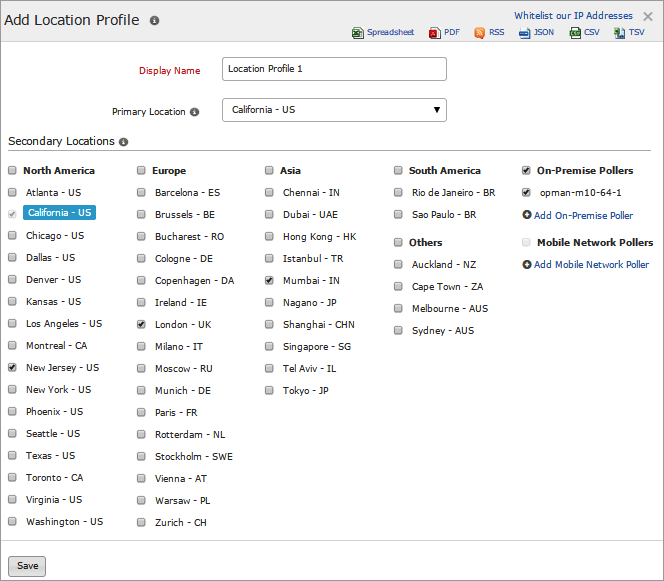
- Specify the following details to add the Location Profile:
- Profile Name: Specify a name for the location profile.
- Primary Location: Select the primary location from the drop down which is the location from where registered resources like website, DNS, Web Page Analyzer etc will be polled according to the set poll interval.
- Secondary Location: Select the secondary locations from the check box. When a particular resource is detected down from the primary location, Site24x7 servers will initiate rechecks from the secondary locations and will notify in case of downtime.
- Whitelist our IP addresses: Use the readable formats to add them to your firewall settings and add the necessary IP address to your Whitelist. The supported formats are Spreadsheet, PDF, RSS, JSON, CSV, TSV.
- Click Save.
- The location profile created will be automatically listed in Location Profile screen along with the other location profiles already created.
By default, a user can select a desired global locations profile from a list of preset profiles like North America, United States, South America, Asia Pacific, and World wide. As it is mandatory for each resource like Website, Web Page Analyzer, DNS, FTP etc to associate itself with a location profile, you can also choose this default profile available instead of customizing one.
Edit a Location Profile
- Click the profile which you want to edit.
- Edit the parameters which needs to be change in Edit a Location Profile window.
- Click Save.
Delete a Location Profile
- Click the profile in the Location Profile screen which needs to be deleted.
- This will navigate to Edit a Location Profile window.
- Click Delete.


