Web Application Monitor ( Real Browser )
Web Application Monitoring using Real Browsers allows to monitor the availability and performance of your web transactions using an actual web browser. The feature uses a robust recorder tool to record web transactions and play back the same via real browsers like Firefox to check how your end-user would experience it.
The Intelligent Capture functionality in Real Browser monitor learns about changes made to any user interactive element in a web page and updates the scripts accordingly.
When you change attributes such as ID, name, CSS, or xpath of a user-interactive element, you do not have to re-record or update the changes. For example, assume that a sign-up action on your web page has been captured. Then, for optimization, if you decide to modify the button’s name, ID or xpath, you can update the changes without having to re-record the action again.
How it Works
Download the Real Browser Recorder which records all the user interaction in your web application in their exact sequence and notifies when any error is detected. This monitoring feature will use an actual browser (like Firefox) to play-back the captured web transaction. Typical user transactions like login checks, form filling, Ajax requests, search in a page etc. can be captured and recorded. Site24x7 will then keep simulating these actions continuously, scanning for any sign of trouble. You also can modify or edit your transactions at a later point of time.
How Can I...
Add a Web Application monitor using a Real Browser
- Click Admin > Inventory > Monitors > Add Monitor > Web Application (Real Browser).
- You will be navigated to Real Browser Monitoring Screen.
- Download and install the Real Browser Recorder. This Real Browser Recorder supports Windows and Mac platforms.
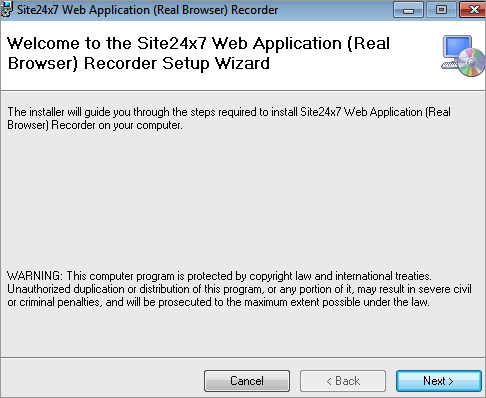
- After the download, click the Real Browser recorder link and select Next to run the file in your system.
- To access the Site24x7 Real Browser Recorder tool, click Start Menu > All Programs > Site24x7 Web Application Real Browser Recorder.
Record a New Transaction
- Use Site24x7 login credentials to access the recorder tool.
- Type the URL of the application you wish to monitor in the address bar and press Enter. You can also click Record New to start a new transaction.
- Browse through the application to record the desired sequence and click Preview and Save.
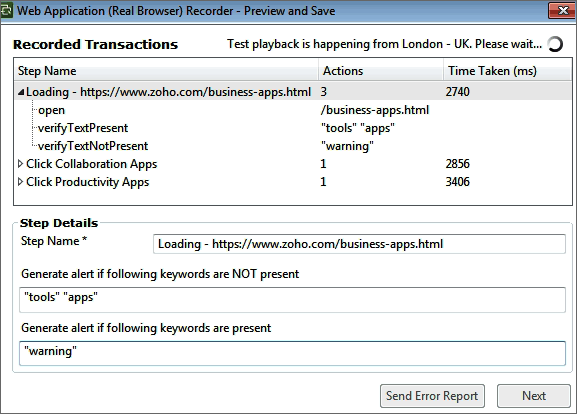
- Review the list of actions that you have performed along with the response time in milliseconds in the Preview Transaction screen.
- The following actions can be performed in the Preview transaction screen:
- Step Name: Modify the step name.
- Generate alert if the following keyword is NOT present: Select a particular step and enter the keywords which needs to be present in that action selected. Get alerted if the keyword is NOT present in that web page.
- Generate alert if the following keyword is present: Select a particular step and enter the keywords which need not be present in that action selected. Get alerted if the keyword is present in that web page.
- Click Next to initiate a trail playback of the recorded script.
- To configure Geographic location to test playback, click Actions > Preferences > Geographic Locations.
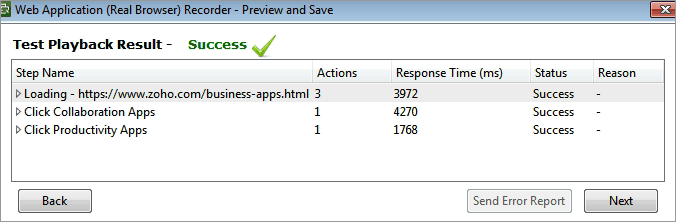
- After the playback, Click Next to enter the monitor details.
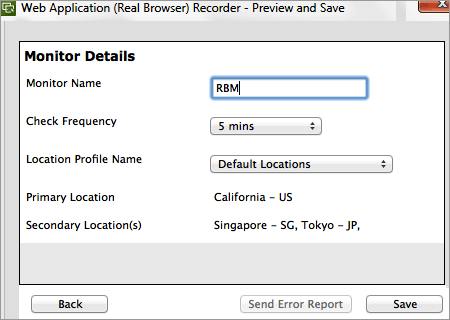
- Specify the Monitor name, check frequency, primary and secondary location and click Save option.
- Now the web script will be saved and a Real Browser transaction monitor will be created in your Site24x7 account.
Edit/Modify the added Web Application Monitor using Real Browser
- Enter an appropriate display name for the added monitor.
- Keywords to be present: Get alerted when the specified keywords are not present in the website. Mention the keywords in the check box and use the slider button to trigger the required kind of alert.
- Keywords not to be present: Get alerted when the specified keywords are present in the website content. Mention the keywords in the check box and use the slider button to trigger the required kind of alert.
The phrases/words for Content Match should be entered within double quotes. For more than one word/phrase, each word should be separated by a <Space> in between.
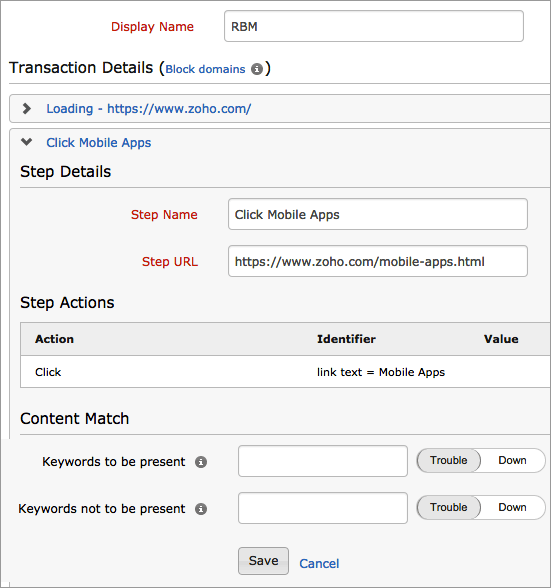
- Specify the following details to edit the web application:
- Think Time: Specify the think time in seconds. Think time is ime interval between two subsequent requests to the server, while doing monitoring. During monitoring, after the page load, the monitoring will populate any form data and wait till the think time interval before initiating the next request to the server
- Page Loading Timeout: The loading time of your web page should be within this time value. If this threshold is crossed, it indicates a degraded performance
- Resolution: The web page is best viewed in this resolution and monitoring of your web page will be done in this resolution
- Check Frequency: Change poll interval to check frequency.
- Global Locations: Choose a default global location profile from the dropdown list to setup monitoring of your website from these locations. Additionally, customize and create location profiles based on your requirements.
To know more, refer Location Profile.
- Associate with Monitor Group: Select a monitor group from the drop down list to logically group your monitors.
To learn how to create a group for your monitors, refer Monitor Groups.
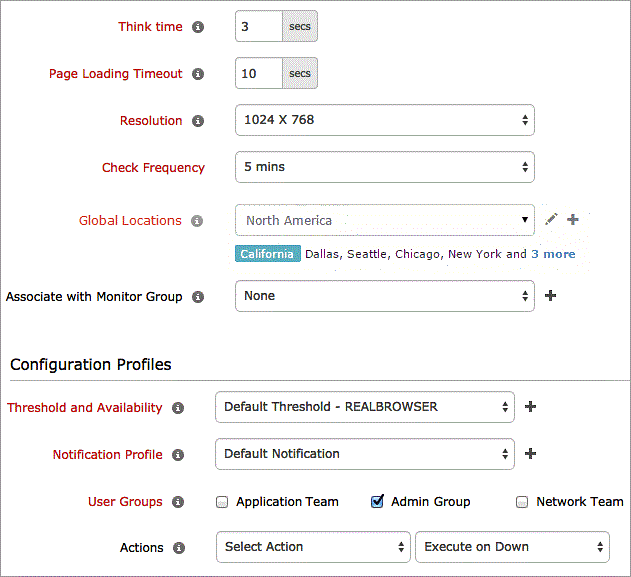
- Specify the following details for Configuration Profiles:
- Threshold and Availability: Select a threshold profile from the drop down list or choose the default threshold set available and get notified when the resources cross the configured threshold and availability.
To create a customized threshold and availability profile, refer Threshold and Availability.
- Notification Profile: Choose a notification profile from the drop down or select the default profile available. Notification profile helps to configure when and who needs to be notifed in case of downtime.
Refer Notification Profile to create a customized notification profile.
- User Groups: Select the user group that need to be alerted during a outage.
To add multiple users in a group, see User Groups.
- Action: Select an action to be executed when the website is down/trouble/up/any status change/any attribute change. The defined action gets executed when there is a state change and selected user groups are alerted.
To automate corrective actions on failure, refer Actions.
- Click Save.
To compare different monitor types for Website and URL, refer here.


