SOAP Monitor
The SOAP monitor regularly checks the availability and performance of your SOAP based Web Services. It alerts you, whenever the response (xml) does not bear the specified SOAP attribute name or when the SOAP attribute value provided in response validation, does not validate against its corresponding SOAP attribute name.
Add SOAP Monitor
- Click Admin > Inventory > Monitors > Add Monitor.
- Select SOAP Monitor in Add Monitor page.
- Specify the following details to add the SOAP Monitor:
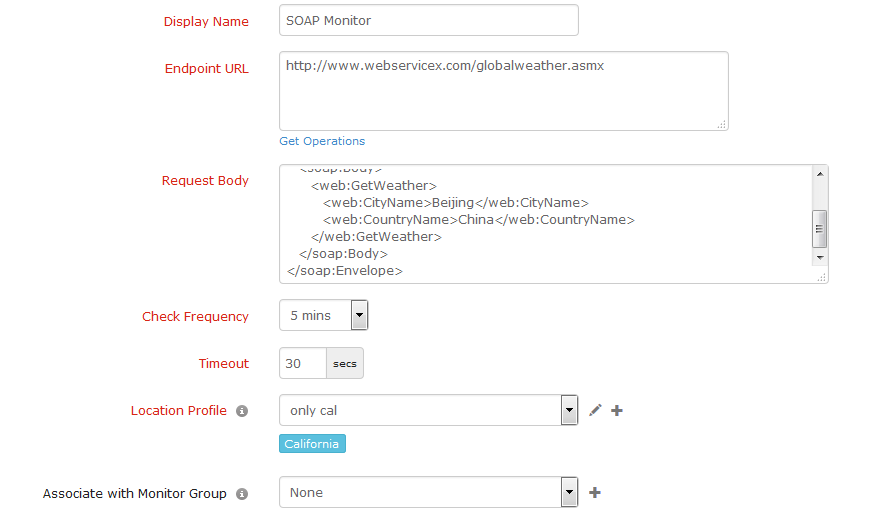
- Display Name: Provide an appropriate name for the web service which you desire to monitor.
- Endpoint URL: Type the SOAP web service endpoint URL which needs to be monitored. Click Get Operations to set-up and initiate the SOAP Wizard.
- Request Body: Add the SOAP request xml data that is being used to invoke the web service. Once the SOAP XML response is successfully validated in the SOAP Wizard, click Save to Monitor to add the request XML data automatically to the Request Body.
- Check Frequency: Change poll interval to check frequency. The frequency can be set from 1 minute to 1 day.
- Timeout: Specify the time in seconds needed to establish a connection with the target server. If the connection is not established within the specified time, the website will be reported as down with "Could not establish connection" as the reason.
- Location Profile: Select a location profile from the dropdown list from where the webservice will be monitored. To know more, refer Location Profile.
- Associate with Monitor Group: Select a monitor group from the drop down list to logically group your monitors. To learn how to create a group for your monitors, refer Monitor Groups.
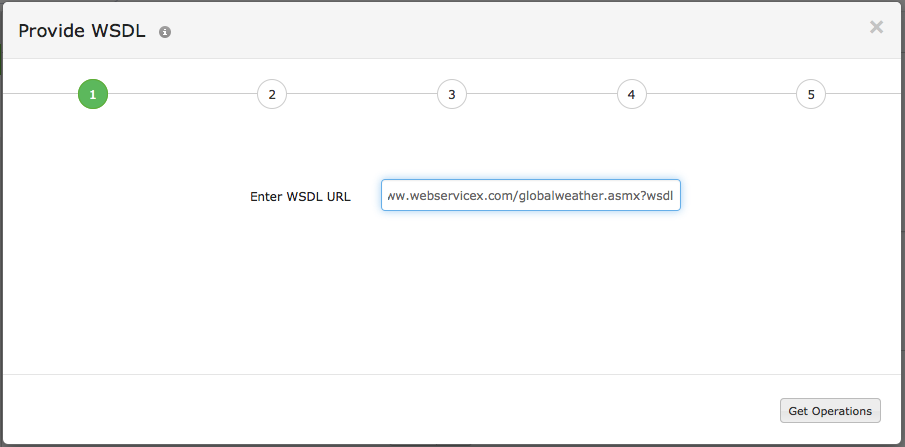
- SOAP Wizard: SOAP wizard takes a WSDL URL as an input and makes all operations supported in the web service. It generates a SOAP request XML, Endpoint URL and required request headers for a selected operation and also permits you to test its response. Define the following details to successfully undertake the test operation:
- Provide WSDL: Type the WSDL URL which requires to be monitored. Click Get Operations.
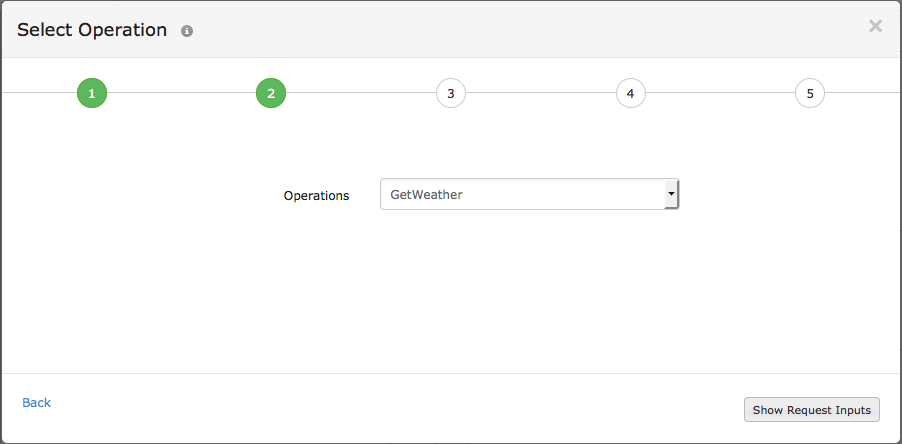
- Select Operation: Choose the required Operation from the drop down and click Show Request Inputs.
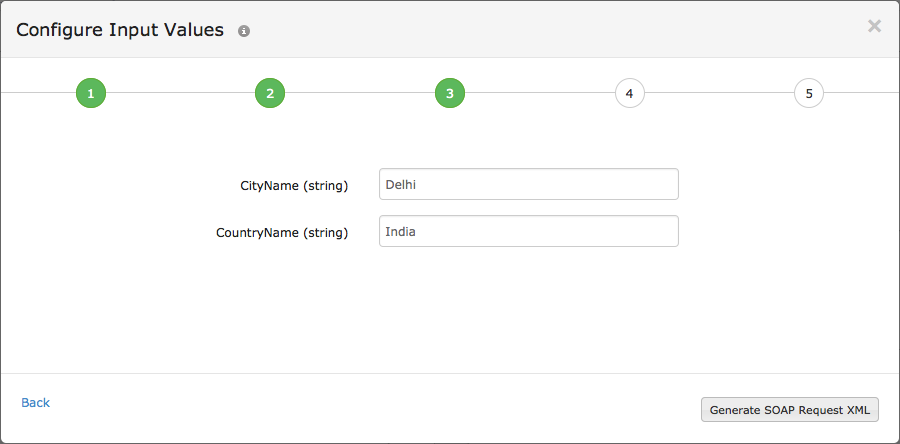
- Configure Input Values: Add requisite value against its corresponding parameter and click Generate SOAP Request XML.
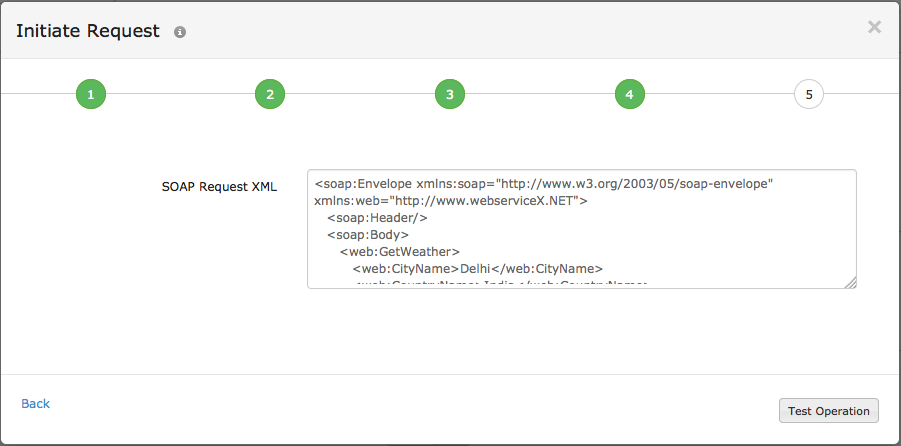
- Initiate Request: Click Test Operation to validate the SOAP Request XML.
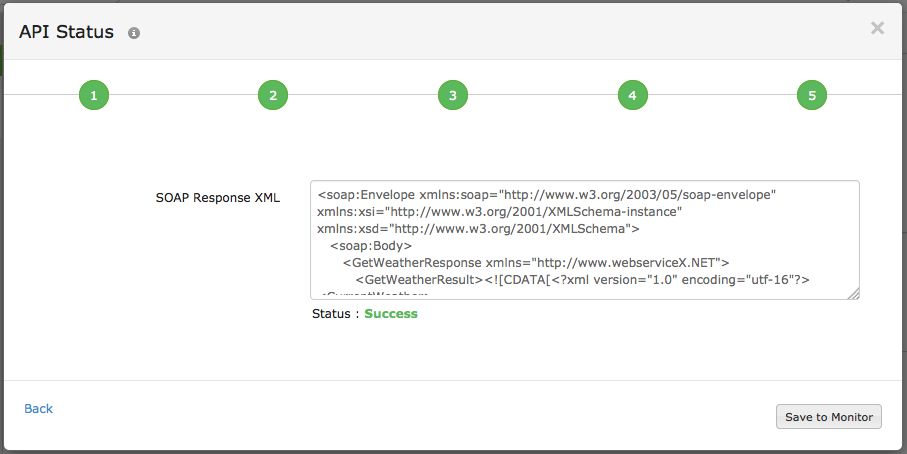
- API Status: At one time the SOAP Response XML is successfully validated, click Save to Monitor to add the request XML data to the Request Body.
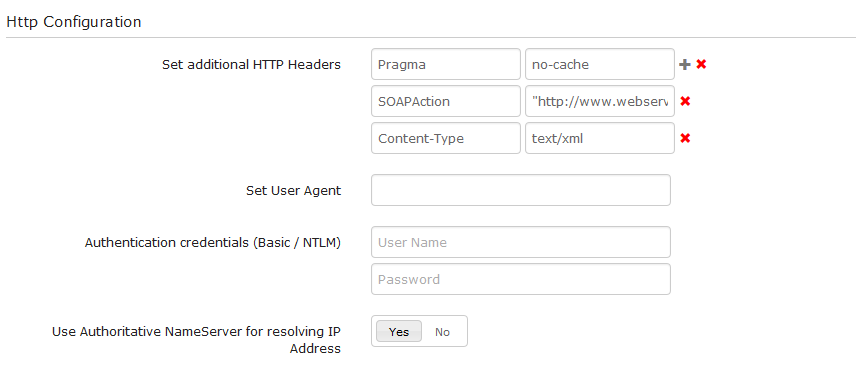
- Specify the following details for HTTP Configuration:
- Set additional HTTP Headers HTTP and User agent: Set customized user agent sent on request and the HTTP headers. Provide user agent and the appropriate header name and header value.
- Authentication Credentials: Provide User Name and Password to monitor webservices that require Basic/NTML authentication.
- Use Authoritative NameServer for resolving IP Address: Use the toggle button to decide whether to resolve the name server. When enabled, Site24x7 will resolve the IP address from the name server of your domain.
- Specify the following details for Response Validation:
- Check for SOAP Response Attributes: Configure the expected SOAP Attribute Name and SOAP Attribute Value to validate the expected XML response.
- Alert Severity: Use the slider button to trigger the required kind of alert.

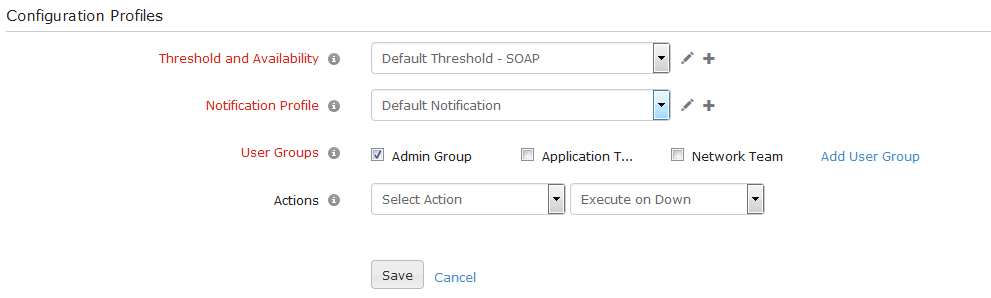
- Specify the following details for Configuration Profiles:
- Threshold and Availability: Select a threshold profile from the drop down list or choose the default threshold set available and get notified when the resources cross the configured threshold and availability.
To create a customized threshold and availability profile, refer Threshold and Availability.
- Notification Profile: Choose a notification profile from the drop down or select the default profile available. Notification profile helps to configure when and who needs to be notifed in case of downtime.
Refer Notification Profile to create a customized notification profile.
- User Groups: Select the user group that need to be alerted during an outage.
To add multiple users in a group, see User Groups.
- Action: Select an action to be executed when the website is down/trouble/up/any status change/any attribute change. The defined action gets executed when there is a state change and selected user groups are alerted.
To automate corrective actions on failure, refer Actions.
- Click Save.


