Mail Server RTT Monitoring
Analyse the availability, response time, round-trip time of your mail servers including SMTP, POP and IMAP from over 50 locations and take corrective action before end users are affected.
Add a Mail Server RTT Monitor
- Click Admin > Inventory > Monitors > Add Monitor.
- Select Mail Server RTT in Add Monitor screen.
- Specify the following details to add the monitor:
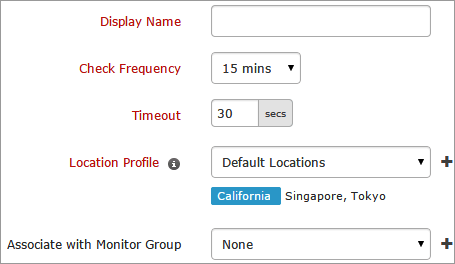
- Display Name: Provide a name for the mail server for identification purpose.
- Check Frequency: Change poll interval to check frequency. The frequency can be set from 15 minutes to 1 day.
- Timeout: Specify time in seconds the connection need to establish with the target server. The timeout should be between 0 to 30 seconds.
- Location Profile: Select a location profile from the drop down list from where server will be polled from the selected location.
To know more, refer Location Profile.
- Associate with Monitor Group: Associate mail server monitor with a monitor group from the dropdown list.
To learn how to create a group for your monitors, refer Monitor Groups.
- Specify the following detail for SMTP configuration:
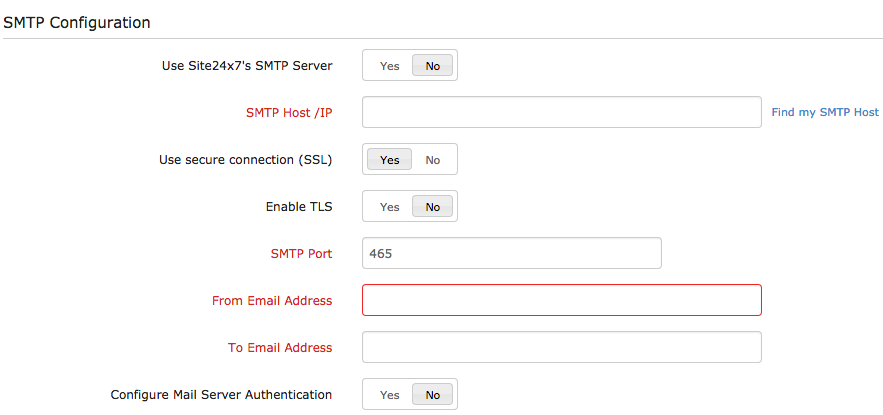
Use Site24x7's SMTP Server: Use the toggle button to select the usage of Site24x7 SMTP Server.
If selected, specify From Email Address and To Email Address.
If not selected, specify the following details:
- SMTP Host/IP: Specify your SMTP Host/ IP address. You can also use Find my SMTP Host to find SMTP Host.
- Use Secure Connection (SSL): Use the toggle button to enable or disable secure connection.
- Enable TLS: Use the toggle button to enable or disable Transport Layer Security (TLS).
- SMTP Port: Specify your SMTP port.
- From Email Address: Enter your Email ID so that the SMTP performance can be checked by sending a mail from this mail ID.
- To Email Address: Enter the Email ID where the SMTP performance will be checked by sending a mail to this email id using SMTP Host.
- Configure Mail Server Authentication: Enable the toggle button to help the monitoring servers check the authenticated mail server. Provide the user name and password of your SMTP host.
- Specify the following detail for POP/IMAP Configuration:
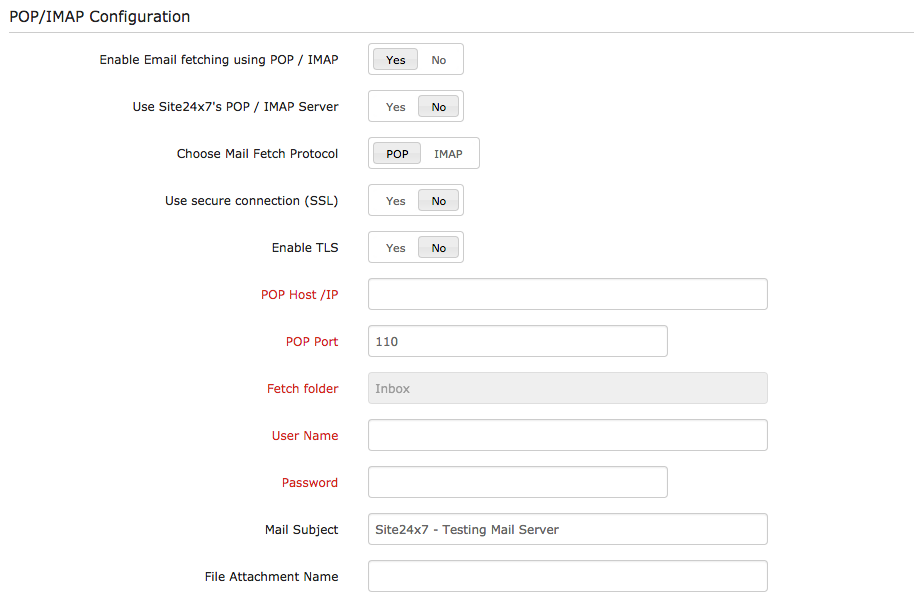
Enable Email fetching using POP/IMAP: Use the toggle button to enable or disable e-mail fetching. Enabling the POP/IMAP helps to check the performance of the incoming mail.
The following parameters need to be specified when POP/IMAP is enabled:
- Use Site24x7's POP/IMAP Server: Use the toggle button to select the usage of Site24x7 POP/IMAP Server. If selected, specify the following details:
Mail Subject: Specify the subject field for fetching the mail. The mail subject by default will be "Site24x7-Testing Mail Server".
File Attachment Name: Specify the file attachment name.
If not selected, specify the following details:
- Choose Mail Fetch Protocol: Use the slider button to enable POP Monitoring or IMAP monitoring.
- Use secure connection (SSL): Choose the toggle button to enable or disable SSL connection for monitoring.
- Enable TLS: Choose the toggle button to enable or disable TLS connection for monitoring.
- POP/IMAP Host IP: Enter POP/IMAP Host name or IP.
- POP/IMAP Port: Enter POP/IMAP port number. By default the POP and IMAP port will be present.
- Fetch Folder: Specify the name of the folder you want to fetch. By default the fetch folder for POP will be Inbox.
- User name: Enter the user name of POP/ IMAP host.
- Password: Enter the password for POP/IMAP host.
- Mail Subject: Specify the subject field for fetching the mail. The mail subject by default will be "Site24x7-Testing Mail Server".
- File Attachment Name: Specify the file attachment name.
- Specify the following details for profile configuration:
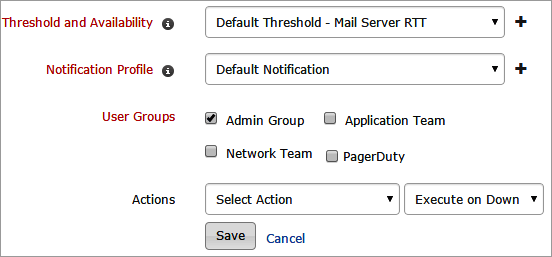
- Threshold and Availability: Select a threshold profile from the drop down list or choose the default threshold set available and get notified when the resources cross the configured threshold and availability.
To create a customized profile, refer Threshold and Availability.
- Notification Profile: Choose a notification profile from the drop down or select the default profile available. Notification profile helps to configure when and who needs to be alerted in case of downtime.
Refer Notification Profile to create a customized notification profile.
- User Groups: Select the user group that need to be alerted during a outage.
To add multiple users in a group, see User Groups.
- Actions: Select an action to be executed when the mail server is down/trouble/up/any status change/any attribute change. The defined action gets executed when there is a state change and selected user groups are alerted.
To automate corrective actions on failure, refer Actions.
- Click Submit.


