
Customize Email Alerts
The Customize Email Alerts feature allows MSP administrators define who receives administrative and licensing-related email notifications. Instead of relying on default recipients, you can route these emails to specific user groups.
Use case
An MSP wants licensing-related emails to be handled by the finance team, while administrative notifications are managed by the operations team.
By utilizing Customize Email Alerts :
- Licensing emails are routed to the Finance user group
- Administrative emails are routed to the Operations user group
This ensures that notifications reach the right teams without involving default users unnecessarily.
How it works
When you enable this setting, MSP-related emails will be sent to the selected user alert groups, allowing better control over recipients.
Customize Email Alerts works by mapping two categories of system-generated emails to user alert groups:
- Administrative Email Routing: Emails such as user association notifications, bulk action failure alerts, user disassociation failure alerts, and configuration sync failure notifications are routed to the relevant user group.
- Licensing Email Routing: Emails such as customer account downgrade alerts, MSP license limit exceeded alerts, and customer account termination notifications related to license usage and account status are routed to the relevant user group.
Each category includes a toggle setting where switching the toggle to Yes sends notifications to the selected user group, and No sends them to the default MSP users. Administrators can configure each category independently, allowing different teams to handle different types of alerts.
Benefits
- Targeted communication: Send alerts only to the teams that need them, avoiding notification fatigue.
- Flexible control: Enable, disable, or change routing configurations at any time without affecting other MSP settings.
- Reduced noise: Default users no longer receive irrelevant notifications when targeted routing is enabled.
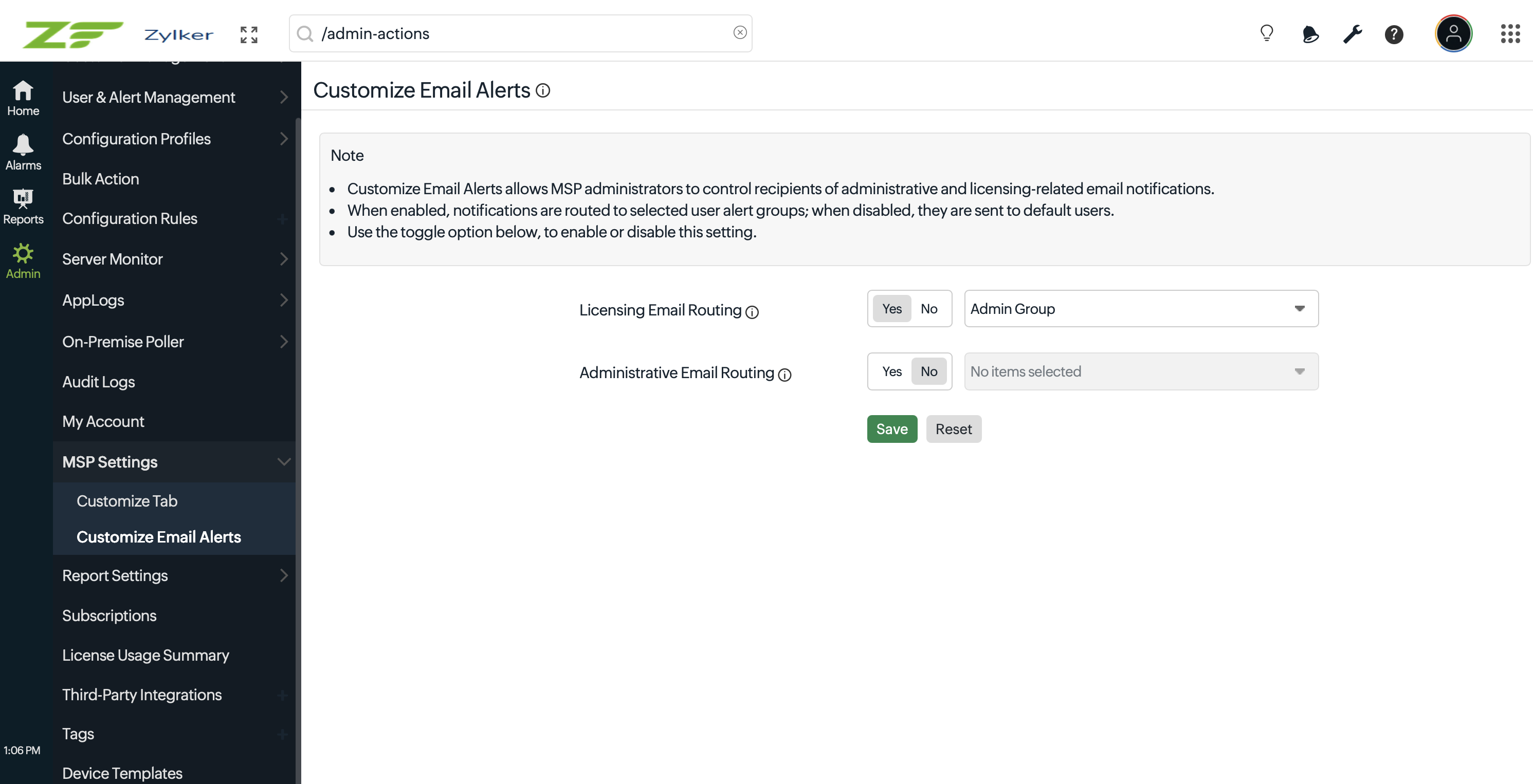
Configure Customize Email Alerts
Follow these steps to configure email alert routing for your MSP account:
- Log in to the Site24x7 MSP client.
- Navigate to Admin > Customize Email Alerts .
- Configure the following options:
- Licensing Email Routing
Enable this option to route licensing-related notifications to a specific user alert group.
- Licensing Email Routing
-
-
- Select Yes to enable routing and choose the required user alert group from the drop-down menu.
- Select No if you prefer the notifications to be sent to default users.
- Administrative Email Routing
Enable this option to route administrative notifications to a specific user alert group.- Select Yes to enable routing and to choose the required user alert group from the drop-down menu.
- Select No to send notifications to default users.
-
- Click Save to apply the changes. A confirmation pop-up will appear asking for confirmation. Click Proceed to save the configurations.
- Customize Email Alerts is available only to MSP administrators.
- Ensure that the selected user alert group contains valid users with verified email addresses to receive notifications.
- If routing is disabled, notifications will continue to be sent to the default users configured for the MSP account.
Email types covered
Please note the following emails under each category:
- MSP administrative emails: User association, bulk action failure, user disassociation failure, configuration sync task failure.
- MSP licensing emails: Customer account downgraded, MSP license limit exceeded, customer account termination.
Related articles
- Learn more about grouping users and tailoring alert settings with User Alert Groups .