
ManageEngine ServiceDesk Plus MSP Cloud integration
ManageEngine ServiceDesk Plus MSP Cloud is an online help desk software built on the ITIL® framework with integrated asset management.
Managed service providers (MSPs) can achieve seamless incident management by integrating Site24x7 with ServiceDesk Plus MSP Cloud. When downtime occurs, Site24x7 automatically creates tickets in ServiceDesk Plus MSP Cloud. Once the issue is resolved and the monitor status changes to Up in Site24x7, the corresponding tickets in ServiceDesk Plus MSP Cloud are also automatically closed.
This integration streamlines your workflow and ensures that your customers' alerts are logged in ServiceDesk Plus and tracked efficiently.
Prerequisites
Site24x7 and ManageEngine ServiceDesk Plus MSP Cloud are both part of the Zoho ecosystem and use Zoho Single Sign-On (SSO) for account access. The prerequisites are listed below:
- Ensure that you have a valid ServiceDesk Plus MSP Cloud account with a portal enabled and customers added to your portal. Map these customers to your corresponding customers in Site24x7.
- Verify that you have permissions in ServiceDesk Plus MSP Cloud to create, update, and close tickets so incidents can automatically close when the monitor status changes to Up.
- If you are the MSP Admin for your Site24x7 MSP account and do not have a preconfigured ManageEngine ServiceDesk Plus Cloud account, a trial account will be created automatically. You will then need to activate your ServiceDesk Plus Cloud account.
- Within the ManageEngine ServiceDesk Plus Cloud portal, you can assign tickets to other technicians. To do this:
- Add the required technicians to your ManageEngine ServiceDesk Plus Cloud account.
- Provide them with the necessary privileges.
Learn more about adding a technician in ManageEngine ServiceDesk Plus Cloud.
How does the integration work?
This integration is designed for ServiceDesk Plus MSP Cloud and can be set up by the MSP Admin. Here’s how it functions:
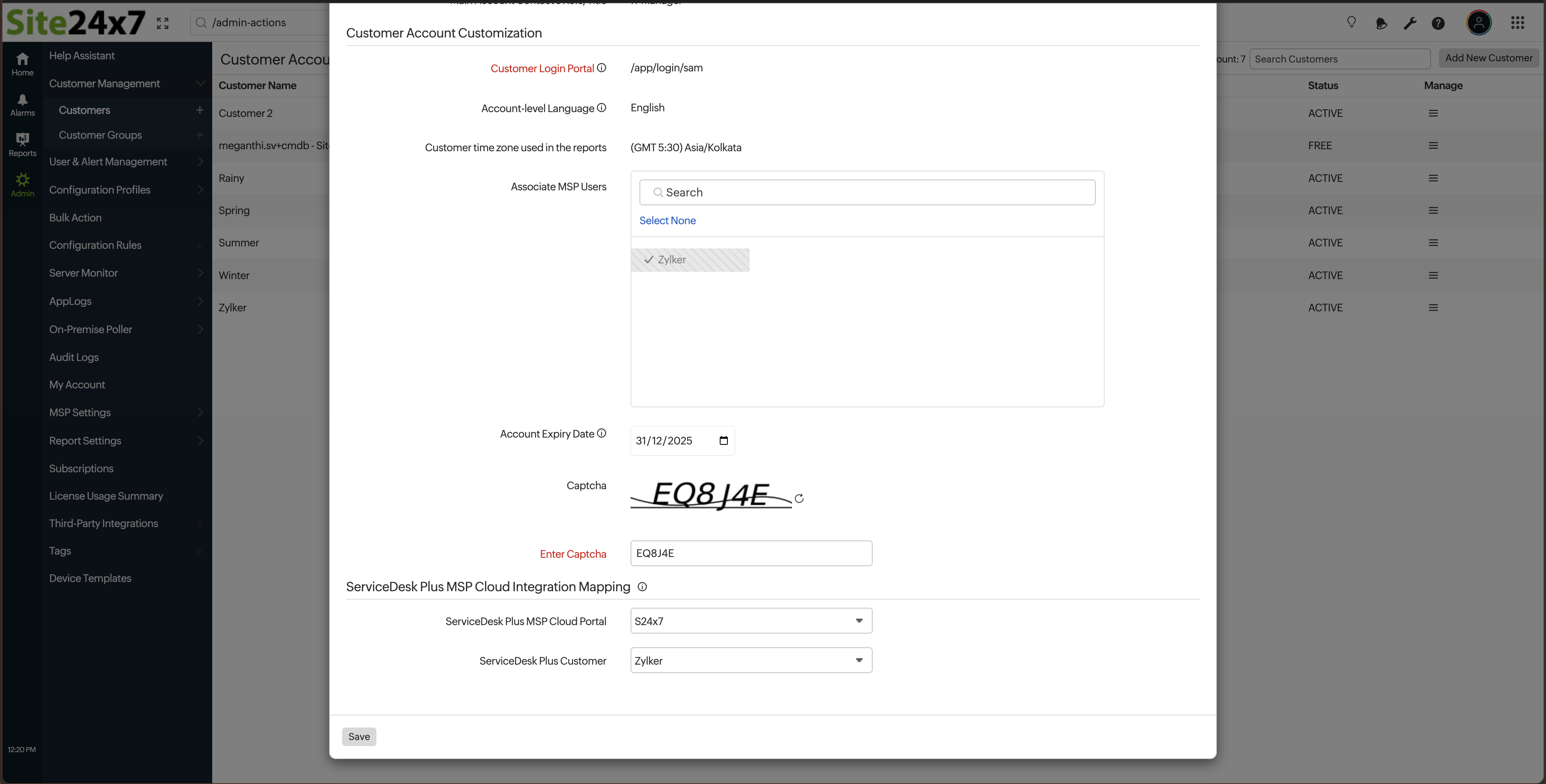
- Integration setup: The MSP Admin creates the integration and maps the ServiceDesk Plus MSP Cloud portal to the corresponding MSP customer. During this process, the ServiceDesk Plus MSP Cloud customer is associated with the Site24x7 MSP customer while creating or editing customer details.
- Customer-level management: Once the integration is set up, the MSP can manage customers by mapping the corresponding ServiceDesk Plus customer.
- Automatic incident logging: Incidents from the Site24x7 MSP customer are automatically recorded in the mapped ServiceDesk Plus MSP Cloud customer portal.
- CMDB mapping: Customers can set configuration management database (CMDB) settings for this integration, ensuring that resources from Site24x7 are correctly mapped to configuration items (CIs) in ServiceDesk Plus MSP Cloud.
This integration streamlines incident management across the MSP, keeps your customer portals synchronized, and ensures that resources and incidents are properly tracked in ServiceDesk Plus MSP Cloud.
Integration procedure: Site24x7 with ServiceDesk Plus Cloud for MSPs
To connect your Site24x7 MSP account to ManageEngine ServiceDesk Plus MSP Cloud, follow the steps below:
- Log in to Site24x7 MSP account.
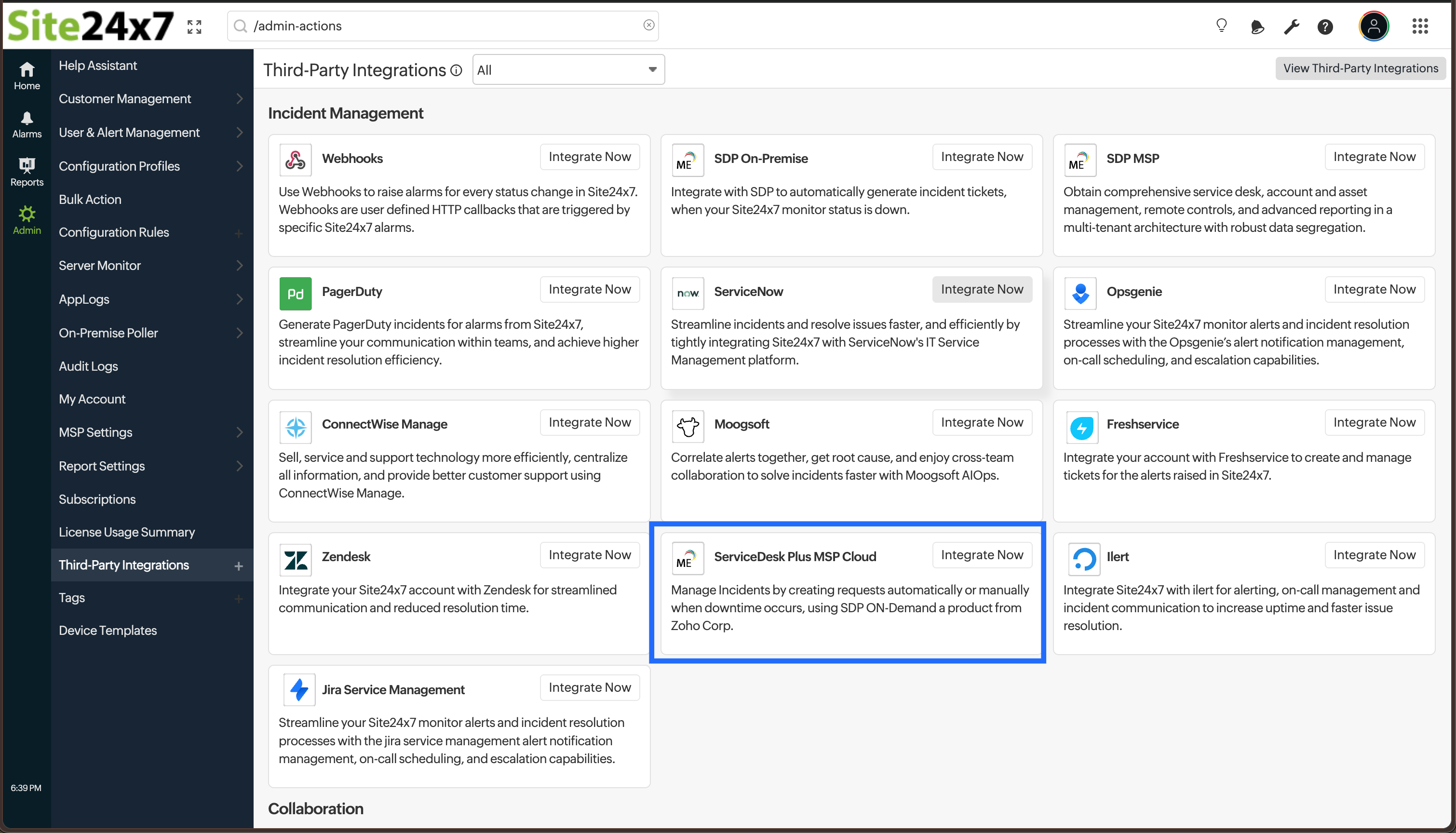
- Navigate to Admin > Third-Party Integrations.
- Click Add Third-Party Integration and choose ServiceDesk Plus MSP Cloud from the list of integrations.
- You will be redirected to the ServiceDesk Plus MSP Cloud integration page. Provide the integration details as follows:
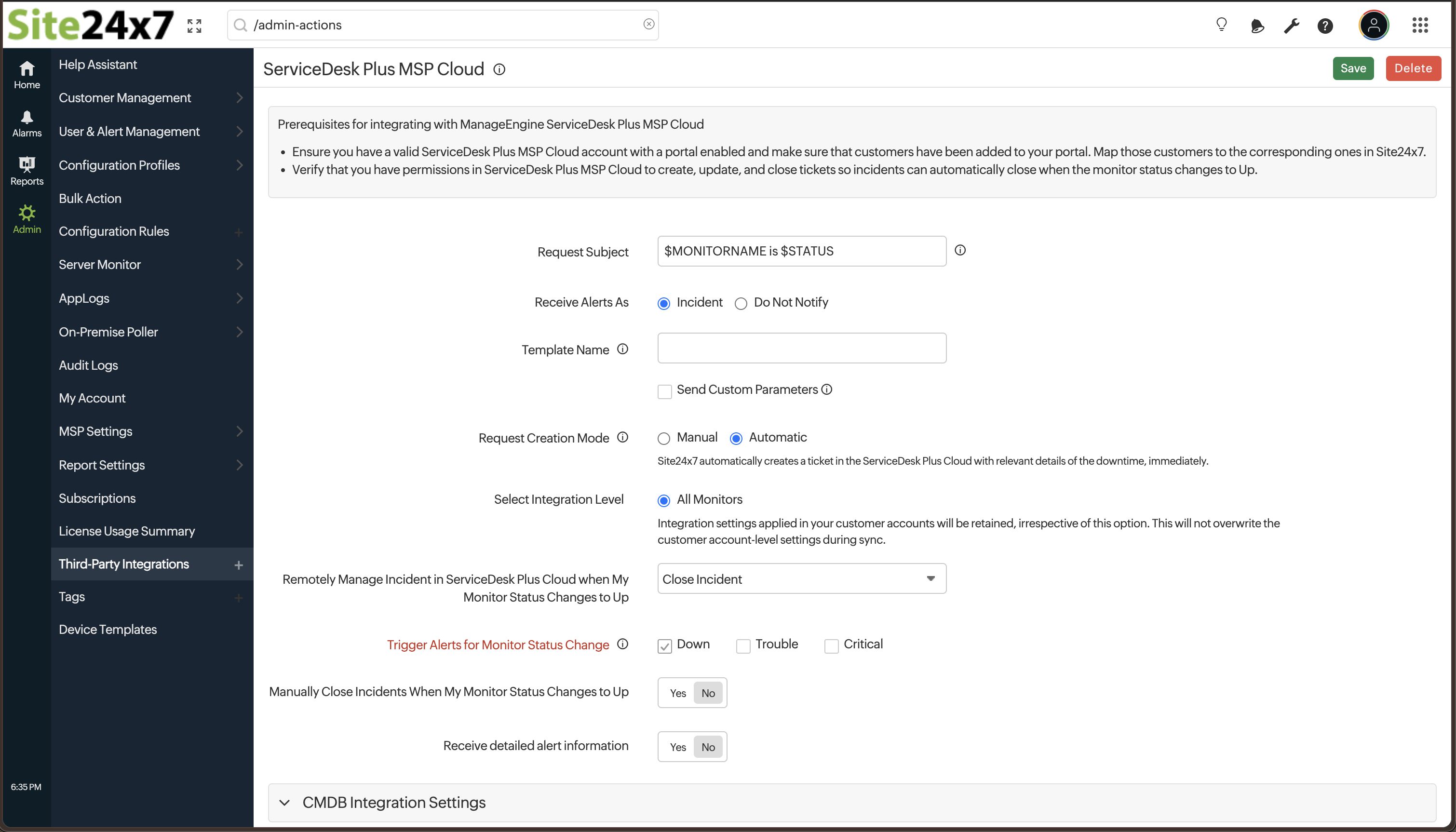
- Request Subject: Use the $ tags to customize the subject line of your alert ticket. You can also use incident and custom parameters to customize the subject.
- Receive Alerts As: Choose how you would like to receive alerts in the ServiceDesk Plus MSP Cloud portal. You can select either the Incidents or Do Not Notify option.
- An Incident refers to an unplanned disruption or service failure that needs to be resolved to restore normal operations.
- The Do Not Notify option turns off all notifications. This option is mainly used by customers who wish to work with the CMDB in ServiceDesk Plus MSP Cloud.
When you select this option, all fields related to alerts will be hidden. You can directly enter the CMDB integration settings and save the integration.
- Template Name: Templates are the predefined incident formats. Provide the Template Name from ServiceDesk Plus MSP Cloud. If not, the default name, Default Request, will be used as the Template Name.
To get the Template Name, log in to your ServiceDesk Plus MSP Cloud account and navigate to New Request > Service Catalog > General Incident Templates. The template name will be listed in the Templates section. -
Request Creation Mode: Choose Manual or Automatic to determine the workflow of how the request will be created in ServiceDesk Plus MSP Cloud.
-
Automatic: Site24x7 automatically creates a ticket in the ServiceDesk Plus MSP Cloud with relevant downtime details as an issue is detected.
-
Manual: You can create a ticket manually by clicking the Create Request link in the RCA and Monitors Dashboard pages.
NoteYou can remotely close the ticket through your Site24x7 control panel by submitting a Close Request.
-
-
Select Integration Level: Choose the preferred integration level to send alerts from your Site24x7 account to ServiceDesk Plus MSP Cloud. By default, the All Monitors option is selected.
- Remotely Manage Incident in ServiceDesk Plus Cloud When My Monitor Status Changes to Up: Select either Resolve Incident or Close Incident to remotely manage incidents in ServiceDesk Plus MSP Cloud. The default option is set to Close Incident.
- Resolve Incident: The incident will be resolved automatically when the monitor status changes to Up.
- Close Incident: The incident will be closed automatically when the monitor status changes to Up.
- Trigger Alerts for Monitor Status Change: Select the monitor statuses for which you want to receive alert notifications through this third-party integration. You must choose at least one status from the available options.
- Manually Close Incidents When My Monitor Status Changes to Up: Use this option to decide whether to close incidents manually or automatically in ServiceDesk Plus MSP Cloud when the Site24x7 monitor alert changes to Up.
By default, the incidents are resolved automatically in ServiceDesk Plus MSP Cloud. -
Receive Detailed Alert Information: This setting controls the level of alert data shared with ServiceDesk Plus MSP Cloud.
-
Yes: Sends comprehensive alert details including monitor type, outages, performance metrics, and troubleshooting reports. All reports will be added as attachments to assist with faster RCA and incident resolution.
The following details will be displayed in the report:Field
Description
Site Monitored
The resource that is being monitored
Resolved IPs
The IP addresses resolved from the monitored resource
Attribute(s) Changed/ Reason(s)
Details of any attribute changes and the reasons behind them
Threshold Profile
The name of the threshold profile
Outage Details
Information about the outage, including locations, resolved IPs, and reason for the outage
Recent Polls
Data from the most recent monitoring checks, including collection time and the resource details
Availability Summary Report
Displays the availability, number of downtime events, downtime duration, and number of maintenance events, along with detailed downtime status and duration
Performance Report
Offers insights into system performance, highlights areas needing improvement, and helps identify anomalies using key metrics and statistical analysis
NoteThe data sent will be similar to what is shared via email notifications.
- No: Sends only basic alert information related to the monitor.
The following basic details will be displayed in the report:
Field
Description
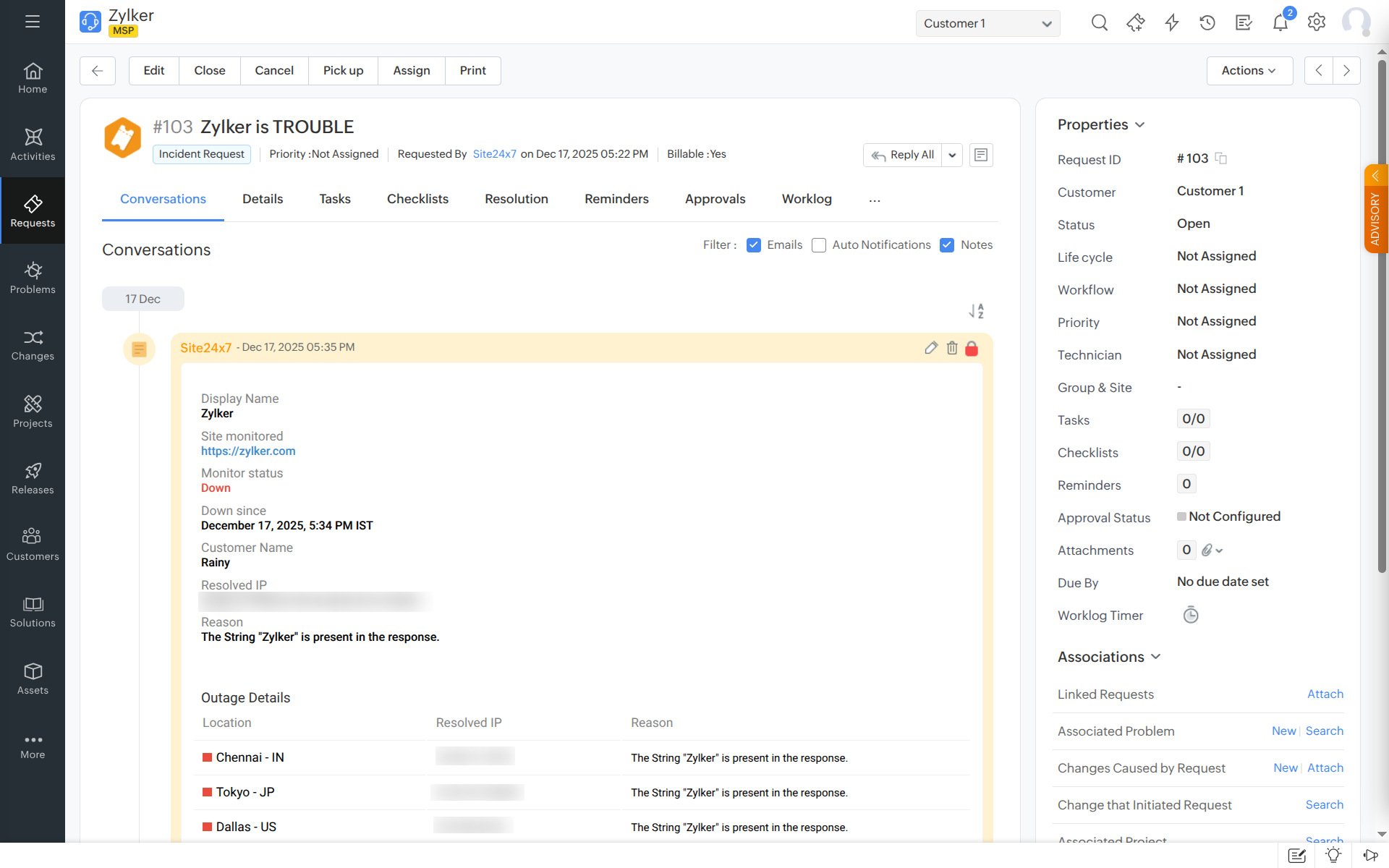
Display Name
The name of the monitored resource
Site Monitored
The resource that is being monitored
Monitor Status
Indicates the status of the monitor
Down Since
The exact date and time when the site was first detected as down
Resolved IP
The IP addresses resolved during the downtime
Reason
The reason for the downtime
Outage Details
Location-wise breakdown of the outage with resolved IP and reason
-
-
CMDB Integration Settings
Enable CMDB Integration: Choose Yes if you want activate integration with your CMDB for enhanced data syncing, or choose No if you do not want to enable CMDB integration.
Learn more about setting the CMDB integration. -
Click Save to save the integration.
When you update an integration configuration and click Save or Save and Test, Site24x7 displays a review page that highlights the modified fields. You can click View Diff to compare the updated configuration with the existing configuration and verify the changes before proceeding.
- When the integration is created by the MSP, it will apply only to the customers who are mapped with the ServiceDesk Plus MSP Cloud customers.
- The ServiceDesk Plus MSP Cloud Portal and Associated ServiceDesk Plus Customer fields will be displayed as non-editable fields with values for customers.
- Customers cannot create their own ServiceDesk Plus MSP integration but can update and delete the integration.
CMDB integration
A configuration management database (CMDB) serves as a comprehensive inventory and relationship map of your IT environment's configuration items (CIs). Using a CMDB integration, you can connect IT monitoring systems with a CMDB to automatically update asset and configuration data.
Integrating ServiceDesk Plus MSP Cloud CMDB with Site24x7 provides the following benefits:
- Comprehensive CI mapping: Site24x7 monitor resources are automatically translated into CIs in ServiceDesk Plus MSP Cloud, capturing key details such as Server Information, OS Type, IP Addresses, and more while maintaining parent-child relationships between the components.
- Continuous data synchronization: The integration keeps the CMDB up to date by syncing the CIs of monitors every 10 minutes, ensuring near real-time visibility of the changes.
- Seamless workflow automation: Integrated data supports automated workflows in ServiceDesk Plus MSP Cloud for alerts, ticketing, and escalations, improving efficiency in incident management.
Integrating with ServiceDesk Plus MSP Cloud CMDB
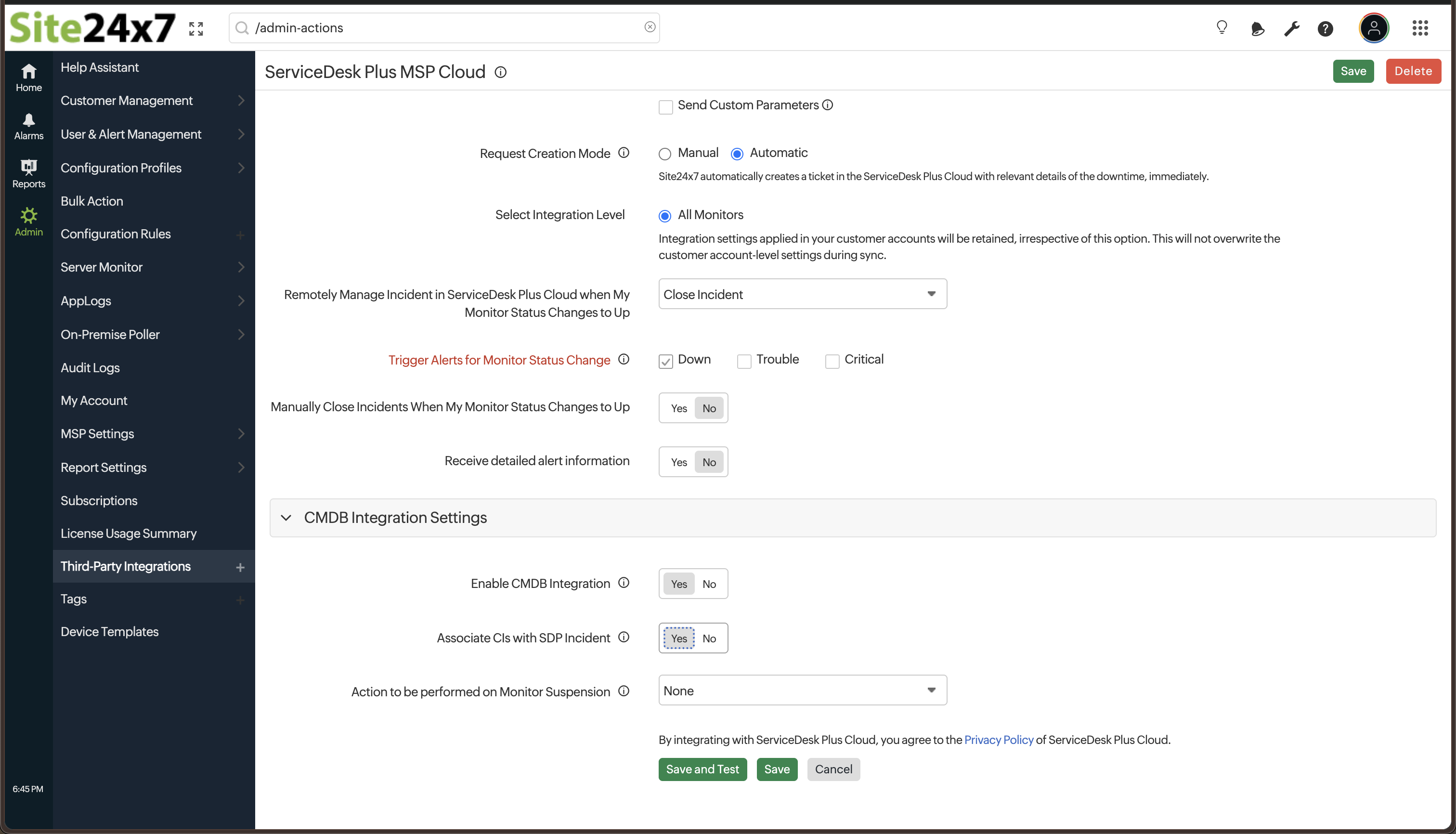
Provide the following details to enable the CMDB integration:
- Enable CMDB Integration: Choose Yes if you prefer to start syncing the Site24x7 inventory details with the ServiceDesk Plus MSP Cloud CMDB. By default, the toggle button is set to No.
- Associate CIs with SDP Incident: Choose Yes if you want CIs to be associated with incident tickets. This will only happen if the CI field is available in the ServiceDesk Plus Cloud ticket template. Choose No if you do not want to associate your CIs with ServiceDesk Plus incidents. Learn how to add a CI field in ServiceDesk Plus.
- Action to be performed on Monitor Suspension: You can manage your monitors on suspension in the ServiceDesk Plus Cloud CMDB from the drop-down list.
Choose the options below to retain or delete the suspended monitors.- None: To retain the suspended monitors.
- Delete: To delete the suspended monitors.
-
Click the Save and Test button to save the integration and receive a test alert. Alternatively, click the Save button to finish the integration.
You can view your CIs under the CMDB section of the ServiceDesk Plus platform.
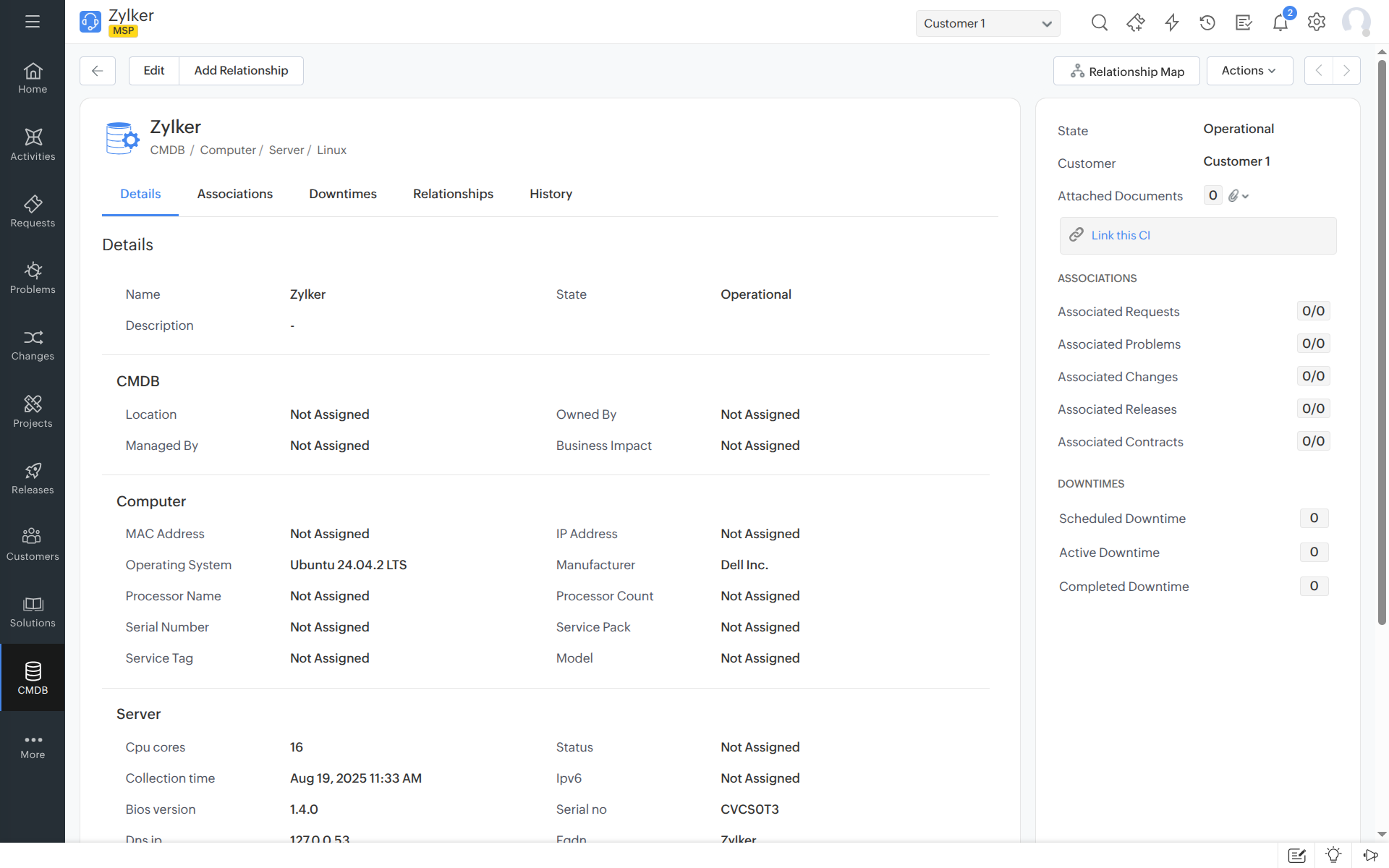
- Users with appropriate privileges can manage CI types and CI data within the selected ServiceDesk Plus instance.
- This integration only supports monitor types with inventory detail.
Supported relationships
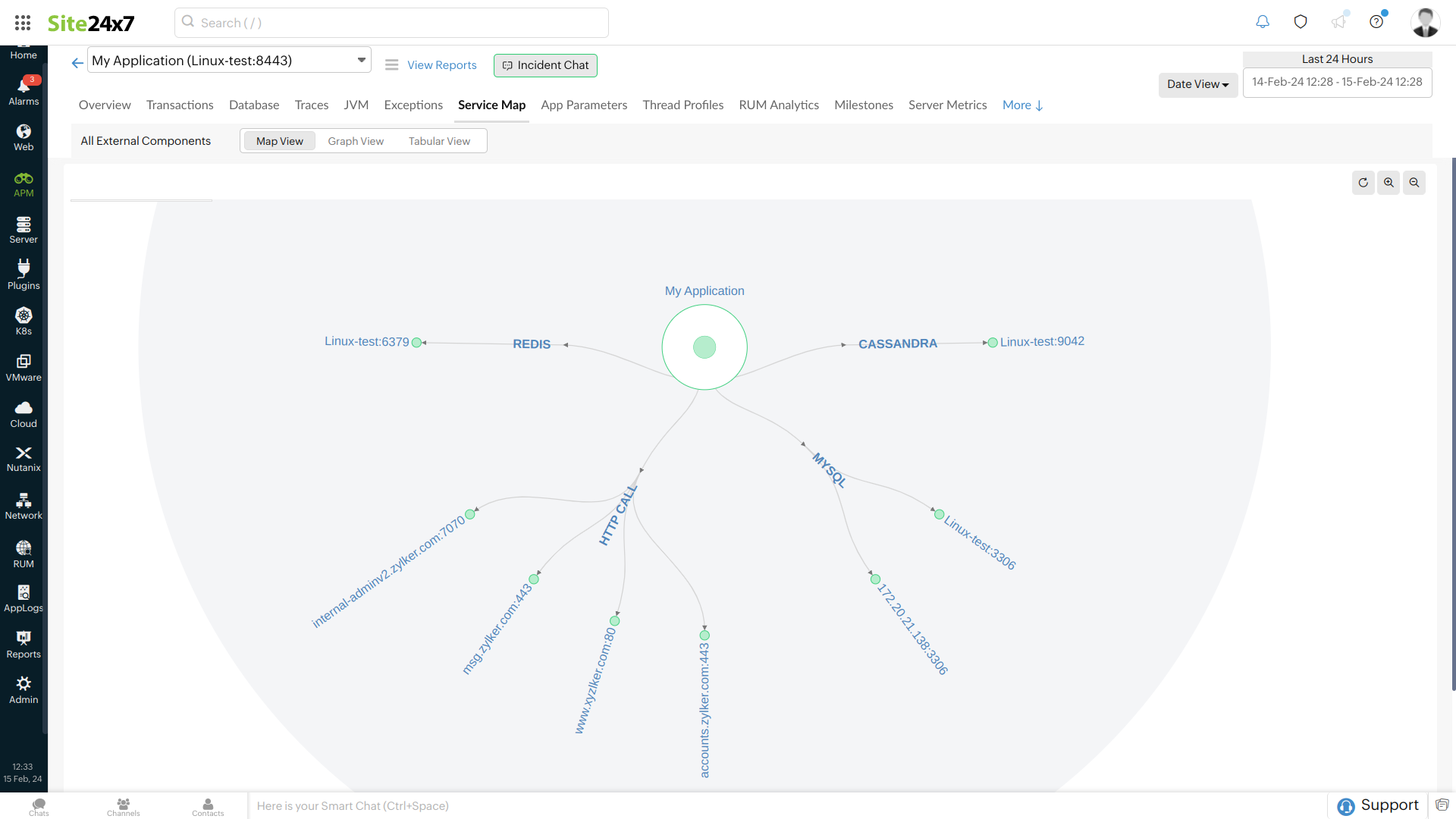
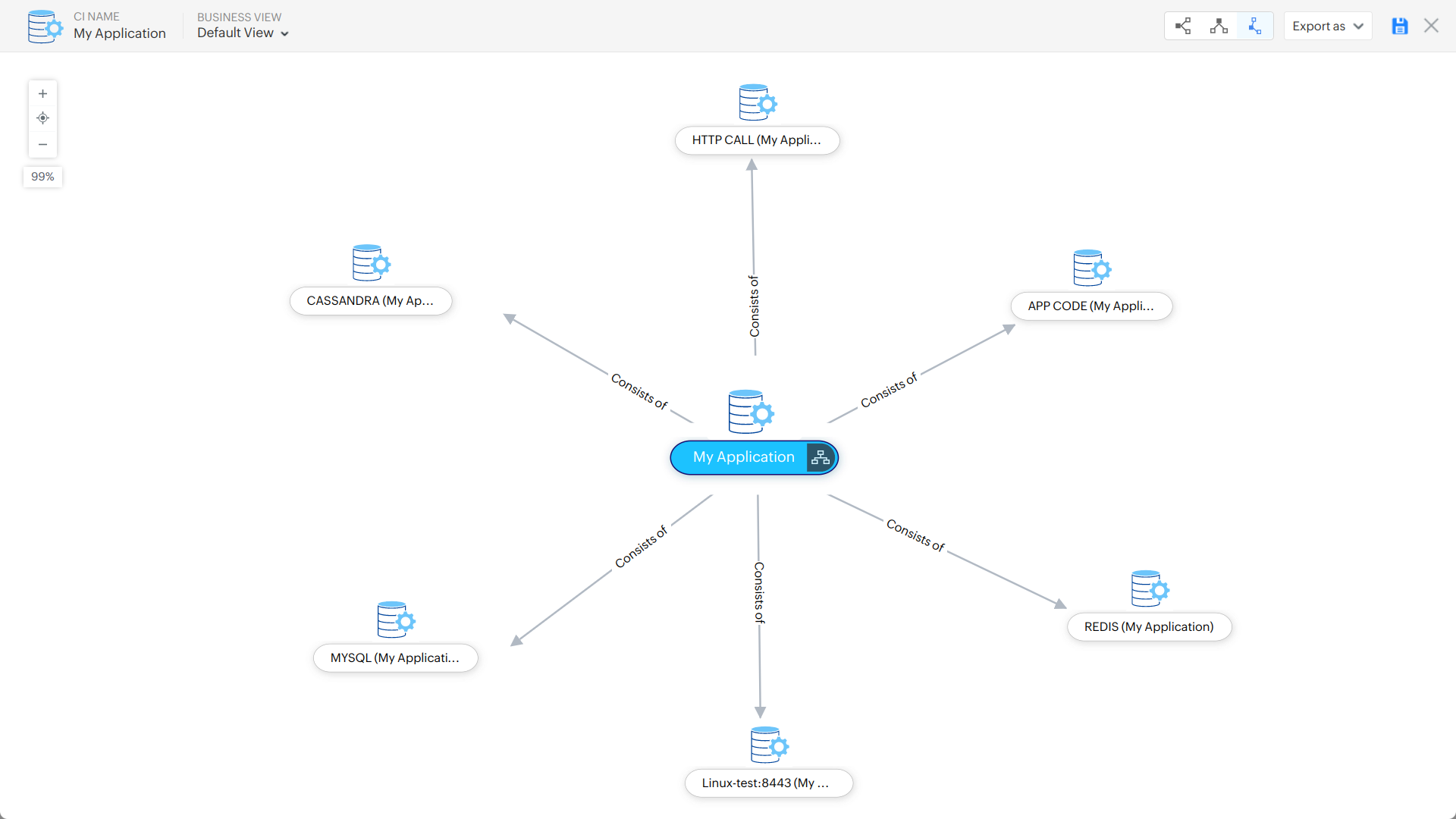
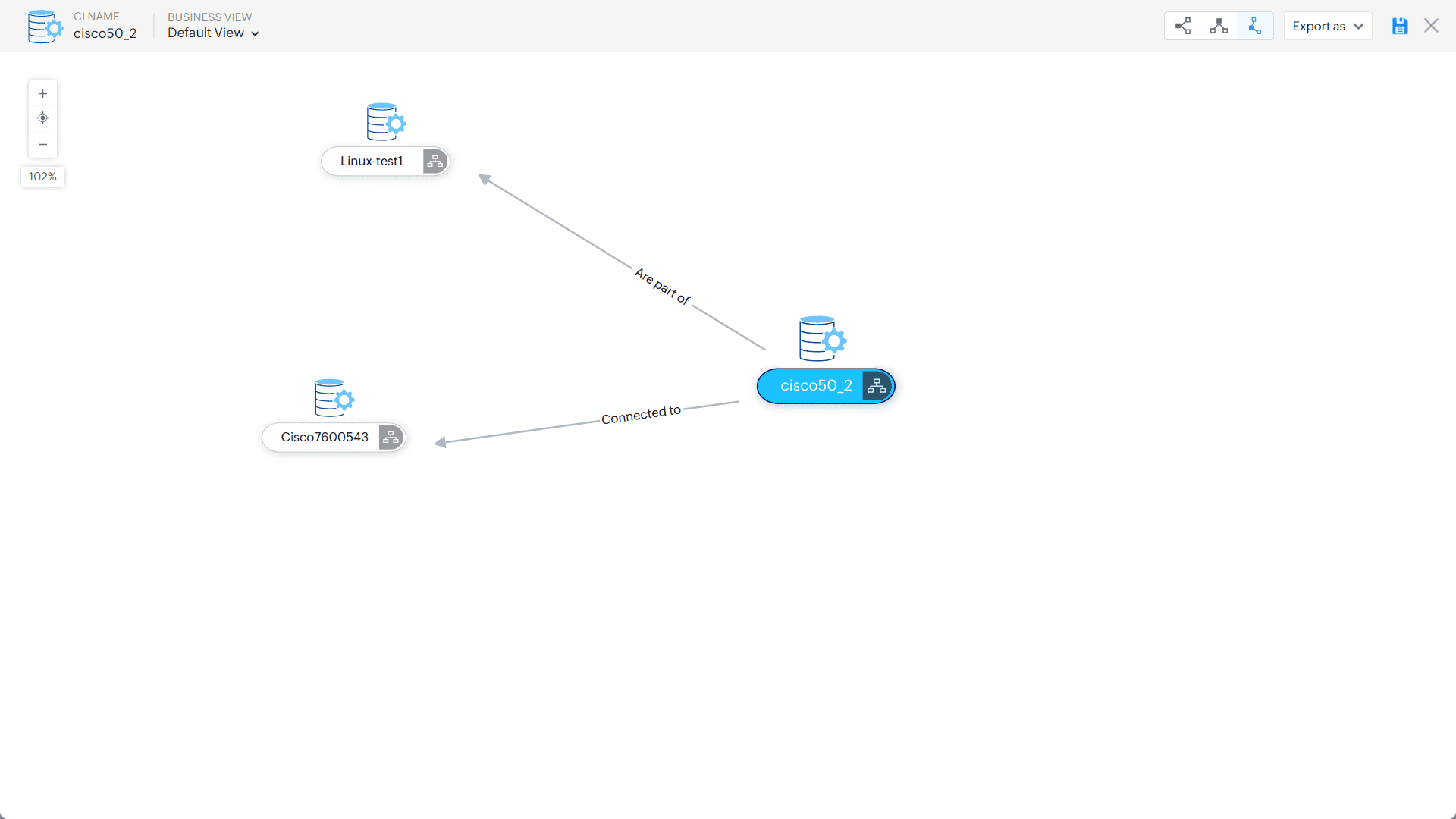
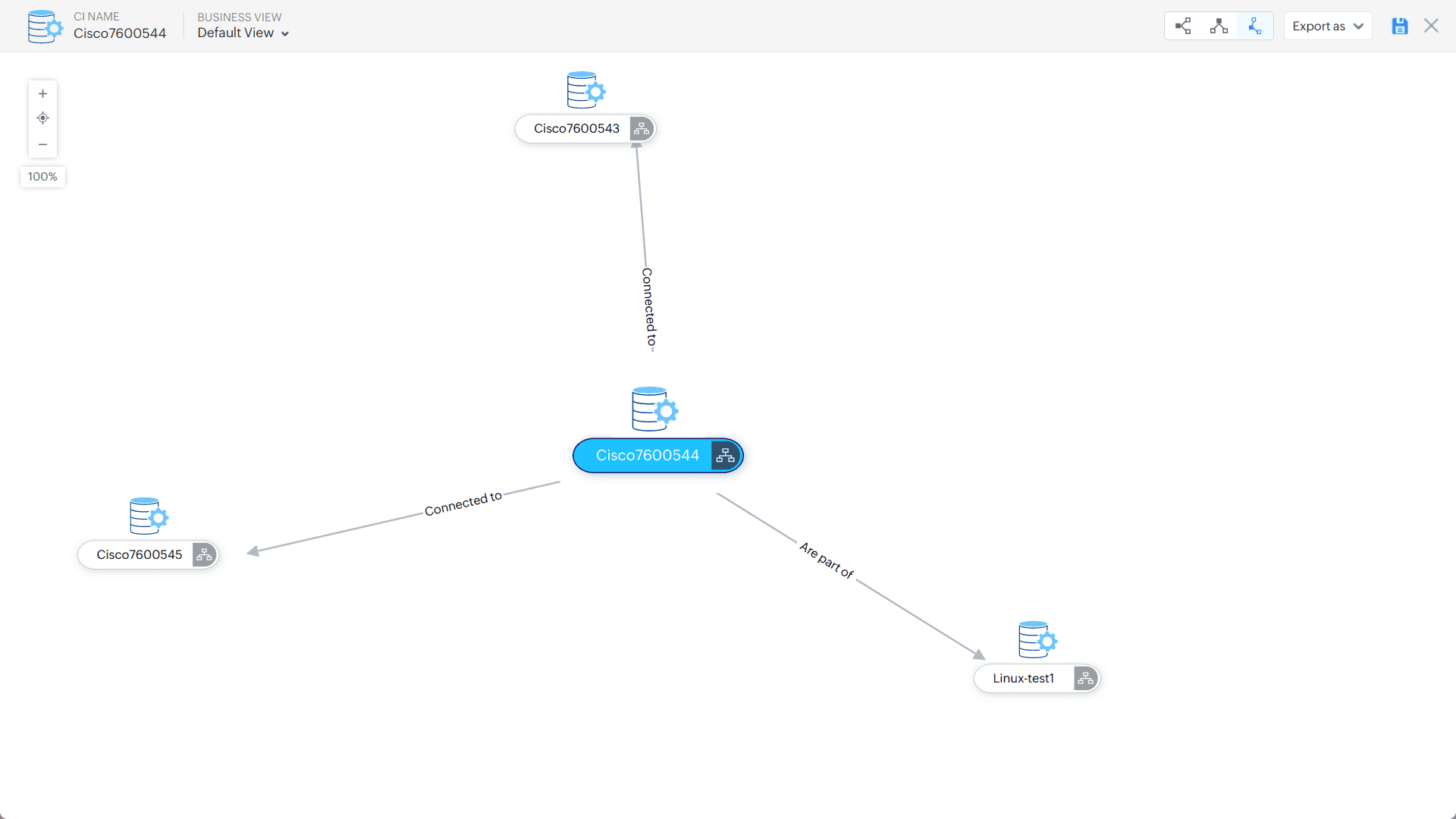
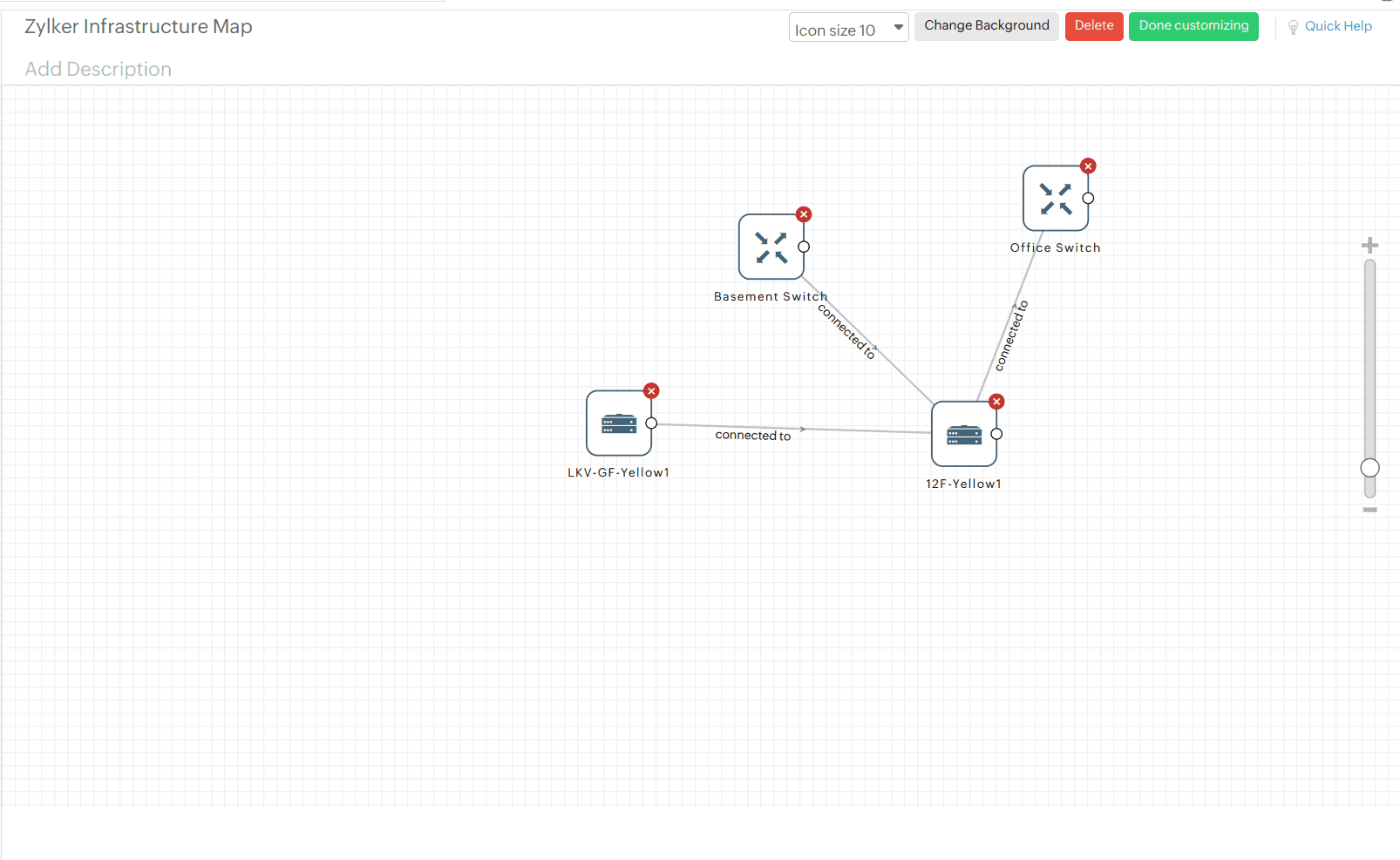
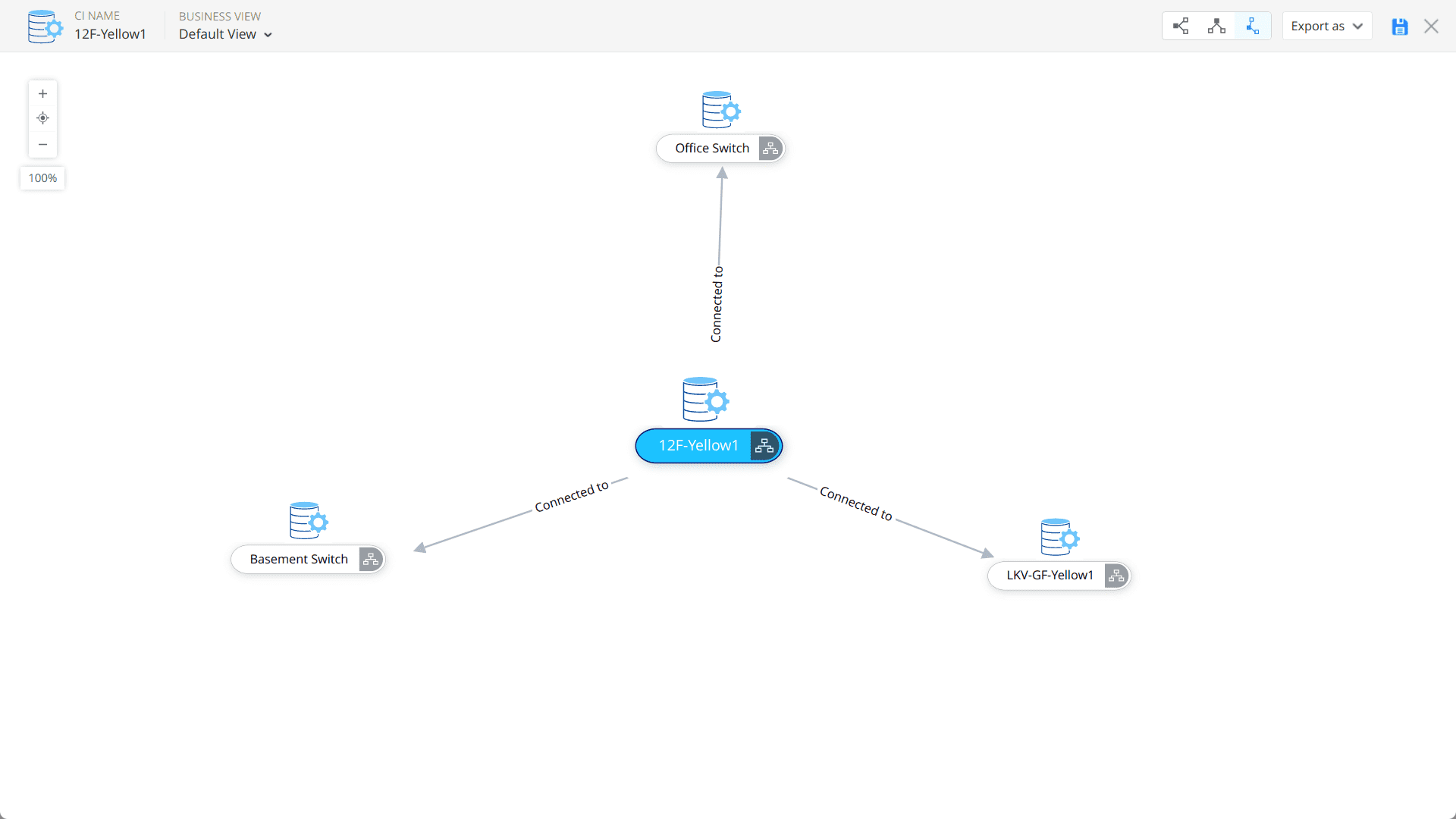
Supported relationships define how different monitored components and their dependencies are synchronized and visualized across various map types. Learn more about relationship maps in ServiceDesk Plus MSP Cloud.
- Service Maps: Application, app servers, and their connected components are synchronized.
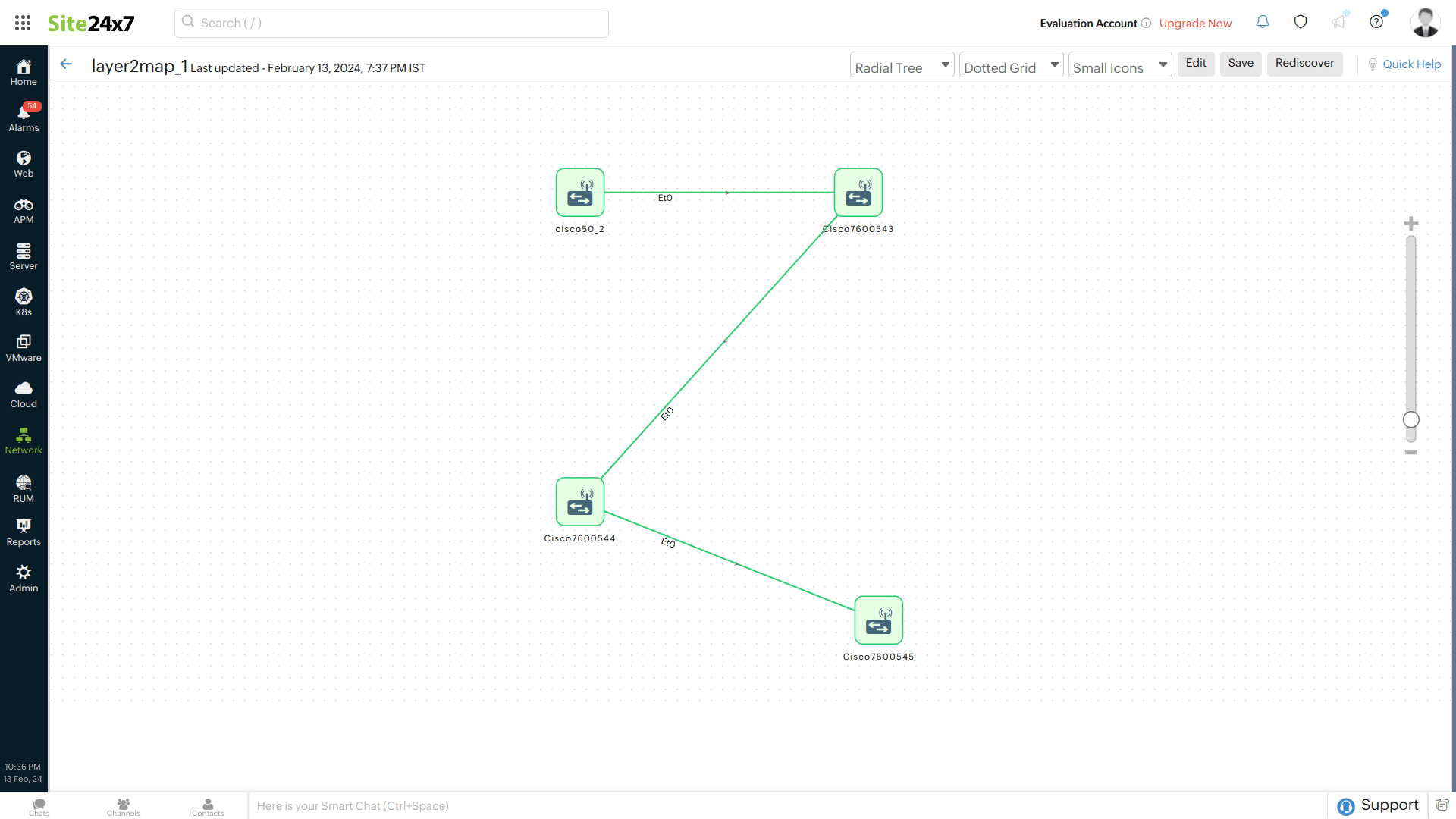
- Layer 2 Maps: Relationships between network devices are synced, maintaining the topology of Layer 2 maps. Cross-linking between Layer 2 maps enhances network visualization and understanding.
- Infrastructure Maps: Relationships defined by users are maintained, enabling customized mapping.
Mapping an MSP customer to a ServiceDesk Plus portal customer account
After creating an integration, you need to map your Site24x7 MSP customer with a ServiceDesk Plus portal and its corresponding customer account. Follow the steps below:
Add a customer account
Provide the customer details along with the ServiceDesk Plus MSP Cloud portal and map the new customer to the corresponding customer in the ServiceDesk Plus portal. This is a one-to-one mapping. For more details on adding a Site24x7 MSP customer, refer to the Customer Account help document.
Edit a customer account
Open an existing customer account by navigating to Admin > Customer. Click the customer and map them to the ServiceDesk Plus portal and customer account. Learn more about editing a customer account in Site24x7 MSP.
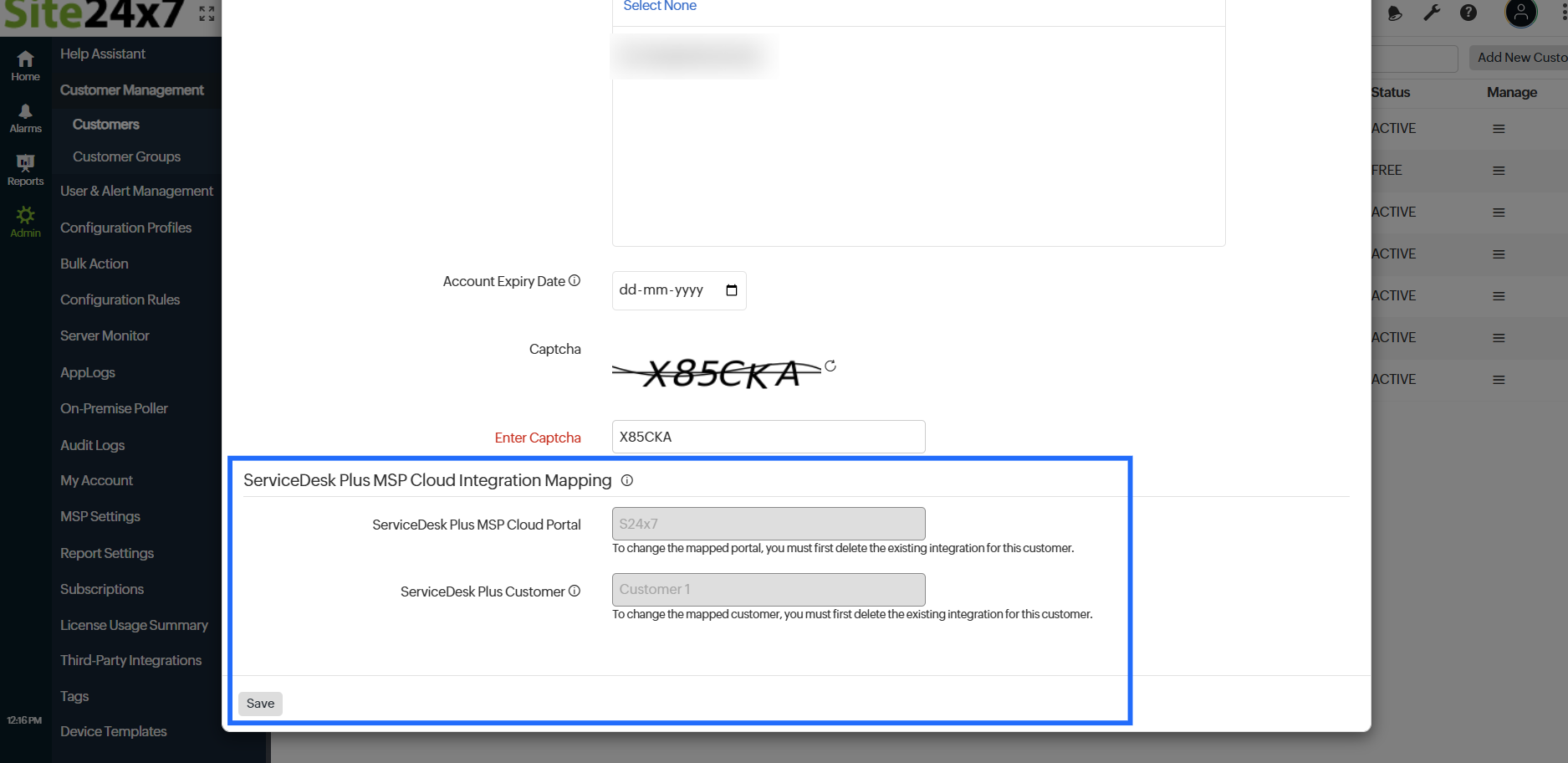
The Map ServiceDesk Plus Customer Account drop-down will display only the unmapped customers from the ServiceDesk Plus portal. Customer accounts that are already mapped will not be displayed.
View tickets in ManageEngine ServiceDesk Plus MSP Cloud
After integrating Site24x7 with ServiceDesk Plus MSP Cloud, you can view all alert tickets in a single dashboard inside the ServiceDesk Plus MSP Cloud client. Any status changes are automatically updated with clear descriptions.
Inside the ServiceDesk Plus MSP Cloud portal, you can assign tickets to technicians and perform other ticket actions. However, if the ServiceDesk Plus MSP Cloud application is down, no new tickets will be created in the portal. Learn more about ServiceDesk Plus MSP Cloud.
|
Site24x7 Alert Status |
ManageEngine ServiceDesk Plus Cloud Status |
|---|---|
|
Down |
Triggers ticket creation inside ServiceDesk Plus MSP Cloud portal. This is controlled by the request creation mode settings. |
|
Trouble |
Triggers ticket creation inside ManageEngine ServiceDesk Plus portal. This is controlled by the request creation mode settings. |
|
Trouble monitor |
Trouble alert triggers ticket creation inside ServiceDesk Plus MSP Cloud portal. |
|
Down/Trouble |
Ticket is automatically closed inside ServiceDesk Plus MSP Cloud portal. |
|
Down/Trouble |
Ticket remains open inside ManageEngine ServiceDesk Plus MSP Cloud portal until the |
Auto-resolve tickets and reduce resolution time further with Site24x7 IT Automation.
Suspend, activate, or delete the ServiceDesk Plus MSP Cloud integration
Follow the steps below to suspend an active ServiceDesk Plus MSP Cloud integration:
- Log in to the Site24x7 MSP account.
- Navigate to Admin > Third-Party Integration.
NoteAll the integrations will be listed here in the Third-Party Integration dashboard.
- Initiate a test alert to check whether the integration is a success or has any configuration error by clicking the Trigger Test Alert
 button.
 - Open the active ServiceDesk Plus MSP Cloud integration that you want to suspend and click the Suspend button listed in the top-right corner of the integration window.
Note- When your ServiceDesk Plus MSP Cloud integration is suspended, all incident tickets to your ServiceDesk Plus MSP Cloud account will be temporarily stopped.
- To reactivate a suspended ServiceDesk Plus MSP Cloud integration, click the Activate button.
- To delete an integration permanently, open the active ServiceDesk Plus MSP Cloud integration and click the Delete button in the top-right corner of the integration window.
Supported plan
MSP
-
On this page
- Prerequisites
- How does the integration work?
- Integration procedure: Site24x7 with ServiceDesk Plus Cloud for MSPs
- CMDB integration
- Integrating with ServiceDesk Plus MSP Cloud CMDB
- Supported relationships
- Mapping an MSP customer to a ServiceDesk Plus portal customer account
- View tickets in ManageEngine ServiceDesk Plus MSP Cloud
- Suspend, activate, or delete the ServiceDesk Plus MSP Cloud integration
- Supported plan