Web Application Monitoring using Transaction Recorder
Web Application Monitoring monitors sequence of web pages of an online application such as online shopping cart or a banking transaction. You can get instant notifications relating to any database problems, page load time or even content errors.
How it Works
Site24x7 provides a downloadable transaction tool that can be used to record all user steps in your web application in their exact sequence. These transaction will then get replayed at regular intervals of time and notifications will be sent when any error is detected. Typical user transactions include login checks, online purchase through shopping carts, any sort of online form submission, sign-up processes, etc. Every step of the transaction will be captured and recorded. Site24x7 will then keep simulating these actions continuously, scanning for any sign of trouble. You also can modify or edit your transactions at a later point of time.
Download and Install Web Application using Transaction Recorder
- Select Admin > Inventory > Monitors > Add Monitor.
- Select Web Application from Add Monitor page.
- You will be navigated to Web Application Monitoring screen.
- Click Web Application Monitor button to download the recorder tool.
- After the download, click the Recorder link and select Run to run the file in your system.
- To access the Site24x7 Recorder tool, click Start Menu > All Programs > Site24x7 Recorder.
Record a New Transaction with Transaction Recorder
- Click New to start a new recording.
- Enter the URL of the application you wish to monitor.
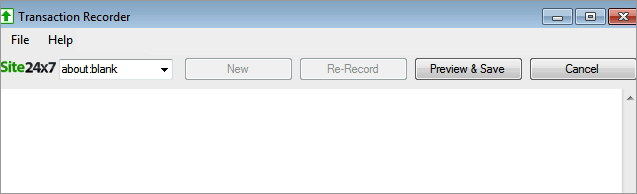
- Browse through the required steps in your application to record the transaction and click Preview & Save.
- A dialog box appears which will prompt you to enter the Site24x7 login credentials.
Using Site24x7 login credentials, authentication token can be used from Site24x7 API.
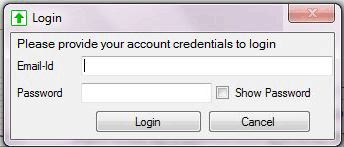
- Click Login once you have entered your Device Key.
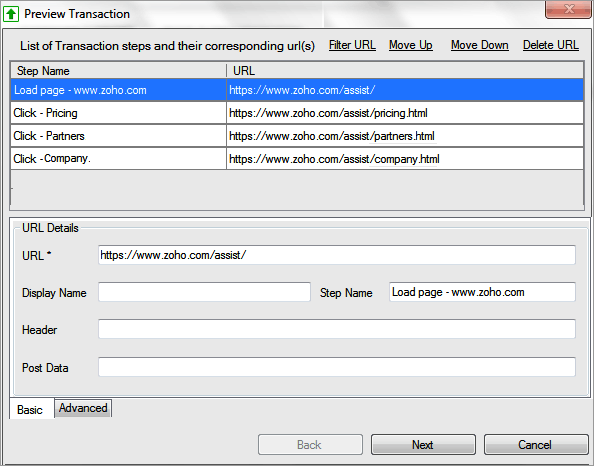
- The Preview transaction screen appears where the following actions can be performed:
- Filter URL: You can remove unwanted URL from your transaction.
- Move Up / Move Down: You can alter the sequence of the recorded transaction.
- Delete URL: You can delete unwanted URL from your transaction.
- Basic: Review and modify the description of the URL, step name of the URL and parameters of the URL. this can be done for all individual transaction steps.
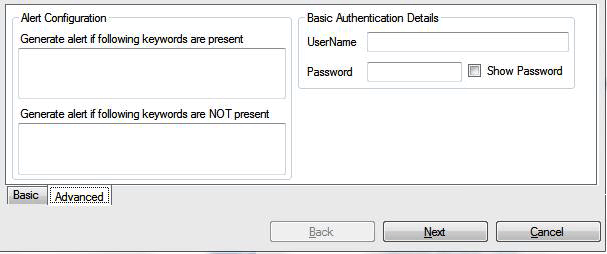
- Advanced: Enter the alert configuration for content match and basic authentication details.
For Content Match, specify the following details:
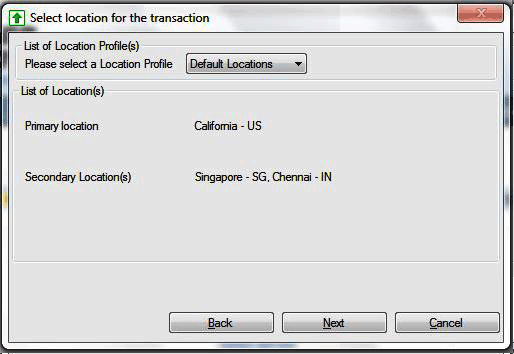
- Select the location profile from the dropdown list to choose the location for your transaction. The primary and secondary locations selected for the chosen location profile will be displayed.
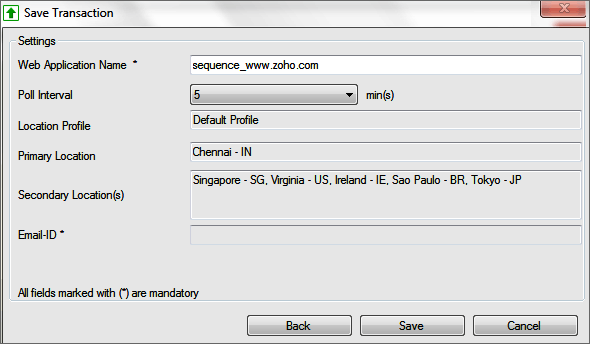
- Edit and enter the field in Save Transaction screen and click Save to submit the transaction to your Site24x7 account.
Modify the Saved Transaction
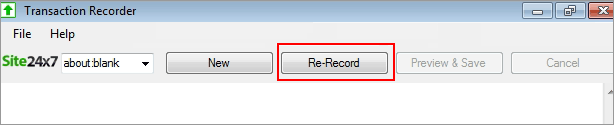
- After invoking the transaction tool, click the Re-Record button
- To re-record the transaction, browse through the required steps in your application and click Preview & Save.
- Enter the login details and click Next.
- In the Preview transaction screen, click Next to proceed to Update Transaction screen.
- Select a transaction to update from the drop down and click Fetch Steps. This will list the existing URLs in the transaction.
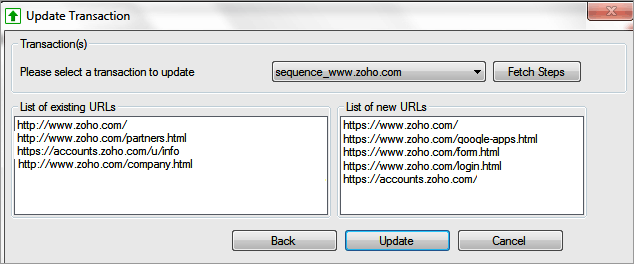
- Click Next and you can see the existing list of URLs and the new set of URLs.
- Update to overwrite the existing with the new set of URLs.
Edit/Modify the Added Web Application Monitor
- Enter an appropriate display name for the added monitor.
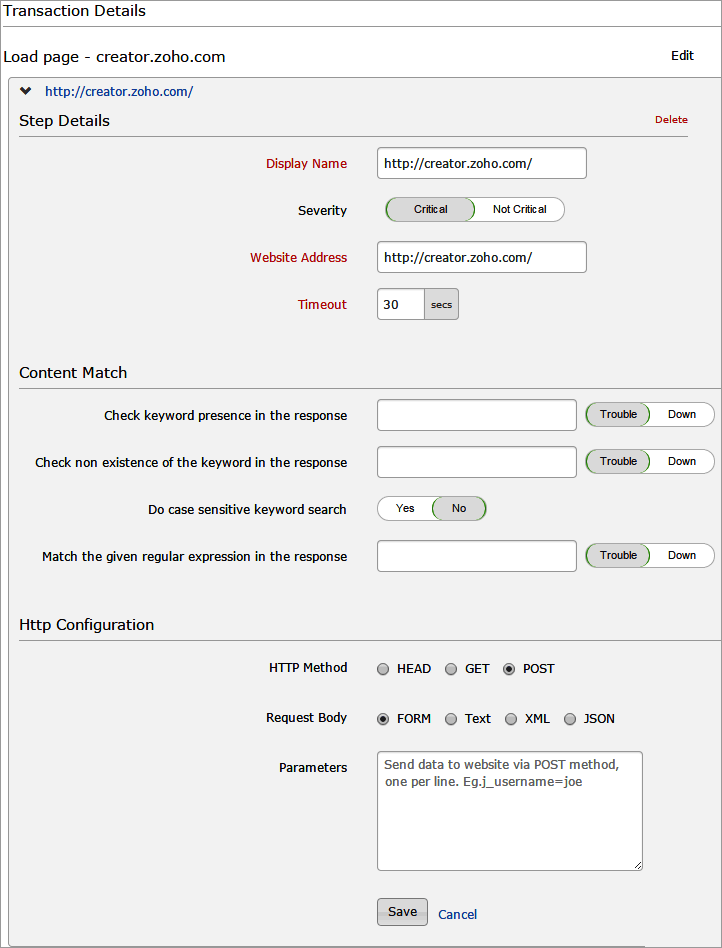
- Select the required step to modify any step in your transaction and specify the following details:
- Display Name: Edit the display name for the transaction step.
- Severity: Use the toggle to set the severity status as Critical or Non Critical.
- Website Address: Edit the website address
- Timeout: Specify time in seconds the connection need to establish with the target server. When time exceeds, the DNS server will report a "Connection Error".
- Specify the following details for content match:
- Specify the required details for HTTP Configuration:
- HTTP Method: Select the radio buttons to configure the form submission method and appropriate body type for the POST HTTP Method.
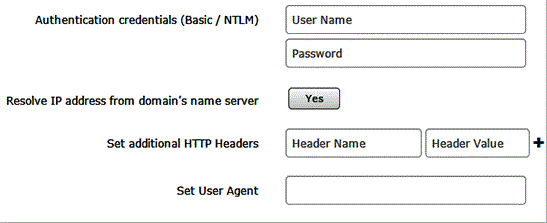
- Mention the following details to edit web application:
- Authentication credentials (Basic/ NTLM): Provide User Name and Password to monitor websites that require Basic/NTLM authentication.
- Resolve IP address from Domain's Name Server: Use the toggle button to decide whether to resolve the name server. When enabled, Site24x7 will resolve the IP address from the name server of your domain.
- Set additional HTTP Headers and User agent: Set customized user agent sent on request and the HTTP headers. Provide user agent and appropriate header name and header value.
- Specify the following details for Configuration Profiles:
- Threshold and Availability: Select a threshold profile from the drop down list or choose the default threshold set available and get notified when the resources cross the configured threshold and availability.
To create a customized threshold and availability profile, refer Threshold and Availability.
- Notification Profile: Choose a notification profile from the drop down or select the default profile available. Notification profile helps to configure when and who needs to be notifed in case of downtime.
Refer Notification Profile to create a customized notification profile.
- User Groups: Select the user group that need to be alerted during a outage.
To add multiple users in a group, see User Groups.
- Action: Select an action to be executed when the website is down/trouble/up/any status change/any attribute change. The defined action gets executed when there is a state change and selected user groups are alerted.
To automate corrective actions on failure, refer Actions.
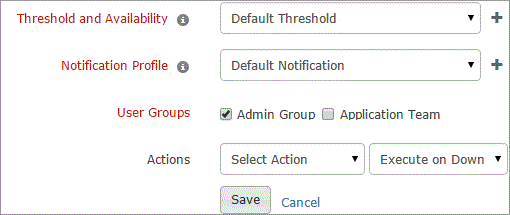
- Click Save.
To compare different monitor types for URL and Website monitoring, refer here.