
Alert Notifications
The Alert Notifications page provides a centralized view of notifications generated across your MSP account. It helps you monitor customer alert activity and track the synchronization status of MSP-level configurations.
The page is organized into the following tabs:
- Monitor Alerts displays real-time alert notifications for monitors across all customer accounts. Use this tab to track monitor status changes, such as Up, Down, and Trouble events.
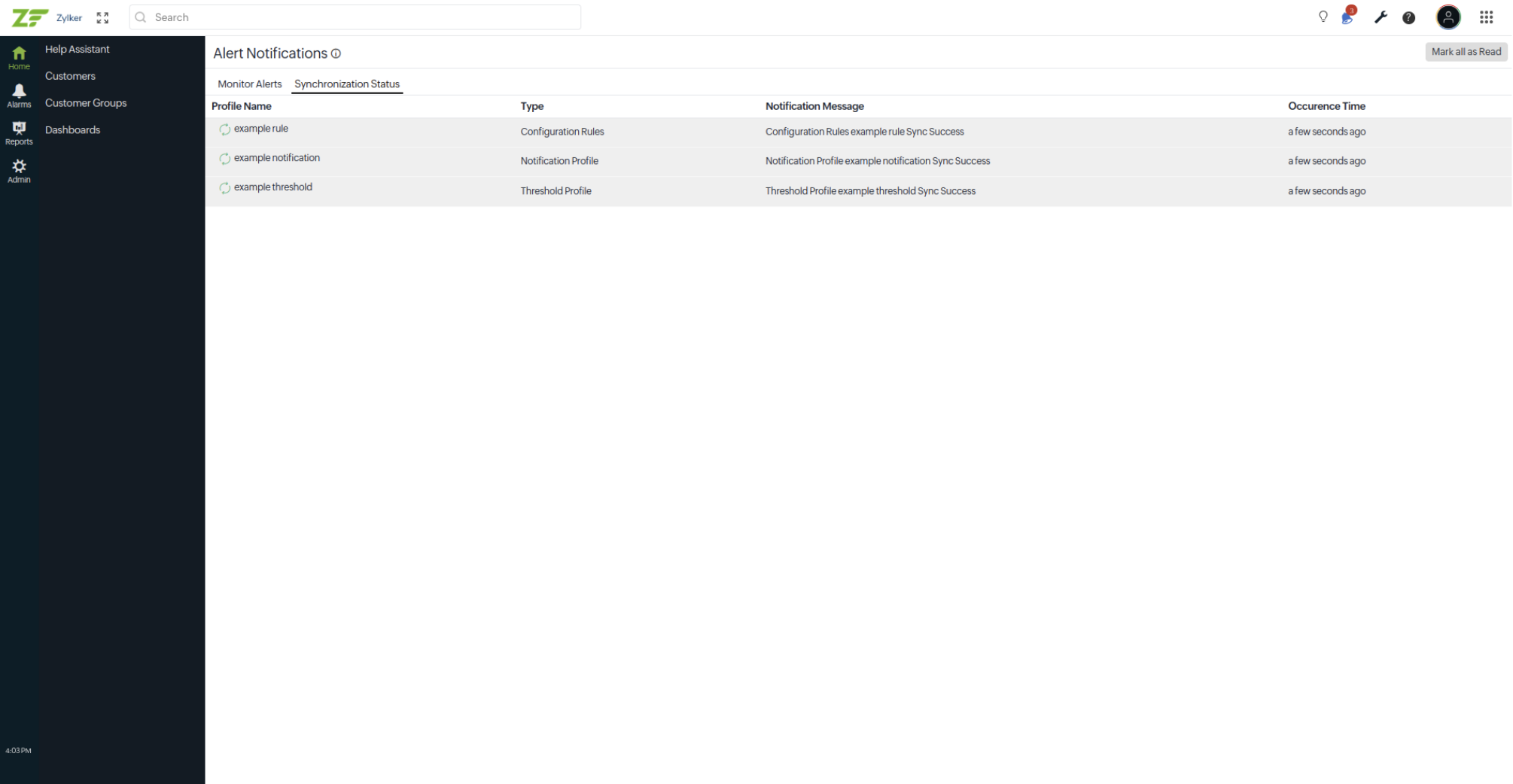
- Synchronization Status tracks the synchronization of MSP-level configurations, such as profiles, rules, templates, and settings, across customer accounts. Each entry represents a synchronization event and its outcome.
Accessing Alert Notifications
- Log in to your Site24x7 MSP account.
- Click the bell icon
 in the top-left corner of the application. A list of recent notifications will be displayed.
 - Click See All Notifications to open the Alert Notifications page.
Monitor Alerts
This tab displays a real-time log of alert notifications triggered by monitors configured for your customers. Each entry represents an individual alert event, such as a monitor entering a Down or Trouble state.
The following columns are available:
|
Column |
Description |
|---|---|
|
Monitor Name |
The name of the monitor that triggered the alert |
|
Notification Message |
The details of the alert event, including the monitor status and reason for the alert |
|
Customer Name |
The name of the customer account associated with the monitor |
|
Occurrence Time |
The relative timestamp indicating when the alert occurred |
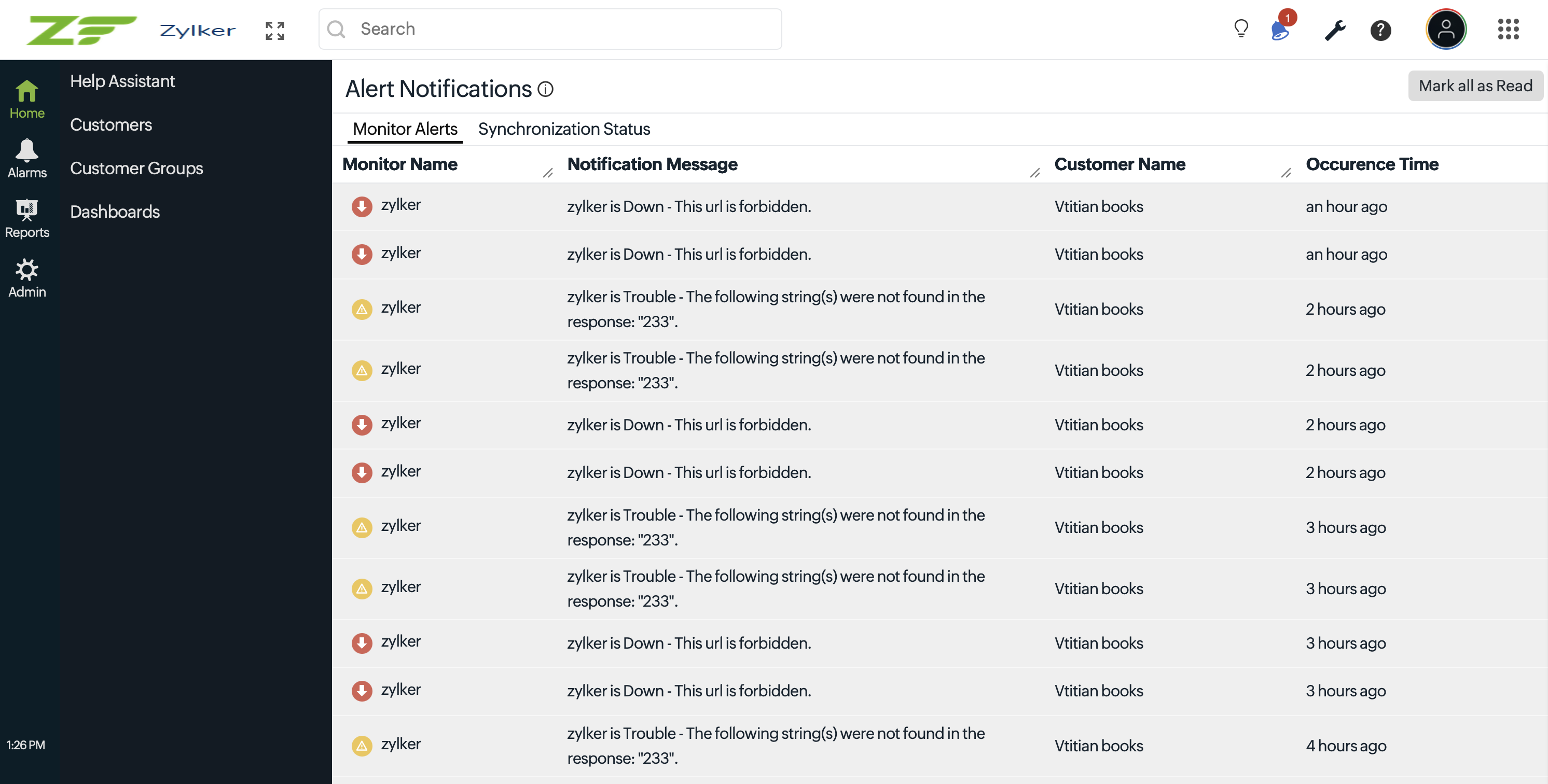
Multiple notifications for the same monitor may be generated when the monitor is polled at frequent intervals. Each row represents a separate alert event. Use the Occurrence Time column to identify recurring issues.
Synchronization Status
This tab tracks the synchronization of MSP-level configurations across customer accounts. Whenever a supported configuration is created or updated at the MSP level, Site24x7 automatically synchronizes the changes with the associated customer accounts and records the synchronization result on this tab.
The following columns are available:
|
Column |
Description |
|---|---|
|
Profile Name |
The name of the configuration profile, template, or rule that was synchronized |
|
Type |
The configuration category, such as a Location Profile, Notification Profile, Threshold and Availability Profile, or Configuration Rule |
|
Notification Message |
Indicates whether the synchronization succeeded or failed along with the corresponding status message |
|
Occurrence Time |
The relative timestamp showing when the synchronization event occurred—hover over the timestamp to view the exact date and time |
Mark notifications as read
Click Mark all as Read in the upper-right corner of the page to mark all visible notifications as read in a single action.
Related articles
- Learn more about the alert notifications badge for customers.
- Learn more about the Site24x7 control panel.