Users
Setup other users who can login to Site24x7, individually customize the way each contact interact with the Site24x7 account and receive notifications about outages.
Add Users/Contact
- Click Admin > User Management > Users.
- Click Add User in Users screen.
- Specify the following details to add contact:
- Contact Name: Enter the name of the contact.
- E-mail: Specify the email ID of the contact.
- Mobile Number: Choose the country code from the drop down list and enter the phone number of the contact. The alert notification will be sent to this number if you have opted for SMS as your medium.
- Add Image: Upload an image to set a profile picture for the contact which you are going to add.
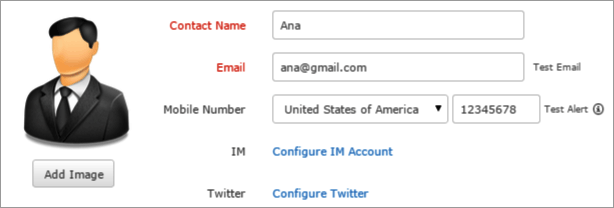
- IM: Configure your Trouble/Down/UP alerts using Instant Messenger. Site24x7 supports Gtalk, Yahoo, MSN.
To register IM with Site24x7, do the following:
- Click Configure IM Account to register and add an account.
- Enter the IM ID in the IM Account field name.
- For example: john@gmail.com, carol@yahoo.com, david@hotmail.com.
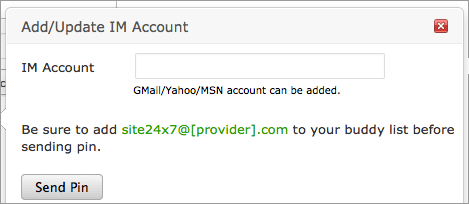
- Add Site24x7 IM account to your buddy list.To add a new buddy contact in Gmail account, enter Site24x7 chat ID in the chart bar and click Invite to Chat.
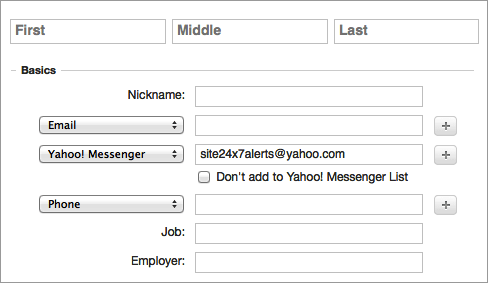
- To add a new buddy contact in Yahoo, click Contacts > New Contacts.
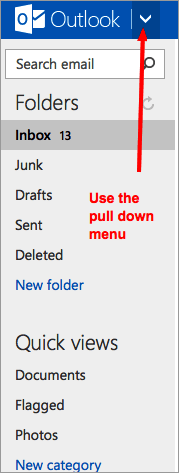
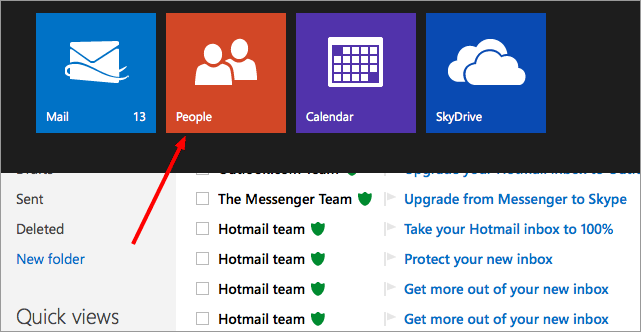
- In your MSN account, use the drop down menu on the top left pane and navigate to People > New.
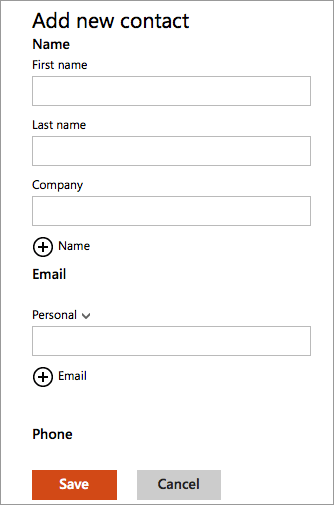
- Enter the details under New.
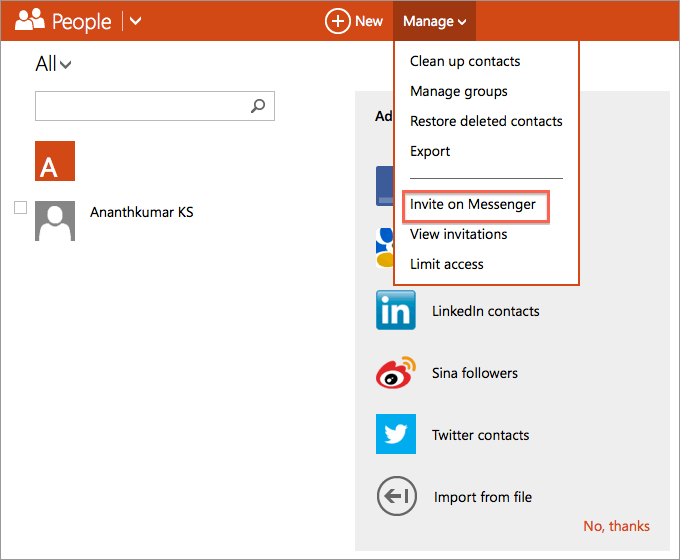
- Click Manage > Invite on Messenger. Provide Site24x7 chat ID and click Invite to add to buddy list.
- Click Send Pin to receive the Pin number.
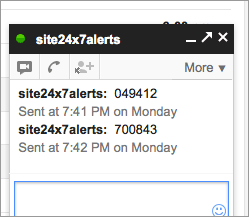
- The Pin number will pop up in the chat window.
- Click Resend Pin if you have not received the pin number in the first attempt.
- Copy the Pin and click Verify Pin to verify the Pin option.
- The IM will now be added to your account and displayed under IM.
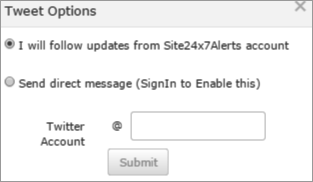
- Twitter: Receive alerts directly on your twitter account. Select the appropriate radio button to receive alerts either via direct message or follow updates from Site24x7Alerts twitter handle.
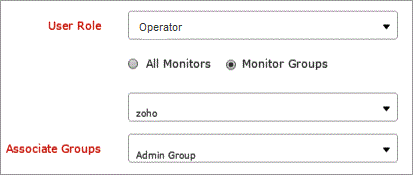
- User Role: Select the desired role from the drop down list and provide the appropriate access permission for this contact.
- Once the contact is added, he/she will receive an invitation from noreply@zohoaccounts.comto join the Site24x7 organization. The sub user needs to follow the instructions in the email to create an account.
- For each role, you can choose to allow the access permissions to all monitors or specific monitor groups.
- Admin user has access permissions to all monitors.
- To add a sub user to your account, you should have the organization privileges or the new user should be in the same organization.
- Learn more about different user roles and their corresponding access permissions.
- Associate to User Groups: Associate the user created to one of the user groups from the drop down list. If user group has not been created, see User Group.
- Notify Medium: Mention the medium through which your alerts should be notified. The different medium available for notifying are Email, SMS, Phone, IM, Twitter.
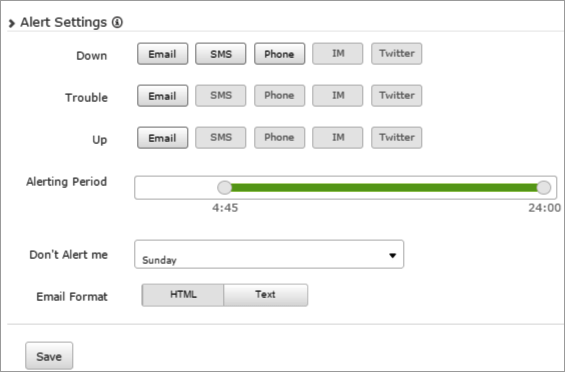
- Specify the following details for Alert Settings:
- Down, Trouble, Up: Configure the preferred mode of alerting for Down, Trouble and Up alerts. Choose from different alerting mechanism viz Email, SMS, Phone, IM, Twitter.
- Alerting Period: Use the slider to choose the time period for receiving alerts.
- Don't alert me: Define a time period when you don't want to receive the alerts.
When this option is configured, you will not receive any alert notification for that particular period. However, one can view the monitoring details from inside your account.
- Email Format: Choose the format of the alert email which you want to receive from Site24x7.
- Click Save.
- The new user added will be automatically listed in Users screen along with other users already created.
Edit User/Contact
- Click the user which you want to edit.
- Edit the parameters that need to be changed in the Update Contact window.
- Click Save.
Delete User/Contact
- Click the profile in the Users screen which needs to be deleted.
- This will navigate to Update Contact window.
- Click Delete.


