MS Exchange Server Monitoring
Obtain a simple graphical representation of the various exchange roles configured in your servers and analyze RPC request/response time for client access, hub transport, unified messaging, database details and more with MS Exchange server monitoring. We support 2007, 2010 and 2013 versions of Microsoft Exchange for better accessibility and convenience.
How Can I...
Add a MS Exchange Server Monitor
- Click Admin > Inventory > Monitors > Add Monitor.
- Select MS Exchange Monitor in Add Monitor page.
- You will be navigated to MS Exchange Monitoring screen.
- Click Download MS Exchange Monitor to download the agent.
Install the Agent
MS Exchange monitor can be configured using Site24x7 windows agent.
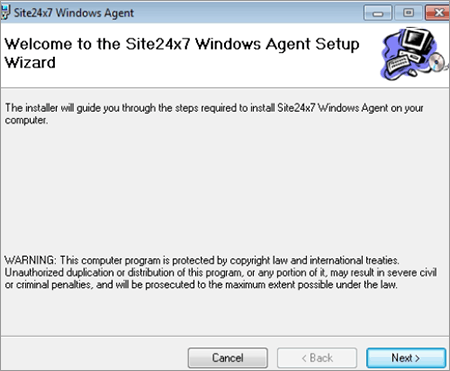
- Click on the .msi file to open Site24x7 Windows Agent Setup wizard. Click Next.
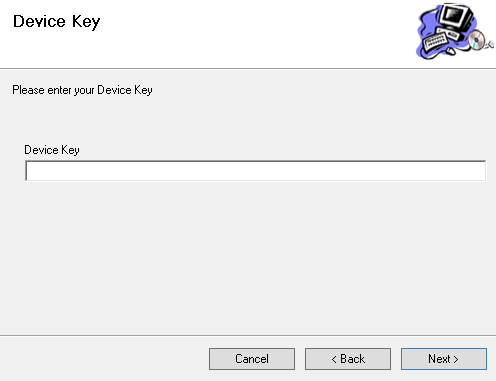
- Enter your device key to start the installation procedure.
Device key can be obtained from Admin > Developer > Device Key.
- Select a installation folder where you want to place the agent. The installer will automatically install Site24x7 Windows agent to that folder specified.
The folder where the agent is placed must have a Read and Write permission.
- Follow the wizard to complete the installation process.
Configure Proxy
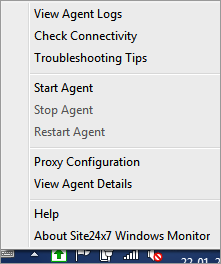
- Once the installation is completed, the agent can be accessed from the tray icon in the status bar.
- Right click the tray icon to configure the proxy.
- Specify the proxy details in order to communicate to the central server.
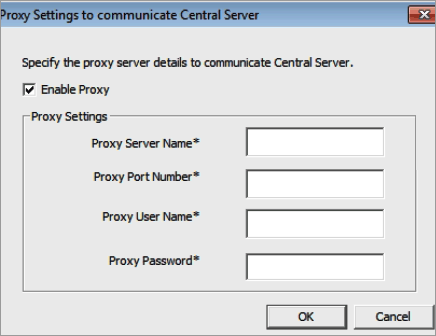
- Click OK to enable the proxy where agent will be ready to collect data from your server.
- Once the agent is installed, MS Exchange monitor will be automatically added to your account. The monitor can be viewed under Admin > Inventory > Monitors.
Edit/Modify the added MS Exchange Monitor
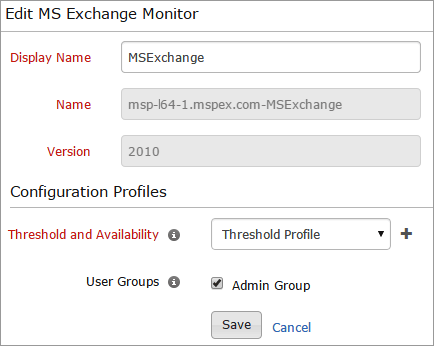
- Click the server monitor which you want to edit in Monitors screen.
- Enter an appropriate display name for the added monitor.
- Name and Version of the added MS Exchange will be shown by default.
- Select a threshold profile from the drop down list or choose the default threshold set available and get notified when the resources cross the configured threshold and availability.
To create a customized threshold and availability profile, refer Threshold and Availability.
- Select the user group that need to be alerted during a outage.
To add multiple users in a group, see User Groups.
Rediscover MS Exchange Monitor
In the absence of MS Exchange Monitor in the Site24x7 web client or if it has been deleted previously, you can enable it using the rediscover applications feature. Go to the specific server monitor's main display page and click on Actions at the top right corner. Click on Discover Applications in the drop-down to start monitoring MS Exchange server again.


