Monitor the availability and resource utilization of your Amazon EC2, RDS instances, EBS volumes and troubleshoot problems through root cause analysis. Ensure optimal capacity planning through in-depth Amazon S3 metrics.
Obtain Access Key and Secret Access Key
Login to your AWS account.
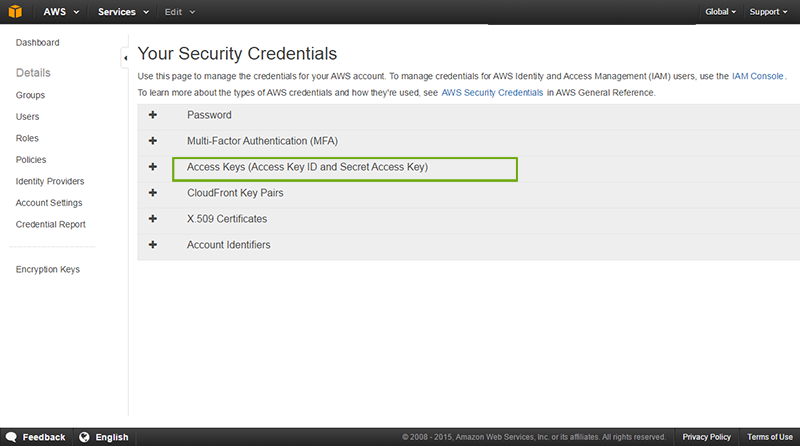
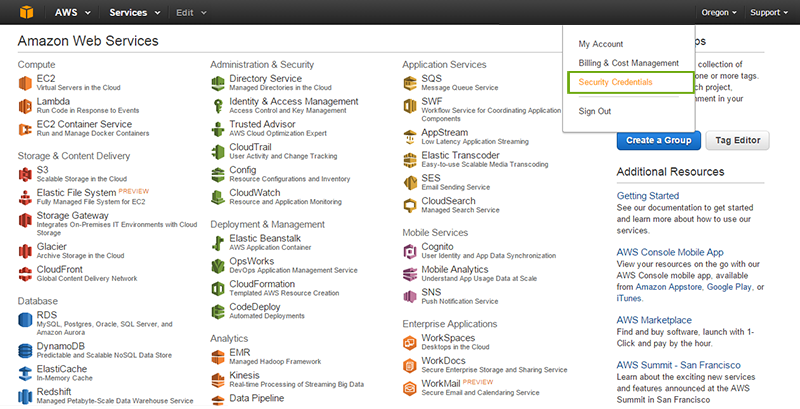
Select Security Credentials from the drop down under your username.
Select Access Keys ( Access Key ID and Secret Access Key).
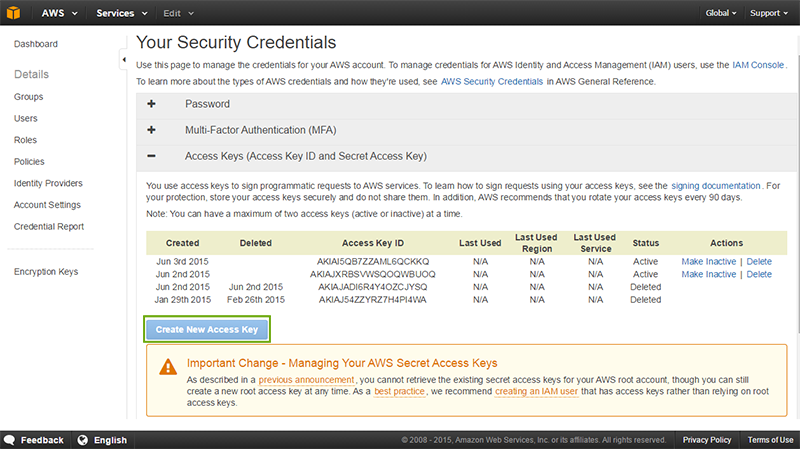
Click on Create New Access Key.
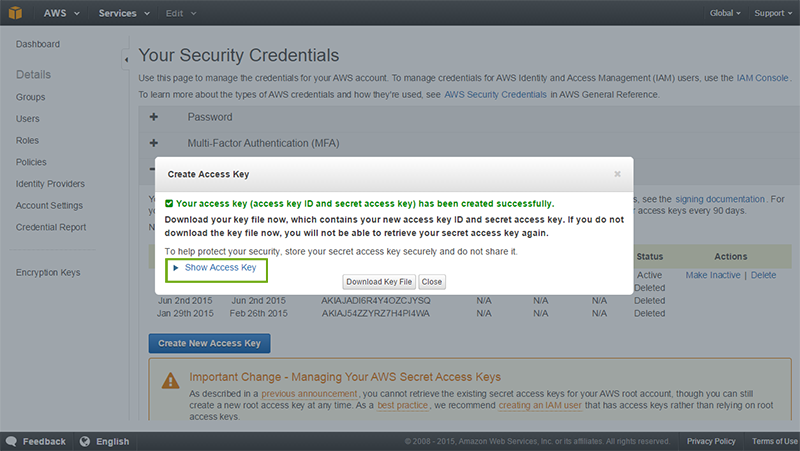
A Create Access Key screen with the message " Your access key has been created successfully" appears. Click Show Access Key to view the details.
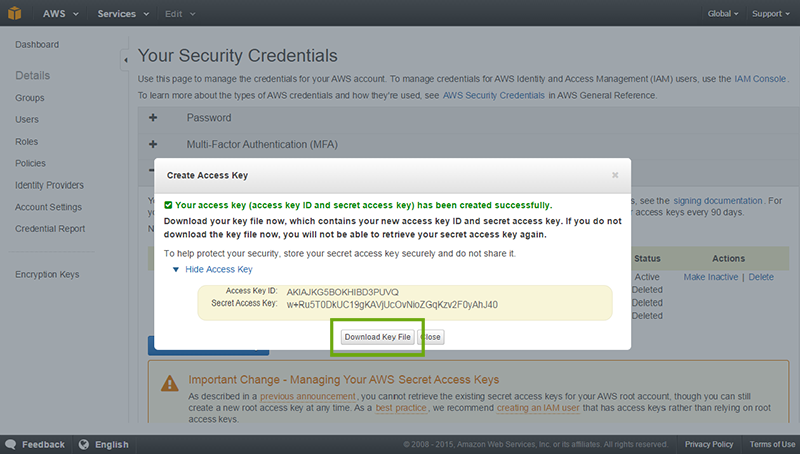
Click on Download Key File to download the file containing your access key ID and secret access key.
Add a AWS Monitor
Login to Site24x7.
Click Admin > Inventory > Monitors > Add Monitor.
Select Amazon Web Services in the Add Monitor screen.
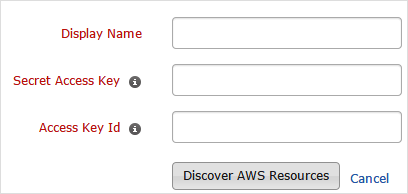
Specify the following details to configure the monitor: Display Name: Provide a label for the AWS monitor added. Secret Access Key: Specify the Secret key of your AWS account provided by Amazon. Refer here on how to obtain the secret access key. Access Key ID: Specify the Access key of your AWS account. This is provided by Amazon at the time of signup for your AWS account.
Click Discover AWS Resources to submit.
Site24x7 will automatically discover the EC2 and RDS instances and adds them to the configured AWS monitor. To configure threshold and availability for EC2 and RDS instances, refer Threshold and Availability for EC2 and RDS Instances.
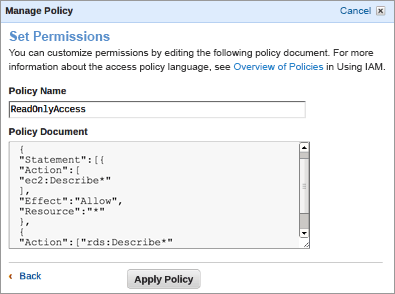
Alternately, you may also provide Secret Key / Access Key obtained for an AWS IAM user who has Read Only access privileges. The IAM user should posses the read-only privileges for EC2, RDS and S3 buckets information.
Was this document helpful?
Sorry to hear that. Let us know how we can improve this document.
Thanks for taking the time to share your feedback. We’ll use your feedback to improve our online help resources.