Click Admin > Configuration Profiles > Threshold and Availability.
Click Add Threshold and Availability in Threshold and Availability screen.
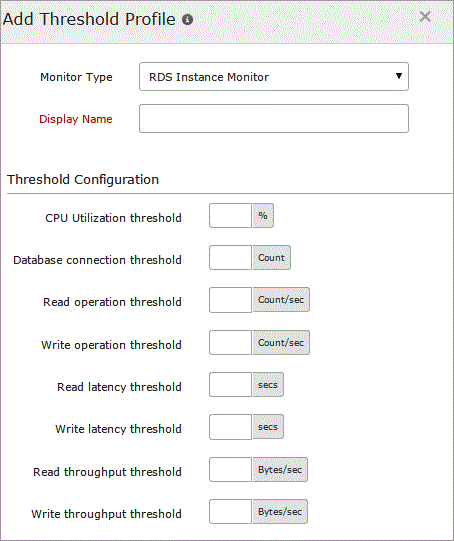
Specify the following details for adding threshold and availability for RDS Instance Monitor:
Monitor Type: Select RDS Instance Monitor from the drop down list.
Display Name: Provide a label for identification purpose.
Specify the following details for threshold configuration:
CPU utilization threshold: Enter a value in percentage and get notified when the CPU utilization crosses the set value and use the slider button to trigger the required kind of alert.
Database connection threshold: Enter a value and get notified when the number of database connections in use exceeds the set value and use the slider button to trigger the required kind of alert.
Read operation threshold: Enter a value and get notified when the number of disk read operations per second crosses the set value and use the slider button to trigger the required kind of alert.
Write operation threshold: Enter a value and get notified when the number of disk write operations per second crosses the set value and use the slider button to trigger the required kind of alert.
Read Latency threshold: Specify a value and receive alerts when the average time taken per disk read operation exceeds the set value and use the slider button to trigger the required kind of alert.
Write Latency threshold: Specify a value and receive alerts when the average amout of time taken per disk write operation exceeds the set value and use the slider button to trigger the required kind of alert.
Read throughput threshold: Specify a value and receive alerts when the average number of bytes read from the disk per second exceeds the set value and use the slider button to trigger the required kind of alert.
Write throughput threshold: Specify a value and receive alerts when the average number of bytes written from the disk per second exceeds the set value and use the slider button to trigger the required kind of alert.
Click Save.
The threshold and availability profile created for RDS Instance monitor will be automatically listed in the Threshold and Availability screen along with the others already created.
A default threshold and availability profile for RDS Instance monitor will be automatically listed in the Threshold and Availability screen when the users for the first time click Admin > Inventory > Monitors > Add Monitor > RDS Instance Monitor.
Edit Threshold and Availability for RDS Instance Monitor
Click the profile which you want to edit.
Edit the parameters which needs to be changed in the Edit Threshold Profile window.
Click Save.
Delete Threshold and Availability for RDS Instance Monitor
Click the profile in the Threshold and Availability screen which needs to be deleted.
This will navigate to Edit Threshold Profile window.
Click Delete.
Was this document helpful?
Sorry to hear that. Let us know how we can improve this document.
Thanks for taking the time to share your feedback. We’ll use your feedback to improve our online help resources.