Add Java Agent
Add Java Agent
How Can I...
Install APM Insight Java Agent
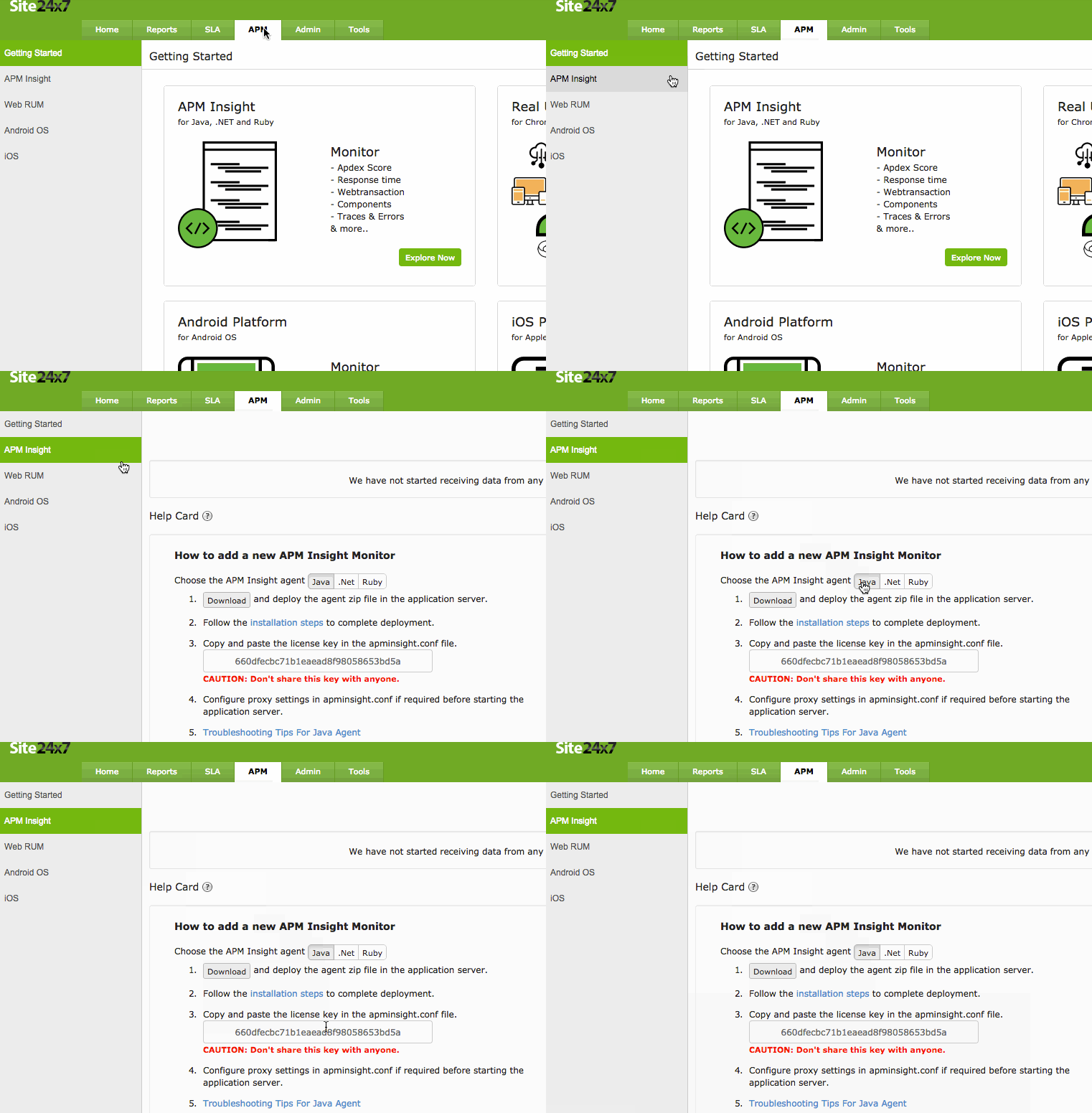
- Select APM > APM Insight > Java tab.
- Click on Download to download the apminsight-javaagent.zip file.
- The zip file contains apminsight-javaagent.jar, apminsight-javaagent-api.jar and its conf files.
Installing Java Agent in Glassfish Server 3.x & above
For standalone setup:
- Extract the zip file to a new directory outside the glassfish server directory.
- Open apminsight.conf file in any text editor and add license.key value, which can be obtained from Site24x7 APM Insight page. Refer here to fine tune the agent settings.
- Open the administrative console of your glassfish server. Select Configurations and select the configuration used by the server.
- Select JVM Settings > Add JVM Option, then add the following parameter:
-javaagent:<agent_directory_full_path>/apminsight-javaagent.jar
For Example: -javaagent:D:/apminsight/apminsight-javaagent.jar
- Click Save button and start the glassfish server
For cluster setup:
- Extract the zip file to a new directory outside the glassfish server directory
- Copy the apminsight-javaagent.jar file from above directory to <GLASSFISH_HOME>\glassfish\domains\<domain>\lib\ext directory of the domain server.
- Create a new directory named "apminsight" under <GLASSFISH_HOME>\glassfish\nodes\<node>\<instance> in instance server and copy only the agent conf files to this directory.
- Open apminsight.conf file in any text editor and add license.key value, which can be obtained from Site24x7 APM Insight page. Refer here to fine tune the agent settings.
- Repeat the above step to add the java agent for every instance.
- Open the administrative console of your glassfish server. Select Configurations and select the configuration used by the cluster.
- Select JVM Settings > Add JVM Option, then add the following parameters as such
-javaagent:${com.sun.aas.instanceRoot}/lib/ext/apminsight-javaagent.jar
-Dapminsight.home=${com.sun.aas.instanceRoot}/apminsight
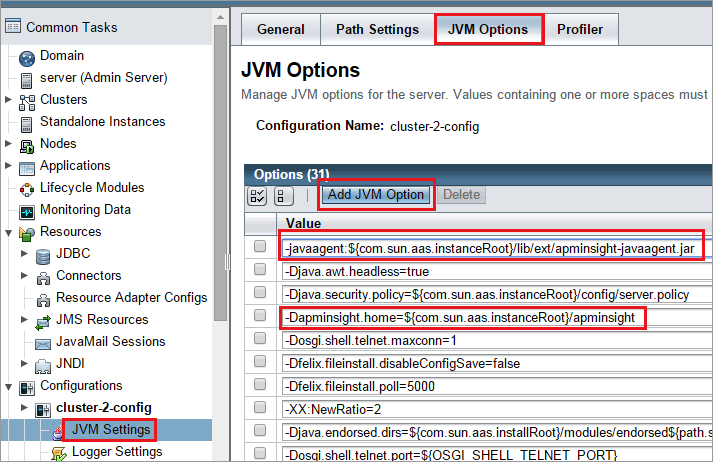
- Click Save button and start the glassfish cluster
Installing Java Agent in JBoss AS 4.2.x & above
- Extract the zip file to a new directory to find agent jar and its configuration files.
- Open apminsight.conf file in any text editor and add license.key value, which can be obtained from Site24x7 APM Insight page. Refer here to fine tune the agent settings.
For JBoss AS 4.x, 5.x servers:
- For Windows, open <JBOSS_HOME>\bin\run.bat in any text editor and add the following entry at the top and save.
set JAVA_OPTS=-javaagent:<agent_directory_full_path>/apminsight-javaagent.jar %JAVA_OPTS%
- For Linux, open <JBOSS_HOME>/bin/run.sh in any text editor and add the following entry at the top and save.
export JAVA_OPTS="$JAVA_OPTS -javaagent:<agent_directory_full_path>/apminsight-javaagent.jar"
For JBoss AS 6.x servers:
- For Windows, open <JBOSS_HOME>\bin\run.bat in any text editor and add the following entry at the top and save.
set JAVA_OPTS=-javaagent:<agent_directory_full_path>/apminsight-javaagent.jar -Djava.util.logging.manager=org.jboss.logmanager.LogManager -Xbootclasspath/p:<JBOSS_HOME>/lib/jboss-logmanager.jar %JAVA_OPTS%
- For Linux, open <JBOSS_HOME>/bin/run.sh in any text editor and add the following entry at the top and save.
export JAVA_OPTS="$JAVA_OPTS -javaagent:<agent_directory_full_path>/apminsight-javaagent.jar -Djava.util.logging.manager=org.jboss.logmanager.LogManager -Xbootclasspath/p:<JBOSS_HOME>/lib/jboss-logmanager.jar"
For JBoss AS 7.x servers:
- There is a bug in JBoss AS 7.2.x with a hindrance to deploy our APM Insight Java Agent in this server. We suggest to upgrade the JBoss server and try our APM Insight.
- Please make necessary changes to the logger jar names, as these vary for different versions of JBoss AS.
- In standalone setup:
Edit <JBOSS_HOME>/bin/standalone.bat(In Linux, standalone.sh) file to add the following java arguments to the existing JAVA_OPTS.
-Djboss.modules.system.pkgs=org.jboss.byteman,org.jboss.logmanager,com.manageengine -Djava.util.logging.manager=org.jboss.logmanager.LogManager -Xbootclasspath/p:<JBOSS_HOME>/modules/org/jboss/logmanager/main/jboss-logmanager-<version>.jar -Xbootclasspath/p:<JBOSS_HOME>/modules/org/jboss/logmanager/log4j/main/jboss-logmanager-log4j-<version>.jar -Xbootclasspath/p:<JBOSS_HOME>/modules/org/apache/log4j/main/log4j-<version>.jar -javaagent:<agent_directory_full_path>/apminsight-javaagent.jar
- In domain setup:
Edit <JBOSS_HOME>/domain/configuration/Host.xml file and locate <servers> tag and add the mentioned tags under your desired <server name="your_server" ...> tag.
< system-properties>
<property name="java.util.logging.manager" value="org.jboss.logmanager.LogManager" boot-time="true"/>
<property name="jboss.modules.system.pkgs" value="org.jboss.byteman,org.jboss.logmanager,com.manageengine" boottime="true"/>
</system-properties>
<jvm name="insight">
<jvm-options>
<option value="-Xbootclasspath/p:<JBOSS_HOME>/modules/org/jboss/logmanager/main/jboss-logmanager-<version>.jar" />
<option value="-Xbootclasspath/p:<JBOSS_HOME>/modules/org/jboss/logmanager/log4j/main/jboss-logmanager-log4j-<version>.jar" />
<option value="-Xbootclasspath/p:<JBOSS_HOME>/modules/org/apache/log4j/main/log4j-<version>.jar" />
<option value="-javaagent:<agent_directory_full_path>/apminsight-javaagent.jar" />
</jvm-options>
</jvm>
- Save the file and start the JBoss Application Server.
Installing Java Agent in JBoss EAP 6.2.x & above
- Extract the zip file to a new directory to find agent jar and its configuration files.
- Open apminsight.conf file in any text editor and add license.key value, which can be obtained from Site24x7 APM Insight page. Refer here to fine tune the agent settings.
Please make necessary changes to the logger jar name, as this varies for different versions of JBoss EAP
- For Standalone setup:
Edit <JBOSS_HOME>/bin/standalone.bat(In Linux, standalone.sh) file to add the following java arguments to the existing JAVA_OPTS
-Djboss.modules.system.pkgs=org.jboss.byteman,org.jboss.logmanager,com.manageengine -Djava.util.logging.manager=org.jboss.logmanager.LogManager -Xbootclasspath/p:<JBOSS_HOME>/modules/system/layers/base/org/jboss/logmanager/main/jboss-logmanager-<version>.jar -javaagent:<agent_directory_full_path>/apminsight-javaagent.jar
- For Domain setup:
Edit <JBOSS_HOME>/domain/configuration/Host.xml file and locate <servers> tag and add the mentioned tags under your desired <server name="your_server" ...> tag.
<system-properties>
<property name="java.util.logging.manager" value="org.jboss.logmanager.LogManager" boot-time="true"/>
<property name="jboss.modules.system.pkgs" value="org.jboss.byteman,org.jboss.logmanager,com.manageengine" boottime="true"/>
</system-properties>
<jvm name="insight">
<jvm-options>
<option value="-Xbootclasspath/p:<JBOSS_HOME>/modules/system/layers/base/org/jboss/logmanager/main/jboss-logmanager-<version>.jar" />
<option value="-javaagent:<agent_directory_full_path>/apminsight-javaagent.jar" />
</jvm-options>
</jvm>
- Save the file and start the JBoss EAP server.
Installing Java Agent in JBoss EAP 6.2.x &above through Management Console
- Extract the zip file to a new directory to find agent jar and its configuration files.
- Open apminsight.conf file in any text editor and add license.key value, which can be obtained from Site24x7 APM Insight page. Refer here to fine tune the agent settings.
Please make necessary changes to the logger jar name, as this varies for different versions of JBoss EAP
- Login to JBoss EAP management console as 'Management Releam' user
- Select Hosts > Server Configurations > <Your Server> > JVM Configuration tab
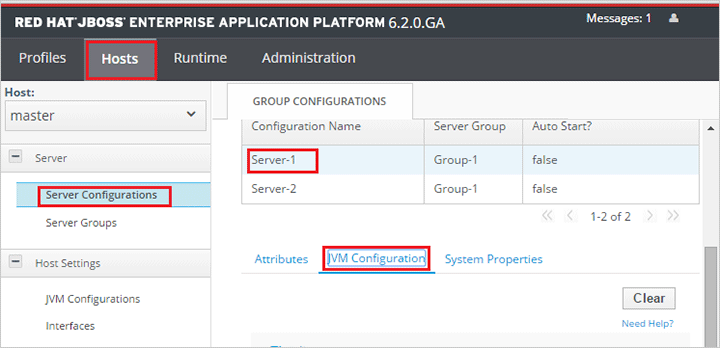
- Click on Edit button to create a JVM Configuration for the server. In JVM optionstext box, add the following lines (each JVM option must be separated by a new line)
-Xbootclasspath/p:JBOSS_HOME/modules/system/layers/base/org/jboss/logmanager/main/jboss-logmanager-<version>.jar
-javaagent:AGENT_HOME/apminsight-javaagent.jar
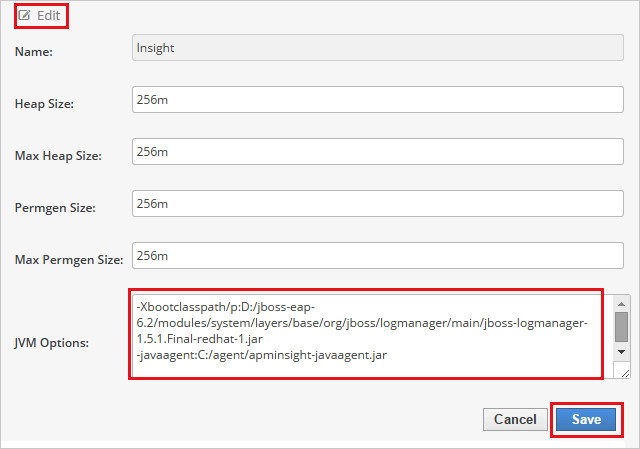
Click on save button, you will see Added/Modified JVM Config message at top of the page. If the message doesn't appear, check your configuration carefully and save it again.
- Select System Properties tab and Click Add button.
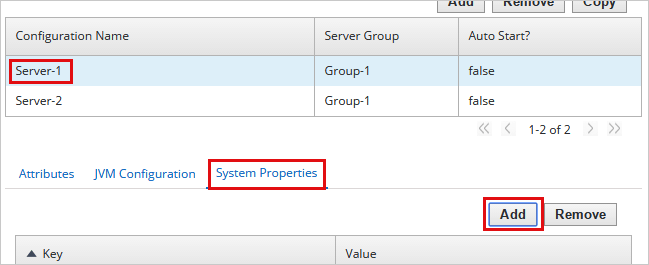
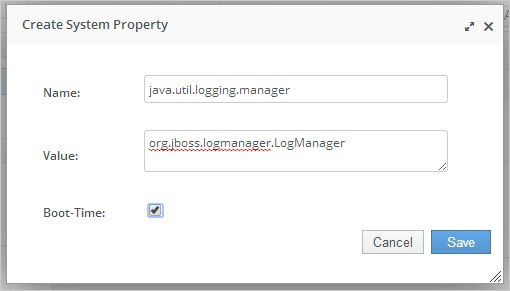
In the newly opened dialog box, fill in the following values
Name : java.util.logging.manager
Value : org.jboss.logmanager.LogManager
Boot-Time : Check
Click on Save button. Again click Add button and fill in with values
Name : jboss.modules.system.pkgs
Value : org.jboss.logmanager,com.manageengine.apminsight
Boot-Time : Check
And click Save button
- Finally, start/restart your configured server instance from “Runtime” tab at top left corner of the page
Installing Java Agent in Tomcat Server 6.x & above
- Extract the zip file to a new directory to find agent jar and its configuration files.
- Open apminsight.conf file in any text editor and add license.key value, which can be obtained from Site24x7 APM Insight page. Refer here to fine tune the agent settings.
- For Tomcat as non-service installation:
In Windows, edit <TOMCAT_HOME>\bin\catalina.bat and add the following entry to the top and save the file.
set JAVA_OPTS=%JAVA_OPTS% -javaagent:<agent_directory_full_path>/apminsight-javaagent.jar
In Linux, edit <TOMCAT_HOME>/bin/catalina.sh and add the following entry to the top and save the file.
export JAVA_OPTS="$JAVA_OPTS -javaagent:<agent_directory_full_path>/apminsight-javaagent.jar"
- For Tomcat as service installation, navigate to Configure Tomcat > JAVA tab and add the entry in Java Options textbox.
-javaagent:<agent_directory_full_path>/apminsight-javaagent.jar
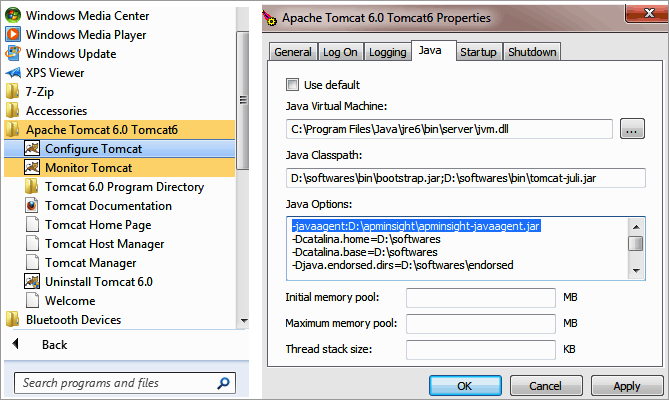
- After adding the entry, click Apply.
- Start the tomcat server.
Installing Java Agent in Websphere 7.x & above
- Extract the zip file to a new directory to find agent jar and its configuration files.
- Open apminsight.conf file in any text editor and add license.key value, which can be obtained from Site24x7 APM Insight page. Refer here to fine tune the agent settings.
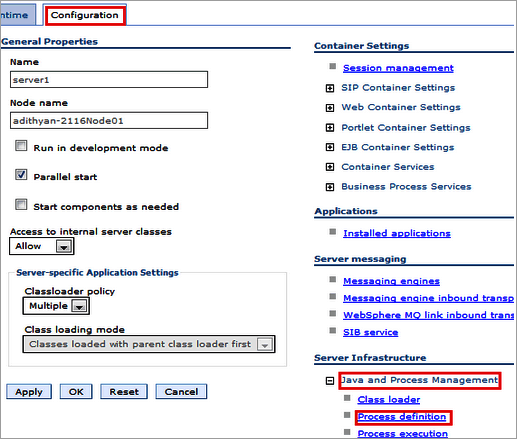
- Open administrative console of your IBM Websphere server, Select Servers > ServerType > WebSphere Application Servers.
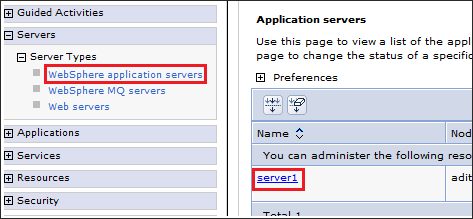
- Select (Your Server Name) > Java and Process Management > Process Definition.
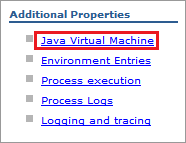
- Under Additional Properties, select Java Virtual Machine.
- Locate Generic JVM Arguments textbox and enter the following parameter:
-javaagent:<agent_directory_full_path>/apminsight-javaagent.jar
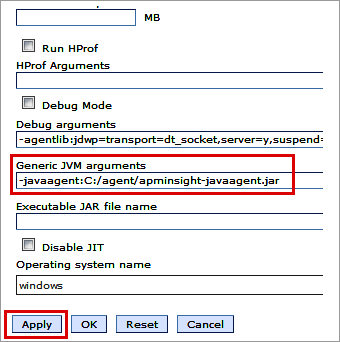
- Save the settings and start the Websphere server.
Installing Java Agent in Weblogic 10.3.x & above
- Extract the zip file to a new directory to find agent jar and its configuration files.
- Open apminsight.conf file in any text editor and add license.key value, which can be obtained from Site24x7 APM Insight page. Refer here to fine tune the agent settings.
- Open the administrative console of Weblogic server, Select Environment > Servers > Configuration tab.
- Select (Your Server Name) > Configuration > Server Start tab.
- Locate Arguments textbox and enter the following argument:
-javaagent:<agent_directory_full_path>/apminsight-javaagent.jar -DUseSunHttpHandler=true
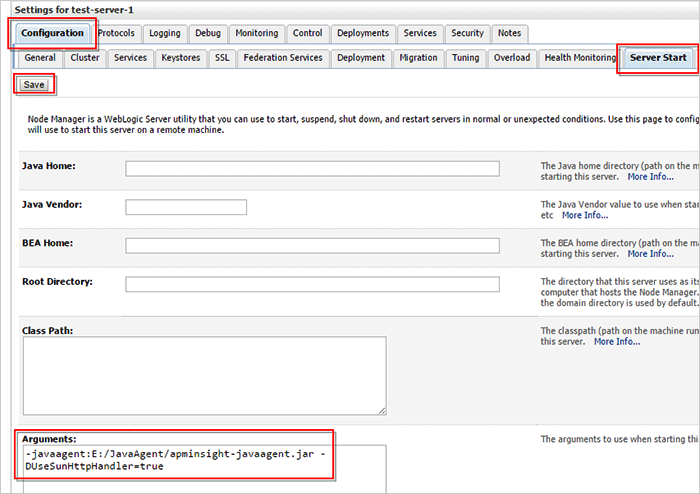
- Save the settings and start the Weblogic server.
Installing Java Agent in Resin Server 3.1 & above
- Extract the zip file to a new directory to find agent jar and its configuration files.
- Open apminsight.conf file in any text editor and add license.key value, which can be obtained from Site24x7 APM Insight page. Refer here to fine tune the agent settings.
- For Resin 3.x servers, Open <RESIN_HOME>/conf/resin.conf file in any text editor. Locate your <cluster> tag and the <server> tag of the server you need to monitor and add the following tag:
<jvm-arg>-javaagent:<agent_directory_full_path>/apminsight-javaagent.jar</jvm-arg>
- For Resin 4.x servers, Open <RESIN_HOME>/conf/resin.xml file in any text editor. Locate your <cluster> tag and the <server> tag of the server you need to monitor and add the following tag:
<jvm-arg>-javaagent:<agent_directory_full_path>/apminsight-javaagent.jar</jvm-arg>
- Save the file and start the Resin server.
Installing Java Agent in WildFly 8.x & above
- Extract the zip file to a new directory to find agent jar and its configuration files
- Open apminsight.conf file in any text editor and add license.key value, which can be obtained from Site24x7 APM Insight page. Refer here to fine tune the agent settings.
Please make necessary changes to the logger jar name, as this varies for different versions of WildFly servers
- For Standalone setup:
Edit <WILDFLY_HOME>/bin/standalone.conf.bat (In Linux, standalone.conf) file to add the following java arguments to the existing JAVA_OPTS
-Djboss.modules.system.pkgs=org.jboss.byteman,org.jboss.logmanager,com.manageengine -Djava.util.logging.manager=org.jboss.logmanager.LogManager -Xbootclasspath/p:<WILDFLY_HOME>/modules/system/layers/base/org/jboss/logmanager/main/jboss-logmanager-<version>.jar -javaagent:<agent_directory_full_path>/apminsight-javaagent.jar
- For Domain setup:
Edit <WILDFLY_HOME>/domain/configuration/Host.xml file and locate <servers> tag and add the mentioned tags under your desired <server name="your_server" ...> tag
<system-properties>
<property name="java.util.logging.manager" value="org.jboss.logmanager.LogManager" boot-time="true"/>
<property name="jboss.modules.system.pkgs" value="org.jboss.byteman,org.jboss.logmanager,com.manageengine" boottime="true"/>
</system-properties>
<jvm name="insight">
<jvm-options>
<option value="-Xbootclasspath/p:<WILDFLY_HOME>/modules/system/layers/base/org/jboss/logmanager/main/jboss-logmanager-<version>.jar" />
<option value="-javaagent:<agent_directory_full_path>/apminsight-javaagent.jar" />
</jvm-options>
</jvm>
- Save the file and start the Wildfly server
Installing Java Agent in JOnAS 4.x & above
- Extract the zip file to a new directory to find agent jar and its configuration files
- Open apminsight.conf file in any text editor and add license.key value, which can be obtained from Site24x7 APM Insight page. Refer here to fine tune the agent settings.
- For Windows, open <JONAS_ROOT>\bin\jonas.bat in any text editor and add the following entry at the top and save the file.
set JONAS_OPTS=%JONAS_OPTS% -javaagent:<agent_directory_full_path>/apminsight-javaagent.jar
- For Linux, open <JONAS_ROOT>/bin/jonas in any text editor and append the following value to JONAS_OPTS variable
"-javaagent:<agent_directory_full_path>/apminsight-javaagent.jar"
Installing Java Agent in Other Servers
- Extract the zip file to a new directory to find agent jar and its configuration files.
- Open apminsight.conf file in any text editor and add license.key value, which can be obtained from Site24x7 APM Insight page. Refer here to fine tune the agent settings.
- For Windows, open <your application server startup script>.bat using a text editor and add the following entry at the top of the startup script.
SET JAVA_OPTS=%JAVA_OPTS% -javaagent:"<agent_directory_full_path>/apminsight-javaagent.jar"
Example:
SET JAVA_OPTS=%JAVA_OPTS% -javaagent:"D:/apminsight/apminsight-javaagent.jar"
- For Linux, open <your application server startup script>.sh using a text editor and add the following entry at the top of the startup script.
export JAVA_OPTS="$JAVA_OPTS -javaagent:<agent_directory_full_path>/apminsight-javaagent.jar"
Example:
export JAVA_OPTS="$JAVA_OPTS -javaagent:/home/local/softwares/apminsight/apminsight-javaagent.jar"
- Save the file and start the server.


