Use Health Monitor
- The Health monitor is a self diagnostic tool, intended to provide a snapshot of the agent settings, for identifying and troubleshooting frequently encountered configuration issues in the agent. It is available, as a feature, from APM Insight .NET agent version 1.8 and above.
- It can be found in the start menu under "APM Insight .NET Agent" folder.
- With the HealthMonitor, you can
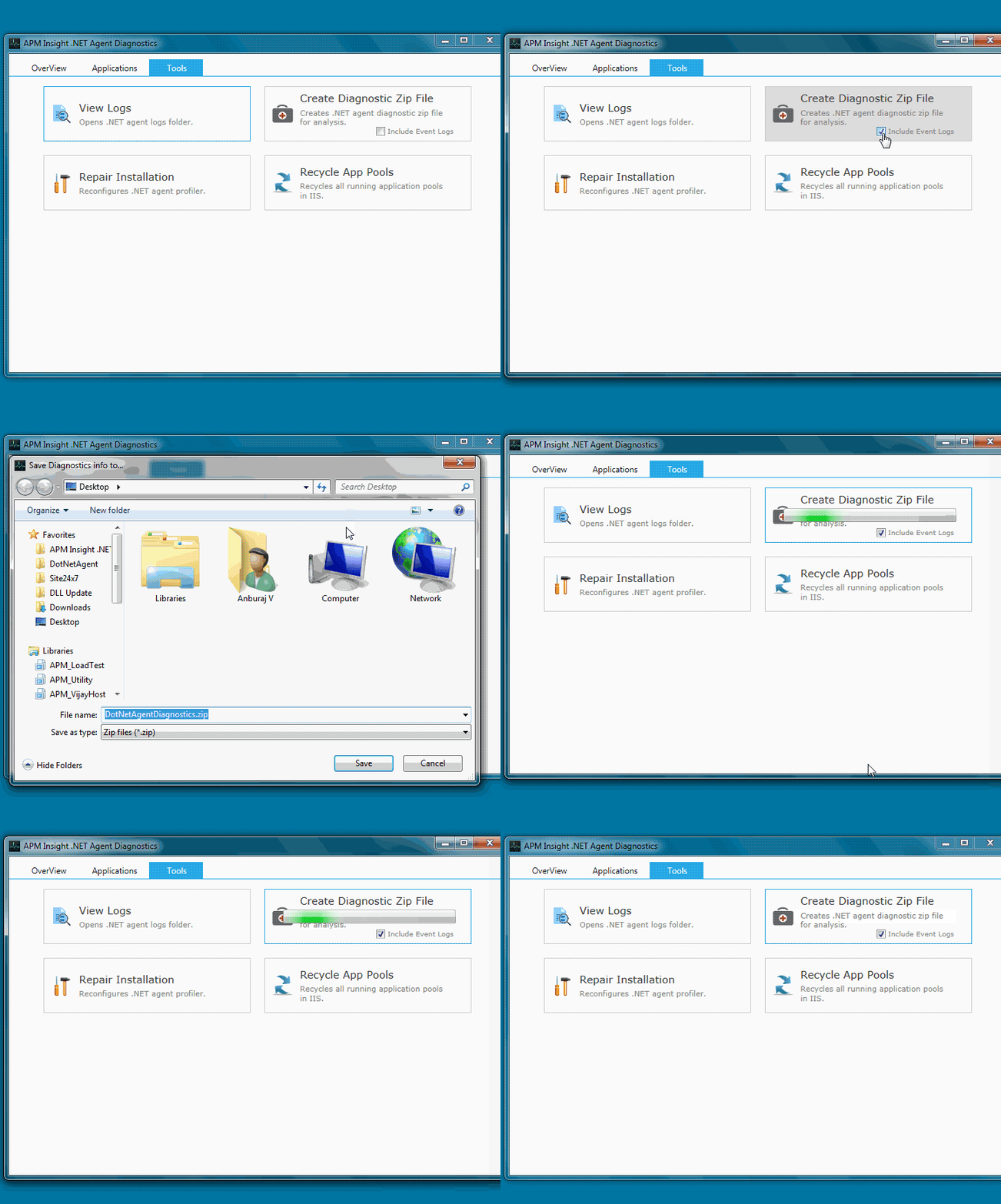
- Create Diagnostic zip file - The HealthMonitor captures all agent logs, and other system information, necessary to analyze the issue by the support team. Optionally, event log information could also be appended.[ii] Include this zip file in support cases.
For Agent version 2.5 and above
For Agent version below 2.5
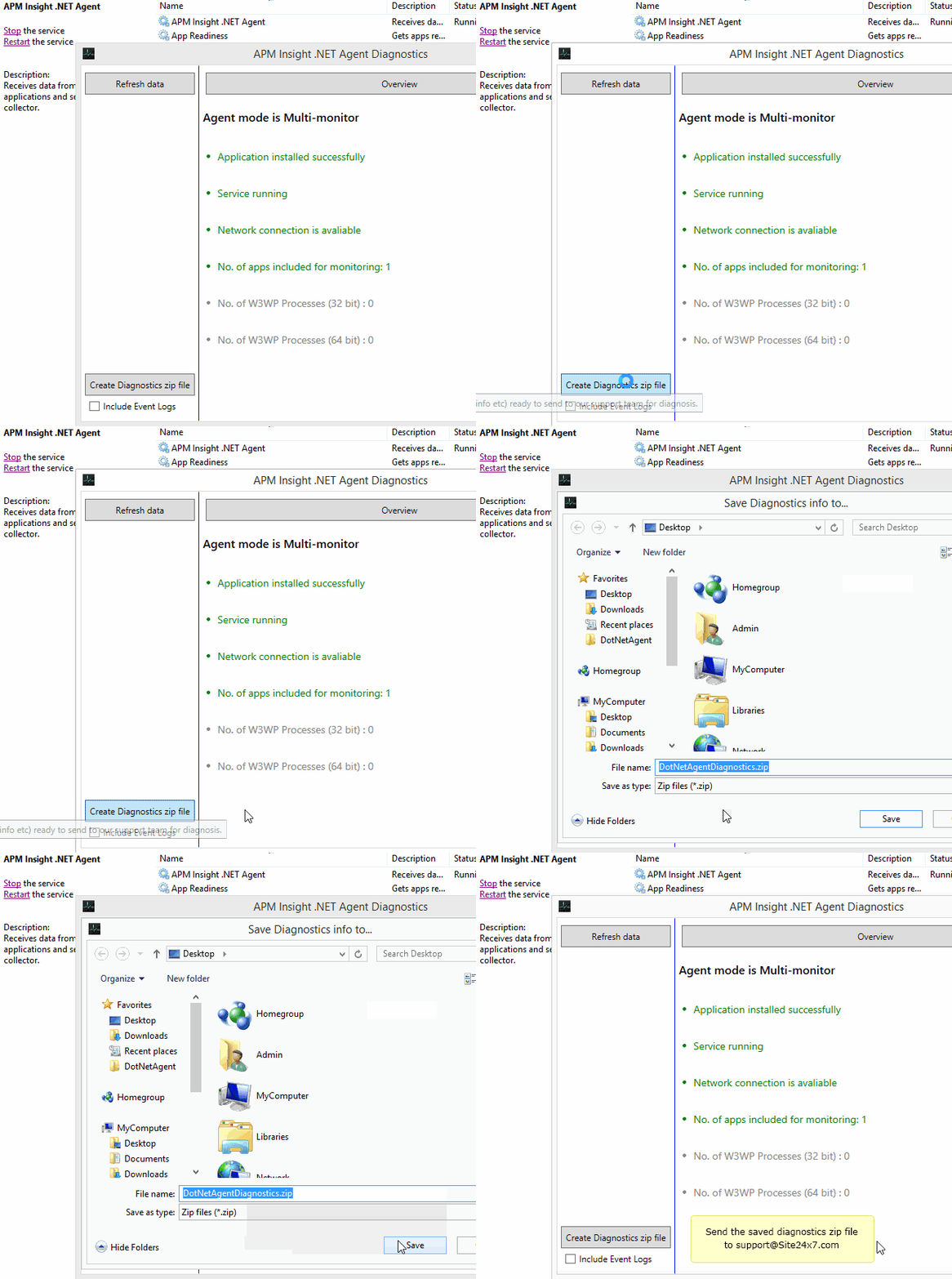
- View Service settings - Agent service mode (i.e., single/multi- instance), APM agent service status (running/stopped) and log level.
- Check Network connectivity- For successful communication, the APM Insight agent must be able to connect to site24x7.com's servers, under ports 80 and 443. Please verify if these ports are not blocked by firewall or anti-virus software.
- Check Application filters - If application filters are applied, verify if the applications running are monitored. Please refer AppFilters.
- Monitor worker processes - If no worker processes are shown as running, perform some transactions and retry.
In Agent below v2.3, If worker processes are still not counted, then it could be due to the bitness of the agent. APM Insight agent and the worker processes should have the same bit. (i.e., 32-bit agent for 32-bit applications, and 64-bit agent for 64-bit applications)
- Verify monitor status - The status of the monitor (i.e., Managed/UnManaged/Deleted etc) will be displayed, under the monitor name,.For single instance, only one monitor will be listed. For multi instance, all the monitors created by the agent would be listed.
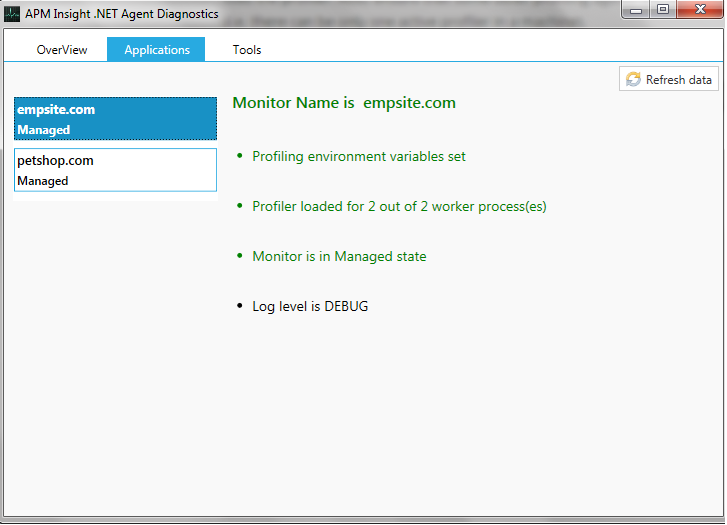
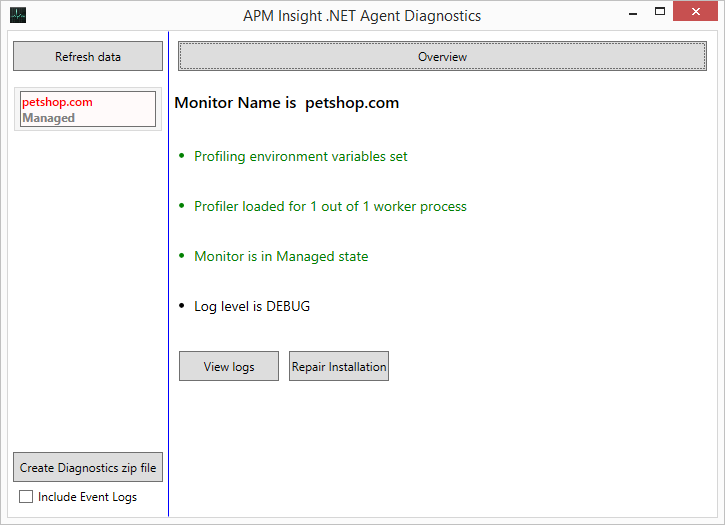
- Verify profiler status - In order to successfully instrument the IIS applications, the profiler has to be loaded into the worker process. If the profiler loading failed, an IIS Reset must be performed to re-load the profiler. Also, ensure that some other profiling agents are not installed in the same machine (i.e. there can be only one active profiler in a machine).
For Agent version 2.5 and above
For Agent version below 2.5
In case of issues, please ensure that some transactions are done when the agent log level is "DEBUG" before creating the diagnostics zip. This would help us narrow down the issue quicker.


