Configure Application Filters in Settings Dialog
Agent version 2.5 and above
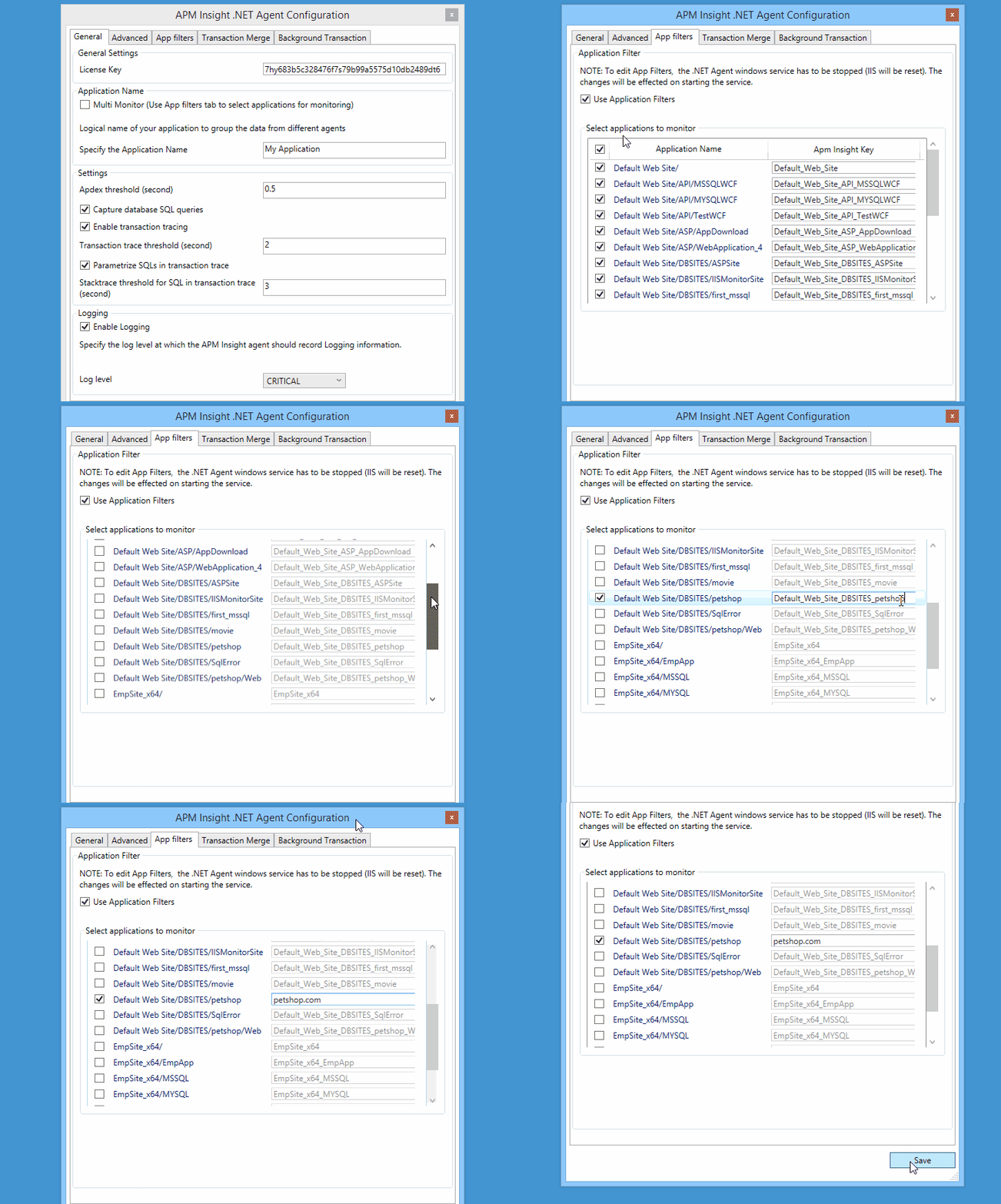
- Launch APM Insight .Net Agent Configuration window (Start Menu > APM Insight .Net Agent Configuration). This dialog is launched automatically during installation.
- If apminsight.appname key is present in any of the web applications in IIS, the dialog will give an option to remove them.
- Go to AppFilters tab.
- Select Use App Filters.
- Select applications to be monitored. By default, all applications will be selected for monitoring.
- Provide applications a unique name in the text box under column Apm Insight key. This will not affect the IIS.
- Click Save.
Application pools will be recycled immediately for the modified applications.
For Agent version below 2.5,
- Ensure you stop the .NET Agent windows service, before launching Edit configuration.
- Once you have modified the applications, start the .NET Agent windows service.
Agent below v2.0
- Launch Edit Configuration window (Start Menu > Edit Configuration (x64 or x86)). This dialog is launched automatically during installation.
- Go to AppFilters tab.
- Select Use App Filters.
- Select Use ApmInsight keys. This will add a key apminsight.appname to the selected applications in their respective web.config file, under section appSettings.
- Select applications to be monitored. By default, all applications will be selected for monitoring.
- Provide applications a unique name in the text box under column Apm Insight key. Column will be hidden ifUse ApmInsight keys in step 4 is not selected.
- Click Save.
- Restart .NET Agent windows service to effect changes.


