Select the installation platform as Linux in the On-Premise Poller screen.
Click on the binary type (32-bit or 64-bit) to save the software to your system.
Install the Agent
Once the file is downloaded in your system, the following command needs to be executed in the terminal to provide access to execute the file:
/Downloads $ chmod 777 <filename>.bin
Type the command in the terminal to execute the file:
./<filename>
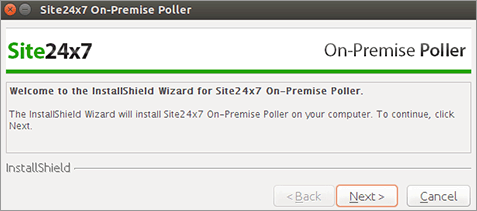
The InstallShield Window will open up when the files are executed. Click Next.
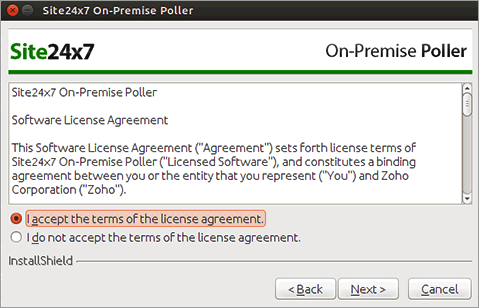
Read the License agreement and click Next to proceed.
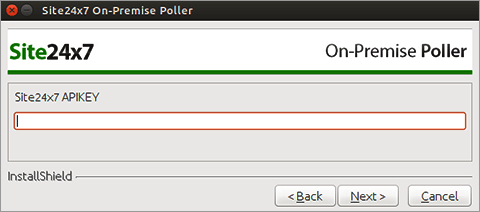
Enter your Device Key when prompted. Click Next.
The Device Key can be obtained from Admin > Developer > Device Key.
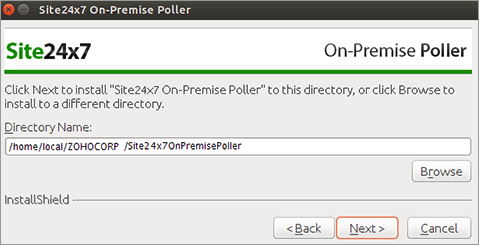
Specify the directory where the On-Premise Poller needs to be installed.
Click Next.
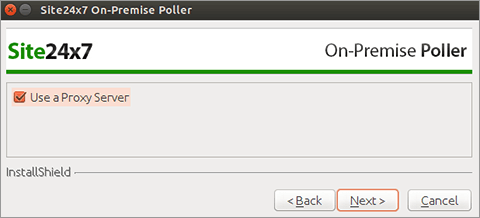
Enable the check box to use a Proxy.
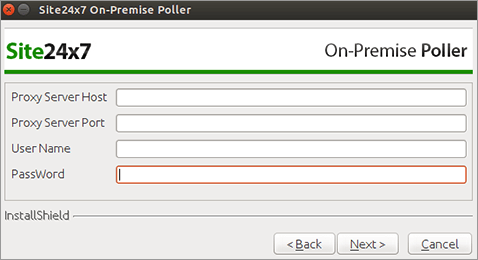
Mention the proxy details and click OK to complete the installation.
To start the installed Linux Poller, go to the directory in the terminal where the Poller is installed.
Execute the following command to start the server.
sh StartServer.sh
Also provide access to the below domains and ports for communication between agent and Site24x7 server.
Domain
Port
https://dms.zoho.com
443
https://plus.site24x7.com
443
https://plus2.site24x7.com
443
Now you can view the added Poller for Linux under Admin > On-Premise Poller.
The added Poller will act as an another locations in addition to Site24x7 global monitoring location to monitor websites, web app etc. The On-Premise Poller location will be listed under Admin > Configuration Profiles > Location Profile.
Edit/Modify the added On-Premise Poller
Click the On-Premise Poller which you want to edit in Monitors screen.
Enter an appropriate display name for the added monitor.
The host name, IP address, and the details of On-Premise Poller will be displayed by default.
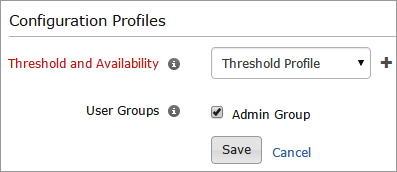
Select a threshold profile from the drop down list or choose the default threshold set available and get notified when the resources cross the configured threshold and availability. To create a customized threshold and availability profile, refer Threshold and Availability.
Select the user group that need to be alerted during a outage. To add multiple users in a group, see User Groups.
Click Save.
Was this document helpful?
Sorry to hear that. Let us know how we can improve this document.
Thanks for taking the time to share your feedback. We’ll use your feedback to improve our online help resources.